Showing posts sorted by relevance for query json. Sort by date Show all posts

Monday, November 3, 2014

How do you work with Javascript Object Notation?

With enhancements to JavaScript in recent years and the advent of AJAX, interest in JavaScript took a turn for the better. Early on with AJAX it was recognized that there was a contender for XML for handling data which was stable, faster, and portable. This was the beginning of JSON.

Although RFC 4627 marks a JSON milestone, it appears that it had already been discussed among the JavaScript cognoscenti. JSON is equally, or even more suited, for data exchange than XML, which was originally considered to be the ideal wire friendly format.
What is JSON?
So what is JSON? It’s an acronym you might have started appearing in greater frequency on the Internet. JSON stands for JavaScript Object Notation. Well, it is a special object notational construct and is a subset of JavaScript. It can be used wherever JavaScript can be used and you do not need to download anything. There is no need to worry about the version of JavaScript.
You can read more about JSON in RFC 4627. JSON was designed to be minimal (small), textual, and portable. The MIME Media Type is now registered as application/json. JSON can handle exchanging data in applications written in different programming languages such as C, C#, ColdFusion, Perl, Python, Ruby, and so forth.

JSON Basics
JSON has simple types and two structures which are very similar to the universally used data structures such as dictionary objects, hash values, key/value pairs, lists, sequences, record sets, arrays and so on. It is a natural.

Types in JSON

JSON’s JavaScript subset admits of the following four primitive types.
* strings [except ", and Control Characters]
* number [Integer, real and Floating point]
* Boolean [literals, true and false]
* null

Unlike JavaScript it does not support hexadecimal and octal representation of numbers, nor does it support NaN (not a number) and infinity. Also numbers do not need quotes but strings do.
In addition to the four primitives it also supports two kinds of structures, object and array.

JSON Object
A JSON object is an unordered set (members) of key/value pairs, with keys being separated by values using a colon (:) and the members being separated by a comma (,). The colon and the comma are respectively called the name separator and the value separator.
Here is a variable that represents a JSON object with three members. “company”:”Hodentek” is one member of the JSON object where the key, which is “company,” is separated by the value, which is “Hodentek.” The object is always enclosed between curly brackets as shown in the declared variable. In this example all the values are of type string.

var jObj={"company":"Hodentek", "phone":"609-275-1205", "city":
"Plainsboro"};

You can access any member’s value using the dot notation as shown in the next snippet, which shows the “phone” of the object in the alert as “609-275-1205.”

alert(jObj.phone);//

The values of members of the JSON object can be of different types as shown in the following code listing.
 
‹Script Language="JavaScript"›

//values are numbers (integer and floating point)
var jobj2={"sunday":1, "tuesday":2.85, "wednesday":3};
document.write("‹b›jobj2.tuesday:‹/b› " + jobj2.tuesday +"‹br›");
//values are of mixed types
var jObj3={"culprit":true, "innocent":false, "notsure":null};
document.write("‹b›jObj3.culprit:‹/b› " + jObj3.culprit +"‹br›");
document.write("‹b›jObj3.innocent:‹/b› " + jObj3.innocent +"‹br›");
document.write("‹b›jObj3.notsure:‹/b› " + jObj3.notsure +"‹br›");

‹/script›

The displayed output when this code is browsed is as shown in the next picture.


JSON Array

Unlike JSON objects, JSON arrays are enclosed between square braces [ ]. The JSON array is an ordered sequence of values separated by a comma (,). The values can be any of the primitive types as well as the two structures, JSON objects and JSON arrays. Here is a JSON array variable with four string values.

var myJsonArray=["Red", "Blue", "Yellow", "Magenta"];

You will be able to access an array item from its position (0 based) as shown in the following listing.

‹SCRIPT LANGUAGE="JavaScript"›
var myJsonArray=["Red", "Blue", "Yellow", "Magenta"];
for (i=0; i‹4; i++){
document.write("‹b›myJsonArray["+i+"]‹/b›="+ myJsonArray[i]+"‹br›");
}
‹/SCRIPT›

The displayed output when this script is executed is as shown in the next picture.


It is possible to have an array  whose elements are of different types. Array items can be objects and arrays as well, as shown in the next listing.
‹SCRIPT LANGUAGE="JavaScript"›
//Array with different types
myJA2=["red", 1, null, true];
document.write("‹;b›myJA2:‹;/b›  " + myJA2[2]);
document.write("‹;p›‹;/p›");
//Nested array
myJA3=["red",1,["a", "b", "c"], false];
document.write("‹;b›myJA3[2][1]:‹;/b›  " + myJA3[2][1]);
document.write("‹;p›‹;/p›");
//Object in an array
myJA4=["red", {"Yes":"Yes, you do", "No":"No, you do not"}, 2];
document.write("‹;b›myJA4[1].Yes: ‹;/b›"+ myJA4[1].Yes);
‹;/SCRIPT›

The displayed output when this script is executed is as shown in the next picture.


Notice how the inner array and the object inside the array are  accessed.
JSON and XML
JSON is minimal textual representation of data as compared to the “verbose” XML, which makes equivalent XML much larger than JSON. Well, both are textual, but JSON is more so than XML with all its “angularities.” This is not to put down XML but just to highlight the obvious. This has obvious implications for AJAX, and more often JSON is the preferred data format in which AJAX results are received.
Everything in XML is a string but JSON has types as discussed earlier. JSON equivalent of XML In my previous tutorials, XML Islands and XML Responses and AJAX, the file webstudents.xml was used for illustration.

The same file will be represented as a JSON object in this section. The file is reproduced here for reference. In writing down the equivalence only the root element and its children are considered. Here is the listing of webstudents.xml.
‹wclass›
‹!--My students who took web programming class with me--›
‹student id="1"›
‹name›Linda Jones‹/name›
‹legacySkill› Access, VB5.0‹/legacySkill›
‹/student›
‹student id="2"›
‹name›Adam Davidson‹/name;
‹legacySkill›Cobol, MainFrame‹/legacySkill›
‹/student›
‹student id="3"›
‹name›;Charles Boyer‹/name›
‹legacySkill›HTML, Photoshop‹/legacySkill›
‹/student›
‹student id="4"›
‹name›Charles Mann‹/name›
‹legacySkill›Cobol, MainFrame‹;/legacySkill›
‹/student›
‹/wclass›

The rules in this conversion are simple. The root element will be the main object, and the three student nodes will form an array. Each array element will be a student object with its own attributes as a string value pair. If you keep the following syntax  in your cross-hairs it will be easy to follow the listing.

Object: var obj={key1:value1, key2:value2 ,key3:value3};
Array: var Arr=[valueA, valueB, valueC];

The XML document has both simple and complex types and this is developed piecewise to make the explanation easy to understand.

Root element with students and their attributes

The root element is the object with the three students arranged in an array. Each of the students is an object as shown in the next listing.

‹SCRIPT LANGUAGE="JavaScript"›
var justStudents={"wclass":[
{"student":{"id":"1"}},
{"student":{"id":"2"}},
{"student":{"id":"3"}}
]}
alert(justStudents.wclass[1].student.id);
‹/SCRIPT›
This is an object whose value is an array. The wclass[1] refers to the second student object and is accessed as shown in the alert statement. This code will display an alert window with value 2. In the above code the children of the students are not included.
Root element with student’s children

The next listing shows the JSON object with only the children of students shown in an array.

‹SCRIPT LANGUAGE="JavaScript"›
var webclass ={
"wclass":[
{"student":
{"name":"Linda Jones", "legacySkill":"Access, VB 5.0"}},
{"student":
{"name":"Adam Davidson", "legacySkill":"Cobol, MainFrame"}},
{"student":
{"name":"Charles Boyer", "legacySkill":"HTML, XML"}}
]
};
alert(webclass.wclass[1].student.legacySkill);
‹/SCRIPT›

Here student 2 is “Charles Boyer” and his legacyskill is displayed in the alert box. Combining the two, it is easy to see how the JSON equivalent of webstudents.xml can be fashioned as shown in the next listing.
‹SCRIPT LANGUAGE="JavaScript"›
var studentAll={"wclass":[
{"student":{"id":"1"},"name":"Linda Jones",

"legacySkill":"Access, VB 5.0"},
{"student":{"id":"2"},"name":"Adam Davidson",

"legacySkill":"Cobol, MainFrame"},
{"student":{"id":"3"},"name":"Charles Boyer",

"legacySkill":"HTML, XML"}
]};
document.write("‹b›Id of 3rd student: ‹/b›" + studentAll.wclass[2].

student.id);
document.write("‹br/›");
document.write("‹b›name of 2nd student:‹/b› " + studentAll.wclass[1].

name);
document.write("‹br/›");
document.write("‹b›legacySkill of 1st student:‹/b› " + studentAll.

wclass[0].legacySkill);
‹/SCRIPT›

The listing also shows how the various values are accessed. The displayed output when this script is executed is as shown in the next picture.


Notice how the student attributes are accessed.

What about binary object representation?

There is no native support for binary objects. However some new formats have appeared recently.
Read here and here. However their universal adoption will take time.

Summary

JavaScript Object Notation (RFC 4627) is introduced with examples of its types, objects and structures in this post. JSON is well suited for data interchange. JSON is stable because it has no versions; needs no validation; and is not extensible, all very likable characteristics which may make it a long time player in JavaScript.

However, since JSON is a subset of JavaScript, it has to conform to the same naming conventions regarding the use of language specific keywords and other rules. Also, its usefulness in AJAX calls is obvious because JSON is as easy for humans as it is for machines, and a lot simpler and more understandable. he fact that it is easy for machines makes it an obvious for the Internet of Things where communication with machines takes center stage.

In the simple example of webstudents.xml, the number of characters for XML amounted to 413, whereas when formatted in JSON it required 243, a substantial difference. Accessing values is also a lot simpler than going through the ECMA object model climbing up and down the XML tree.

Unmodified version of the post appeared here:
http://www.devarticles.com/c/a/JavaScript/JSON-Basics/2/

Wednesday, July 15, 2015

When do you use JSON.Net?

JSON is JavaScript Object Notation. You can read all about JSON by reviewing the following:

What is JSON?:
http://hodentekhelp.blogspot.com/2009/02/what-is-json.html

Working with JSON:
http://hodentekhelp.blogspot.com/2014/11/how-do-you-work-with-javascript-object.html

SQL response in JSON:
http://hodentekhelp.blogspot.com/2015/05/how-do-you-obtain-json-formatted.html

Let us take this fruit (object) which has,
Name="Apple"
fruit should be used before (Expiry)=12/28/2008
Sizes=small, big, extra large

This object can be represented it in JSON as:
{
"Name": "Apple",
"Expiry": "2008-12-28T00:00:00",
"Sizes": [
    "Small"
  ]
 }

JSON.NET is a high-performance JSON Framework for .NET.

You can read all about JSON.NET here.

The benefits of using JSON.NET are the following (quoted from the above site):

  • Flexible JSON serializer for converting between .NET objects and JSON
  • LINQ to JSON for manually reading and writing JSON
  • High performance: faster than .NET's built-in JSON serializers
  • Write indented, easy-to-read JSON
  • Convert JSON to and from XML
  • Supports .NET 2, .NET 3.5, .NET 4, .NET 4.5, Silverlight, Windows Phone and Windows 8 Store
 In order to use it in your .NET project you need to add a reference to NewtonSoft.JSON

Monday, November 21, 2016

How do you create a Power Bi report using JSON data?

Power BI supports retrieving data from a variety of data sources that includes data in JSON format.

In the post you will learn how to retrieve JSON data from SQL Server 2016. You then retrieve this data into Power BI to create a report.

Creating a report requires massaging the JSON data retrieved using the Power BI user interface.

Creating JSON formatted data:

If you want to know how to retrieve JSON formatted data from your database in SQL Server go here:
http://hodentekhelp.blogspot.com/2016/11/how-do-you-retrieve-json-formatted-data.html

Here is the data that is going to be used in this post. The data is from a query against the pubs database (original compatibility 100) whose compatibility is changed to work with SQL Server 2016.


JsonPowerBI_00

You can run the query and save it as a file. Make sure there are neither extraneous characters in the file (like some sql message) nor does it have white spaces in side the JSON data.

Getting JSON Data into Power BI:


It is very easy to get the JSON data into Power BI. Just use the Get Data menu item in Power BI.

If you want to know details of how to retrieve JSON formatted data into Power Bi go here:
http://hodentekmsss.blogspot.com/2016/11/retrieving-json-data-in-power-bi.html

The data that was created in SQL Server is now retrieved into Power BI.

This is the first step. The data comes into Power BI as a list.
============
JsonPowerBI_01

 This is the formula behind this.
============
Json.Document(File.Contents("C:\Users\Jayaram\Documents\Blog2016\HodentekMSSS2016\Pubs11_20.json"))
==========
You can convert this list into a table using the menu ribbon item To Table in Convert.
After this the UI appears as shown with the list converted to a table.


JsonPowerBI_02.PNG

This is the formula behind this conversion:
=======
= Table.FromList(Source, Splitter.SplitByNothing(), null, null, ExtraValues.Error)
=========
When you click on a single  record this is what you see.
======


JsonPowerBI_03.PNG

The first record has three items shown at the bottom.

Now you can expand the record by clicking on the icon shown on the column 1 to split it into the items by continuously clicking it.

First cancel the dialogue that showed up earlier. Next click on Column1 and then click the icon to expand the column.

This is what happens the first click.
=======


JsonPowerBI_04.PNG
====

After clicking OK, this is what you will see in the Power BI UI.


JsonPowerBI_05
The formula behind the above is as shown here:
========
= Table.ExpandRecordColumn(#"Converted to Table", "Column1", {"qty", "title_id", "titles"}, {"Column1.qty", "Column1.title_id", "Column1.titles"})
============
As you can see that Column1.titles is still a list (and therefore can be expanded).
 ======
This can be further split by clicking on the icon in Column1.titles.

When you click this icon, you will see the following change.
You will observe that the list goes over into Record and the following is displayed.


JsonPowerBI_06

Click OK.
The display changes to this.


JsonPowerBI_07

Observe that there are no more columns ot be expanded.
The formula now appears as shown:
=============
= Table.ExpandRecordColumn(#"Expanded Column1.titles2", "Column1.titles", {"Amount", "ytd_sales"}, {"Column1.titles.Amount", "Column1.titles.ytd_sales"})
=============

Renaming the columns

You can right click on a column and from the drop-down menu rename it. The renamed columns appear like this as shown below. while renaming a column, you may get a message Insert Step. Just click Insert for the message and go to the next column.


JsonPowerBI_08

The formula behind the above is this:
==============
= Table.RenameColumns(#"Expanded Column1.titles3",{{"Column1.qty", "qty"}, {"Column1.title_id", "title_id"}, {"Column1.titles.Amount", "titles.Amount"}, {"Column1.titles.ytd_sales", "titles.ytd_sales"}})
============
The various steps to get to this stage is shown here:


JsonPowerBI_09

Now we have prepared the query and ready to create a report.

Continued in Part 2 here:
Creating a report using JSON formatted data with Power BI - Part 2

Wednesday, November 23, 2016

How do you retrieve JSON formatted data from SQL Anywhere 17?

SQL Anywhere 17 is a SAP Database.  Some of the earlier versions were released by SYBASE.

In SQL Anywhere 17 you have three different ways of getting JSON formatted data / JSON document.

You can use the FOR JSON clause  with:

  • SELECT Statement
  • Subqueries
  • Queries having Group By clause
  • Aggregate Functions and
  • Views
The result is a JSON array consisting of:

  • Scalar elements
  • Objects
  • Arrays
There are three ways of calling the FOR JSON Clause:

  • For JSON Raw
  • For JSON AUTO
  • For JSON Explicit
Note that SQL Server 2016 did get JSON support for the first time and has only For JSON Auto clause.

You run SQL Queries in Interactive SQL. Here is an example of a query that provides json document using the FOR JSON AUTO clause.


InteractiveSQL17JSON

Saturday, October 15, 2016

How do you correctly create a JSON formatted string?

Although the rules are simple you could run into problems because of the violation of the rules from those described in the RFC 4627.

For example:

{"company":"Hodentek", "phone":"808-722-6785", "city":"Honolulu"}

is correctly JSON formatted and represent a JSON Object. The object is surrounded by curly brackets({ }).

The above is an example of the structured JSON CLR Object type

JSON admits of another structure, an array as shown here:

["Red", "Blue", "Yellow", "Magenta"]


is a correctly JSON formatted array. The array is surrounded by square brackets([ ])

The above is an example of the structured JSON CLR array type

Here is a JSON formatted version of an XML that I had used in a 2007 post to explain fine points of JSON.

{ "wclass":[
{"student": {"name":"Linda Jones", "legacySkill":"Access, VB 5.0"}},
{"student": {"name":"Adam Davidson", "legacySkill":"Cobol, MainFrame"}},
{"student": {"name":"Charles Boyer", "legacySkill":"HTML, XML"}} ]

I recently noticed that I had committed an error although the code in the post worked quite well when parsed using JavaScript. At that time I had not verified whether it was strictly validated and I had used 'inspection' to write out the JSON looking at the XML.

I recently visited JSON formatting in order to answer a question that came up on http://stackoverflow.com/ and I wanted to check my old code. I found this site which is quite useful for such validation.

https://jsonformatter.curiousconcept.com/

On this site you can check your JSON very easily by just entering your JSON data or a URL reference to it. After typing in, just hit the "Process" button and the page gets updated showing the result. If there are errors the site also shows the errors.


Here is my first iteration:

jsontest_00

Here is the result after processing:


jsontest_001

You can go back to where you typed at the top of the web page, without refreshing the page and make necessary corrections and resubmit by hitting the 'Process' button again. In this way you can arrive at the correct formatting.

This is the correction to my old code:

["wclass",
{"student":{"name":"Linda Jones","legacySkill":"Access, VB 5.0"}
},
{  "student":{"name":"Adam Davidson","legacySkill":"Cobol, MainFrame"}
},
{"student":{"name":"Charles Boyer","legacySkill":"HTML, XML"}
}]


Here is the response that the above is properly validated.


jsontest_031.jpg

This is the error (I should have used a comma(,) instead of a colon(:))  I might have had in my old code:


jsonold.png

There is one more check I will do before I am completely satisfied. I will rerun the JavaScript code to see whether some things have changed.


Thursday, December 6, 2018

How do you load JSON data into PowerBI?

JSON data source were recently added to Power BI Data sources.

{
I have taken this JSON file from the following site;

 https://www.kodingmadesimple.com

and I will be using in this post.

Here is an abbreviated JSON file (with *.json extension) I am using.
--------------------------------------
{ 
  "data": [
    {
      "name": "Garrett Winters",
      "designation": "Accountant",
      "salary": "$170,750",
      "joining_date": "2011/07/25",
      "office": "Tokyo",
      "extension": "8422"
    },
    {
      "name": "Brielle Williamson",
      "designation": "Integration Specialist",
      "salary": "$372,000",
      "joining_date": "2012/12/02",
      "office": "New York",
      "extension": "4804"
    },
     ,
     ,
    {
      "name": "Quinn Flynn",
      "designation": "Support Lead",
      "salary": "$342,000",
      "joining_date": "2013/03/03",
      "office": "Edinburgh",
      "extension": "9497"
    }
  ]
}

-----------
Note that each Json element has six attributes.

Step 1:
You first need to save it to a location of your choice. You could also have it on an URL, but here it is assumed to be in one of the folders.

Launch PowerBI; Click GetData; Click More...

Click JSON


You need to browse and locate your JSON file (it will have  a.json extension).


My Koding.json file is now in Data View as shown.


 I go back to Edit Queries as I did not edit earlier.


 Now I have a query as shown in the left pane.


I had 15 elements in the JSOn file and they have become 16 records after getting it into PowerBI. Now go back to query using Edit Query as before. Now you see an extra control in Column 1 for splitting into its components.


I click the split control. The Query now appears as shown.


Now I convert this into table as shown above. Now what I see in DataView is the following:


The six elements are resolved into six fields as shown above. We will use this later. Click File | Save to save this file in the .pbix format. Presently it has the JSON data only.


That is all folks!

Wednesday, January 24, 2018

How do you return JSON formatted response to a SQL Query?

JSON is supported in SQL Server and it is very easy to obtain JSON formatted response from a query easily. For example,

while connected to Northwind database you get the JSON formatted data by running a query such as this one using the Products table:
---------------------------------
SELECT        ProductName, QuantityPerUnit, UnitPrice
FROM            Products FOR JSON Auto;

---------------------------------
The response will be as shown:


JSON_0

You could also return a single row of data as shown by running this query:
-----------------------
SELECT [ProductID]
      ,[ProductName] 
FROM [Northwind].[dbo].[Products]
WHERE ProductID=5
For JSON AUTO

-------------------------


JSON_1


The result comes in an array even if the returned data is just one row.

You could remove the array wrapper ([ ]) surrounding the result set by the following query:
-------------------
SELECT [ProductID]
      ,[ProductName] 
FROM [Northwind].[dbo].[Products]
For JSON AUTO, WITHOUT_ARRAY_WRAPPER

---------------------------------------

JSON_2

Notice that the array wrapper is gone in the result set.

You can further qualify where the data (Which table, for example) by adding a 'root' element by issuing this query:
------------------------
SELECT [ProductID]
      ,[ProductName] 
FROM [Northwind].[dbo].[Products]
For JSON AUTO, Root('Products')

------------------------

JSON_3

You are not allowed to use WITHOUT_ARRAY_WRAPPER and Root in the same sql query because you get the following message, if you do:

Msg 13620, Level 16, State 1, Line 5
ROOT option and WITHOUT_ARRAY_WRAPPER option cannot be used together in FOR JSON. Remove one of these options.


I am using SQL Server 2016 Developer's edition on my Windows 10 Pro laptop.

If you are new to JSON read the following:

http://hodentekhelp.blogspot.com/2014/11/how-do-you-work-with-javascript-object.html

If you are motivated to learn there are more here:

http://hodentekhelp.blogspot.com/search?q=json

Saturday, July 18, 2015

How do you create JSON data with Visual Studio?

You can create JSON formatted data using a text writer as it is really a text file specially
formatted and saved with the extension .json. JsonTextwriter is derived from System.IO assembly.

You can look at everything (properties, methods, etc.) in Newtonsoft.Json which you added to a
Visual Studio project in a previous post using the Object Browser in Visual Studio IDE (herein Visual Studio2013 Community edition.

Browse for Newtonsoft.Json in My Solution as shown in your Visual Studio IDE after displaying the Object Brower.

NewtonsoftNamespace.png

The first step is to create a C# (could be VB also, but here it is a simple console project)
Project and add reference to Newtonsoft.JSON as described in the previous post.

The following code taken from the Newtonsoft site was slightly altered to make it work in the
Visual Studio 2013 Community edition(free).

The original code is here:

Origcode.png

In order to build and run this code in Visual Studio you need to provide references to the various assemblies you will be including in the code. You will be using the various methods that Newtonsoft.Json provides which you can see in the object browser.

The code instantiates a String Builder to take the text writer's text (name and value) and build the Json formatted object.

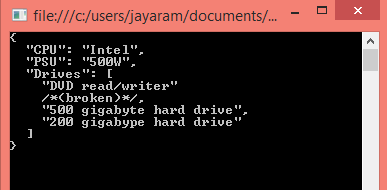
In order to use String Builder you need to reference System.IO assembly and the result of running the code will be displayed in the Console as shown:

ConsoleDisplay.png

However if you want to display the result in the Debug Output window in Visual Studio IDE you need to do a couple of things:

1. You should add a reference to System.Diagnostics.Debug assembly.
    This may not be available in the default installation of Visual Studio 2013 but you should browse for it in the Window Phone related assemblies (this was where it was found)

2. In the project properties Application page you should change the output type from the default 'Console Application' to 'Windows Application'.

WindowsApplication.png

3. Add a line of code to display using System.diagnostics.debug.print()
Now build and run the program and you will display result in the debug output window as shown.

debugprint.png

Here is the code that was run to display the above.
----------------
using System;
using System.Collections.Generic;
using System. Linq;
using System.Text;
using System.Threading.Tasks;
using Newtonsoft.Json;
using System.IO;
using System.Diagnostics;


namespace JsonWrite

{
class Program
{
static void Main(string[] args)
{
StringBuilder sb=new StringBuilder();
StringWriter sw = new StringWriter(sb);
JsonWriter writer = new JsonTextWriter(sw);


writer.Formatting = Formatting.Indented;

writer.WriteStartObject();
writer.WritePropertyName("CPU");
writer.WriteValue("Intel");
writer.WritePropertyName("PSU");
writer.WriteValue("500W");
writer.WritePropertyName("Drives");
writer.WriteStartArray();
writer.WriteValue("DVD read/writer");
writer.WriteComment("(broken)");
writer.WriteValue("500 gigabyte hard drive");
writer.WriteValue("200 gigabype hard drive");
writer.WriteEnd();
writer.WriteEndObject();

Console.WriteLine(sb.ToString());
// Console.WriteLine(sb.ToString());
System.Diagnostics.Debug.Print(sb.ToString());
}

}
}


Friday, October 7, 2016

How do you convert a JSON file to a custom object using PowerShell?

The syntax for converting a JSON formatted string to a custom object is the following:
------
Parameter Set: Default
ConvertFrom-Json [-InputObject] [ ]

-----
ConvertFrom-Json cmdlet converts a JavaScript Object Notation (Json) formated string to a PSCustomObject which has a property for each field in the JSON string.

Read more here:
https://technet.microsoft.com/en-us/library/hh849898.aspx

OK. Let us take a practical example.

Here is a JSON formatted Key-value pairs.
-----------
[  {
  "color": "red",
   "value":"#f00"
 },
 {
   "color":"green",
    "value":"#0f0"
 },
 {
           "color":"blue",
   "value":"#00f"
 },
 {
   "color":"cyan",
  "value":"#0ff"
 }
]
-----------
Now we declare a variable to take the JSON formatted string in a Here-String as shown:
------------
$data=@'
 [  {
  "color": "red",
   "value":"#f00"
 },
 {
   "color":"green",
    "value":"#0f0"
 },
 {
           "color":"blue",
   "value":"#00f"
 },
 {
   "color":"cyan",
  "value":"#0ff"
 }
]
'@
-------------
The above is the correct format that PowerShell would accept for conversion into a JSON object.
With this Here-String in hand you just use the cmdlet as shown:
--------------

ConvertFromJSON.jpg

Now you can use this obejct to find items such as number of segments, items by number or write out the data as shown.


ConvertFromJSON2.jpg

Sunday, May 21, 2017

Is it JSON or not?

The following is formatted in JSON

["wclass",
{"student":{"name":"Linda Jones","legacySkill":"Access, VB 5.0"}etc..
},
{  "student":{"name":"Adam Davidson","legacySkill":"Cobol, MainFrame"}
},
{"student":{"name":"Charles Boyer","legacySkill":"HTML, XML"}
}]

This is a valid JSON according to RFC 4627.


json_01

However when you use this in SQL Server to look at the JSON using the OpenJSON, for example, you will get this error:


json_00

The reason for this error:
Msg 103, Level 15, State 4, Line 2
The identifier that starts with "wclass"...
lies in the fact that SQL Server string starts with a single quote and therefore you need to provide this declaration:

declare @json nvarchar(Max)
set @json=
'["wclass",
{"student":{"name":"Linda Jones","legacySkill":"Access, VB 5.0"}
},
{"student":{"name":"Adam Davidson","legacySkill":"Cobol, MainFrame"}
},
{"student":{"name":"Charles Boyer","legacySkill":"HTML, XML"}
}]'


When you do this the error goes away as shown:


json_02


The character count in @json is also important as you see in this SQL query:


json_03

The answer is that RFC 4627 validation requires a string to start with a double quote("), but the SQL Server's JSON validation requires the JSON to begin with a single quote(') as we saw in this post.

How do you query the OpenJSON function with a SELECT statement?

OpenJSON converts an array of objects in a variable in JSON Format to a rowset
that can be queried with standard SQL Select statement.

Here is an example:

We are going to look at a JSON list of my first batch of students who took my course shown here. 

["wclass",
{"student":{"name":"Linda Jones","legacySkill":"Access, VB 5.0"}
},
{"student":{"name":"Adam Davidson","legacySkill":"Cobol, MainFrame"}
},
{"student":{"name":"Charles Boyer","legacySkill":"HTML, XML"}
}]

This is the result of running OpenJSON using the above:


Now you can run a SELECT query with a with clause on the rows returned by OpenJSON as shown here:

The first member "wclass" has nulls for the selected columns. It exists because it actually was in the original XML that got converted to JSON.
Here are my more recent JSON related articles:

JSON validation in SQL Server:
https://hodentekmsss.blogspot.com/2016/11/using-json-validator-in-sql-server.html

Nested JSON using SQL Server 2012:
https://hodentekmsss.blogspot.com/search?q=json

Retrieve JSON formatted data from SQL Anywhere 17
https://hodentekmsss.blogspot.com/2016/11/retrieve-data-from-sql-anywhere-17-in.html

Wednesday, June 24, 2026

Have you noticed these problems with CoPilot?

I had a tough time fighting the Copliot in sidebar for coding.

When using Microsoft Edge’s **Copilot sidebar**, I encountered a set of problems that were subtle, time‑consuming, and difficult to diagnose. These issues are not obvious, and most users will not realize what is happening until their code or JSON files mysteriously break.

This is just not a JSON file-only problem but extends to any kid of coding.

This post documents:

1. what was observed

2. The most reasonable technical explanation, and 

3. The practical workaround**.

1. What Was Observed

a) Hidden metadata being copied into code files

Whenever I copied JSON or code from the Edge Copilot sidebar, an invisible block of metadata was silently appended to the clipboard. It looked like this (simplified):


# User's Edge browser tabs metadata.

# The tab with IsCurrent=true is the user's currently active tab.

edge_all_open_tabs = [

    {"pageTitle":"MSN", "pageUrl":"https://www.msn.com/...","tabId":1345274581,"isCurrent":true}

]

```This metadata is **not visible in the chat window**, but it *is* included when you copy text out of the sidebar.

If you paste this into a JSON file, Python file, YAML file, or any strict syntax format, it immediately breaks the file.

b) JSONDecodeError and other syntax errors

Because the metadata is not JSON, pasting it into a JSON file produces:


```

JSONDecodeError: Expecting value

```


The same metadata breaks:


- Python  

- JavaScript  

- XML  

- YAML  

- TOML  

- INI  

- HTML  

- Shell scripts  

- Any configuration file  


This problem is **not specific to JSON** — it affects *any* code or data format.


c) Browser instability during long chat sessions**

After 30–60 minutes of continuous use, the Edge sidebar began to behave strangely:

- The UI became jittery  

- Scrolling lagged  

- The sidebar flickered  

- The Copilot panel froze intermittently  

- The browser felt “shaky”  

d) Transparent and semi‑transparent overlays**

The most unusual symptom:


> Windows from other applications began to appear faintly through the Edge sidebar**, as if the browser’s rendering layers were leaking.


This looked like GPU corruption, but only the Edge sidebar was affected — not the rest of the system.


2. The Most Reasonable Explanation

a) The Edge sidebar injects metadata after every message

The sidebar is designed to pass browsing context to Copilot.  

To do this, it appends a hidden metadata block after each message.


This metadata includes:

- Open tabs  

- Active tab  

- Page titles  

- Page URLs  

- Tab IDs  


This is normally hidden, but the clipboard captures it.

b) Long sessions overload the sidebar’s rendering engine

The Edge sidebar is a layered WebView container.  

As the chat grows:

- More metadata is generated  

- More rendering layers accumulate  

- More state is stored  

Eventually, the rendering engine becomes overloaded, causing:

- Flicker  

- Lag  

- UI instability  

- Transparent overlays  

- Partial redraws  

This explains the “ghost windows” and semi‑transparent artifacts.

c) This behavior is unique to the Edge sidebar

Chrome, Firefox, and DuckDuckGo do 'not' inject metadata.  

They run Copilot as a normal webpage, not a sidebar container.


No sidebar → no metadata → no instability.


3. Workarounds

✔ Use Copilot in a normal browser tab (Chrome, DuckDuckGo, Firefox)

This completely avoids:

- Hidden metadata  

- JSON corruption  

- Syntax errors  

- UI instability  

- Transparent overlays  


✔ If you prefer Edge, use the “pop‑out” window 

The pop‑out behaves like a normal webpage and does **not** inject metadata.

✔ Never paste directly from the Edge sidebar into code**  

If you must use the sidebar:

1. Paste into Notepad first  

2. Check for metadata  

3. Then paste into your editor  

✔ Restart Edge when instability begins**  

Once the rendering layers start glitching, only a restart clears the state.


Summary

The Edge Copilot sidebar has two major issues:


1. It silently appends browser metadata behind your messages, which corrupts JSON, Python, and any strict syntax file when copied.  

2. It becomes unstable during long sessions, causing lag, flicker, and transparent overlays from other windows.

The simplest and most reliable solution:


Use Copilot in a normal browser tab instead of the Edge sidebar.


This avoids the metadata problem entirely and keeps your browser stable.

Happy coding!

Thursday, July 29, 2021

Is it possible to convert from .json format to .xlsx format?

 The easiest way to do this is to use Windows Powershell as described here. It is enough if you convert .json to .csv. File format .cssv can be opened with EXCEL and saved.

This is the .json file:

============

{

   "Name": "James Bond",

   "Age": "35",

   "Profession": "Professional Killer",

   "Location": "London, UK"

}

===================

This file, JamesBond.json  is saved on my desktop.

Let us say that is the code you need to convert to from .json to .csv format

Create the above text in Notepad and save it with the extension .json (default is .txt for Notepad)


Open the Windows PowerShell ISE


Type in the following code (try to see what else you can convert from and convert to in the above images):

Get-Content C:\Users\TestUser\Desktop\JamesBond.json | ConvertFrom-Json|ConvertTo-Csv

Run the code in the Windows PowerShell ISE

You will see this result:

==========================

"Name","Age","Profession","Location"

"James Bond","35","Professional Killer","London, UK"

---------------------------------

You get the answer as shown. 

This is in CSV format and this can be opened with EXCEL.


This can be saved as .xlsx or various other formats.