Showing posts with label SSMS. Show all posts

Thursday, January 9, 2020

Hands-on Learning Event in Honolulu 1 : Introduction to Structured Query Language

A new session is going to start soon. Sign-up here.


Microsoft SQL Azure Database: SQL Server in Microsoft Cloud
Windows PowerShell for SQL Server


My sincere thanks and best wishes to my students in the previous meets of this course.


Tuesday, August 7, 2018

How do you install SQL Server Managment Studio Version 17.8.1?

SQL Server Management Studio does not install when you install SQL Server 2017 (also in some previous versions). It is a separate install.

Kindly follow my previous post  to download the executable program for the installation.

Make sure you are not running SQL Server Management Studio (SSMS), if you are, close it.

Double clicking the execcuatable begins the installation as per the following screen shots. It may take a while (20 to 30 mts).


Close. Close SSMS and double click the executable to begin.


 Click Install.


It is done after a wait (20 to 30 minutes)


SSMS v17.8.1 and other components.


Friday, December 8, 2017

How do you connect to SQL Server using Microsoft SQL Operations Studio?

It is so easy to connect to SQL Server database.

Read here: What is Microsoft SQL Operations Studio?
http://hodentekhelp.blogspot.com/2017/12/what-is-sql-operations-studio.html

Read here: Microsoft SQL Operations Studio User Interface
https://hodentekmsss.blogspot.com/2017/12/sql-operations-studio-user-interface.html

Watch this video: Connecting to SQL Server 2016 Developer edition database using
Microsoft SQL Operations Studio

Sunday, May 21, 2017

How do you query the OpenJSON function with a SELECT statement?

OpenJSON converts an array of objects in a variable in JSON Format to a rowset
that can be queried with standard SQL Select statement.

Here is an example:

We are going to look at a JSON list of my first batch of students who took my course shown here. 

["wclass",
{"student":{"name":"Linda Jones","legacySkill":"Access, VB 5.0"}
},
{"student":{"name":"Adam Davidson","legacySkill":"Cobol, MainFrame"}
},
{"student":{"name":"Charles Boyer","legacySkill":"HTML, XML"}
}]

This is the result of running OpenJSON using the above:


Now you can run a SELECT query with a with clause on the rows returned by OpenJSON as shown here:

The first member "wclass" has nulls for the selected columns. It exists because it actually was in the original XML that got converted to JSON.
Here are my more recent JSON related articles:

JSON validation in SQL Server:
https://hodentekmsss.blogspot.com/2016/11/using-json-validator-in-sql-server.html

Nested JSON using SQL Server 2012:
https://hodentekmsss.blogspot.com/search?q=json

Retrieve JSON formatted data from SQL Anywhere 17
https://hodentekmsss.blogspot.com/2016/11/retrieve-data-from-sql-anywhere-17-in.html

Tuesday, November 1, 2016

How do you find Query Store related objects in SQL Server?

First off you should be using SQL Server 2016 because Query Store is a new feature in SQL Server 2016.

You should enable Query Store for the database you are going to use and you can enable Query Store using SQL Server Management Studio. You may review this post for enabling Query Store.

All objects in the SQL Server can be accessed using the sys.objects as shown:


SysObjcts_00

If you filter the Sys.Objects as shown here you can find Query Store related objects.

Select * from Sys.all_objects
Where name like 'query_store%' or name like 'sp_query%' or name like 'query_context%'


SysObjcts_02

The above query retrieves Views and extended stored procedures related to the Query Store.

Friday, September 2, 2016

Can you connect to SQL Server Compact in SQL Server Management Studio?

Unfortunately no. It was once possible long ago.

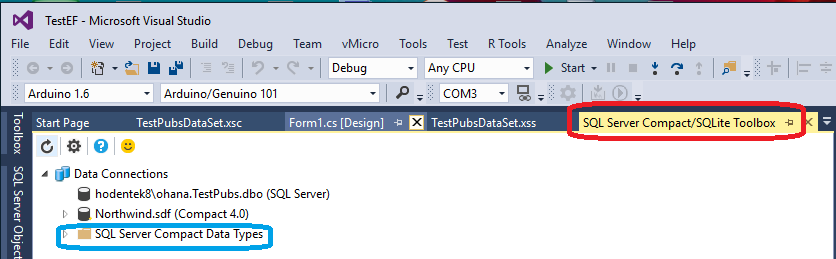
You could however connect to SQL Server Compact using Visual Studio 2015 Community Update 3 (this is what I am using).

In addtion to this you should download and install the SQL Server Compact/SQLite Tool box extension for Visual Studio from here:

(https://github.com/ErikEJ/SqlCeToolbox).

Once you do this, you can access the tool box extension you added in Visual Studio and if you have a SQL Server Compact on your computer you can cconnect to it as shown here:


If the version of SQL Server Compact is 3.5 like mine was, the tool box upgrades it to version 4.0.

In Visual Studio 2008 or 2010 you could do this:

http://hodentekmsss.blogspot.com/2010/07/sql-server-compact-35-basics-you-must.html


https://www.packtpub.com/books/content/connecting-microsoft-sql-server-compact-35-visual-studio


Saturday, March 21, 2015

How do you design a Query using Query Editor in SQL Server Management Studio?

From scratch:
Open a Query pane in SSMS (from a database, for example) and right click to display the drop-down menu as shown.

DesignQueryinEditor

Choose the Design Query in Editor... option and the Query Designer window gets displayed with a Add Tables window. You can add as many or as few tables as you want and design your query. Holding control key down, select multiple tables and click ADD to add all the selected tables. If you suspect that the data has changed recently, you can click Refresh to use latest data.

DesignQueryinEditor2

Display a query you created in the designer

You can create a query in the query pane. Highlight the query, right click the highlighted portion and select Design Query in Editor... as shown.


QueryEditorUp
The query you designed gets displayed in the Query Editor as shown.

SimpleSelect
 Selecting the query and displaying it in designer will not work for more complicated queries.


Wednesday, March 18, 2015

I do not see the available databases toolbar item in SSMS, Why?

Missing Toolbar item? NO

The SQL Server Management Studio(SSMS) is highly context sensitive.

For example, unless a Query Window is open (by creating a new query or by clicking first in the query window) the menu item Query will not be displayed.


SQLQueryeditor00

When you open a query window (by using New Query  from database or SQL Server
instance node) then you will see the Query menu item.

SQLQueryeditor01

In a similar manner depending on how whether View | Toolbars | Sql Editor
is chosen or not you will not see the 'Available databases' item as shown in the
next image.


SQLQueryeditor01

Thursday, May 3, 2012

How do you create an empty database in SQL Server Express 2008 R2?


Step 1: Connect to SQL Server Express 2008 R2 in the SQL Server Management as shown.
Right click the Databases node and from the drop-down list shown  click New database.


Step 2: In the New Database window that pops-up provide a name for the database you want to create, herein Htek. If you want you can choose a size different from default size of 2 MB.


Click OK.
This is all that is necessary for creating an empty database on the server. You may click the navigation on the left side for working with file groups and many other options.

After clicking OK you will see the Htek database added to your Databases node which earlier had only System databases. Note however you may need to refresh by right clicking the Databases node and choosing Refresh at the bottom of the list.

Friday, May 14, 2010

How do I attach a database to a SQL Server?

Very simple.

 You can do it in the SQL Server Management Studio (SSMS) or use System Stored Procedures.

You can see a step by step method at this link here.
http://hodentekmsss.blogspot.com/2010/05/using-sample-databases-with-sql-server.html

Moving from SQL Server 2000 to 2005 read here:
http://www.aspfree.com/c/a/MS-SQL-Server/Moving-Data-from-SQL-Server-2000-to-SQL-Server-2005/3/ [about 0.5 million page views]

Thursday, November 26, 2009

How do I connect to a SQL Server Compact Database from SQL Server 2008 R2 Nov_CTP?

The database is present in the installation directory but you need to enable permissions.

Click Connect SQL Server Compact... in MS SQL Server Management Studio.


In the Connect to Server window click on the drop-down handle as shown.


Click on the drop-down item "Browse for more...". Expand the C:\node as shown


Click OK. The Connect to Server gets updated.
You may not be able to connect to the database as permissions are needed.


You can modify the permissions on the sample database. The database gets dispalyed in the Management Studio after you click OK on the Connect to Server window after modifying the premissions.