Showing posts with label JSON. Show all posts

Thursday, December 6, 2018

How do you load JSON data into PowerBI?

JSON data source were recently added to Power BI Data sources.

{
I have taken this JSON file from the following site;

 https://www.kodingmadesimple.com

and I will be using in this post.

Here is an abbreviated JSON file (with *.json extension) I am using.
--------------------------------------

  "data": [
    {
      "name": "Garrett Winters",
      "designation": "Accountant",
      "salary": "$170,750",
      "joining_date": "2011/07/25",
      "office": "Tokyo",
      "extension": "8422"
    },
    {
      "name": "Brielle Williamson",
      "designation": "Integration Specialist",
      "salary": "$372,000",
      "joining_date": "2012/12/02",
      "office": "New York",
      "extension": "4804"
    },
     ,
     ,
    {
      "name": "Quinn Flynn",
      "designation": "Support Lead",
      "salary": "$342,000",
      "joining_date": "2013/03/03",
      "office": "Edinburgh",
      "extension": "9497"
    }
  ]
}

-----------
Note that each Json element has six attributes.

Step 1:
You first need to save it to a location of your choice. You could also have it on an URL, but here it is assumed to be in one of the folders.

Launch PowerBI; Click GetData; Click More...

Click JSON


You need to browse and locate your JSON file (it will have  a.json extension).


My Koding.json file is now in Data View as shown.


 I go back to Edit Queries as I did not edit earlier.


 Now I have a query as shown in the left pane.


I had 15 elements in the JSOn file and they have become 16 records after getting it into PowerBI. Now go back to query using Edit Query as before. Now you see an extra control in Column 1 for splitting into its components.


I click the split control. The Query now appears as shown.


Now I convert this into table as shown above. Now what I see in DataView is the following:


The six elements are resolved into six fields as shown above. We will use this later. Click File | Save to save this file in the .pbix format. Presently it has the JSON data only.


That is all folks!

Monday, July 16, 2018

How to convert from a LIST to a string in Python?

Methods of conversion are needed in every language.

You can convert a list to string as shown here for a simple list:


ListToString_1

Here is an example of conversion of a more complicated list from an earlier post:


ListToString_2

Saturday, July 14, 2018

How do you convert from Python to JSON in Python 3.70b2?

You should import json and use dumps() as shown.

Here data is a python list and it will be converted to json.

json_0

If you want to print it pretty you could do  like this here.

json_1

We started with a sorted list what if we did not, as in data2


json_2

Friday, June 1, 2018

How do you construct a Python dictionary?

Python dictionary has features common to JSON values.


Python dictionary has keys and associated with keys there are lists.
{key:[values],key[values]..}

Here is an example:

graph={"A":["C","B"],
       "B":["A","C"],
       "C":["A","B","D","E"],
       "D":["C","E"],
       "E":["C","D"]
      }


Defining a dictionary in Python.


Dict_0


In Python you can do the following to access keys and associated lists.

You can find the keys as show here:


Dict_1

You can gather all of the items in dictionary using the following:

Dict_2

You can list out the values only as shown here:


Dict_3

You can also access the lists by looping as in the following:


Dict_4


More in my next...

Saturday, May 26, 2018

What is new in SQL Server 2016 Database Engine?

In SQL Server 2016,

Configure multiple TempDB database files during Installation and set up.
https://hodentekmsss.blogspot.com/search?q=TempDB

The Query Store (new) stored texts, execution plans and performance metrics with the database. You have access to its dashboard related to query performance.

https://hodentekmsss.blogspot.com/search?q=query+store
[image]

Availability of Temporal Tables (history) which records all data changes.
https://hodentekmsss.blogspot.com/2016/07/temporal-tables-in-sql-server-2016-to.html

Built-in JSON Support(new). You can import/export, save and parse in JSON.
https://hodentekmsss.blogspot.com/2016/11/accessing-nested-json-formatted-text.html

Polybase(new) query engine integrated SQL Server with external data in Hadoop or Azure Blob storage. Import/export and executing queries all possible.
https://hodentekmsss.blogspot.com/search?q=polybase

Stretch Database(new) lets you dynamically, securely archive data from local SQL Server Database to an Azure cloud SQL database. querying is automatic both local and remote data by linked databases.
https://hodentekmsss.blogspot.com/2016/05/stretch-database-is-nice-feature-of-sql.html

In-memory OLTP:
Now supports FOREIGN KEY, UNIQUE and CHECK constraints, and native compiled stored procedures OR, NOT, SELECT DISTINCT, OUTER JOIN, and subqueries in SELECT.
Supports tables up to 2TB (up from 256GB).
Has column store index enhancements for sorting and Always On Availability Group support.

New security features:
Always Encrypted: When enabled, only the application that has the encryption key can access the encrypted sensitive data in the SQL Server 2016 database. The key is never passed to SQL Server.
Dynamic Data Masking: If specified in the table definition, masked data is hidden from most users, and only users with UNMASK permission can see the complete data.

https://hodentekmsss.blogspot.com/2017/07/new-security-feature-in-sql-server-2016.html

Row Level Security: Data access can be restricted at the database engine level, so users see only what is relevant to them.

Friday, February 2, 2018

What does JSON.parse() do?

JSON.parse() takes a JSON string as an argument and produces a JSON Object.

Here is a example web page for JSON.parse().


Thursday, February 1, 2018

What does JSON.stringify() do?

It takes a JSON object as an argument and converts it to a JSON string.

Here is a code:


Wednesday, January 24, 2018

How do you return JSON formatted response to a SQL Query?

JSON is supported in SQL Server and it is very easy to obtain JSON formatted response from a query easily. For example,

while connected to Northwind database you get the JSON formatted data by running a query such as this one using the Products table:
---------------------------------
SELECT        ProductName, QuantityPerUnit, UnitPrice
FROM            Products FOR JSON Auto;

---------------------------------
The response will be as shown:


JSON_0

You could also return a single row of data as shown by running this query:
-----------------------
SELECT [ProductID]
      ,[ProductName] 
FROM [Northwind].[dbo].[Products]
WHERE ProductID=5
For JSON AUTO

-------------------------


JSON_1


The result comes in an array even if the returned data is just one row.

You could remove the array wrapper ([ ]) surrounding the result set by the following query:
-------------------
SELECT [ProductID]
      ,[ProductName] 
FROM [Northwind].[dbo].[Products]
For JSON AUTO, WITHOUT_ARRAY_WRAPPER

---------------------------------------

JSON_2

Notice that the array wrapper is gone in the result set.

You can further qualify where the data (Which table, for example) by adding a 'root' element by issuing this query:
------------------------
SELECT [ProductID]
      ,[ProductName] 
FROM [Northwind].[dbo].[Products]
For JSON AUTO, Root('Products')

------------------------

JSON_3

You are not allowed to use WITHOUT_ARRAY_WRAPPER and Root in the same sql query because you get the following message, if you do:

Msg 13620, Level 16, State 1, Line 5
ROOT option and WITHOUT_ARRAY_WRAPPER option cannot be used together in FOR JSON. Remove one of these options.


I am using SQL Server 2016 Developer's edition on my Windows 10 Pro laptop.

If you are new to JSON read the following:

http://hodentekhelp.blogspot.com/2014/11/how-do-you-work-with-javascript-object.html

If you are motivated to learn there are more here:

http://hodentekhelp.blogspot.com/search?q=json

Sunday, May 21, 2017

Is it JSON or not?

The following is formatted in JSON

["wclass",
{"student":{"name":"Linda Jones","legacySkill":"Access, VB 5.0"}etc..
},
{  "student":{"name":"Adam Davidson","legacySkill":"Cobol, MainFrame"}
},
{"student":{"name":"Charles Boyer","legacySkill":"HTML, XML"}
}]

This is a valid JSON according to RFC 4627.


json_01

However when you use this in SQL Server to look at the JSON using the OpenJSON, for example, you will get this error:


json_00

The reason for this error:
Msg 103, Level 15, State 4, Line 2
The identifier that starts with "wclass"...
lies in the fact that SQL Server string starts with a single quote and therefore you need to provide this declaration:

declare @json nvarchar(Max)
set @json=
'["wclass",
{"student":{"name":"Linda Jones","legacySkill":"Access, VB 5.0"}
},
{"student":{"name":"Adam Davidson","legacySkill":"Cobol, MainFrame"}
},
{"student":{"name":"Charles Boyer","legacySkill":"HTML, XML"}
}]'


When you do this the error goes away as shown:


json_02


The character count in @json is also important as you see in this SQL query:


json_03

The answer is that RFC 4627 validation requires a string to start with a double quote("), but the SQL Server's JSON validation requires the JSON to begin with a single quote(') as we saw in this post.

Friday, May 19, 2017

What are geometry primitives in GeoJSON?

In Eucledian geometry we were taught about the concepts of 'Point' and straight line being the shortest distance between two points.

GeoJSON is an Open Standard format based on JavaScript Object Notation for representing simple geographical (geometrical?)features.

In GeoJson Point, Line and Polygon are the Geometric Primitives:

Point:
{ "type": "Point",
    "coordinates": [30, 10]
}
Line:
{ "type": "LineString",
    "coordinates": [
        [30, 10], [10, 30], [40, 40]
    ]
}
Polygon:
{ "type": "Polygon",
    "coordinates": [
        [[30, 10], [40, 40], [20, 40], [10, 20], [30, 10]]
    ]
}
This post is based on GeoJSON on Wikipedia.

Wednesday, November 23, 2016

How do you retrieve JSON formatted data from SQL Anywhere 17?

SQL Anywhere 17 is a SAP Database.  Some of the earlier versions were released by SYBASE.

In SQL Anywhere 17 you have three different ways of getting JSON formatted data / JSON document.

You can use the FOR JSON clause  with:

  • SELECT Statement
  • Subqueries
  • Queries having Group By clause
  • Aggregate Functions and
  • Views
The result is a JSON array consisting of:

  • Scalar elements
  • Objects
  • Arrays
There are three ways of calling the FOR JSON Clause:

  • For JSON Raw
  • For JSON AUTO
  • For JSON Explicit
Note that SQL Server 2016 did get JSON support for the first time and has only For JSON Auto clause.

You run SQL Queries in Interactive SQL. Here is an example of a query that provides json document using the FOR JSON AUTO clause.


InteractiveSQL17JSON

Saturday, November 12, 2016

Can you return data in JSON format from a web service in SQL Server?

The short answer is yes provided we run our queries in SQL Server 2016.

We have seen in an earlier post using ODATA service to generate a report from Power BI.

These were some example OData services that were considered in the previous mentioned link.

Northwind traders here:
http://services.odata.org/northwind/northwind.svc
http://services.odata.org/V4/Northwind/Northwind.svc

Adventure Works data here:
http://services.odata.org/AdventureWorksV3/AdventureWorks.svc

SQL Server 2016 supports JSON and it is possible to run a query in SQL Server Management Studio to return data from a ODATA service by running a query fashioned a shown.
=======
SELECT 'http://services.odata.org/V4/Northwind/Northwind.svc/$metadata#Products(ProductID,ProductName)/$entity' AS '@odata.context',  
ProductID, Name as ProductName  
FROM Production.Product 
WHERE ProductID<400 br="">
FOR JSON AUTO 
=======
This retrieves the following result:


Note that the size of text returned is limited by the settings.


Monday, November 7, 2016

Is there a JSON validator in SQL Server?

Sure there is if you are using SQL Server 2016.

The Transact-SQL IsJSON() tests whether a expression(string) is JSON valid. If it is valid you should get a 1 as return value, a zero(0) if it is not valid and a null if the expression is null.

How do you use it?

This is a json string, a very simple one:
=================
{"wclass":{"student":["jay", "john", "sam"]}}
====================
The following code snippet shows how you may use it:
===========
declare @json nvarchar(150)SET @json=N'{"wclass":{"student":["jay", "john", "sam"]}}';
Select ISJSON(@json)

==========
When you run this in the SQL Server 2016 query pane, you get the return value 1 (see image below).


Tuesday, May 24, 2016

How do you get the node.js project templates in Visual Studio 2015?

In a recent post I tried to install Node.js tools that is supposed to help create node.js project types in Visual Studio Community 2015. After installing, I realized that I could not access the node.js templates in Visual Studio. I noted however that the installer version was NTVS 1.1.1 VS2015.msi.

As an after thought I found an easier route to get the node.js support for Visual Studio 2015 Community. This post describes the steps.

After launching Visual Studio 2015 Community ( I have the Update 2, version 14.0.25123.00 Update 2) you can access Extensions and Updates menu item as shown.

NodeJsTools_07.png

Click on the menu item. The Extension and Updates window appears as shown. You need to search for node.js in Visual Studio Gallery. You will find both 1.1 and 1.2 versions.


NodeJSToolsPlug_inVS2015.png

Click Download button for version 2.

The related msi file gets downloaded. The version is


NodeJsTools1point2.png

You may double click the downloaded file to install the plug-in. But first take care of the Apache license.


NodeJsTools_001.png

The extension gets updated as the program installs.


NodeJsTools_001_2.jpg

Once the extension is installed, when you create a New Project... in Visual Studio 2015 Community you should be able to see all the node.js templates as shown in the next image.


NodeJsTools_05.jpg

Monday, May 23, 2016

How can you program IOT controllers using JavaScript?

Arduino boards can be programmed using Arduino software and Intel IOT boards can be programmed using Intel XDK IOT. Using JavaScript to program controllers would be very useful as most browsers are HTMl5 compliant. The Johnny-Five Robotics and IOT program is an interesting option.

Johnny-Five is the JavaScript Robotics & IOT platform released by the Bocoup group. Johnny-Five is maintained by a growing number of talented developers.

What is Bocoup?
Bocoup  is a group that championed the cause of Open tools and Work Flow. They really seems to have people with very varied and diverse talents to tackle web, data, and visualization.

How does Johnny-Five handle the Hello World (or Blink for that matter)?
It looks like 1-2-3 really.

1. Install Node.js(Prefer 4.2.1 LTS)
2. Setup your board
3. Run: npm install johnny-five

What else is needed?

You also need to run the Firmata protocol for the controller board to communicate with the computer.
Interestingly Johnny-Five can handle over 30 different arduino compatible boards from the likes of Raspberry, Intel, Arduino, Sparkfun and many more.

This is very impressive indeed as each of these boards are handled by their vendors like Arduino, Intel and others.

How about non-arduino boards?

There are platform specific IO Plugins (for example, Galileo-IO plugin) .These plugins can speak the language of the platform as they implement Firmata compatible interfaces.

You will be hearing more about Johnny-Five in my blogs, here and here, keep reading....

Tuesday, September 15, 2015

How to access OData service with LINQ?

Open Data Protocol (OData) relates to creation and use of RESTful APIs. OData uses URIs to identify resources on the Internet. The generic syntax for accessing the root of such service is http://host/Service. OData is built upon HTTP, ATOMPub and JSON.

An example of such a resource is the Northwind Service:

http://services.odata.org/northwind/northwind.svc/

LINQ, short for Language Integrated Query, provides an object oriented approach to not only querying relational databases but also any kind of source such as XML, Collection of objects, etc.

Want to know more about LINQ, go here.
Accessing OData with LinqPad.

Launch LinqPad (version used here is v4.55.03) and click on Add Connection link shown here:


OData_02.png

Choose Data Context window opens.


OData_03.png

Click WCF Data Services 5.5 (OData 3) and Click Next.
 In the WCF Data Conneciton 5.5 window type in the URI as shown (you have seen what this is earlier). Leave username and password blank. You can get to the XML or the JSON formatted resources. Remembering this connection is OK for the next time you come here.

Hit Test with Default(XML) checked. Your connection gets populated as shown.


OData_04.png

In the Query pane, Click on Connection and choose the option shown. As to query language you have a number of options.


Odata_05.png

I have just chosen SQL as the language to query. It looks like the driver does not support SQL.


Odata_06.png

Change the language option to C# Expression. Query for Employees table contents as shown:

Odata_07.png

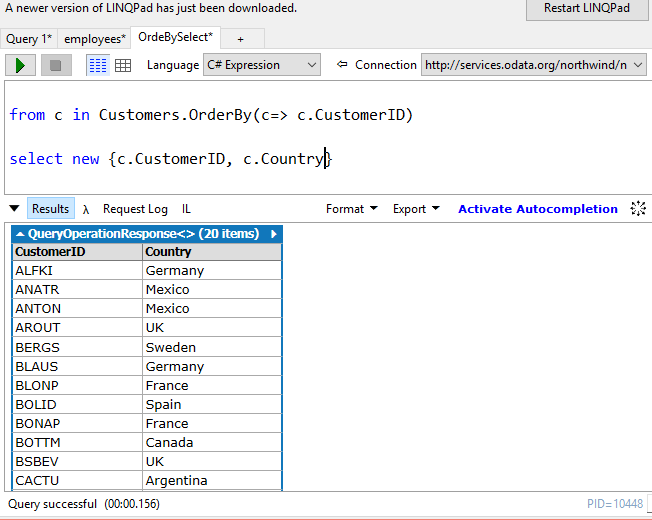
Here is another select statement choosing two columns from Customers table:

OData_08.png

You can easily query OData using C#, but this interface does not support SQL.

You can easily connect to OData using PowerBI, review this post:
http://hodentek.blogspot.com/2015/09/poweer-bi-using-data-from-odata-web.html

Saturday, July 18, 2015

How do you create JSON data with Visual Studio?

You can create JSON formatted data using a text writer as it is really a text file specially
formatted and saved with the extension .json. JsonTextwriter is derived from System.IO assembly.

You can look at everything (properties, methods, etc.) in Newtonsoft.Json which you added to a
Visual Studio project in a previous post using the Object Browser in Visual Studio IDE (herein Visual Studio2013 Community edition.

Browse for Newtonsoft.Json in My Solution as shown in your Visual Studio IDE after displaying the Object Brower.

NewtonsoftNamespace.png

The first step is to create a C# (could be VB also, but here it is a simple console project)
Project and add reference to Newtonsoft.JSON as described in the previous post.

The following code taken from the Newtonsoft site was slightly altered to make it work in the
Visual Studio 2013 Community edition(free).

The original code is here:

Origcode.png

In order to build and run this code in Visual Studio you need to provide references to the various assemblies you will be including in the code. You will be using the various methods that Newtonsoft.Json provides which you can see in the object browser.

The code instantiates a String Builder to take the text writer's text (name and value) and build the Json formatted object.

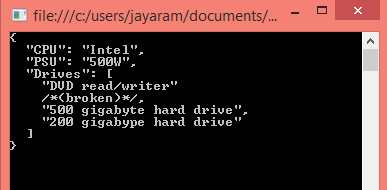
In order to use String Builder you need to reference System.IO assembly and the result of running the code will be displayed in the Console as shown:

ConsoleDisplay.png

However if you want to display the result in the Debug Output window in Visual Studio IDE you need to do a couple of things:

1. You should add a reference to System.Diagnostics.Debug assembly.
    This may not be available in the default installation of Visual Studio 2013 but you should browse for it in the Window Phone related assemblies (this was where it was found)

2. In the project properties Application page you should change the output type from the default 'Console Application' to 'Windows Application'.

WindowsApplication.png

3. Add a line of code to display using System.diagnostics.debug.print()
Now build and run the program and you will display result in the debug output window as shown.

debugprint.png

Here is the code that was run to display the above.
----------------
using System;
using System.Collections.Generic;
using System. Linq;
using System.Text;
using System.Threading.Tasks;
using Newtonsoft.Json;
using System.IO;
using System.Diagnostics;


namespace JsonWrite

{
class Program
{
static void Main(string[] args)
{
StringBuilder sb=new StringBuilder();
StringWriter sw = new StringWriter(sb);
JsonWriter writer = new JsonTextWriter(sw);


writer.Formatting = Formatting.Indented;

writer.WriteStartObject();
writer.WritePropertyName("CPU");
writer.WriteValue("Intel");
writer.WritePropertyName("PSU");
writer.WriteValue("500W");
writer.WritePropertyName("Drives");
writer.WriteStartArray();
writer.WriteValue("DVD read/writer");
writer.WriteComment("(broken)");
writer.WriteValue("500 gigabyte hard drive");
writer.WriteValue("200 gigabype hard drive");
writer.WriteEnd();
writer.WriteEndObject();

Console.WriteLine(sb.ToString());
// Console.WriteLine(sb.ToString());
System.Diagnostics.Debug.Print(sb.ToString());
}

}
}