Showing posts with label Powershell. Show all posts

Wednesday, June 19, 2024

How to discover Bluetooth connections with PowerShell?


About PowerShell:


Powershell is one of Microsoft's extremely useful and powerful tool. It is installed on most of the Microsoft computers and laptops.

Just open type in PowerShell in Windows Search as shown.

The Search brings up the following screen:

There are two versions of PowerShell for x86 and x64 architectures and there is also an Integrated Scripting Environment(ISE), a very useful option that can do a lot more than the command line tool.

I will be using this to discover Bluetooth devices on my laptop that are discoverable.

Let me open the x64 bit version with Administrator rights (also known as elevated permissions). I do this because, the program may not allow you to do certain things otherwise.


The red arrows are Running the code, or running a section of the code that you choose to run. Since, we are not using the ISE, these are greyed out.

Working with Bluetooth:

Bluetooth is a Pnp device and it is called Bluetooth. Run the following code as shown:


PS C:\WINDOWS\system32> Get-PnpDevice | Where-Object {$_.Class -eq "Bluetooth"}

After typing the code click Enter key. The following is displayed,

=====================

PS C:\WINDOWS\system32> Get-PnpDevice | Where-Object {$_.Class -eq "Bluetooth"}


Status     Class           FriendlyName                                                                     InstanceId     

------     -----           ------------                                                                     ----------     

OK         Bluetooth       Object Push Service                                                              BTHENUM\{000...

OK         Bluetooth       Bluetooth LE Generic Attribute Service                                           BTHLEDEVICE\...

OK         Bluetooth       Generic Attribute Profile                                                        BTHLEDEVICE\...

Unknown    Bluetooth       Jayaram's S23+ Avrcp Transport                                                   BTHENUM\{000...

OK         Bluetooth       Microsoft Bluetooth Enumerator                                                   BTH\MS_BTHBR...

OK         Bluetooth       Generic Access Profile                                                           BTHLEDEVICE\...

OK         Bluetooth       Intel(R) Wireless Bluetooth(R)                                                   USB\VID_8087...

OK         Bluetooth       Jayaram's S23+ Avrcp Transport                                                   BTHENUM\{000...

OK         Bluetooth       Microsoft Bluetooth LE Enumerator                                                BTH\MS_BTHLE...

OK         Bluetooth       Phonebook Access Pse Service                                                     BTHENUM\{000...

OK         Bluetooth       Personal Area Network Service                                                    BTHENUM\{000...

OK         Bluetooth       Bluetooth Device (RFCOMM Protocol TDI)                                           BTH\MS_RFCOM...

OK         Bluetooth       Jayaram's S23+                                                                   BTHLE\DEV_6A...

OK         Bluetooth       Jayaram's S23+                                                                   BTHENUM\DEV_...

OK         Bluetooth       Bluetooth LE Generic Attribute Service                                           BTHLEDEVICE\...

Unknown    Bluetooth       Jayaram's S23+ Avrcp Transport                                                   BTHENUM\{000...

OK         Bluetooth       Personal Area Network NAP Service                                                BTHENUM\{000...

OK         Bluetooth       Bluetooth LE Generic Attribute Service                                           BTHLEDEVICE\...

OK         Bluetooth       Jayaram's S23+ Avrcp Transport                                                   BTHENUM\{000...

===========================================

The InstanceID cannot be fully seen.

You need to format the output. The best way is to run the following:

PS C:\WINDOWS\system32>  Get-PnpDevice | Where-Object {$_.Class -eq "Bluetooth"} | Export-Csv -Path "C:\Users\Me\Desktop\listing.csv" -NoTypeInformation

This will provide a more complete output in the exported listing.csv file at the indicated location.

The CSV file has much more information in tabulated columns.


Although this gives some idea of connected devices, there are repetitions and somewhat difficult to look for specific information.

I not only want Bluetooth devices discovered but I would also like to get the ones that are ready for pairing with the laptop's Bluetooth.

This next code and the response makes it little more clear.

================================

PS C:\WINDOWS\system32> $devices = Get-ChildItem -Path HKLM:\\SYSTEM\\ControlSet001\\Services\\BTHPORT\\Parameters\\Devices

foreach ($device in $devices) {

    $address = $device.pschildname.ToUpper()

    $name = $device.GetValue("Name")

    if ($name -ne $null) {

        $printableName = ($name -notmatch 0 | ForEach-Object {[char]$_}) -join ""

        echo "Address: $address, Name: $printableName"

    }

}

Here is the response:

Address: 6A185BABF058, Name: Jayara's S3+

Address: 9C73B16CBD32, Name: Jayara's S3+

Address: FB621134FEF9, Name: KS01


PS C:\WINDOWS\system32> 

========================

In the above, I see my paired Samsung S23+ Smartphone and a Smartwatch, KS01. However, I do not see the paired Samsung Smart TV. That's something I need to troubleshoot.

In this post, discovering devices connected by Bluetooth was correctly identified using the PowerShell.


More on PowerShell here: Just search for PowerShell in this blog and You can get dozens of posts that deal with all aspects of Powershell.


Friday, January 17, 2020

What is the PowerShell cmdlet version that works with (compatible) SQL Server 2019?

PowerShell is in continuous development mode. New challenges require updating of software to accommodate the changes. This is the nature of such things. PowerShell cmdlets also follow this natural course and we have many versions.

I had an older version, and when I tried to launch contextually from SSMS v 8.4, I got this response:


In order to get the version you want, you may access this link:


Here is a list from the above site:


Thursday, January 9, 2020

Hands-on Learning Event in Honolulu 1 : Introduction to Structured Query Language

A new session is going to start soon. Sign-up here.


Microsoft SQL Azure Database: SQL Server in Microsoft Cloud
Windows PowerShell for SQL Server


My sincere thanks and best wishes to my students in the previous meets of this course.


Saturday, October 20, 2018

What verb-noun pairs are available in PowerShell?

In PowerShell, verb-name pair refers to naming of Cmdlets.

Here is an example:
---------------
Verb-Noun
Get-Command

---------------

Get is the verb and Command is the noun. This cmdlet retrieves all commands registered in PowerShell

PowerShell has an extensive set of Cmdlets to cover various aspects of Management.
These are the principle high-level verbs.

Common Verbs
  
System.Management.Automation.VerbsCommon enumeration class to define generic actions that can apply to almost any cmdlet.

Communication Verbs
System.Management.Automation.VerbsCommunications class to define actions that apply to communications.

Data Verbs
System.Management.Automation.VerbsData class to define actions that apply to data handling.

Diagnostic Verbs
System.Management.Automation.VerbsDiagnostic class to define actions that apply to diagnostics

Lifecycle Verbs
System.Management.Automation.VerbsLifeCycle class to define actions that apply to the lifecycle of a resource

Security Verbs

System.Management.Automation.VerbsSecurity class to define actions that apply to security.

Other Verbs
System.Management.Automation.VerbsOther class to define canonical verb names that do not fit into a specific verb name category such as the common, communications, data, lifecycle, or security verb names verbs.

Read more here:
https://docs.microsoft.com/en-us/powershell/developer/cmdlet/approved-verbs-for-windows-powershell-commands

Friday, July 20, 2018

How do you run a C# Console Application using PowerShell?

How do you run C# Console Application using PowerShell?

Microsoft.PowerShell.Utility module has a cmdlet, Add-Type. Add-Type can be used to execute the code from PowerShell command shell.
The Add-Type has a large number of parameters and using these Add-Type will define and generate the class. If you specify source code, Add-Type compiles the source code and generates an in-memory assembly that contains the .NET Framework types.

Here are some of the parameters of Add-Type from Microsoft documentation here.

Add-Type
   [-CodeDomProvider ]
   [-CompilerParameters ]
   [-TypeDefinition]
   [-Language ]
   [-ReferencedAssemblies ]
   [-OutputAssembly ]
   [-OutputType ]
   [-PassThru]
   [-IgnoreWarnings]
   []


Here is an example of using the source code in a here-string.


Now we use this string in TypeDefinition that takes a String as follows:

Add-Type -TypeDefinition $Source

Now the code is executed using the following:

[Joinstring]::Add("Jay"," Krishnaswamy"

Here is the code in Windows PowerShell ISE.


Monday, May 21, 2018

Can you connect to PowerShell from SQL Server Management Studio 17.7?

PowerShell is very well supported in SQL Server and it is true with the latest version as well.

What you begin with in Power Shell depends on from where it is invoked in the SQL Server Management Studio.

You can invoke (or start) PowerShell from various objects and it will be contextual in relation to the object.

If you right click the Server as shown you poup-up a mneu from which you can access PowerShell as shown.


PS_0

When you click Start PowerShell, the PowerShell window gets displayed as shown.


PS_1


Similarly the next image shows PowerShell being invoked in other contexts.

PS_2

These are not the only objects to invoke PowerShell, many more objects can be used to invoke PowerShell contextually.

Once you get to the object you want to review, the database can be accessed like folder/files using windows commands as shown.


PS_3

Read many more related PowerShell posts here.

Thursday, February 1, 2018

Does Microsoft SQL Operations Studio support Windows Power Shell?

Yes. It does.
You can access the console in Microsoft SQL Operations Studio by clicking this option in the User Interface as shown.


PS_SQLOPS_0.png

This displays the terminal.


PS_SQLOPS_1.png

The following version of Power Shell is supported:


PS_SQLOPS_2.png


Friday, December 22, 2017

Can you create a new web IIS site on your computer using PowerShell?

Yes you can. PowerShell is indeed powerful. In order to create a new web site you need to import the webadministration module using this import-module statement. However, you should launch Powershell with administrator privileges.

Import-Module webadministration

After running the above and if there are no errors run the following statement to create a new website (TestSite)is this:

New-WebSite -Name TestSite -Port 80 -HostHeader TestSite -Physical Path "$env:systemdrive\inetpub\testsite"

This will spawn an error, if the folder testsite does not exist in the inetpub directory. Create the folder first and then run the New-Website command as above.
----------
New-WebSite : Parameter 'PhysicalPath' should point to existing path.
At line:3 char:1
+ New-WebSite -Name TestSite -Port 80 -HostHeader TestSite -PhysicalPat ...
+ ~~~~~~~~~~~~~~~~~~~~~~~~~~~~~~~~~~~~~~~~~~~~~~~~~~~~~~~~~~~~~~~~~~~~~
    + CategoryInfo          : NotSpecified: (:) [New-Website], ArgumentException
    + FullyQualifiedErrorId : System.ArgumentException,Microsoft.IIs.PowerShell.Provider.NewWebsiteCommand

---------------------------
You can verify the TestSite you created in IIS Manager as shown.


IIS_TestSite

Wednesday, November 29, 2017

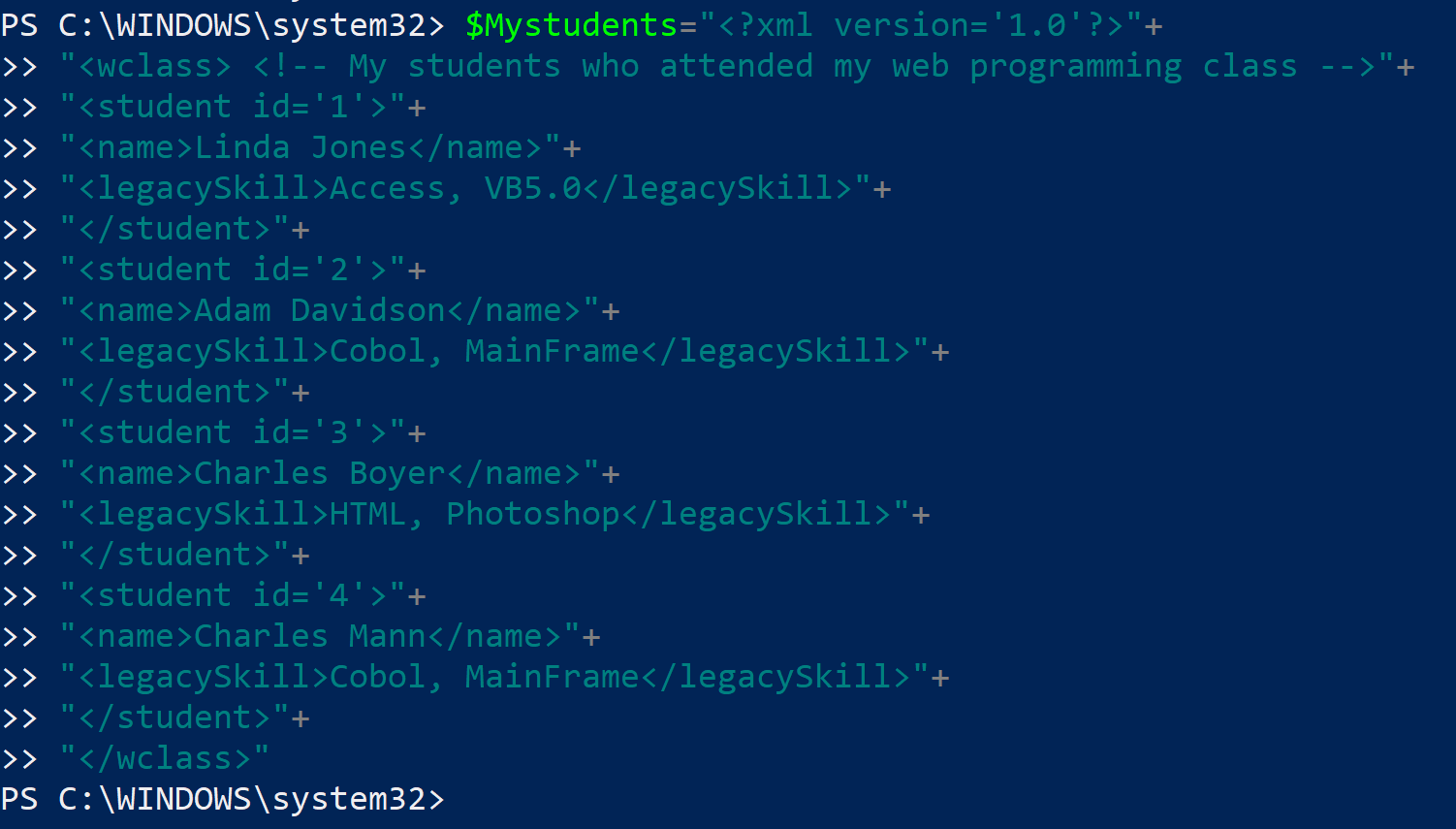
Does PowerShell work with XML?

XML is stored as a string in PowerShell. Hence it can work with XML.

For example I have a XML document such as this one:

http://hodentek.blogspot.com/2007/07/simple-xml-file-aka-my-hello-world-for.html
-----------------


Review image 

-------------
How do I use this XML document?

Just assign this string to a PowerShell string variable as shown:(note the XML formatting has been changed slightly)
-------------

Monday, January 30, 2017

Is it possible to use PowerShell to work with Hyper-V?


The short answer is yes. On a Windows 10 machine you can use Hyper-V to work with VMs. On a Windows 10 machine you need to enable Hyper-V using the 'Turn Windows features on or off' pop-up from the Program and Features in the Control Panel. When you enable it you should be able to see this.


You can then search for Hyper-V and start the GUI.


Clicking on Hyper-V Manager brings up the graphic user interface.

Hyper-V with PowerShell

It is also possible to use Hyper-V PowerShell module to simplify and automate management tasks. Most of what you do on the GUI can be carried out using PowerShell.

The advantages of using PowerShell is that you can automate most of the actions with flexibility. It can also provide you with features not implemented in the GUI.

If Hyper-V is already present, as in the present case (or machine) you can check if the Hyper-V module is available by using the Get-Command as in the following statement after bringing up the PowerShell command prompt:
Get-Command -module Hyper-V

This brings up the following response when run. The following is a screen shot of PowerShell ISE from the present machine. I have only included a portion of the result and most commandlets are named after their task.


For example:

Get-VMHOST gets the host information as shown.

PS C:\Users\Jayaram> get-vmhost

Name      LogicalProcessorCount MemoryCapacity(M) VirtualMachineMigrationEnabled
----      --------------------- ----------------- ------------------------------
HODENTEK8 8                     8116.2734375      False


PS C:\Users\Jayaram> get-vmhost|Select *


Just peruse the list and you can do many things with PowerShell.

If you are looking for installing Hyper-V on Windows 8.1 or Windows 10 go here:

Install Hyper-V on Windows 10:
http://hodentekhelp.blogspot.com/2016/04/how-do-you-install-hyper-v-on-windows-10.html

Install Hyper-V on Windows 8.1:
http://hodentekhelp.blogspot.com/2015/05/how-do-you-enable-hyper-v-in-windows-81.html

Tuesday, September 27, 2016

How do you get date and time information using PowerShell?

PowerShell has a cmdlet for most of the usual things including date and time.

The basic cmdlet to get the current date and time is Get-Date.

Start Windows PowerShell by typing powershell in the search box (Windows 10).


PowershellSearch.png

Click Windows PowerShell ISE to open the window shown.


PowershelSE.png

Enter Get-Date in the top pane and click the right pointing arrow to run the script.


PowersheGetDateCmdLet.PNG

You immediately get the response in the bottom pane as shown.

 PowerShellGetDateResponse.png

Now you can the date and time parts of current date using the DisplayHint parameter specifying which part you need. Here is the modified script to get the date part.

The ISE has intellisense and you do get support as shown

PowersheGetDateDisplay.PNG


PowersheGetDateParams.png
Click on DisplayHint and enter a space to get the params that you can access with the DisplayHint


PowershellDisplayHintParams.png

Run the script as shown below in the top pane and hitting the 'green' arrow and you will see the following in the bottom pane.
Get-Date -DisplayHint Date
The response in the bottom pane: 
PS C:\Users\Jayaram> Get-Date -DisplayHint Date
Tuesday, September 27, 2016

How to get the year part of the date?
If you pick year from the drop-down box, you end up with an error

PS C:\Users\Jayaram> Get-Date -Year
Get-Date : Missing an argument for parameter 'Year'. Specify a parameter of type
'System.Int32' and try again.
At line:1 char:10
+ Get-Date -Year
+          ~~~~~
    + CategoryInfo          : InvalidArgument: (:) [Get-Date], ParameterBindingExcept
   ion
    + FullyQualifiedErrorId : MissingArgument,Microsoft.PowerShell.Commands.GetDateCo
   mmand

In order to get around this, you change it to:
PS C:\Users\Jayaram> $x=Get-Date
$x.Year
2016

Another way would be to get the date in a string; split it and take the last part as in the following:

$g="Tuesday, September 27, 2016"
$y=$g.Split()
$y[3]
PS C:\Users\Jayaram> $g="Tuesday, September 27, 2016"
$y=$g.Split()
$y[3]
2016

Friday, August 19, 2016

Hands-on Learning Event in Honolulu 1 : Introduction to Structured Query Language

The above course will be offered again for the fourth time (Oct 4 - Nov 3, 2016) as a non-credit course by the Pacific Center for Advanced Technology Training.


Course summary:

Databases, organized repositories of information, have become indispensable. Knowledge of databases is a must for professionals and in fact even more relevant since the emergence of Big Data in today's world.

In this introductory course you will learn about relational databases and the basics of Structured Query Language (SQL) including sorting; grouping result sets; using DDL, DML, DCL, and TCL. All SQL statements will initially be written for one table. Most practical, modern and relational databases will include a large number of tables and SQL queries have to access information from several tables. This course will then introduce you to querying more than one table. With this skill you will be able to query two or more tables in a database. This is a hands-on course which will take you from installing SQL Server 2012; learning the ins and outs of SQL Server Management Studio and of course a full dose of SQL. You will be both coding as well using Graphical Userr Interface during this training.


During each meeting the students will be assessed for their knowledge, competency and proficiency in SQL.


New this session:

Microsoft SQL Azure Database: SQL Server in Microsoft Cloud
Windows PowerShell for SQL Server
SQL Server 2016


My sincere thanks and best wishes to my students in the previous meets of this course.

Monday, April 25, 2016

How do you install Hyper-V on Windows 10?

Actually Hyper-V is installed on Windows 10 and you need to activate it.

Before you configure a virtual machine, you must enable the Hyper-V role. You can do it in the Control Panel as shown below; using a Windows Powershell Commandlet; or DISM. Only the Control Panel method is described.

Step 1:
You do so by following this: Control Panel > Programs > Programs and Features

Step 2:
Click on Turn Windows Features on or off to turn on.
Windows Features window gets displayed.

HyperV-00

Step 3:
Place check mark for all items of Hyper-V as shown.

HyperV-01

Step 4: Click OK and reboot the computer
You are done.

Now you go and create a Virtual Switch!

Wednesday, March 2, 2016

How can I backup a SQL Database to a folder on my computer?

You can do it using SQL Server Management Studio(SSMS) or Windows PowerShell. If you are a 'click' expert you would choose SSMS, but if you are a 'dba' type you would rather choose the key board.

The backup-sqldatabase commandlet in Windows Powershell can do it in no time at all. There are only two lines of code.

Let me show the database Northwind in the Object Browser of my SQL Server 2012 Instance.
The name of the instance with the domain is Hodentek8\RegencyPark. On this instance there are several databases. we will backup 'Northwind'


SQLServerRPark.jpg

Launch Windows PowerShell ISE by typing in 'Windows PowerShell ISE' in the searchbox('cortana') in Windows 10.

LaunchISE.jpg

In the Script Pane of Windows PowerShell ISE type in the following lines as shown:


backupcode.jpg
------------
$sqlServer = new-object ("Microsoft.SqlServer.Management.Smo.Server") "Hodentek8\RegencyPark"
Backup-SqlDatabase -ServerInstance "Hodentek8\RegencyPark"
                   -Database "Northwind"
                   -BackupFile "\\HODENTEK8\Users\Public\nwind.bak"

------------
After this code is processed the backup file will be found in the UNC location shown above.

You may want to review this post:
http://hodentekhelp.blogspot.com/2016/08/what-is-easy-way-to-move-database-from.html

Wednesday, September 16, 2015

Can you create a Windows Form with PowerShell and embed an image?

You can do this create in PowerShell. Create the new FORM and new  PICTUREBOX objects using the New-Object syntax.

Let us take a image flower.jpg (320x240) and place this image in a PictueBox control on a Windows Form.
PictureBoxe's top, left, width and height can be set. Similarly form's width and height and the title's text can be set.

Here is the complete code:
----
$image = [System.Drawing.Image]::Fromfile('C:\Users\mysorian\Desktop\flower.png')    
$pictureBox = new-object Windows.Forms.PictureBox  --instantiates a PictureBox $pictureBox.width=320
$pictureBox.height=240
$pictureBox.top=100
$pictureBox.left=100
$pictureBox.Image=$image

 $Form = New-Object Windows.Forms.Form   --instantiates a new form $Form.Text = "PowerShell Form"                     --sets the text for the form $Form.Width = 600
 $Form.Height = 600
 $form.Controls.add($pictureBox)                   --adds the PictureBox to the form $Form.Add_Shown({$Form.Activate()})
 $Form.ShowDialog()

-------------
This should bring up this form with the image:


Wednesday, August 26, 2015

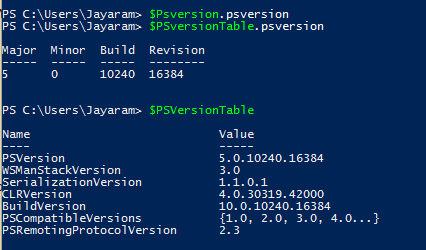
What version of Power Shell is supported in Windows 10?

The version of Powershell is 5.0 in Windows 10 as seen in this response to the $PSversionTable command.


PS5-01.PNG

However version 2.0 also exists as shown here:

PS5-02.PNG
Versions 3.0 and 4.0 are not found on the machine.

There are lots of Power Shell related posts (around 22) and you can access this address to see them all:
http://hodentekhelp.blogspot.com/search?q=Powershell

Tuesday, July 14, 2015

How to navigate to an URL in Internet Explorer using powershell?

To navigate to an URL use the New-Object definition as in the following: (in this case http://www.bing.com/news):
PS C:\Users\Jayaram> $ie = New-Object -com InternetExplorer.Application
$ie.visible=$true
$ie.navigate("http://www.bing.com/news")

You get to display the following (contents will be different):


BingNews.png

Can you change the size of the window?

Yes, you can change as shown by adding attributes.


Bing_news4to3PS.png

When you run the above in Windows PowerShell you get to display a different sized window:


Bing_news4to3.png

These are supported for the Internet COM Object in PowerShell:


Monday, July 13, 2015

How do you customize Windows PowerShell ISE?

You can change many of the settings as well as fonts & Colors in the Windows PowerShell ISE.

Code coloring, intellisense settings; script pane  customization; and other settings can be changed in Windows PowerShell ISE.

Launch Windows PowerShell ISE from the run program as shown:


CusotmizePSISE.png

In the Windows PowerShell ISE displayed click to open Tools | Options to display the Options window as shown. In the tabbed page (2 tabs) General you will see the following. These are (may be) the defaults.


PsIseOptions1.png

In the tabbed page Colors and Fonts you can set the changes you want to make or use defaults for Script Pane as well as Console Panes.


PsIseOptions2.png

Wednesday, June 10, 2015

How do you convert a string to integer in Powershell?


It is easy to convert a number represented as a string into an Integer.

Here is a string declaration:
$str1="123"

Declare the string in the command window is as shown:
PS C:\Users\Jayaram> $str1="123"  

The displayed value in the command window is as shown:
PS C:\Users\Jayaram> $str1
123

You can get to find the data type by running the following:
PS C:\Users\Jayaram> $str1.GetType().FullName
System.String

==============================
Now we convert this to an integer

The following line converts the string to an Integer
PS C:\Users\Jayaram> $foo=[INT]$str1

This is the value in the $foo variable
PS C:\Users\Jayaram> $foo
123

Now we get the type of data in $foo
PS C:\Users\Jayaram> $foo.GetType().FullName
System.Int32

Difference between GetType().FullName and just GetType()
 

PowerShell has intellisense support and you should make use of it in your coding as shown here:
After typing $foo insert a . and wait for the pop-up menu with various possible items as shown.

                                                                                                           
A string such as "555-5555-1212" is a string but will return an error as the variable is not in the correct format.
PS C:\Users\Jayaram> $str2="555-5555-1212"

PS C:\Users\Jayaram> $boo=[INT]$str2
Cannot convert value "555-5555-1212" to type "System.Int32". Error: "Input
string was not in a correct format."
At line:1 char:1
+ $boo=[INT]$str2
+ ~~~~~~~~~~~~~~~
    + CategoryInfo          : InvalidArgument: (:) [], RuntimeException
    + FullyQualifiedErrorId : InvalidCastFromStringToInteger

Saturday, June 6, 2015

What is here-string in Windows PowerShell and how do you use it?

Here-string is a generic way of denoting a file literal or an input stream. It is used to treat a part of the source code file as a separate file. Here-string finds its origin in UNIX Shell

Like other shell programs Here-strings is also a feature of PowerShell.

Probably you be able to comprehend it better by looking at how it is used.
First of all how do you create a string from a block of text?
Let us take the Hello World example.
The Here-string variable $hello is to be declared as shown:
$hello=@"
Hello World
"@

It has to be declared exactly as shown.
For example if you declare it as,
$hello=@"Hello World"@

then immediately when you try to run this script you get the following error:
--
At line:1 char:10
+
$hello=@"Hello World"@
+          ~
No characters are allowed after a here-string header but before the end of the line.
    + CategoryInfo          : ParserError: (:) [], ParentContainsErrorRecordException
    + FullyQualifiedErrorId : UnexpectedCharactersAfterHereStringHeader

 ----------
Of course you will notice that the following declaration also produces an error:
$hello=@"
Hello World"@


The error if you run this is:
The string is missing the terminator: "@.
    + CategoryInfo          : ParserError: (:) [], ParentContainsErrorRecordException
    + FullyQualifiedErrorId : TerminatorExpectedAtEndOfString

Now that it is correctly declared if you run the script you get the response as

Hello World
See the response in Windows PowerShell as shown:


Her-String01
The point to remember is the declaration starts with @" and whatever else start on the next line
and Ends with "@ on a new line. In between you can have strings, variables, formatted text etc.