Showing posts with label Northwind. Show all posts

Tuesday, May 22, 2018

How come I cannot create a New Database Diagram in SQL Server 2016 SP2?

I restored a copy of Northwind Database to a SQL Server 2016 Developers edition's named instance and I get this message.


NewDBDiagram_0

When I access the help on the above message, I display the following:


NewDBDiagram_1.png
II click 'Yes' without placing a check mark and I get sent to this site:

https://productforums.google.com/forum/#!topic/adsense/lcXY_ahp60M

The Microsoft support on this page does not seem to help unless you can search through this whole site. That's a joke!

I did not have this kind of experience earlier.

Monday, January 22, 2018

How do you restore a database from its backup using Microsoft SQL Operations Studio?

It is quite easy. In fact you can restore Northwind database from the CodePlex site to SQL Server 2017 Developers edition.

Watch this video on YouTube:
https://www.youtube.com/edit?o=U&video_id=-KOXjlRACSU

Read this post of how you may do this using SQL Server Management Studio:
http://hodentekhelp.blogspot.com/2017/07/how-do-you-restore-database-from-its.html


If you are interested in installing SQL Server 2017 Developer Edition on Windows 10 Pro.
Read this post:
https://hodentekmsss.blogspot.com/2017/12/installing-sql-server-2017-developer-on.html

Restore using Windows PowerShell:
https://hodentekmsss.blogspot.com/2016/03/easy-way-to-backup-sql-server-database.html

Wednesday, December 13, 2017

How do you plot using GGPLOT in Power BI?

We saw an example of plotting using GGPLOT earlier in the RGUI.

Herein we use ggplot in Power BI.

We connect to Northwind database on an instance of SQL Server 2016 Developer. We load data from Products and OrderDetails table into Power BI.

We drop the R Script Visual from the Visualizations onto the designer.


ggplot2
The R script editor opens up as shown


ggplot_03

Add the following code as shown:
-------------------------------
library(ggplot2)
y=ggplot(data=dataset, aes(x=ProductName, y=Quantity))
y=y + geom_point(aes(color="red"))

-------------------------
If you run this code using the R script

You get an error:


Now modify the above to this:
---------------------------
library(ggplot2)
y=ggplot(data=dataset, aes(x=ProductName, y=Quantity))
y=y+geom_point(aes(color="red"))
y=y+geom_point(aes(size=Quantity))
y

---------------------
Now run the script. You will see the plot as shown. The size shows the value of "Quantity" and the color=red is supposed to make it red.


The correct code for aes is modified to this:
-------------------
library(ggplot2)
y=ggplot(data=dataset, aes(x=ProductName, y=Quantity))
y=y+geom_point(aes(size=Quantity, color="red"))
y

-------------------
Run this code again. You get the following visualization.

Looks like there may some error in rendering of the color. Changing it to blue makes it still 'red'.


Wednesday, March 2, 2016

How can I backup a SQL Database to a folder on my computer?

You can do it using SQL Server Management Studio(SSMS) or Windows PowerShell. If you are a 'click' expert you would choose SSMS, but if you are a 'dba' type you would rather choose the key board.

The backup-sqldatabase commandlet in Windows Powershell can do it in no time at all. There are only two lines of code.

Let me show the database Northwind in the Object Browser of my SQL Server 2012 Instance.
The name of the instance with the domain is Hodentek8\RegencyPark. On this instance there are several databases. we will backup 'Northwind'


SQLServerRPark.jpg

Launch Windows PowerShell ISE by typing in 'Windows PowerShell ISE' in the searchbox('cortana') in Windows 10.

LaunchISE.jpg

In the Script Pane of Windows PowerShell ISE type in the following lines as shown:


backupcode.jpg
------------
$sqlServer = new-object ("Microsoft.SqlServer.Management.Smo.Server") "Hodentek8\RegencyPark"
Backup-SqlDatabase -ServerInstance "Hodentek8\RegencyPark"
                   -Database "Northwind"
                   -BackupFile "\\HODENTEK8\Users\Public\nwind.bak"

------------
After this code is processed the backup file will be found in the UNC location shown above.

You may want to review this post:
http://hodentekhelp.blogspot.com/2016/08/what-is-easy-way-to-move-database-from.html

Monday, February 8, 2016

How do you create a script in SQL Server Management Studio?

  • This presentation is created using Microsoft's latest presentation program SWAY. This is my first shot at SWAY. The presentation may not be smooth. Would you kindly comment? Thanks


Test embed code:

Tuesday, September 15, 2015

How to access OData service with LINQ?

Open Data Protocol (OData) relates to creation and use of RESTful APIs. OData uses URIs to identify resources on the Internet. The generic syntax for accessing the root of such service is http://host/Service. OData is built upon HTTP, ATOMPub and JSON.

An example of such a resource is the Northwind Service:

http://services.odata.org/northwind/northwind.svc/

LINQ, short for Language Integrated Query, provides an object oriented approach to not only querying relational databases but also any kind of source such as XML, Collection of objects, etc.

Want to know more about LINQ, go here.
Accessing OData with LinqPad.

Launch LinqPad (version used here is v4.55.03) and click on Add Connection link shown here:


OData_02.png

Choose Data Context window opens.


OData_03.png

Click WCF Data Services 5.5 (OData 3) and Click Next.
 In the WCF Data Conneciton 5.5 window type in the URI as shown (you have seen what this is earlier). Leave username and password blank. You can get to the XML or the JSON formatted resources. Remembering this connection is OK for the next time you come here.

Hit Test with Default(XML) checked. Your connection gets populated as shown.


OData_04.png

In the Query pane, Click on Connection and choose the option shown. As to query language you have a number of options.


Odata_05.png

I have just chosen SQL as the language to query. It looks like the driver does not support SQL.


Odata_06.png

Change the language option to C# Expression. Query for Employees table contents as shown:

Odata_07.png

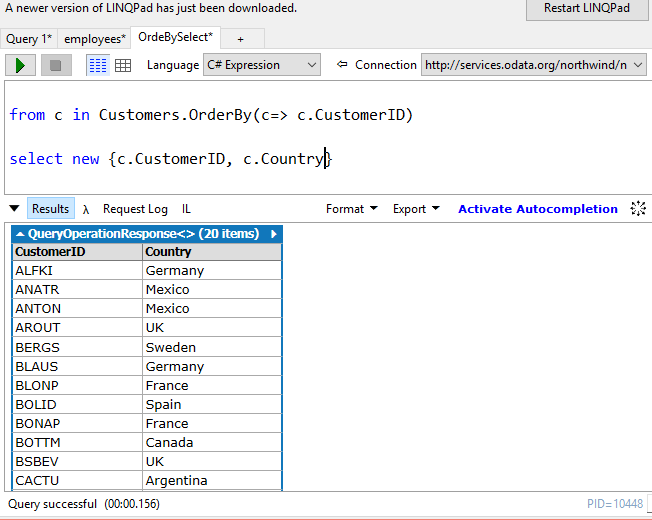
Here is another select statement choosing two columns from Customers table:

OData_08.png

You can easily query OData using C#, but this interface does not support SQL.

You can easily connect to OData using PowerBI, review this post:
http://hodentek.blogspot.com/2015/09/poweer-bi-using-data-from-odata-web.html