Showing posts with label Hyper-V. Show all posts

Friday, July 27, 2018

Microsoft Emulator problem in Visual Studio Community 2017 to Version 15.7.5

I upgraded the Visual Studio Community 2017 to Version 15.7.5 and now the emulator seems to have problems. The Hyper-V Manager shows the emulator is working but it is not recognized in Visual Studio IDE. Visual Studio, Microsoft Edge and Hyper-V are the only active screens.


Here is the Hyper-V Manager screen:


There is a link in the Windows Phone message that takes you no where.

Monday, January 30, 2017

Is it possible to use PowerShell to work with Hyper-V?


The short answer is yes. On a Windows 10 machine you can use Hyper-V to work with VMs. On a Windows 10 machine you need to enable Hyper-V using the 'Turn Windows features on or off' pop-up from the Program and Features in the Control Panel. When you enable it you should be able to see this.


You can then search for Hyper-V and start the GUI.
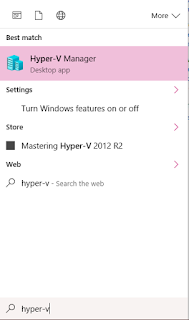


Clicking on Hyper-V Manager brings up the graphic user interface.

Hyper-V with PowerShell

It is also possible to use Hyper-V PowerShell module to simplify and automate management tasks. Most of what you do on the GUI can be carried out using PowerShell.

The advantages of using PowerShell is that you can automate most of the actions with flexibility. It can also provide you with features not implemented in the GUI.

If Hyper-V is already present, as in the present case (or machine) you can check if the Hyper-V module is available by using the Get-Command as in the following statement after bringing up the PowerShell command prompt:
Get-Command -module Hyper-V

This brings up the following response when run. The following is a screen shot of PowerShell ISE from the present machine. I have only included a portion of the result and most commandlets are named after their task.


For example:

Get-VMHOST gets the host information as shown.

PS C:\Users\Jayaram> get-vmhost

Name      LogicalProcessorCount MemoryCapacity(M) VirtualMachineMigrationEnabled
----      --------------------- ----------------- ------------------------------
HODENTEK8 8                     8116.2734375      False


PS C:\Users\Jayaram> get-vmhost|Select *


Just peruse the list and you can do many things with PowerShell.

If you are looking for installing Hyper-V on Windows 8.1 or Windows 10 go here:

Install Hyper-V on Windows 10:
http://hodentekhelp.blogspot.com/2016/04/how-do-you-install-hyper-v-on-windows-10.html

Install Hyper-V on Windows 8.1:
http://hodentekhelp.blogspot.com/2015/05/how-do-you-enable-hyper-v-in-windows-81.html

Friday, April 29, 2016

How do you create a Virtual Switch in Windows 10?

You need a virtual switch to connect to the Network via the Network Card. You follow the indicated procedure to create one.

Before you create a virtual switch you need to enable Hyper-V built into Windows 10. Follow this post to enable Hyper-V on Windows 10.

After enabling Hyper-V follow this procedure to create the virtual switch.

Monday, April 25, 2016

How do you install Hyper-V on Windows 10?

Actually Hyper-V is installed on Windows 10 and you need to activate it.

Before you configure a virtual machine, you must enable the Hyper-V role. You can do it in the Control Panel as shown below; using a Windows Powershell Commandlet; or DISM. Only the Control Panel method is described.

Step 1:
You do so by following this: Control Panel > Programs > Programs and Features

Step 2:
Click on Turn Windows Features on or off to turn on.
Windows Features window gets displayed.

HyperV-00

Step 3:
Place check mark for all items of Hyper-V as shown.

HyperV-01

Step 4: Click OK and reboot the computer
You are done.

Now you go and create a Virtual Switch!

Friday, May 15, 2015

How do you enable Hyper-V in Windows 8.1?

In case you want to run more than one operating system on your PC you may want to use Hyper-V. You can run both 32bit as well as 64 OS.

Hyper-V is included in Windows 8.1 Professional. It is quite easy to enable Hyper-V.  It is very similar to Windows Virtual PC on Windows 7. Hyper-V is needed for Windows 8 Emulator .

Right click Start on Desktop__>;Control Panel-->;Programs-->;Select 'Turn Windows features on or off'
In the Windows Features window displayed place check mark for Hyper-V as shown and enable both Hyper-V GUI Management Tools and the Hyper-V Module for Windows PowerShell.


That is all there is to it.
The above image is captured on a Windows 8.1 Professional on a Toshiba S70 Series laptop.

Thursday, May 22, 2014

What is an XAP File?

Let me briefly explain what is XAP?

XAP is the file format used to install application software on Windows Phone 7.5/8 platforms and Silverlight Applications. This will change in Windows 8.1. You can look at the contents of an XAP file by renaming (by changing .XAP to .ZIP as it is ZIP formatted file) it.

XAP file of an App consists of the manifest, the required dlls and views.

Read about my XAP article here:
http://aspalliance.com/1844_DoubleAnimation_Basics_with_Silverlight_Application

Using XapDeploy.exe tool you can deploy to a connected device or a chosen emulator (choose emulator from drop-down list). To have emulators on a Windows 8.1 computer you should at least have the Windows 8.1 Professional edition.

Note: If you are using Windows App Studio Dev (http://appstudio.windows.com/?stay=1)   which is in Beta you can download the XAP file of your Phone project from there.