Showing posts with label Windows 10. Show all posts

Thursday, April 27, 2023

Why my Windows 10 (x64) Dell Laptop cannot be upgraded to Windows 11?

It is often not possible to foresee the desirable features of a laptop you want to buy. This is true since the software and hardware turnover is fast. Given the innumerable option range in software and hardware, your choice is not easy.

I assumed that I could easily upgrade from Windows 10 to Windows 11 without sweat. For a time, I faced a problem updating the Windows 10 by running Windows Update and then try upgrading to Windows 11.

The problems with the Windows Update were finally resolved. I then tried to update. At first, I tried to run the Windows PC Health Check which would give me some information as to whether or not I could upgrade to Windows 11.

Here's what I found using Windows PC Health Check


My processor does not meet the requirements. Clearly I need to buy a computer.


Tuesday, April 12, 2022

Where do I find the IIS EXPRESS installation files?

You can find it here:

https://www.microsoft.com/en-us/download/details.aspx?id=48264


You can install it on these systems: Supported Operating Systems

Windows 10, Windows 7 Service Pack 1, Windows 8, Windows 8.1, Windows Server 2008 R2, Windows Server 2012, Windows Server 2012 R2


You can run it immediately after downloading and running from your chosen location.

These are the benefits of using IIS EXpress:

  • The same web server that runs on your production server is now available on your development computer.
  • Most tasks can be done without the need for administrative privileges.
  • IIS Express runs on Windows 7 Service Pack 1 and all later versions of Windows.
  • Many users can work independently on the same computer.
All information from Microsoft Site.

Thursday, September 23, 2021

What is dynamic locking in Windows 10?

 It is a security feature that locks up your computer/laptop when you are away (out of the Bluetooth range) from the computer. You can use this feature with your Bluetooth-enabled SmartPhone, Bluetooth headset, etc.

It is possible to lock the computer with Windows Key+L but the dynamic key can be useful when you forget to log out or go to sleep.

The "Dynamic Locking" feature is by default inactivated but you need to activate it.

Here are some screens that may be useful to you. I have paired my Samsung smartphone with my laptop.


Saturday, September 18, 2021

How to fix the error, "Error writing to temporary file. Make sure your temp folder is valid"?

 This is quite a frequent error many folks are confronted with while installing some new software.  I encountered this problem trying to install Android Studio on my Windows 10 (x64).

What is Windows 10 controlled folder access?

Controlled folder access is an anti-ransomware feature in Windows 10 that helps protect your file system on your computer from modification by suspicious or malicious apps (especially ransomware). You should find this in "System Protection"

Controlled folder access in Windows Security reviews the apps that can make changes to files in protected folders and blocks unauthorized or unsafe apps from accessing or changing files in those folders.

Access the relevant feature page in the Control Panel as follows:

Select Start  > Settings  > Update & Security  > Windows Security > Virus & threat protection.

In Virus & threat protection settings, select Manage settings.

Under Controlled folder access, select Manage Controlled folder access.

Although I could have looked through other options for managing, I wanted something which was quick to test my hunch but it cannot be a permanent solution.

I took a calculated risk. chose to switch the access to OFF temporarily. I then initiated the install process for the Android Studio and when it was installed, I switched the protection ON. 

I did not get any more notifications and the software was installed successfully.

What folders are protected?

In the above image, you can click on Protected folders to review them. Here is a partial list.


Tuesday, August 24, 2021

How do you edit Windows 'hosts' file in Windows 10?

 Windows 'hosts' file contains mappings of IP addresses to hostnames.

You can find the file in the Windows System32 folder if you run your DOS program with administrative privileges as shown.

You can open this file with Notepad also run with administrative privileges. There is another 'hosts' file related to iCalendar.

It is just a text file that you can edit and save with your changes.


More here:

https://hodentek.blogspot.com/2009/07/in-vista-home-premium-computer-name-is.html


You can also use the "Hostsman" application to edit the "hosts" file:

https://www.abelhadigital.com/hostsman/#downloads

Friday, August 28, 2020

How do you get information about an App on your Windows 10 Computer?

PowerShell is a good tool to use.

Let us say you want the details about your Microsoft Store app.
Then open the PowerShell ISE and type-in the following(the two lines in the script pane).

When you run this program, you will get to see all the details:


Feel free to browse all my PowerShell related articles in my blogs:

https://hodentekhelp.blogspot.com/search?q=PowerShell


Saturday, January 12, 2019

How come I cannot access Internet Information Services on my Windows 10?

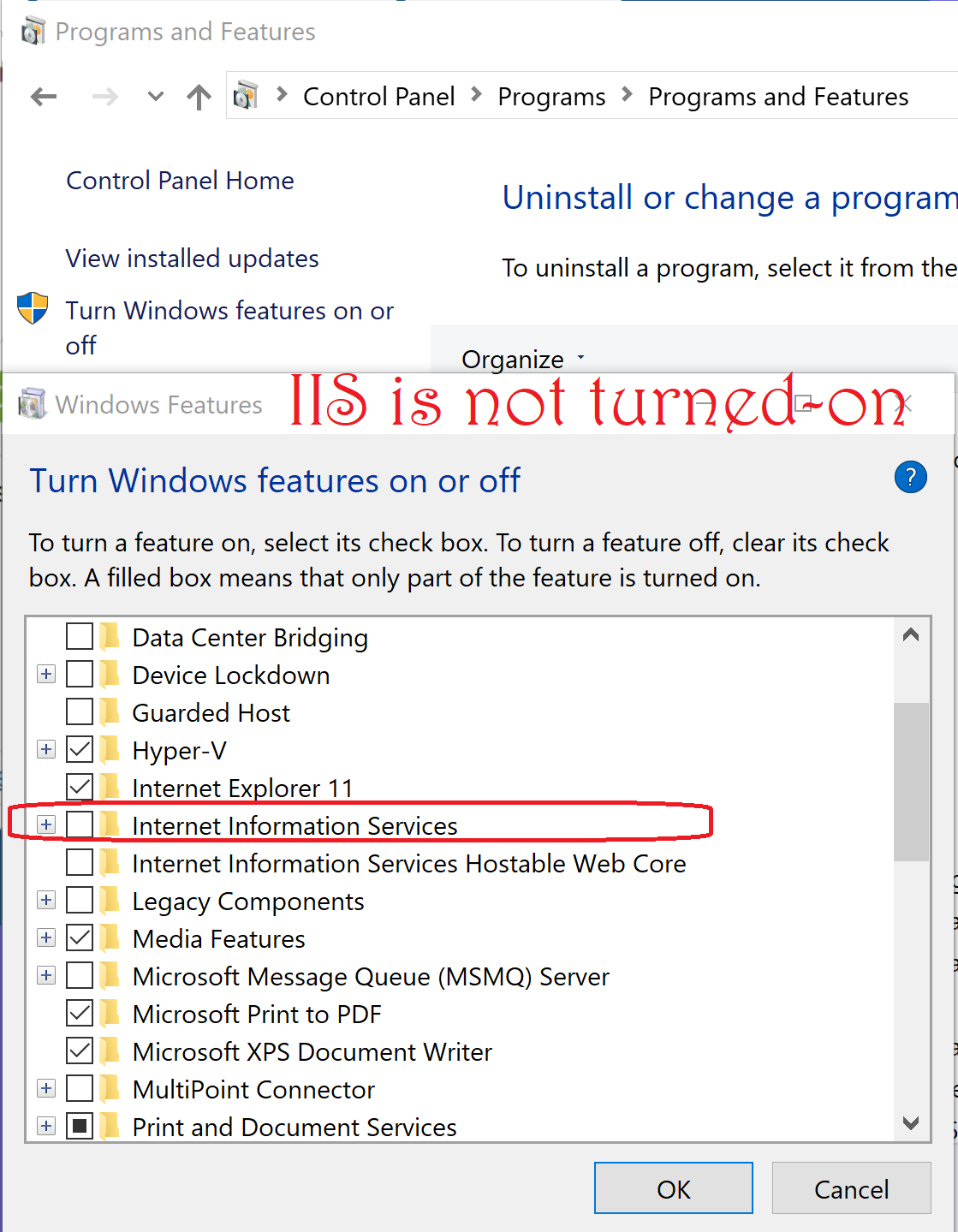
IIS does not come installed or turned-on.

Most probably IIS is not turned-on. You can do it from the Control Panel.
This is what you see when IIS is not turned-on.


Wednesday, July 11, 2018

What productivity boost items are in the Windows 10 Build, Insider Preview 17692?

Recently this build was applied to my computer and it did take quite bit of time. I am not sure how much change it made to my resources.


Microsoft Edge has been enhanced. There are lots of great stuff and the productivity tips are many. There is nice web page that explains each of the following with gifs (may be):

Here is a list of the productivity related new items:
      
One click to fill forms
Mark up PDFs and e-books
    Reading made easier
Print what matters

    Browse on your phone and continue on your PC
Mute tabs
Have the web read out loud to you
Read e-books in the browser
Translate websites instantly--Download Translation Extension
Customize with extensions
Use your touchpad like a touchscreen
 I liked this one
Swipe to go back or forward
Keyboard shortcuts
Get notifications from websites
Use mouse gestures to close tabs and more
Earn rewards for using Microsoft Edge
Save money with Cortana
Get instant answers as you search
Read without distractions
Write on the web
Add notes to sites
Clip and share anything
 Clipped image has unknown format, cannot be opened  
Cast your content
 Does not discover the TV
Browse longer without a charge
Get helpful tips from Cortana
Ask Cortana anything
Save creative ideas from around the web with Pinterest
Instant access to all your Office files  -- You need an extension
Get a Focused inbox with Outlook.com

You may think that productivity has increased, but actually it has decreased because the computer has become very sluggish. I tried to check out the above and I had browser freezing up, or printer menu not coming up; the Cast to devices not showing and many more.


Sunday, May 27, 2018

How do you place a checkmark in an image?

Checkmark symbol is more often used to place it in a checkbox to agree to something or answer the question yes or no, as in a license document.

Now if there is a checkbox in an image such as the one shown below how do you place a check mark in the checkbox, say Orders?
Select the Text icon in Paint as shown.


Checkmark_0.png

Place the cursor on the Orders' checkbox as shown.

Checkmark_1.png

Type in 2713 into the Text input area as shown.


Checkmark_2.png

Highlight 2713 in the checkbox and hit ALT Key and X at the same time.

You have changed the Unicode Hex to the symbol as shown.


Friday, April 20, 2018

UWP: How do you fix the missing Assembly References error?

This error showed up as soon as I tried to create a Blank UWP app in Microsoft Visual Studio 2017 Community. Of course you cannot create an application with missing references.


Problem.png

You first go and see what references are missing. This was my solution explorer when this happened.


Problem2

Well, it says references are missing but does not point to which one. However, the suggestion is to build the NuGet cache.

I opened up an app which had worked in another instance of VS 2017. I could see that the reference, Microsoft.NETCore.UniversalWindowsPlatform was missing.

In order to build the NuGet Cache right-click the Solution Explorer and invoke the Restore NuGet Packages menu-item as shown.


Problem3

Click on Restore NuGet Packages to open the NuGet window as shown.

Problem5

Click or search for Microsoft.NETCore.UniversalWindowsPlatform. Highlight the project from which the file is missing (in the right pane). Click Install.

You may get messages such as these, deal with them.

Problem 6


Problem 7

You should get a message that it has been restored as shown.


Problem4

Now you can verify that the reference has come back to the project.


Problem8


Friday, April 13, 2018

UWP:How do you control space between controls in XAML?

The easiest way is use the Margin in your control.

The syntax is Margin="left, top, right, bottom"

The next image shows code and design time layout where all textboxes have some space between them. The Button is still attached to the last textbox.


In this image the textboxes are separated from each other by equal spaces and also the 2,3 and 4 th box are left to their previous ones.

Enjoy!

Thursday, February 1, 2018

Does Microsoft SQL Operations Studio support Windows Power Shell?

Yes. It does.
You can access the console in Microsoft SQL Operations Studio by clicking this option in the User Interface as shown.


PS_SQLOPS_0.png

This displays the terminal.


PS_SQLOPS_1.png

The following version of Power Shell is supported:


PS_SQLOPS_2.png


Wednesday, November 22, 2017

Windows 10 Insider build related errors

I am in the Windows 10 Insider program and I have noticed some 'bizzare' displays quite unexplicable. I believe they manifest whenever there is some kind of attack from an external site.
These appear to manifest during such an attack. I have felt that the computer has slowed down and the Windows Explorer has lost some control.

Sometimes they go away if you empty past history, cookies, etc.

Look at what happens when I do a right click on desktop.

Insider Problem.png

This should have been this:


Look at the contextual menu of a desktop folder.


InsiderProblem2

Instead of this:

Look at this empty content.

More importantly I strongly believe that my Report Builder UI related errors are because of the Insider Build.

https://hodentekmsss.blogspot.com/2017/11/report-builder-3-has-ui-problems-that.html

Tuesday, November 21, 2017

What is the latest Windows 10 release version?

If you work with Windows 10 you better know what version you are using. Additionally, if you are in the Windows Insider program you better know the build you are using.

Windows OS updates are automatic. The Insider builds may interfere with your other programs. I noticed it accidentally and could not make something work which worked like a clock earlier.

https://hodentekmsss.blogspot.com/2017/11/report-builder-3-has-ui-problems-that.html

The Windows 10 release information my be found here:
https://technet.microsoft.com/en-us/windows/release-info.aspx

Here it is all tabulated:


Windows 10 Versions.png

Thursday, August 31, 2017

Can I access my local web server(IIS)from my smart phone?

As long as the local web server (IIS) is working and you can browse a file on the server from your browser you should be able to browse the same file on your smart phone provided you access the IP Address of your computer hosting the IIS.
You can find the iPv4 address of your computer by using the ipconfig command :
------
C:\Users\Owner>ipconfig
Windows IP Configuration
Ethernet adapter Ethernet:
   Media State . . . . . . . . . . . : Media disconnected
   Connection-specific DNS Suffix  . :
Wireless LAN adapter Local Area Connection* 1:
....
....
....
Wireless LAN adapter Wi-Fi:

   IPv4 Address. . . . . . . . . . . : 192.168.0.10
-------------------
Here is a partial view of my default site showing the content SVGCode.html, an interactive HTML5 page:


This is how it appears on a Microsoft Edge 15 browser:

This how it is called on my Microsoft Lumia 950 phone using the IP Address:
Note:  Although I entered the IP Address, the phone translated it to the computer name.

If it does not get displayed check the firewall and make sure this item is checked:

The computer was a Dell Laptop running Windows 10 Professional and the smart phone was a Microsoft Lumia 950 both on the same Wi-Fi network.

Friday, May 26, 2017

Microsoft BitLocker saga..

This is the classic example of getting out of one problem and getting into another.

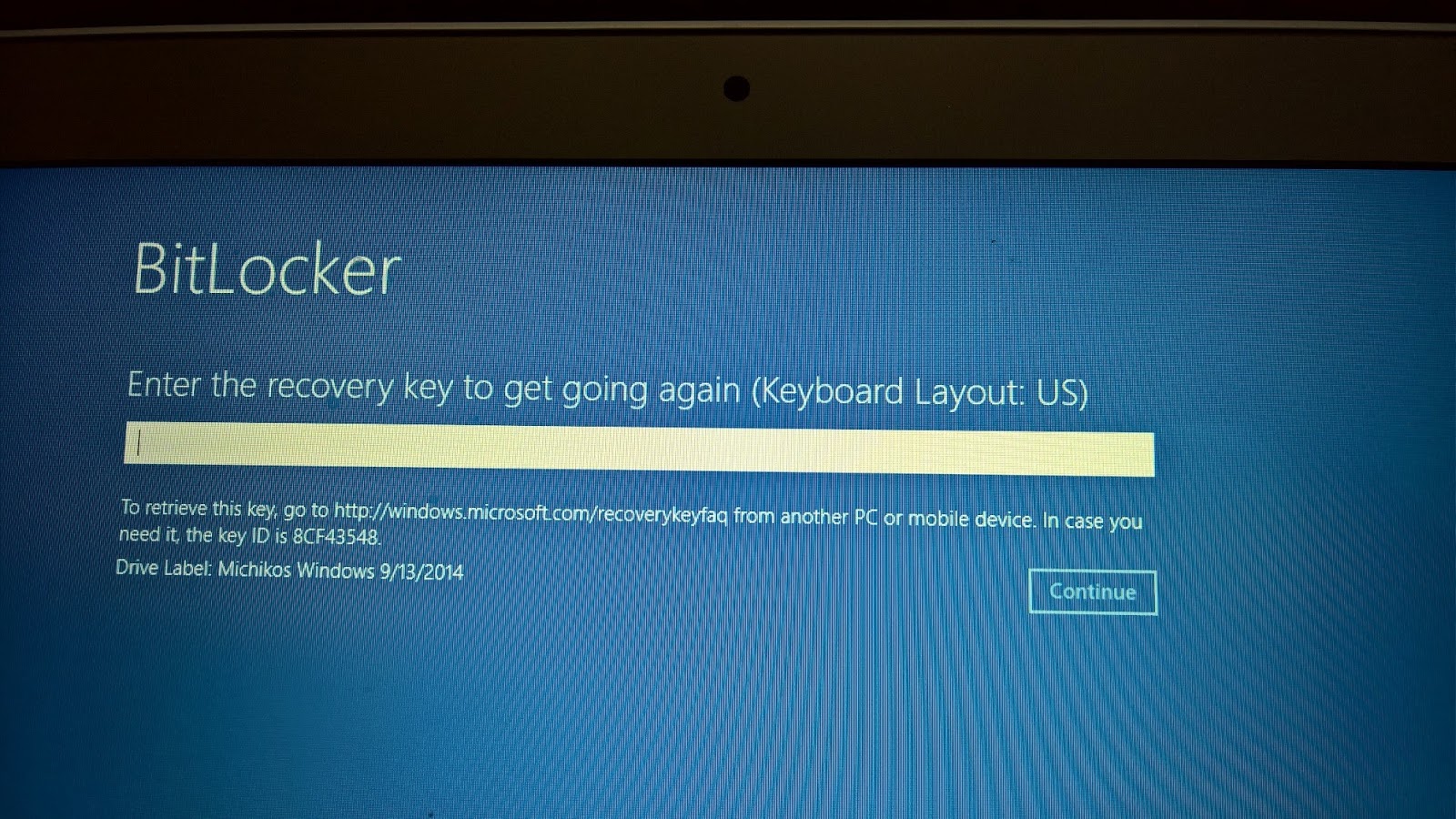
I had the virus problem (probably the ransomeware except that I did not click on any link and the threatening page did not go away after a reboot, etc.) on my Toshiba tablet with Windows 10 and decided to System Reset to clean the tablet. It went through the process and now requesting entering of a recovery key. There is a Key ID on the tablet (8 alphanumeric characters) and if I try to enter I get a basic numeric keypad like on a calculator with keys marked with only numbers.
It may work if I can enter. But how can I enter this 8 character ID using this calculator-like numeric keypad? and Drive Label with a date.


The tablet is on a Wi-Fi network with 3 other laptops (two running Windows 10 Pro and the other Windows 7 Pro)

It turns out that I am supposed to have a key and what was shown above was the KeyID (only the first part of it). The key itself is all numeric with 48 characters.

Finally I used the manage-bde commandline command to see what is going on.
Finally using manage-bde, I could find out that I have only the recovery key id without a recovery key.


What surprises me is that I never meddled with BitLocker as I do not have great secrets to guard. How come the BitLocker was locked in the first place? I toook the tablet to the Microsoft Store where they might be able to find some thing.

 It is not I don't have a key, I believe there never was one!

It is still puzzling, that since I did not lock the machine with BitLocker, who did?

According to Microsoft Store, when I signed into Microsoft Account the BitLocker by default locks it. It did not seem credible to me. I did not get the impression the technician was fully conversant with BitLocker. I avoided BitLocker for the simple reason, I did not want another layer of complexity to my files/folder that do not contain sensitive information.

One of the members of Microsoft Forum provided some background information of BitLocker's evolution. This is what might have happenned (his words):

"Earlier, Microsoft used to enable bitlocker on the home version of windows if
A a microsoft account was used
B the computer fulfilled the hardware requirements (TPM chip, instant-go compatible).
That was quite an idea... they even shot the recovery key through the network in plain text - some german IT magazine ("IX") discovered that. By now, they stopped it."

Wednesday, February 22, 2017

Environment variables settings made better in Windows 10

 This was long overdue and finally it is done.

Editing Path was one that was often used whenever direct access to application from the console was desired and that involved three windows, each of which had such a spatially constrained UI design that you needed to scroll horizontally to make a change.

In previous versions of Windows including some earlier Windows 10, editing environmental variables using the built-in interface was not a easy task.


 The windows had fixed dimensions and you can see how cramped it was.

 The user interface is discussed here (http://hodentekhelp.blogspot.com/2010/08/compiling-java-in-windows-7.html) for those who want to know how it was done.

But recently it has changed. The present version is 1607.

Windows 10 does it better as you will see presently. You can get to the Environmental Variables window by typing in Path in the search box.

You get two environmental variables the User's as well as the Systems' as shown.


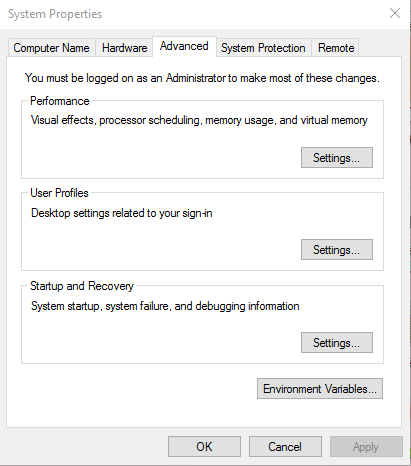
Open the Systems' (blue) and you get the System properties window  as shown no different from the old one.


envNew_01.png

Click on Environmental Variables... to open the Environmental Variables window as shown. It is bigger and better.


envNew_02.PNG

In System variables (bottom) pane scroll down to Path and double click the text Path. The edit window for environmental variables opens up as shown and you can modify any sub-path in its own window.

 envNew_03.PNG

You can also move up/move down as well as edit the text. Just finish off with a click on OK and you are done.

Don't you think Microsoft did this better!


Monday, January 30, 2017

Is it possible to use PowerShell to work with Hyper-V?


The short answer is yes. On a Windows 10 machine you can use Hyper-V to work with VMs. On a Windows 10 machine you need to enable Hyper-V using the 'Turn Windows features on or off' pop-up from the Program and Features in the Control Panel. When you enable it you should be able to see this.


You can then search for Hyper-V and start the GUI.


Clicking on Hyper-V Manager brings up the graphic user interface.

Hyper-V with PowerShell

It is also possible to use Hyper-V PowerShell module to simplify and automate management tasks. Most of what you do on the GUI can be carried out using PowerShell.

The advantages of using PowerShell is that you can automate most of the actions with flexibility. It can also provide you with features not implemented in the GUI.

If Hyper-V is already present, as in the present case (or machine) you can check if the Hyper-V module is available by using the Get-Command as in the following statement after bringing up the PowerShell command prompt:
Get-Command -module Hyper-V

This brings up the following response when run. The following is a screen shot of PowerShell ISE from the present machine. I have only included a portion of the result and most commandlets are named after their task.


For example:

Get-VMHOST gets the host information as shown.

PS C:\Users\Jayaram> get-vmhost

Name      LogicalProcessorCount MemoryCapacity(M) VirtualMachineMigrationEnabled
----      --------------------- ----------------- ------------------------------
HODENTEK8 8                     8116.2734375      False


PS C:\Users\Jayaram> get-vmhost|Select *


Just peruse the list and you can do many things with PowerShell.

If you are looking for installing Hyper-V on Windows 8.1 or Windows 10 go here:

Install Hyper-V on Windows 10:
http://hodentekhelp.blogspot.com/2016/04/how-do-you-install-hyper-v-on-windows-10.html

Install Hyper-V on Windows 8.1:
http://hodentekhelp.blogspot.com/2015/05/how-do-you-enable-hyper-v-in-windows-81.html