Saturday, December 12, 2015

What is Cardova?

Web apps are apps built using HTML5, CSS and JavaScript. This is no different than building a web site with HTML and JavaScript. Your web app is just the web view that will render the HTML/CSS/JavaScript files. Unfortunately this by itself is not enough except for some simple applications. However if you need access to native hardware like camera, accelerometer etc then Cardova plugins can provide access to those native capabilities.

Cardova plugins consist of a JavaScript file and a code files for a given platform. Cardova maps the native code to JavaScript specific for the platform (iOS, Android, Windows) to care of implementing the native devices.

Here is a list of many Cardova Plugins.

What is a Medallion Signature Guarantee?

Medallion Signature Guarantee or also known by other terms Medallion Stamp or Barcoded Medallion Signature is required by financial institutions for verifying signatures on finance related documents.  Medallion Signature Guarantee is perhaps more relevant to USA and I am not sure of other countries. You may find more info or links here for international transfers
http://www.iwc-ltd.co.uk/overseas-probate__medallion-guarantee.html

According to the investment firm TD Ameritrade,

"A signature guarantee verifies the legitimacy of a signature and the overall request of the signatory. It's provided in the form of a stamp or seal by a bank, stock exchange member, or another acceptable guarantor and is often used in cases of financial instrument transfers. Most often, the guarantor accepts all responsibility if the signature is fraudulent. Please note: A notary stamp is not the same as a signature guarantee, and will not be accepted in its place on forms that require a signature guarantee."


Friday, December 11, 2015

Does Microsoft Edge support SVG?

Microsoft Edge natively supports SVG although it does not allow plug-ins. You can upload a SVG file to your web browser and bring it up in Microsoft Edge as shown here:


SVGTest.png

The SVG file was downloaded from this site.

With Microsoft coming out with Continuum after the debut of Windows 10 OS, SVG should be quite attractive.

Also, Firefox 42 does render it equally well.


SVGTest2.png

Few more related links if you want to review:


2009
http://hodentek.blogspot.com/2009/10/finally-svg-in-visual-studio.html

2010
http://hodentek.blogspot.com/2010/09/svg-gets-rendered-on-ie-90.html

Export SVG from OpenOffice
http://hodentek.blogspot.com/2013/08/short-of-cash-get-apache-openoffice-40.html


Thursday, December 10, 2015

What is tablet mode of a computer?

In Windows 10 you can have your screen look and act like a tablet or just as a PC.

In the PC mode you can have both the desktop look like this (right click the Windows icon at far left and bottom),

desktop-look
or access to all apps like this (click Windows icon at far left and bottom)

All apps_look

However you can change this to look like a tablet by taking these following steps:

Click Windows Icon and from the pop-up menu click Settings.

Settings-look
In Settings click on Notifications & Actions settings after searching for Actions.

 Click on Notifications & actions settings to display the following:


Then click on Tablet mode and turn it on from off.


The moment you make this change the desktop display changes to tablet mode:


If you want to return to PC mode, do the reverse. Find Notifications and Actions settings in Cortana and turn-off tablet mode. This is supported only on some kind of PCs like this one (Windows 10 Pro x64 bit on Toshiba Satellite S70 series with touch screen)  used for this post.

Tuesday, December 8, 2015

How do you know what version of Windows 10 you have on your computer?

Windows 10 gets updated regularly and it is always good to know what version you have on your computer.

One of the places where you can find this information is the Settings.
 OS_build_version_01

You can also get it from Command Line thus,


OS_build_version_02

I am not sure whether Microsoft Edge gets updated every time Windows 10 is updated but it appears to be so, since the version of Microsoft Edge app are:

Microsoft Edge 25.10586.0.0
Microsoft EdgeHTML 13.10586

How does the latest Firefox compare with Microsoft Edge for HTML5?

This morning a Windows 10 Update was applied. It took a while to get the computer back for working. Microsoft Edge has many neat features and it is supposed to be better designed for HTML 5  for speed and performance than the earlier browser versions. On the other hand I recently installed Firefox 42 which is also pretty good.


I just wanted to see how they compare and ran a test on this site (http://html5test.com/) for the two browsers I have on my Windows 10 Pro.

Firefox 42


 MicrosoftEdge (EdgeHTML13.10586)


It appears Firefox 42.0 is quite good with a slightly (not a big difference) better rating. May be you should go to this site and check out the details.

But surely, Microsoft Edge is catching up and coming out Open.

Monday, December 7, 2015

How do you get data on a Web URL using R Studio?

Read here about R Studio if are not using R Studio. The post shows how to download and install.

Launch R Studio preferably with Administrator Privileges. The UI opens as shown here:

 Rstudio_url_01

In the main menu click on Tools to get the following:


Rstudio_url_02

Click From Web URL.... This is supposed to access data stored on a web server. The program requests the URL address from where you get the data as shown.

Rstudio_url_03

Well what kind of data can be accessed as there are many ways to store data?

Well R Studio can access data on a text file or a file with CSV extension on a Web URL.

If you want to test this, create a text file such as the one shown here:
-----------------------
FirstName LastName Age
Tom       Jones    50
Lily      Brown    35
Billy     King     25
------------------------
Store it as Students.txt (or as Students.csv) and save it to the local web server's (IIS) WWWRoot folder. Of course you need to have permission to save to this folder. By doing this you are placing the file on your local web server.

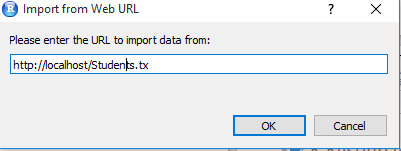
Now go back to the R Studio and click on the From Web URL... as previously mentioned. Enter as shown here.


Rstudio_url_04
There is a small error, it should be Students.txt. The importing takes place as shown in the window that gets displayed.

Rstudio_url_05

Click Import and the data gets entered as shown. You can also see the contents of code run in the console as shown in the next image.


Rstudio_url_06