Thursday, December 31, 2015

2015 was a good year

I have been blogging from here for the past 8 years and I have a great audience. This year has been a very good year if I go by the number of posts.


The audience is world wide and I hope I have been able to help some. I feel good, if I can help someone who is beginning to do things from some corner of this earth which is further away from the hub of things.
December 2015 views curtsey of ClusterMaps.com


Technology changes very fast, to keep pace with changing technology is not always easy. Hardware, software, and platforms change very fast and it is impossible to track these changes easily. New languages and new paradims are created like almost everyday. Help of any kind is welcome. It is to provide this help this blog was created.

HodentekHelp wishes you all a very happy and productive New Year. May your wishes come true.


What is ColumnStore Index in SQL Server?

First of all ColumnarStorage Index  is a new feature in SQL Server 2012 and upward versions. This new indexing type is designed to speed up disk I/O operations in queries retrieving data from data warehouses where it is typically used. In data warehousing with ColumnarStorage Index; data is stored in columnar fashion. Hence if the data consists of large number of columns but only few columns are regularly called upon in a query, then having those columns (indexed) arranged to store data in the sense of columnar storage will be more efficient.

Probably this Mickey Mouse picture shows these two different index types.
Microsoft puts it this way,

"An xVelocity memory optimized columnstore index, groups and stores data for each column and then joins all the columns to complete the whole index. This differs from traditional indexes which group and store data for each row and then join all the rows to complete the whole index.
"
There are many restrictions on creating Columnar Storage Index, the first of which is that you can only do it if you have SQL Server 2012 Enterprise edition.

These are the basic restrictions for the columnstoreindex:
  • Cannot have more than 1024 columns.
  • Cannot be clustered. Only nonclustered columnstore indexes are available.
  • Cannot be a unique index.
  • Cannot be created on a view or indexed view.
  • Cannot include a sparse column.
  • Cannot act as a primary key or a foreign key
  • Cannot be changed using the ALTER INDEX statement. Drop and re-create the columnstore index instead. (You can use ALTER INDEX to disable and rebuild a columnstore index.)
  • Cannot be created with the INCLUDE keyword.
  • Cannot include the ASC or DESC keywords for sorting the index. Columnstore indexes are ordered according to the compression algorithms. Sorting is not allowed in the index. Values selected from a columnstore index might be sorted by the search algorithm, but you must use the ORDER BY clause to guarantee sorting of a result set.
  • Does not use or keep statistics in the manner of a traditional index.
  • Cannot contain a column with a FILESTREAM attribute. Other columns in the table that are not used in the index can contain the FILESTREAM attribute.
  • Also, when it comes to updating a table, you cannot update a table with a columnstore index.
More info here.

Thursday, December 24, 2015

What is SSISDB and how do you create SSISDB in SQL Server 2012?

Integration Services Server is basically the SQL Server Database Engine that hosts a special database that does not allow replication or mirroring, the SSISDB. The database stores the following objects:

  • Packages
  • Projects
  • Parameters
  • Permissions
  • Server Properties
  • Operational History
While installing SQL Server 2012you would have installed SQL Server Integration Services as shown here:


IntSerServ_00

SSISDB provides the public views that allows querying and for manageability, it allows creating stored procedures. SSISDB has to be in place before you deploy SSIS Projects.

The Packages are created using SQL Server Data Tools and deployed to SSIS. It assumes you have created the SSISDB before deploying the SSIS Projects.

Where is the SSISDB or how do you create the database SSISDB?

Assuming you have installed SQL Server 2012 as I the previously mentioned link, you launch the SQL Server Management Studio and change over from connecting to Database Engine to Integration Services  as shown.

IntSerServ_01

Since you installed with Windows Authentication, just click Connect.

Oops! you may get this message.

IntSerServ_02

Now go ahead and launch SQL Server Management Studio with Elevated permissions (As administrator).  Repeat connecting to Integration Services as before. You may get this message if SQL Server Integration Services has not started.

IntSerServ_04

Start the SQL Server Integration Services in Control Panel|..|Services  shown.

IntSerServ_05

Click Start to start the SQL Server Integration Services 11.0. It processes the information and status changes to Running.

Now connect to the Integration Services as before (after launching the SSMS in Administrative mode).

The first of the nodes in the Object Explorer is the Integration Services. This is an expanded view of the Integration Services Server.


This is a named instance of SQL Server that will host the SSISDB.

IntSerServ_06

Creating the SSISDB

Connect to the named instance of SQL Server 2012, herein the Hodentek8\RegencyPark.
Right click the Integration Servies Catalogs and click Create Catalog.. from the drop-down menu as shown above. The following window will be displayed.

IntSerServ_07

Place check mark for Enable CLR Integration. Leave the catalog database name as is and create a password to protect data using encryption (enter and retype password). Save this information in a secure place (under lock and key). Click OK.

Now the SSISDB gets created as shown.

IntSerServ_08
This is an expanded view of the SSISDB in the Object Explorer of the named instance.

IntSerServ_09

In the next post a SSIS Project creation will be described that can be deployed to the Integration Services Server.


Tuesday, December 22, 2015

How do you extract textual information in an image file?

Text Extract app from Microsoft Store can be used to extract textual information in an image file.
This is quite a useful app that you can use to recognize characters in an image (aka OCR). It is limited to roman alphabets and therefore useful for English, French and other roman (Latin) alphabet based languages.

For other languages like Japanese, Hindi, Chinese which do not use Latin alphabet it is not useful. It is best for English and less useful for French for example, as it does not faithfully retrieve the letters with accents: (e.g. ó, ò, ñ)

You can download this app from here:
https://www.microsoft.com/en-us/store/apps/text-extract/9wzdncrdt09w


It is very easy to use. Double click the app in the All Apps view to launch the app as shown.
Then use Open Image to locate the image file in your Folder/File system and it should work immediately as shown. The image is in the top pane and the extracted information (which you can copy and paste to another text file) is in the bottom pane. In this file only the link is in Latin alphabet and therefore extracted.


 This one is in French and you can see all of the text in the image file is extracted to the bottom pane.


This is the original page on the Internet. 


This is the extracted text copied over in the next paragraph

  Dollar : le retour bienvenu ä
I 'orthodoxie
Editorial. Pour la premiere fois depuis la crise de
2008, la Réserve fédérale améncaine a relevé,
mercredi 16 décembre, ses taux d'intérät d'un quart
de point. Une décision justifiée par les circonstances
macroeconom qu es_

There are a couple of differences including, the diacritical accent tilde becomes umlaut and accent grave is absent.

Now review this image in the top pane and the extracted text in the bottom. You can see it is very good if the language is English.

 I also tested for few others besides English.

How do you find operating system version number using PowerShell?

You could use the following commands to find the operating system on your computer:
At the command prompt with the command window open in adminsitrative mode type-in ver or winver as shown:
==
C:\>ver
Microsoft Windows [Version 10.0.10586]
==
C:\winver will bring up the About Windows as shown:

winver.png

However if you want to use Windows PowerShell launch it in elevated mode and run the following command and you get more detailed information as shown:
gwmi win32_operatingsystem

gwmi.png

Monday, December 21, 2015

Windows Mail app does nothing when clicked, how do you fix it?

Windows 10 Mail App stops responding and probably Calendar and People apps as well. When you click on the app nothing happens. You go to settings to see if you can uninstall. You will find there is no uninstall for this. It is part of the operating system and you cannot uninstall it.

This happened on my Windows 10 Pro on my Toshiba Satellite S70 series as well as Toshiba's Windows tablet running Windows 10.

What now?

You can run the following (System File Checker) on the command-line with elevated permissions. It will try to verify and fix problems with files (http://hodentekhelp.blogspot.com/2015/05/how-to-run-system-file-checkersfc.html).

However, this did not solve the problem on both the devices.

Next following this thread I launched Windows PowerShell with elevated permissions and ran the following statement:

Get-appxprovisionedpackage –online | where-object {$_.packagename –like "*windowscommunicationsapps*"}
| remove-appxprovisionedpackage –online

Here is the screen shot of this run:

MailAppProblem

This fixed the problem on my laptop, but the Tablet is still having the same problem- non-responsive mail app.

Just before I ran the PowerShell application I had noticed that there was a new Windows Update and the Windows 10 build was 10586.

My tablet still had the build 10240 which I am upgrading to 10586. Let me see if this fixes the problem. Since these are Windows 10 programs, Microsoft should make sure they work all the time as most users may not even know what powershell is not to speak of elevated permissions, sfc etc.

Saturday, December 19, 2015

Which of Firefox and Microsoft Edge support MathML better?

This is just the view point looking at just one example and must not be construed to apply to whole of MathML. You may review some basic MathML information here.

Here is an example of displaying a matrix using the presentation elements of MathML. Browsers do not support MathML the same way, some do better than others. Generally speaking browsers that support HTML5 should support MathML to some extent. This post considers only the latest versions of Firefox and Microsoft Edge at present.

This page can be hosted on a web server(in this case on the local ISS, IIS Version 10.0.10586) on Windows 10 Pro)

Matrix Display with MathML


Matrix A
 
     
  A
  =


         x
         y


         z
         w


This is a very simple page but there are differences how the browsers display them. The MathML is highlighted in yellow in the HTML page.

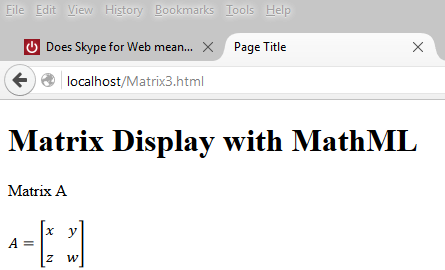
Firefox 42
Firefox displays as shown here without any modification. This is the correct way of displaying a matrix.


Microsoft Edge 25

The HTML code used as is (with the