Showing posts with label Windows Authentication. Show all posts

Monday, September 16, 2024

How do you custom Install SQL Server 2022 on a laptop?

  In Part 1 we looked at hardware and software requirements and determined that the Surface Pro laptop could satisfy the requirements for the SQL Server 2022 installation.

If you are looking to working on your SQL Server in an isolated mode to gain some experience, you may not need to worry about a number of items in the Planning node of the SQL Server Installation center such as,

  • Azure extension for SQL server (New)
  • Download Data Migration Assistant(DMA)
  • How to get started with SQL Server 2022 Failover Clustering
  • Upgrade Documentation
  • Download SQL Server Migration Assistant (SSMA)

However, make sure you go through the other items. You could always bring up the SQL Server Installation Center later if you need to.

The next item on the SQL Server Installation center is Installation. A click on the installation node in the SQL Server Installation enter brings up this page (window).


On this page, these items are important, 

  • New SQL Server standalone installation or add features to an existing installation.
  • Install SQL Server Reporting Services
  • Install SQL Server Management Tools
  • Install SQL Server Data Tools

If this is a fresh install, you will be using the New SQL Server standalone installation, the first item's option.


Click "New SQL Server standalone installation"

The installation begins and you will be getting messages regarding installation progress, you just wait them out.

After a while you get his page(window).


Since we are using a free edition, just choose the first option Specify a free edition. However, have a look at the two other options

Also, note on the navigation items on the left of this page. The installation goes through each of these items. It may skip through some items that are not relevant.

Click the button Next> at the bottom. As the case may be, sometime you want to go back to the previous screen and a back button is present.

The following page is displayed regarding license terms.


If you accept by checking the "I accept..." control at the bottom you can install. Some of your data may be collected by the software. It may be prudent to keep a copy of the license terms should you be interested.

Click on the Next> button. As you may have observed, it skips the Global Rules step in the installation and goes to Microsoft Update. 


Accept the recommendation of Microsoft and place a checkmark. Here, you have an option to go to the shown links to check out FAQ and Privacy related statements.

Click Next>. It processes your request rapidly and skips Product Updates, to Install Setup Files .


After Install Setup Files the Install Rules page gets displayed. You may see Windows Powershell highlighted. You need not worry as Windows Powershell is already installed on Windows 11 Pro computers and laptops.

Click Next>


This is the Azure Extension for SQL Server and skip this as we are just looking at the SQL Server on our laptop exclusively.  This is wasn't there in the SQL Server 2012 edition. The Azure Cloud services had just appeared in beta agt that time.

Let us disregard this (do not check any of the boxes) and click Next>.

This takes you to the Feature Selection page as shown.


This is an important step and you should take time to read and understand the items. It describes broadly under Instance FeaturesShared Features and Redistribution Features. Microsoft Reporting Services used to be a  part of the installation in earlier editions of SQL Server. In this edition you can install it using the internet link shown on this screen.

Place a check mark on Database Engine Services. Windows Powershell, a powerful programming is already installed and it used to be a requirement in earlier editions. It comes with Windows 11. We will not be interested in Replication and you skip this one. Machine Learning Services and Language Extensions will be very useful should we use R, Python, Java and other programming languages. With the advent of AI this may become very useful. If you choose this, it will enter the installation queue and will be installed. It would take up 1419 MB of disk space as shown.


Choose the option "Full-Text..."

If you want to connect to non-SQL databases choose the option "Polybase query Service for External Data". I believe, Polybase Query had just appeared in Beta in 2012.

As you choose, items the disk space requirements gets updated as you see in your right side boxes.

For now, we skip Analysis Services. We also skip the whole of Shared Features as well as Redistribution Features. We can always go to the SQL Server Installation Center and modify items later.

At the very bottom, observe that the installation root directory is shown as, C:\Program Files\Microsoft SQL Server\

Click Next>.

It takes you to the Instance Configuration page as shown with a standard Default instance, named MSSQLSERVER. This naming has little changed over the editions. The SQL Server directory is also shown.


If you choose the Named instance by clicking on it. You need to give a name for your SQL Server.  

Let us choose a named instance. Herein, Regency2024 is chosen. The directory gets modified to reflect your choice.


As there are no SQL Servers installed presently on this machine, this being the first,  the Installed Instances does not list any server. 

Click Next>.

It goes to Polybase Configuration as shown. 


It pre-chooses a set of ports to which non-SQL Server databases may be connecting to. We will come to it, when we have to. This page was not there in SQL Server 2012 and Polybase had just made its appearance and was in its initial stages.

Click Next> takes you to the important, Server Configuration page as shown.


In SQL Server 2022, NT Service accounts are virtual accounts used to run SQL Server services. These accounts are automatically managed by Windows and are designed to provide a high level of security and ease of management.

All these do not require user intervention as they are managed by the Windows system. If they are set Manual it suggests they are set manual for resource optimization. They can be Started/Paused/stopped using Windows services. Microsoft recommends a separate account, but herein the default will be used.

Place check mark for "Grant Perform...." You may look at details going to the linked page shown.

You may also review this link: https://learn.microsoft.com/en-us/sql/relational-databases/databases/database-instant-file-initialization?view=sql-server-ver16

Click Next>.

This takes you to the Database Engine Configuration page shown in the next screen,


There are very important items on this page. At the very top there are tabbed pages in this Database Configuration node:

  • Server Configuration (the page presently displayed)
  • Data Directories
  • TempDB
  • MaxDOP
  • Memory
  • FILESTREAM

All bulleted items are configurable although defaults are accepted here.

In the Server Configuration tabbed page one has to choose between Windows authentication mode (default) and a Mixed Mode (SQL Server authentication and Windows authentication) needs to be chosen. Windows authentication is considered to be more secure because it uses Windows security model with all its features like password policies, NTLM protocols, etc. The management is simple. 

Mixed-mode authentication is more flexible. Please go here, for more details, or read my earlier posts.

Let us choose Windows authentication. We would like to Add Current User (the current user is also the one installing the SQL Server).


Click Add Current User. It adds OLIBU\hoden. These are the credentials of the ComputerName\Computer User (windows). You could add, or remove more users. Remember that they should be in the Windows Users list.  If you need to add people to this, you could do it later as well. Since it is windows User, no need to enter password, etc.

Click Next>

It skips everything else and goes to Ready to Install node of the navigation on the left ass shown. If you need to configure the items on this page, you could go to each of the tabbed page and configure. You may read here for more.


Only a part of this screen is shown. The details shows are available in the SQL Server Configuration file, Configuration.ini. When you install, all of the above will be installed.

Click Install.

It starts installing and shows a progress bar. After the installation is complete, this page is displayed.


The installation was successful. A installation log is generated for checking up the details.

Close the Installation center window.


Thursday, December 24, 2015

What is SSISDB and how do you create SSISDB in SQL Server 2012?

Integration Services Server is basically the SQL Server Database Engine that hosts a special database that does not allow replication or mirroring, the SSISDB. The database stores the following objects:

  • Packages
  • Projects
  • Parameters
  • Permissions
  • Server Properties
  • Operational History
While installing SQL Server 2012you would have installed SQL Server Integration Services as shown here:


IntSerServ_00

SSISDB provides the public views that allows querying and for manageability, it allows creating stored procedures. SSISDB has to be in place before you deploy SSIS Projects.

The Packages are created using SQL Server Data Tools and deployed to SSIS. It assumes you have created the SSISDB before deploying the SSIS Projects.

Where is the SSISDB or how do you create the database SSISDB?

Assuming you have installed SQL Server 2012 as I the previously mentioned link, you launch the SQL Server Management Studio and change over from connecting to Database Engine to Integration Services  as shown.

IntSerServ_01

Since you installed with Windows Authentication, just click Connect.

Oops! you may get this message.

IntSerServ_02

Now go ahead and launch SQL Server Management Studio with Elevated permissions (As administrator).  Repeat connecting to Integration Services as before. You may get this message if SQL Server Integration Services has not started.

IntSerServ_04

Start the SQL Server Integration Services in Control Panel|..|Services  shown.

IntSerServ_05

Click Start to start the SQL Server Integration Services 11.0. It processes the information and status changes to Running.

Now connect to the Integration Services as before (after launching the SSMS in Administrative mode).

The first of the nodes in the Object Explorer is the Integration Services. This is an expanded view of the Integration Services Server.


This is a named instance of SQL Server that will host the SSISDB.

IntSerServ_06

Creating the SSISDB

Connect to the named instance of SQL Server 2012, herein the Hodentek8\RegencyPark.
Right click the Integration Servies Catalogs and click Create Catalog.. from the drop-down menu as shown above. The following window will be displayed.

IntSerServ_07

Place check mark for Enable CLR Integration. Leave the catalog database name as is and create a password to protect data using encryption (enter and retype password). Save this information in a secure place (under lock and key). Click OK.

Now the SSISDB gets created as shown.

IntSerServ_08
This is an expanded view of the SSISDB in the Object Explorer of the named instance.

IntSerServ_09

In the next post a SSIS Project creation will be described that can be deployed to the Integration Services Server.


Friday, April 10, 2015

How do you create a User Login with Windows Authentication using Power Shell?

This post describes step-by-step of creating a login for SQL Server 2008 using the SQL Server Management Studio. The same procedure applies to other versions as well.
http://hodentekhelp.blogspot.com/2008/09/how-do-i-create-new-login-for-sql.html

The following shows how you may do this using Power Shell.

Step 1:
In order to do create a login using Power Shell either use an existing Windows User or create a new user for Windows. You can create a new user to Windows desktop or Laptop as shown here.
http://hodentekhelp.blogspot.com/2015/04/how-do-you-create-windows-user.html

Step 2:
Launch Power Shell for SQL Server by executing SQLPS. If you want to know how to do this reivew this link here:
http://hodentekmsss.blogspot.com/2014/08/how-do-you-use-sql-server-powershell.html

Step 3:
After you complete the above step you should be on this line in your Power Shell console (The computer is running Windows 8.1 Profesisonal and the version of Power Shell is 4.0).

Microsoft SQL Server PowerShell
Version 11.0.2100.60
Microsoft Corp. All rights reserved.

PS SQLSERVER:\>

Now declare an instance of SQL Server using the following:

PS SQLSERVER:\> $server = new-Object Microsoft.SqlServer.Management.Smo.Server('Hodentek8\RegencyPark')

Now declare a user UserX using New-Object.. syntax.

PS SQLSERVER:\> $SqlUser = New-Object -TypeName Microsoft.SqlServer.Management.Smo.Login ('Hodentek8\RegencyPark','Hodentek8\UserX')

Here Hodentek8(host) is the name of the computer; RegencyPark is the name of the instance and UserX is the name of the user.

Choose Windows Authentication using the following command and create the login using the following:

PS SQLSERVER:\>SqlUser.LoginType='WindowsUser'

At this point you should have the computer user called UserX for your computer otherwise you will get this error.
-------------
PS : A positional parameter cannot be found that accepts argument '$null'.
At line:1 char:3
+ PS <<<<  SQLSERVER:\> $SqlUser.LoginType='WindowsUser'
    + CategoryInfo          : InvalidArgument: (:) [Get-Process], ParameterBindingException
    + FullyQualifiedErrorId : PositionalParameterNotFound,Microsoft.PowerShell.Commands.GetProcessCommand

------------------------
Now create this login by this:

PS SQLSERVER:\>$SqlUser.create()

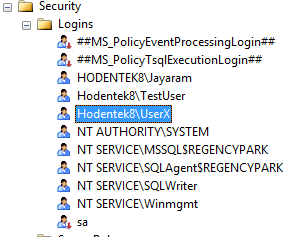
This completes the steps to create a New User Login which you can verify in SQL Server Management Studio as shown here:


Some interesting posts can be found here:
http://hodentekPlus.blogspot.com