Showing posts with label IIS. Show all posts

Monday, August 5, 2024

Why can't I find URL Rewrite feature in the IIS manager?

 In your Windows 11 Home, if you install Internet Information Services you may not find URL Rewrite feature in the features list.


You need to install it on your computer. You may download from here:


Down load URL Rewrite


If you install this rewrite_amd64_en-US.msi (specific to my architecture), then you will find the URL Rewrite feature in the IIS Manager as shown.


Saturday, August 3, 2024

The difference between services from the Control Panel and from the Windows Features

 There is a significant difference between the two. This is probably new in Windows 11.

I had to wade through a search, to home in on this difference because I could not enable Internet Information Services Manager by the legacy way of going through Windows Control Panel.

Control Panel --> Programs and Features-> Turn Windows Features on and Off

The above sequence displays the features in which the IIS is missing.


However, enabling Internet related items does install IIS. The IIS Manager can even be found in C:\Windows\system32\inetserv. It appears the IIS Manager is not fully functional according to Gemini.

It appears the correct way to enable IIS Manager is via Windows Features which brings up the same Turn windows Features on and off but now you can see the IIS.


Enabling IIS Manager through windows Features is the correct way and from the Services you can now turn on/turn off some of the services like IIS, .NET Framework, or Hyper-V. The windows services for most of other more operations like BitLocker Encryption, Storage management, file system operation, etc.

As Windows evolve things get changed continuously.

See also, here: https://stackoverflow.com/questions/30901434/iis-manager-in-windows-10

Tuesday, April 12, 2022

What are the differences between IIS and IIS Express?

 There are a number of differences. 

Here is a table I extracted from the Microsoft website:


Can I manage IIS Express in IIS Manager?

 The simple answer is no. 

IIS is managed by IIS Manager and appcmd.exe


IIS Express is managed by Appcmd.exe


IIS Express Management tasks are built into:

WebMatrix

Visual Studio 2010 SP1 and later versions

Sunday, January 13, 2019

How do you install IIS on Windows 10?

As previously noted you need to enable IIS on Windows 10.

You can do this in Control Panel.


In Turn Windows fatures on or off. Place check marks as shown above. Vlick OK. It may take a while and IIS is turned on.

You can launch IIS from the search charm as shown.


When you click this, Internet Informatio Services Manager's screen opens as shown.


From Help you can find the version (10.0.17134.1) shown here.


You can look at the contents on your site (Default site) shown here. Rihgt now there is only one file (IISStart.htm and PNG file).


You can right click the htm file and browse as shown.


Your files (presently IISStart.htm and IISstart.png) are in the wwwroot folder.


Saturday, January 12, 2019

How come I cannot access Internet Information Services on my Windows 10?

IIS does not come installed or turned-on.

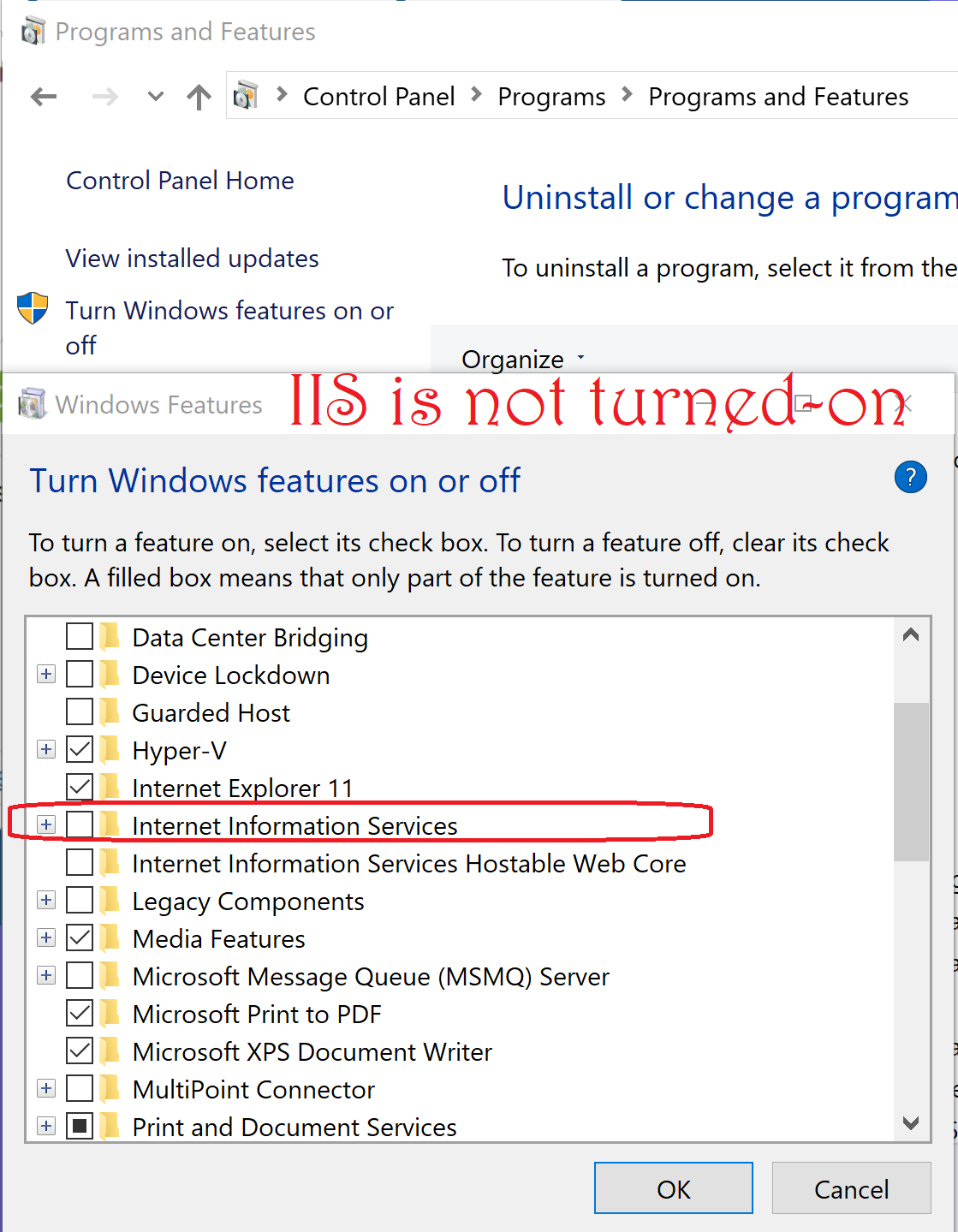
Most probably IIS is not turned-on. You can do it from the Control Panel.
This is what you see when IIS is not turned-on.


Thursday, August 31, 2017

Can I access my local web server(IIS)from my smart phone?

As long as the local web server (IIS) is working and you can browse a file on the server from your browser you should be able to browse the same file on your smart phone provided you access the IP Address of your computer hosting the IIS.
You can find the iPv4 address of your computer by using the ipconfig command :
------
C:\Users\Owner>ipconfig
Windows IP Configuration
Ethernet adapter Ethernet:
   Media State . . . . . . . . . . . : Media disconnected
   Connection-specific DNS Suffix  . :
Wireless LAN adapter Local Area Connection* 1:
....
....
....
Wireless LAN adapter Wi-Fi:

   IPv4 Address. . . . . . . . . . . : 192.168.0.10
-------------------
Here is a partial view of my default site showing the content SVGCode.html, an interactive HTML5 page:


This is how it appears on a Microsoft Edge 15 browser:

This how it is called on my Microsoft Lumia 950 phone using the IP Address:
Note:  Although I entered the IP Address, the phone translated it to the computer name.

If it does not get displayed check the firewall and make sure this item is checked:

The computer was a Dell Laptop running Windows 10 Professional and the smart phone was a Microsoft Lumia 950 both on the same Wi-Fi network.

Tuesday, October 27, 2015

How do you use the PHP Explode function?

This post describes some examples run on a Windows 10's Internet Information Services. This is relevant for PHP 4 and PHP 5.


First directly from documentation:
array explode ( string $delimiter , string $string [, int $limit ] )

Returns an array of strings, each of which is a substring of string formed by splitting it on boundaries formed by the string delimiter.


Parameters 

delimiter

The boundary string.

string

The input string.

limit


If limit is set and positive, the returned array will contain a maximum of limit elements with the last element containing the rest of string.

If the limit parameter is negative, all components except the last -limit are returned.

If the limit parameter is zero, then this is treated as 1.

Here is an example PHP file (a text file saved with the extension php) in the root directory (wwwroot) of Inetpub on a computer running Windows 10.
============
explodephp.php
============


Explode Function


$str="A thing of beauty, is a joy for ever!";
print_r(explode(" ",$str));
?>

-----------------
At first the file should not be saved to wwwroot with extension txt, it must be php

In the SaveAs window it can he saved as ANSI, Unicode, UTF-8 or Unicode Big Endian - you have to choose the correct one.

In the first position of the explode() function you need to choose the delimiter which can be, space, comma, etc and then the $str variable is to be set.

Here are some examples with parsed content. If there is no response as in some examples here, a FALSE is returned. Also if a delimiter is not present, the whole string is returned.


Parsing a string in Japanese


Saturday, October 3, 2015

Is there a built-in web server for PHP?

Yes there is one which can be used for testing and designing web applications.

Runs in an environment similar to sandbox environment and does not have all features. If you need a full blown web server you can use Windows Internet Information Services (IIS).

You can start the web server with this command:

C:\Users\mysorian>php -S localhost:8083

PHP 5.4.14 Development Server started at Fri Sep 25 11:01:49 2015
Listening on http://localhost:8083
Document root is C:\Users\mysorian
Press Ctrl-C to quit.

The document you are viewing is in the Document root folder.

But if you try to access the localhost on Port 80 you would get this response.
C:\Users\mysorian>php -S localhost:80

[Fri Sep 25 11:01:12 2015] Failed to listen on localhost:80 (reason: An attempt was made to access a socket in a way forbidden by its access permissions.)

Wednesday, August 26, 2015

Can I access Internet Information Services in Windows 10 using Power Shell?

Using Power Shell Version 5.0 in Windows 10 you can access Internet Information Services on your computer(local site).

This shows the  build details for Windows 10 Version of IIS.


10IIS-00.PNG

In order to work with IIS using Power Shell, you must be,
  • the administrator
  • using Powershell version 5.0
Then you can run simple commands like this. Make the full use of Intellisense and color coding.


10IIS-01.PNG

You can launch Windows PowerShell ISE by searching for it as shown. Somehow typing into the search box does not appear to be fast, it takes breath after each letter and my computer is not old.


10IIS-03.PNG

You can do the same in just Windows PowerShell as well.

Here is the Application pool related cmdlet.
PS C:\WINDOWS\system32> Get-IISSite
Get-IISAppPool

Name             ID   State      Physical Path                  Bindings                                                                      
----             --   -----      -------------                  --------                                                                      
Default Web Site 1    Started    %SystemDrive%\inetpub\wwwroot  http *:80:                                                                    

AutoStart             : True
Cpu                   : Microsoft.Web.Administration.ApplicationPoolCpu
Enable32BitAppOnWin64 : False
Failure               : Microsoft.Web.Administration.ApplicationPoolFailure
ManagedPipelineMode   : Integrated
StartMode             : OnDemand
ManagedRuntimeVersion : v4.0
Name                  : DefaultAppPool
ProcessModel          : Microsoft.Web.Administration.ApplicationPoolProcessModel
QueueLength           : 1000
Recycling             : Microsoft.Web.Administration.ApplicationPoolRecycling
State                 : Started
WorkerProcesses       : {}
Attributes            : {name, queueLength, autoStart, enable32BitAppOnWin64...}
ChildElements         : {processModel, recycling, failure, cpu...}
ElementTagName        : add
IsLocallyStored       : True
Methods               : {Start, Stop, Recycle}
RawAttributes         : {[name, DefaultAppPool], [queueLength, 1000], [autoStart, True], [enable32BitAppOnWin64, False]...}
Schema                : Microsoft.Web.Administration.ConfigurationElementSchema


Of course the important thing is to get an handle on Server Manager and you do this:

PS C:\WINDOWS\system32> Get-IISServerManager


ApplicationDefaults      : Microsoft.Web.Administration.ApplicationDefaults
ApplicationPoolDefaults  : Microsoft.Web.Administration.ApplicationPoolDefaults
ApplicationPools         : {DefaultAppPool}
SiteDefaults             : Microsoft.Web.Administration.SiteDefaults
Sites                    : {Default Web Site}
VirtualDirectoryDefaults : Microsoft.Web.Administration.VirtualDirectoryDefaults
WorkerProcesses          : {}


Now you are cooking. You should also open the default site on your computer and review the objects.


Tuesday, February 18, 2014

How do you copy an ASP.NET website on one Hosting company to a site on another?

Sometimes you change your website hosting from one vendor to another. You want to transfer your site content from the old hosting provider to the new hosting provider. The general idea is the same but in this case we are considering moving from one ASP.NET hosting provider to another.

Domain Name:
First of all there is a consideration of domain name. You can buy a new domain name or you can use your existing domain name. In this case we are assuming that the existing domain name will be used and only the site content is moved.

Steps in moving to another:
1. Do not close the account with your old hosting provider as this may result in the loss of your content

2. Buy a new hosting account with the new hosting provider. If you are looking for a ASP.NET hosting you should choose one that hosts ASP.NET

http://www.findbestwebhosting.com/top10hostingcompanies.aspx/windows-web-hosting/1

Note: The above site was picked at random and the blogger has no interest in the above or any of the others that may get mentioned.

3. After you opened the account you will can get a temporary website (also an FTP site, email, etc. )Create your password for the various items (email, FTP, HTTP, etc.).

4. Download and install the free version of Visual Studio 2013 Express for Web (in this case Microsoft Visual Studio Express  2013 for Web). With this tool you can FTP your site content from the site on your old Hosting Provider to the temporary ftp site on the new hosting provider. The transfer itself may take considerble time depending on the amount of stored content.

  • After launching VS 2013 Express, clicking on File | Open Web Site... opens the following display.

  • Enter the ftp site of the previous hostings provider and enter your credentials.
The site contents will be displayed in the Solutions Explorer
Now the WEBSITE menu item gets displayed.
  • Click on WEBSITE and click Copy Web Site... as shown.

The FTP screen opens as shown.


  • In the above screen click on Connect, the connect to remote site is activated and the Open Web Site window is displayed again. Now enter the ftp site and credentials for the new hostings provider.
Both the source and target gets displayed as shown.
 
 
  • All that remains is highlight the items from your old site on the left(Source) to the target site using the arrows (watch directions) in between source and target.
The time it takes to transfer will depend on many factors that includes the network connectivity and the amount of data.

You may be wondering whether the new site created from the previous hostings site will function as it did earlier. This will depend on a lot of factors as the technology might have progressed and the elements (databases,user accounts, transacted items etc) may not be compatible versions. However you may be able to recreate most if not all of the features. Patience.

Before you make the ftp transfer you should have username and password for the old hosting account and the new recently purchased hosting account.
Also make sure,
  • You can ping both sites
  • Run tracert from the command window for the new hosting provider to make sure their router can be reached.
  • Make sure telnet is enabled in your computer.


Sunday, February 9, 2014

Do you want to change the ports that Skype use?


The ports that Skype (version 6.11)  uses are 443 and 80 by default. These ports are also used by other programs like IIS, XAMPP etc. Some times you may need to change the port that skype uses to some other port.

You can change the ports that Skype uses by first launching SKYPE,


Click Tools and then Options.... Now you see the defaults when you click Advanced and followed by clicking Connection as shown.


Uncheck the check box and choose a different port. The new ports will become acctive when you start SKYPE next time. I had to quit the program and login again to display the changed conditions.


Wednesday, April 17, 2013

How do you make changes to Application Pool Settings in Internet Information Services?


Sometimes the Identity of the Application pool settings needs to be managed. You may make modifications in the IIS Management Console as shown.

1. Type-in “IIS” in Start | Search of the desktop. In the pop-menu click on Internet Information Services (IIS) Manager 

The Internet Information Services Manager’s page will be displayed.

2. Click on Applications Pool in Connections . The list of Application Pools will be displayed.

Let us assume that the identity of SecurityTokenServiceApplicationPool needs to be changed.
3. In the list of Application Pools right click on the above Application Pool as shown.

4. Click on Advanced Settings...
The Advanced Settings page is displayed as shown.
In the Process Model, the identity is a Custom Identity (in this case that of the IIS Administrator).You may change it by hitting the ellipsis button of the identity.

5. Click the ellipsis button.
This brings up the Application Pool Identity page.


These are built-in identities. The next option on this screen is the Custom identity which has been set using the identity (HodentekWin7\mysorian) which has Windows Authentication. On the Advanced Settings page you may modify other parameters as well.

Finally, when you make changes to Application Pool in IIS you will have to run if you are changing this for a SharePoint farm standalone or otherwise,