Friday, July 6, 2018

Can you sort and filter data in Power BI?

Actually this is one of the new features in the June 5, 2018 update of Power BI. In the other posts 1 , 2 ()you can review enhancements to Donut and Pie charts.

Here in, the improvements in this update allows you to sort columns and filter them ver effectively.
I am using the data of from Indian Census from one of my earlier posts here .
https://en.wikipedia.org/wiki/Demographics_of_India

This was imported into MS Excel and it was in turn imported into Power BI.
The data in Excel is shown here:


Sort_Filter_0

The data from this post is as shown in Power BI:


Sort_Filter_1

In the June 5, 2018 Power BI used here, you can sort and filter in each column.

Column 2 which is text (name of Indian State), you have the sort option come up when you
click the column2's handler as shown.


Sort_Filter_2

For Columns 3 to 5, you have other filtering options as well as sorting:


For example if you choose to filter in the state column(Column2). Here only states starting with 'A' are chosen.


When you agree for this filter by clicking OK, you would see this,


Thursday, July 5, 2018

How do you concatenate tuples in Python?

You cannot concatenate data types such as 'int', 'string' etc. to a tuple. However, you can concatenate two tuples.

Review the following code:
>>> t=12, -34, 'hi', True
>>> t
(12, -34, 'hi', True)
t is a tuple.
------------
>>> b=13,45,56
>>> b
(13, 45, 56)
b is another tuple
----------------
>>> g=t+b
>>> g
(12, -34, 'hi', True, 13, 45, 56)
Tuple g is obtained by concatenating t and b
-------------
>>> c=555,444
>>> c
(555, 444)
C is another tuple
You can do this:
>>> g += c
>>> g
(12, -34, 'hi', True, 13, 45, 56, 555, 444)
--------------------------
If you try to concatenate a list to a tuple you will get this error:
Traceback (most recent call last):
  File "", line 1, in
    c+lst2
TypeError: can only concatenate tuple (not "list") to tuple

What are the differences between a list and a tuple in Python?

You have seen what a list is. Tuple is a standard data type for sequence and it is immutable.

According to Python site:

"Tuples are immutable, and usually contain a heterogeneous sequence of elements that are accessed via unpacking (see later in this section) or indexing (or even by attribute in the case of namedtuples). Lists are mutable, and their elements are usually homogeneous and are accessed by iterating over the list.
"
The following table prepared using:
Python 3.7.0b5 (v3.7.0b5:abb8802389, May 31 2018, 01:54:01) [MSC v.1913 64 bit (AMD64)] on win32

shows the differences. There is little you can do with a tuple because of its immutablity compared to Lists. Of course define them correctly.


Wednesday, July 4, 2018

UWP: Is there a way to find the device to which you are deploying a UWP Project?

You can find this information using the Windows.System as shown here:

Device_000

We can find the device to which the UWP is deployed using the above information.

Here is a Blank UWP Project's MainPage.xaml.

Device_0
I have a button and a text box. Button's click event finds the device information and writes to the text box using the click event shown here:

Device_00

When deployed to the machine (Windows 10 Pro Desktop), the response is as shown.

Device4.jpg

When deployed to an emulator:

The display shows the device info:


You can get the DeviceFamilyVersion as well. The code is inside the image.

On the emulator this is displayed.


Tuesday, July 3, 2018

Are there Visual Studio Extensions to work with PowerShell?

I see there is at least one extension, PowerShell Pro Tools that you can download.

You can find it in the Visual Studio Community 2017.


 You can get the installer to modify the Visual Studio IDE


You need to relaunch Visual Studio to see the next screen.  Just for trying it out you can give an email and get a temp license.


This is from GitHub site listing all that you can do with this.


This is the site info for this tool


How does namespace declaration helps name resolution?

Identifiers in C++ not being named uniquely leads to problems of name resoultion, inability for the program when ambiguity exists.

This is best seen here:

Namespce_1

Where the header files Test_1.h and Test_2.h are shown:


Namespce_3
 

Namespce_4

and the Namespce.cpp file is this:


Namespce_2

As you can see Test_1.h and Test_2.h have the same name defined, namely Test(int x, int y).

Given this situation, the main() program which is tasked to write to the console Test(5,6) is not able to process.

It throws up with a build error as shown.


Namespce_0

Let us now modify the Test_1.h slightly adding the namespace declaration a shown:


Namespce_5


Now we build and run the program and the following is written to the console.

Namespce_6

This means the program now used Test_2.h to write the above to the screen.

In this case how are we going to use the Test_1.h?

You can do this by using the namespace you declared. Intellisense assists you in doing it as shown. You need to use the scope resolution operator (::).

Namespce_7

Now you build and run, you get the following written to console:


Namespce_8

The example was run on Visual Studio Community 2017, 15.5.7

Sunday, July 1, 2018

How do you access class templates in Visual Studio Community 2017 Version 15.5.7?


Things move around; get renamed a lot, in Microsoft Products that includes Visual Studio. Here is a reference to the Visual Studio C++ team blog .

The blog traces changes from version 15.2 to 15.3.

I thought I would take a look at the C++ Class prject templates. I launched the VS Community 2017, version 15.5.7 and looked at what all I have in terms of C++ templates. This is what I find.


_DesktopCplusplusProgramsInst_3.png

Based on the team blog above,

Win32 Category has been renamed -----------> Windows Desktop
Win32 Console Application has been renamed-->Windows Console Application
Win32 Project templates has been renamed Windows Desktop Application


If you like to see the templates, try a Windows Desktop Application in the previous screen.

_DesktopCplusplusProgramsInst_4.png

Now double click Windows Desktop Wizard.
The Windows Desktop Project dialogue is displayed as shown.


_DesktopCplusplusProgramsInst_5.png

In Version 15.3, it is almost the same, except for one item. The 15.3 Windows Desktop Project from the team blog is shown here from the previously quoted reference.

_DesktopCplusplusProgramsInst_6.png

In the 15.5.7 version the following Applications types can be chosen.

_DesktopCplusplusProgramsInst_7.png

What is not happening is the alternate way to access class wizard.

The team blog says that Add Class Wizard accessible from right click context menu in Solution Explorer is a notable example and goes on to show this screen (in 15.3).

_DesktopCplusplusProgramsInst_8.png

Perhaps it does in version 15.3 but not in version 15.5.7. This is what you see in version 15.5.7.

_DesktopCplusplusProgramsInst_9.png

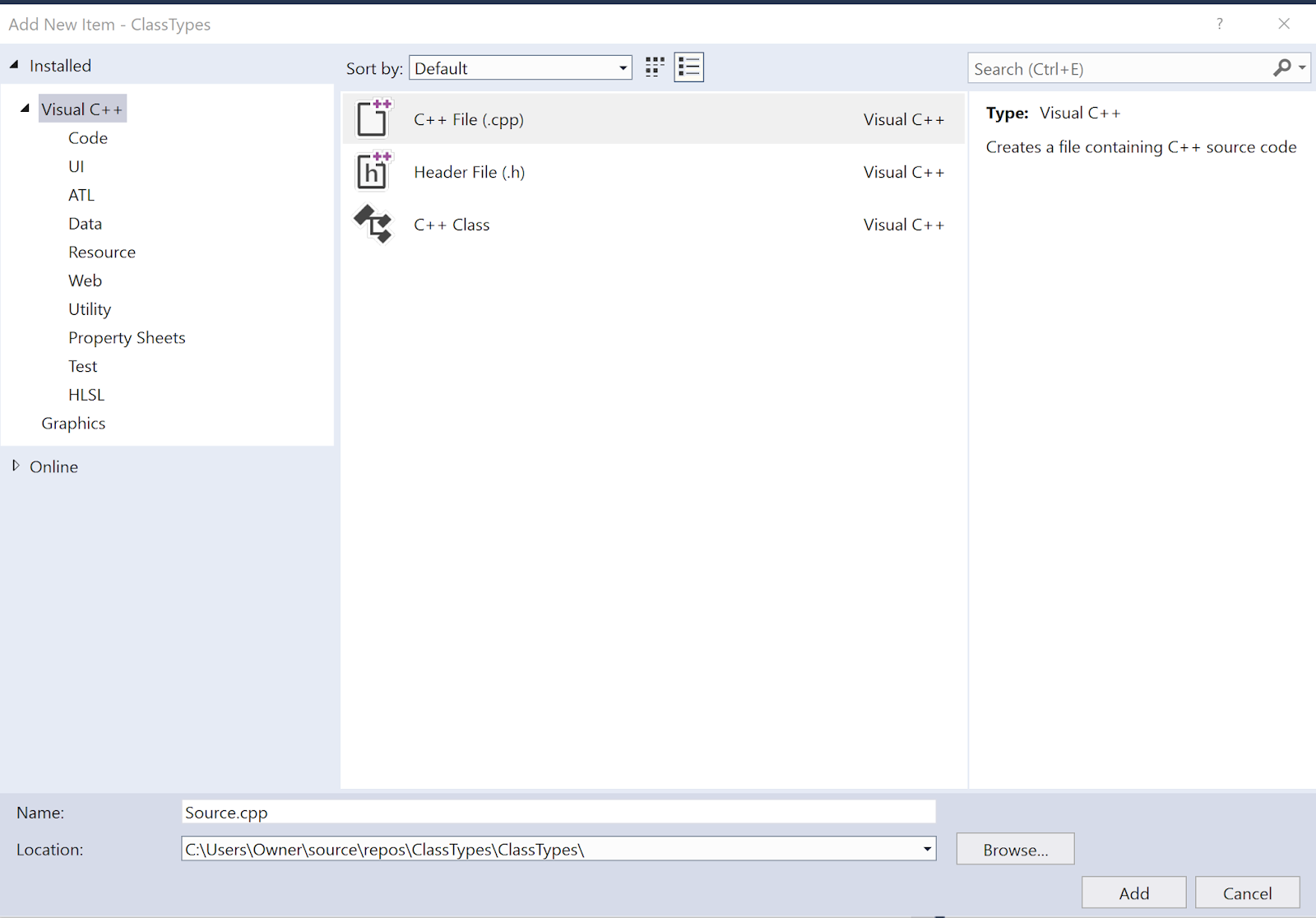
If you go ahead and choose to add a new item. This is what you will be adding.

_DesktopCplusplusProgramsInst_10.png

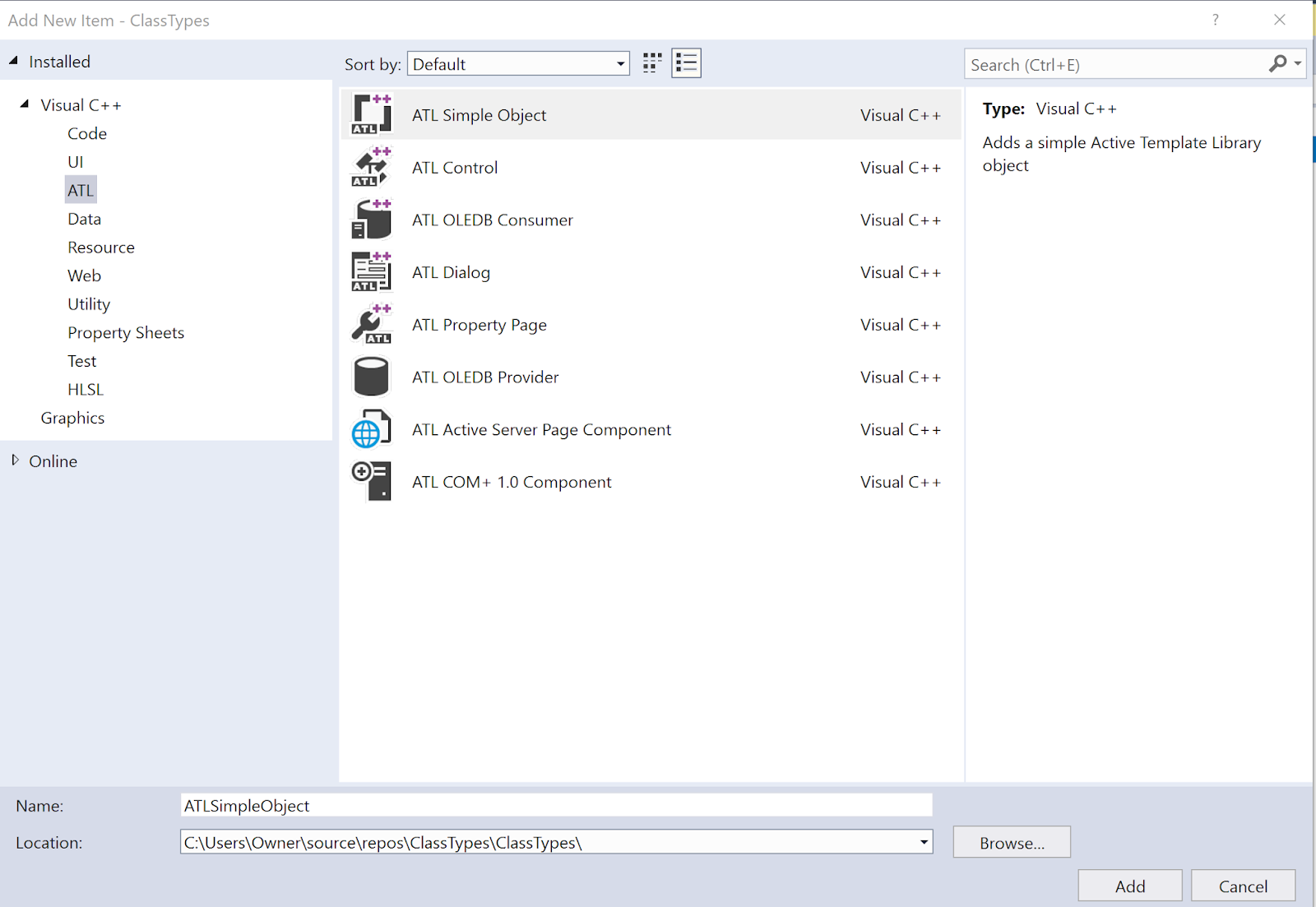
If you now choose ATL you will be seeing the following templates.

DesktopCplusplusProgramsInst_11.png

In the older version you had MFC which is missing in the present. However when you create a new project in C++ you will be seeing the MFC template.


DesktopCplusplusProgramsInst_12.png


You can wake up the Class Wizard while adding to the Source as shown here:


_DesktopCplusplusProgramsInst_13.png

The screen that shows up is not easy to use as there is no help attached to it.

_DesktopCplusplusProgramsInst_14.png

Although the team asserts they are trying to make it easy, it looks like it is not working.

Of course there is another thing that you need to be concerned about. You have to know what programs and workflows you have chosen to work with. This is what I have chosen so see all of the above.


DesktopCplusplusProgramsInst.png