Showing posts with label Power Shell. Show all posts

Friday, August 28, 2020

How do you get information about an App on your Windows 10 Computer?

PowerShell is a good tool to use.

Let us say you want the details about your Microsoft Store app.
Then open the PowerShell ISE and type-in the following(the two lines in the script pane).

When you run this program, you will get to see all the details:


Feel free to browse all my PowerShell related articles in my blogs:

https://hodentekhelp.blogspot.com/search?q=PowerShell


Tuesday, July 3, 2018

Are there Visual Studio Extensions to work with PowerShell?

I see there is at least one extension, PowerShell Pro Tools that you can download.

You can find it in the Visual Studio Community 2017.


 You can get the installer to modify the Visual Studio IDE


You need to relaunch Visual Studio to see the next screen.  Just for trying it out you can give an email and get a temp license.


This is from GitHub site listing all that you can do with this.


This is the site info for this tool


Monday, April 30, 2018

How do you create a custom object in PowerShell?

One way to create a custom object is by using the New-Object cmdlet.

This cmdlet creates an instance of a .NET Framework or COM object.

Here is simple example:
-----------
$obj = New-Object PSObject -Property @{    
       F_Name = "Sam"    
       L_name="Luxton"
       Age = 50
       Email="S_Luxton@gmail.com"
       }

------------------------------
The image shows the response:


Custom_Object_0

You can 'parse' the object as shown in the next image.


Wednesday, July 12, 2017

How to handle this Power Shell error, "Set-Location: a Positional parameter..."?

Power Shell does not like white spaces. While it may like or .  I got stumped for while as I started getting this exception.


The trick to do this changing directory is to use double quotes around words with white spaces as shown here.


I have Power Shell 5.0 on my Windows 10 Pro OS.

Friday, June 12, 2015

How do I fill an excel worksheet with data using PowerShell?

It is quite easy, if you really want to.

The following code brings up an Excel workbook on your desktop
$Excel = New-Object -Com Excel.Application
$Excel.visible = $True


--------------
This line adds a worksheet to the workbook with default name, Sheet1
$Excel = $Excel.Workbooks.Add()


Name the worksheet you created with the following:
$Excel.WorkSheets.Item(1).Name = "Contacts"
The default is changed from "Sheet1" to "Contacts"

The worksheet has cells with (columnNum, RowNum) reference
Fill up the sheet with the data using:
$Sheet.Cells.Item(1,1) = “First Name”
$Sheet.Cells.Item(1,2) = “Last Name”
$Sheet.Cells.Item(1,3) = “Phone”
$Sheet.Cells.Item(1,4) = “Email”
$sheet.cells.item(2,1)="Tom"
$sheet.cells.item(2,2)="Hoskins"
$sheet.cells.item(2,3)="808-555-1122"
$sheet.cells.item(2,4)="
t-Hos@live.net"
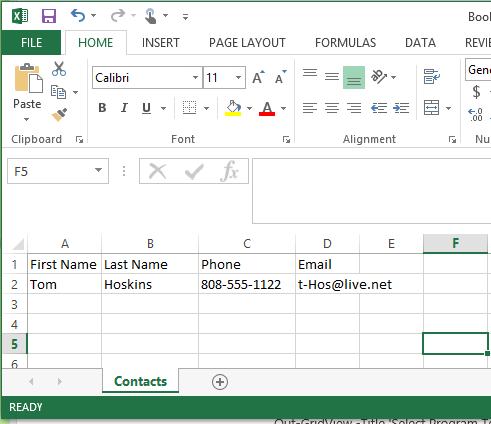
This displays the Excel Book1 as shown here:


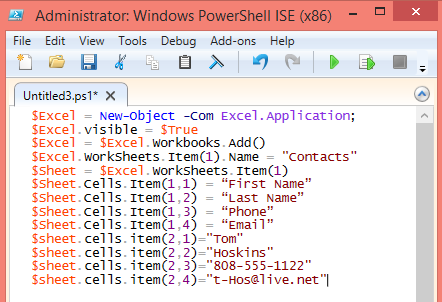
The full code is here:


Whenever possible look for intellisense help!
p.s: Tom Hoskins is an imaginary name
 

Wednesday, August 27, 2014

If you have multiple versions of Power Shell how do you change from one to the other?

If you have two or more versions of Power Shell on your computer it is possible to choose the one you want to run.

By default the highest version may be one that runs as in the present case on Windows 8.1 Professional (version 4.0 is installed in Windows 8.1 by default and Version 3.0 in Windows 8).
As described in the previous post, version 2.0 is also present.

You can run the version you want by the following command:
PS C:\>Powershell -version

This is how you run the version you want.
---------------
Windows PowerShell
Copyright (C) 2013 Microsoft Corporation. All rights reserved.
The next command displays the version number
PS C:\Users\Jayaram> $PSVersionTable.PSVersion
Major  Minor  Build  Revision
-----  -----  -----  --------
4      0      -1     -1

The following changes the version to 2.0. Note that there is no response.
PS C:\Users\Jayaram> PowerShell -version 2.0
Windows PowerShell
Copyright (C) 2009 Microsoft Corporation. All rights reserved.

The following displays the version after change
PS C:\Users\Jayaram> $PSVersionTable.PSVersion
Major  Minor  Build  Revision
-----  -----  -----  --------
2      0      -1     -1

PS C:\Users\Jayaram>

Saturday, April 12, 2014

How do you start Power Shell from SQL Server 2012?

It is quite easy. Make sure you have SQL Server installed on your computer. The following reference shows you how you may start Power Shell from your SQL Server Management Studio(SSMS). Also make sure you are able to connect to your server.

After this preparation review the following for a step by step procedure:

http://hodentekmsss.blogspot.com/2014/04/starting-power-shell-from-sql-server.html

Thanks