Showing posts with label Visual Studio 2015 Community. Show all posts

Sunday, October 23, 2016

What does the keyword 'auto' signify in C++?

This post describes the use of auto keyword in C++ projects in Visual Studio 2015 Community.

The meaning of auto keyword depends. It depends on the version of C++ you are using.
Before C++ version 11 appeared it simply meant that the keyword auto together with the datatype signified that the scope of the variable with which it was used has automatic storage duration (same as local variable). The keyword auto in that sense was used to explicitly specify the local variable to have automatic storage duration.

With C++ 11 version auto has a different meaning. You need not specify what the variable datatype is, it is inferred by the value it is assigned.
For example, instead of saying:

int x=5;
i.e., the datatype of x is integer, you can just say,

auto x=5;

This is called automatic type deduction. One thing to note is that the variables have to be assigned a value then only automatic type deduction works.

So, no initialization, no automatic type deduction.

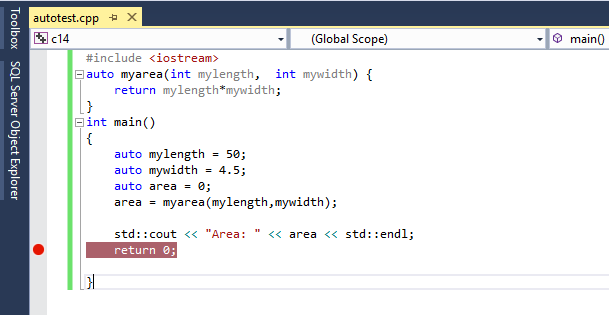
In C++ 14, the automatic type detection is available not only for variables with assigned values but also for return types of funcitons. Here isan example of auto retrun type. The project is a blank C++ project type in Visual Studio 2015.

c
plusplus14

There was an intention to include auto keyword to be associated with function parameters but it was dropped. Visual Studio 2015 Community supports most of C++ 14 features but does not support the auto keyword for the function parameters as seen here.


Cplusplus14_1

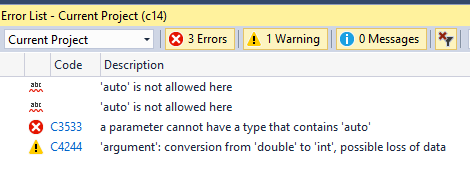
If you try to build the project anyway, you will end up with the following errors:
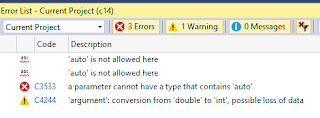

Cplusplus14_2


Friday, August 5, 2016

What is needed to leverage R from Visual Studio?

Microsoft's strategy is to bind all its assets and stay in a continuous state of integration, be it SQL Server; Office or its Communication set of products such as Exchange, Live or Skype.

With the addition of R technology for SQL Server in its most recent, highly touted product SQL Server 2016, integration of R with SQL Server and by default with Visual Studio 2015 was a natural extension. Probably integrating R with Excel is not far behind.

As it moves forward embracing Open Source concepts, Microsoft R client is free, the details of which follow:
----------
Microsoft R Client (x64) - (English)
SHA1: B5A7053C7CBC1079091DD1420D04E0489F43AD00
File name: en_microsoft_r_client_x64_8839107.exe
--------------
You can download R Client from here:
http://aka.ms/rclient/download

With Microsoft R Client you are not limited to Microsoft R Open and you can use any open source R package. ScaleR is a powerful new technology in Microsoft Client. ScaleR's propriety functions can be used to great advantage for parallelization and remote computing. With R Client you can work locally using ScaleR but is somewhat constrained limited by local memory and speed. This is improved by pushing the compute context to Microsoft R Server(SQL Server R Services) and R Server for Hadoop.

Microsoft R Client is also part of the R Tools for Visual Studio which gets installed with Visual Studio Update 3 install.

Here are some screen shots from a Visual Studio 2015 Community Update 3 upgrade from Update 2. You can also install the latest version of Visual Studio 2015 Community.

As a default, you get notified of product updates right within Visual Studio 2015 Community (presently Update 2).

 In the Extensions and Updates window you see more details and you can launch the installation from here by clicking the Update button.


This is an intermediate window during updating. R Tools 0.3 for Visual Studio 2015 are being applied to Visual Studio.
This is the Help screen of Visual Studio 2015 after update. I am not sure why the window is stall showing Update 2!! However, notice that R Tools have been added.

R Tools appear to provide a comprehensive set programming support for using R with Visual Studio 2015.

A R Tools toolbar item is added to the menu as shown.

Looks like there are two independent ways of getting Microsoft R Client, the hyperlink which downloads the executable to your computer to being installing or upgrading Visual Studio 2015.

Please note before upgrading to Visual Studio 2015 Community Update 3 I might have started the independent client installation. I will have to check on that.

Here is an image from R Tools site.


Wednesday, July 27, 2016

Can you code in TypeScript in Visual Studio 2015?

I have Visual Studio 2015 Community and I can say that you can indeed code in TypeScript and Visual Studio 2015 provides support. As you can see from the next image, VS Community 2015, TypeScript 1.8 is installed.


As to what type of templates exist, all you need to do is to create a new project and take a look at the installed templates and look for TypeScript as shown here:

Tuesday, May 31, 2016

Can you program Arduino 101 with Visual Studio 2015?

The short answer is, Yes you can.

If you rather not use Visual Studio 2015, you could also use the program from Arduino.

But Visual studio does lot more than Arduino Program.

Here is the how and the long answer regarding Arduino with Visual studio..

First thing you need to have is the correct version (if you follow my advice) of Visual Studio. Get the Visual Studio 2015 Community (What I have is the same but with Update 2).

If you do not have, no problem. Read this post.


For Arduino to work with Visual Studio 2015 Community (VS2015C), you need to install the Arduino Extensions for Visual Studio. A default install of VS2015C does not have the 'hooks' to create a Arduino Project. You will not find it in the 'New Project...' templates.

You need to install the Arduino Extension for Visual Studio 2015. You can get an idea how to do it by following this Swaytorial:

Of course you need to buy the Arduino 101. It is available from many sources. Connect it to computer with a USB cable as shown.


With all of the above in place, it is very easy to run the board from Visual Studio 2015 Community.

 Open Tools menu as shown to access the Extensions and Updates... submenu.

arduino101_Vs15C

The extension immediately brings in the support for Arduino 101.


Start a new project as shown here:

arduino101_Vs15C_000

Provide a name for the project (herein OneZeroOne)and click OK. The project with folders will be created for you as shown.

arduino101_Vs15C_00

In the above image click on the OneZeroOne.ino file. This is the 'sketch' that you will using to interact with the board via your USB drive to which the arduino 101 board is connected. It will be a simple, empty template. You can cut and paste any of the relevant sketches. Herein I have used the same sketch I used here to run the 'Blink' project that makes a LED on the arduino 101 board to flash on and off. It is one of the example applications, something akin to a 'Hello World'.

Here is the sketch used in this post:


arduino101_Vs2015C_02

When you compile and run this program you may get a message like this.

arduino101_Vs2015C_02

You may also get the messages from the serial port as shown as you connect/disconnect or run the program:


arduino101_Vs2015C_04

The arduino extension you added will also add a arduino specific toolbar as shown which makes it easy to work with the board.
arduino101_Vs2015C_05

There are couple of ways to build the program and upload it to the board. Here is one way using the main menu.
arduino101_Vs2015C_06

 As soon as you upload the second LED on the board starts blinking.


Tuesday, May 24, 2016

How do you get the node.js project templates in Visual Studio 2015?

In a recent post I tried to install Node.js tools that is supposed to help create node.js project types in Visual Studio Community 2015. After installing, I realized that I could not access the node.js templates in Visual Studio. I noted however that the installer version was NTVS 1.1.1 VS2015.msi.

As an after thought I found an easier route to get the node.js support for Visual Studio 2015 Community. This post describes the steps.

After launching Visual Studio 2015 Community ( I have the Update 2, version 14.0.25123.00 Update 2) you can access Extensions and Updates menu item as shown.

NodeJsTools_07.png

Click on the menu item. The Extension and Updates window appears as shown. You need to search for node.js in Visual Studio Gallery. You will find both 1.1 and 1.2 versions.


NodeJSToolsPlug_inVS2015.png

Click Download button for version 2.

The related msi file gets downloaded. The version is


NodeJsTools1point2.png

You may double click the downloaded file to install the plug-in. But first take care of the Apache license.


NodeJsTools_001.png

The extension gets updated as the program installs.


NodeJsTools_001_2.jpg

Once the extension is installed, when you create a New Project... in Visual Studio 2015 Community you should be able to see all the node.js templates as shown in the next image.


NodeJsTools_05.jpg

Monday, May 23, 2016

How can you program IOT controllers using JavaScript?

Arduino boards can be programmed using Arduino software and Intel IOT boards can be programmed using Intel XDK IOT. Using JavaScript to program controllers would be very useful as most browsers are HTMl5 compliant. The Johnny-Five Robotics and IOT program is an interesting option.

Johnny-Five is the JavaScript Robotics & IOT platform released by the Bocoup group. Johnny-Five is maintained by a growing number of talented developers.

What is Bocoup?
Bocoup  is a group that championed the cause of Open tools and Work Flow. They really seems to have people with very varied and diverse talents to tackle web, data, and visualization.

How does Johnny-Five handle the Hello World (or Blink for that matter)?
It looks like 1-2-3 really.

1. Install Node.js(Prefer 4.2.1 LTS)
2. Setup your board
3. Run: npm install johnny-five

What else is needed?

You also need to run the Firmata protocol for the controller board to communicate with the computer.
Interestingly Johnny-Five can handle over 30 different arduino compatible boards from the likes of Raspberry, Intel, Arduino, Sparkfun and many more.

This is very impressive indeed as each of these boards are handled by their vendors like Arduino, Intel and others.

How about non-arduino boards?

There are platform specific IO Plugins (for example, Galileo-IO plugin) .These plugins can speak the language of the platform as they implement Firmata compatible interfaces.

You will be hearing more about Johnny-Five in my blogs, here and here, keep reading....

Sunday, November 8, 2015

How do you open a C# compiler prompt in Windows 10?


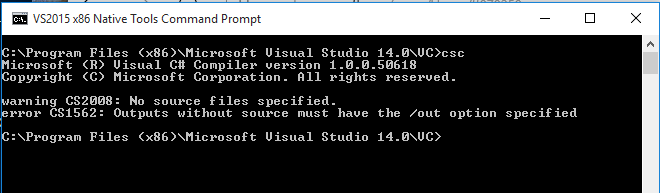
I assume you have installed Visual Studio 2015 Community. If this is correct, when you installed Visual Studio 2015 Community you also installed VS 2015 x86 Native Tools command prompt. This will be in your Program Files(x86) directory. Just double click this and type in CSC at command prompt as shown:


Compiler0.png

You can type in the command for help and get all the related information:

Please note the next two screen shots are for yet another version of the compiler(an earlier version)

Continued