The short answer is, Yes you can.
If you rather not use Visual Studio 2015, you could also use the program from Arduino.
But Visual studio does lot more than Arduino Program.
Here is the how and the long answer regarding Arduino with Visual studio..
First thing you need to have is the correct version (if you follow my advice) of Visual Studio. Get the Visual Studio 2015 Community (What I have is the same but with Update 2).
If you do not have, no problem. Read this post.
For Arduino to work with Visual Studio 2015 Community (VS2015C), you need to install the Arduino Extensions for Visual Studio. A default install of VS2015C does not have the 'hooks' to create a Arduino Project. You will not find it in the 'New Project...' templates.
You need to install the Arduino Extension for Visual Studio 2015. You can get an idea how to do it by following this Swaytorial:
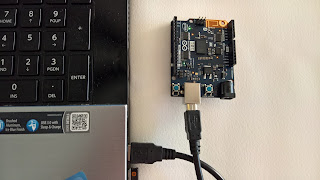
Of course you need to buy the Arduino 101. It is available from many sources. Connect it to computer with a USB cable as shown.
With all of the above in place, it is very easy to run the board from Visual Studio 2015 Community.
Open Tools menu as shown to access the Extensions and Updates... submenu.
 arduino101_Vs15C
The extension immediately brings in the support for Arduino 101.
 Start a new project as shown here:
 arduino101_Vs15C_000
Provide a name for the project (herein OneZeroOne)and click OK. The project with folders will be created for you as shown.
 arduino101_Vs15C_00
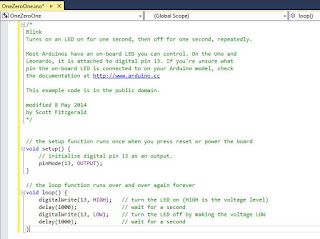
In the above image click on the OneZeroOne.ino file. This is the 'sketch' that you will using to interact with the board via your USB drive to which the arduino 101 board is connected. It will be a simple, empty template. You can cut and paste any of the relevant sketches. Herein I have used the same sketch I used here to run the 'Blink' project that makes a LED on the arduino 101 board to flash on and off. It is one of the example applications, something akin to a 'Hello World'.
Here is the sketch used in this post:
arduino101_Vs2015C_02
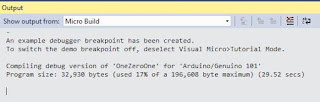
When you compile and run this program you may get a message like this.
 arduino101_Vs2015C_02
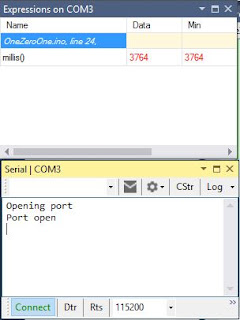
You may also get the messages from the serial port as shown as you connect/disconnect or run the program:
arduino101_Vs2015C_04
The arduino extension you added will also add a arduino specific toolbar as shown which makes it easy to work with the board.
 arduino101_Vs2015C_05
There are couple of ways to build the program and upload it to the board. Here is one way using the main menu.
 arduino101_Vs2015C_06
As soon as you upload the second LED on the board starts blinking.
If you rather not use Visual Studio 2015, you could also use the program from Arduino.
But Visual studio does lot more than Arduino Program.
Here is the how and the long answer regarding Arduino with Visual studio..
First thing you need to have is the correct version (if you follow my advice) of Visual Studio. Get the Visual Studio 2015 Community (What I have is the same but with Update 2).
If you do not have, no problem. Read this post.
For Arduino to work with Visual Studio 2015 Community (VS2015C), you need to install the Arduino Extensions for Visual Studio. A default install of VS2015C does not have the 'hooks' to create a Arduino Project. You will not find it in the 'New Project...' templates.
You need to install the Arduino Extension for Visual Studio 2015. You can get an idea how to do it by following this Swaytorial:
Of course you need to buy the Arduino 101. It is available from many sources. Connect it to computer with a USB cable as shown.

With all of the above in place, it is very easy to run the board from Visual Studio 2015 Community.

The extension immediately brings in the support for Arduino 101.


Provide a name for the project (herein OneZeroOne)and click OK. The project with folders will be created for you as shown.

In the above image click on the OneZeroOne.ino file. This is the 'sketch' that you will using to interact with the board via your USB drive to which the arduino 101 board is connected. It will be a simple, empty template. You can cut and paste any of the relevant sketches. Herein I have used the same sketch I used here to run the 'Blink' project that makes a LED on the arduino 101 board to flash on and off. It is one of the example applications, something akin to a 'Hello World'.
Here is the sketch used in this post:

arduino101_Vs2015C_02
When you compile and run this program you may get a message like this.

You may also get the messages from the serial port as shown as you connect/disconnect or run the program:

arduino101_Vs2015C_04
The arduino extension you added will also add a arduino specific toolbar as shown which makes it easy to work with the board.

There are couple of ways to build the program and upload it to the board. Here is one way using the main menu.

As soon as you upload the second LED on the board starts blinking.


