Showing posts with label .NET Framework. Show all posts

Saturday, August 3, 2024

The difference between services from the Control Panel and from the Windows Features

 There is a significant difference between the two. This is probably new in Windows 11.

I had to wade through a search, to home in on this difference because I could not enable Internet Information Services Manager by the legacy way of going through Windows Control Panel.

Control Panel --> Programs and Features-> Turn Windows Features on and Off

The above sequence displays the features in which the IIS is missing.


However, enabling Internet related items does install IIS. The IIS Manager can even be found in C:\Windows\system32\inetserv. It appears the IIS Manager is not fully functional according to Gemini.

It appears the correct way to enable IIS Manager is via Windows Features which brings up the same Turn windows Features on and off but now you can see the IIS.


Enabling IIS Manager through windows Features is the correct way and from the Services you can now turn on/turn off some of the services like IIS, .NET Framework, or Hyper-V. The windows services for most of other more operations like BitLocker Encryption, Storage management, file system operation, etc.

As Windows evolve things get changed continuously.

See also, here: https://stackoverflow.com/questions/30901434/iis-manager-in-windows-10

Saturday, July 21, 2018

What are class library projects in Visual Studio 2017?

In Visual Studio Community 2017 you come across a number of templates of type, class library as shown here only for C# and F#.


ClassLibraryCom2017_0

Well, is there a need for so many of them? Visual Studio 2017 is targeting many more platforms and it is nice to have templates for each of them. Actually templates are the best starting points for any development.

The project folder and the code for the Class Library .NET Core is shown here. It can be used for projects for several platforms where .NET core is supported. Review the dependencies.


The project folder and the code for the Class Library .NET Standard is shown here. The dependency is on .NET Standard Library.


The project folder and the code for the Class Library .NET Framework is shown here. You create .dll with this template.


With the development of projects for the Universal Windows Platform, a class library project that targets UWP is also available in Visual Studio Community 2017 (free).

However there is one detail that needs to be taken into consideration as to which version of Windows platform should be used.

In this present case the following version is chosen.


The template folder and code for the Class Library for creating applications for UWP is as shown. Note the reference to the Microsoft.NETCore.UniversalWindowsPlatform


In addition to the above there are many more template types summarized here for other specific platforms:

Class Library (Android) Creates Xamarin.Android class library

Bindings Library(Android) Xamarin.Android class library that binds to Java jar.

Class Library (watchOS) Xamarin.WatchOS library 

Class Library (tvOS)  Unified library project for tvOS

Class Library (iOS) creates a Xamarin.iOS library project for iOS

Class Library(U-SQL Application) is of type Azure Data Lake, a project for creating class library(.dll) that can run on U-SQL.

Class Library(Legacy Portable) is discontinued. It is suggested to use Class Library .NET Standard.


Friday, July 20, 2018

What is the difference between a C# Console application that uses .NET core and the other using .NET Framework?

Both of them create programs that can be run from command line.

While you can create both types using templates available in Visual Studio Community 2017 shown, there are many differences.


ConsoleCore-Frame_0

One major difference is that .NET Core application can be used for creating cross-platform (Windows, Linux and macOS) applications while .NET Framework is for those dependent on .NET Framework libraries, or those that do not have similar functionality in .NET Core.

Also there may be platforms that do not support .NET Core in which case you have to use .NET Framework.

Here is the template for a console application that uses .NET Core (both program folder and code)


ConsoleCore-Frame_1

The Microsoft.NETCore.App is a huge library

Here is the code for the console application that uses .NET Framework.

ConsoleCore-Frame_2

Tuesday, July 10, 2018

How do you install IronPython?


You can get the program from this site. I downloaded the .msi file for installing IronPython from this site.


It is easy once you have the .msi file. These are some screen shots.


Once installed you should find it in All Programs as shown.


You can launch from the above. 


What is IronPython?

Python is the object oriented, Open source programming language that has become very popular because of a large support group as well as best suited for AI and Machine learning. Some say it is even more powerful than Matlab (numerical computing environment and programming).

.NET Framework is Microsoft's code foundation with Common Language Runtime and a huge class library that connects all Microsoft products.

If there is something that works with both with .NET leveraging Python and Python leveraging Python then one can have the best of both.

Well, IronPython is supposed to embody this important role. This is what on finds on IronPython site

"IronPython is an open-source implementation of the Python programming language which is tightly integrated with the .NET Framework. IronPython can use the .NET Framework and Python libraries, and other .NET languages can use Python code just as easily"

You can download IronPython 2.7.x from here.

IronPython is dubbed the Python programming for the .NET Framework.

Sunday, November 8, 2015

How do you open a C# compiler prompt in Windows 10?


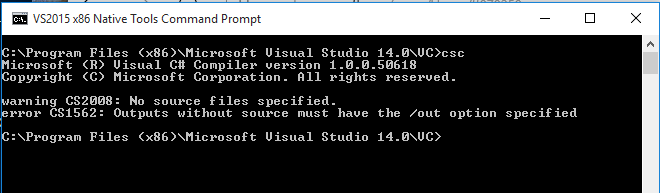
I assume you have installed Visual Studio 2015 Community. If this is correct, when you installed Visual Studio 2015 Community you also installed VS 2015 x86 Native Tools command prompt. This will be in your Program Files(x86) directory. Just double click this and type in CSC at command prompt as shown:


Compiler0.png

You can type in the command for help and get all the related information:

Please note the next two screen shots are for yet another version of the compiler(an earlier version)

Continued