Thursday, September 10, 2015

How do I fix my Canon MX432 scanner probelm on Windows 10?

I have not tried this solution but it is suggested to me by Canon technical staff via an email. It should work by I have to find my Canon MX 432 installation disc first.

But here is the procedure. It should cover all the three functionalities.

Uninstalling and reinstalling the network port and printer driver using the utilities on the CDROM should resolve this issue.  To perform the uninstall, please have the PIXMA MX432's CDROM in the CDROM drive and then follow these steps:

 1.  Put the PIXMA MX432's CDROM in the CDROM drive.  If the welcome screen appears, exit it.
 2.  Click on Start and then All Apps.
 3.  Click on Windows System.
 4.  Click on RUN.
 5.  Click Browse.
 6.  Double click the CANON_IJ CDROM.
 7.  Double click the folder named WIN.
 8.  Double click the folder named Driver.
 9.  Double click the folder named DrvSetup.
10.  Double click the file named DELDRV.  If you are using the 64 bit version of Windows 10, please double click DELDRV64.  In the Run box click OK.
11.  Click Execute to start uninstall and Yes to completely uninstall the drivers.
12.  Once finished,  click on Start and then All Apps.
13.  Click on Windows System.
14.  Click on RUN.
15.  Click Browse.
16.  Double click the CANON_IJ CDROM.
17.  Double click the folder named WIN.
18.  Double click the folder named Driver.
19.  Double click the folder named LAN.
20.  Double click the file named CNMNPU.exe
21.  In the Run box click OK and then Yes on the Delete BJNP Port window.
22.  The uninstaller will prompt you to restart the computer, please click Yes to restart the computer.


Please follow these steps to download the necessary files to begin installation once the computer restarts:
 1.  Visit Canon's website at: http://www.usa.canon.com/cusa/support/consumer
 2.  Type PIXMA MX432 in the "Enter Your Model Name" box and click GO.
 3.  On the Support page for your unit, click the 'Drivers & Software' link in the middle of the page.
 4.  Click Drivers.
 5.  Click on the MX430 series Mini Master Setup.
 6.  If you agree, please select the checkbox next to "I have read and agree to the terms of the Disclaimer and wish to continue with the download".
 7.  Click on the Download button.
 8.  When the Save As box comes up, click Save.

To install the unit for use over your network wirelessly, please follow these steps when the computer restarts:
 1.  Press the button on your PIXMA MX432.
 2.  Use the left or right button to select Device Settings and press .
 3.  Use the left or right button to select LAN Settings and press .
 4.  Use the left or right button to select Wireless LAN Setup and press .
 5.  Enter your wireless password and press .  Please verify the password, as it is case sensitive and if entered incorrectly, will cause the printer and router to not communicate.  To switch between letters and numbers, press the * key.
 6.  Press on the confirmation screen.  The PIXMA MX432 will search for the access point.
 7.  When found, press on the Connected to the access point screen.
 8.  Back on your computer, open the Downloads folder and double click [mast-win-mx430-1_1-ucd.exe] to begin installation of the drivers.

Follow the prompts and installation will complete.
For additional assistance, there are guides that can be viewed by following this link:
http://www.usa.canon.com/cusa/support/consumer/printers_multifunction/pixma_mx_series/pixma_mx432#Wireless_Help

Saturday, September 5, 2015

What is the difference between H.264/AVC and H.265/HEVC?

Both are Video Compression Standards while H.265 is more recent.

Videos are essential for enjoying the Web, YouTube, or streaming movies. The amount of data produced by any video is very large and to send it over to you over the Internet fast enough for you to enjoy is not easy. It can be sent fast by reducing its size. However, size reduction by itself is not enough since size reduction is accompanied by a reduction in video quality. A lot of processing has to be done to get efficient compression without reducing the quality.

H.264/AVC known variously as MPEG-4 Part 10 or H.264/MPEG-4 AVC, or MPEG-4/H.264 AVC is a video coding format that uses the block-oriented motion-compensation-based video compression standard. This standard was developed jointly by the ITU-T Video Coding Experts Group (VCEG) and the ISO/IEC JTC1 Moving Picture Experts Group (MPEG).

H.264 is the standard for Blu-ray Discs and all Blu-ray disc players must be able to decode H.264. Most of the following support H.264:
  • Vimeo
  • YouTube
  • iTunes store
  • Adobe Flash Player,
  • Microsoft Silverlight
  • And, HDTV terrestrial broadcasts.
Read more about it here.
Read about this licensing battle between Microsoft and Motorola related to H.264 here.

H.265\HEVC (High-Efficiency Video Coding) is an improvement over the previous H.264 coding technology and in some form will be the successor to compressed video. H.265 will give the same picture quality as H.264 but with better compression (giving you a smaller file size to deal with).

Video coding exploits the redundancy that exists in Videos both spatial and temporal and removes or takes this into consideration to efficiently reduce the size. This may just be using pixels, blocks of pixels, pixels that do not change at all or change very little, predicting the motion of pixels in a rapid scene change, etc.
I recommend you read this excellent paper by Elemental to understand the H.265 basics(http://go.elementaltechnologies.com/rs/elementaltechnologies/images/HEVC_Demystified.pdf).
 

Thursday, September 3, 2015

What is Web RTC?

WebRTC is still evolving although it has already made a big presence.

WebRTC stands for Web-based Real-Time Communications. It is free and the WebRTC project provides mobile applications and browsers to have communication capabilities using simple Application Programming Interfaces (APIs).  Since voice and video are involved it is complicated because of various standards it has to contend with.

WebRTC is supported by Google, Mozilla, Opera and others. Microsoft is not in the list having differences over some of the details such as Google's VP8 video codec to become the default.

Microsoft has its own web based communication which is called CU-RTC-WEB. Microsoft acquired Skype which has browser-based version of voice and video calling application and it is in Microsoft's interest to stay with evolving WebRTC.

The key resource is WebRTC.org.

Here are the components of WebRTC, a screen shot from the WebRTC site.


If you are interested in the under-the-hood details of WebRTC go here (http://www.webrtc.org/reference/webrtc-components).

Here is video of browser based communication between Mozilla and Chrome.


Read more on how the technology is evolving;
http://www.pcworld.com/article/2849392/does-skype-for-web-mean-webrtc-is-ready-for-prime-time.html

Wednesday, September 2, 2015

How do you connect to Windows 10 remotely?

In order to do this you need to enable Remote Desktop Access on your WIndows 10 computer. It is easy and works OK. It is a very useful feature and provides lot of flexibility.

In this scenario I am connecting to Windows 10 on my laptop remotely from my Windows 7 (x64) Professional on my P775 Toshiba Satellite computer.

Click Start on Windows 7 and locate the item Remote Desktop Connection at the very top (could be different in yours, look for it).
 

Click on it to open the following (you may need to click on Options at the bottom:
RDT01.png

Enter the name of the computer (XXXXXXX) here and place checkmark for 'Allow me to save credentials' and click OK.

Windows Security page opens asking for credentials. Enter your password and click OK.


RDT02

You get a message to 1) Turn on the remote computer and 2) Enable remote access on that computer.
--------------
Now go to the Windows 10 computer and open the Control Panel and locate System Properties and click open the Remote tab as shown.


RDT-Win10_01

Place check mark for Allow remote connections to this computer and click OK.
-------------------------------
//You may get the following  message, just click OK and Apply/OK on the previous screen.
Come back to your Windows 7 computer and enter the credentials again and this time you may  this certificate related message.

RDT03.png

Clicking on View Certificate opens the following page with three tabs as shown. Some details of the above are here:
Certificate | General:
RDT04.png


Certificate | Details:
 

RDT05
Certification Path


RDT06
-------
Just click Yes on the main message about certificate.
Voila! you have successfully established your cnnection to the remove desktop.

RDT07

 
Here is a clearer screen showing the taskbar on Windows 10. Note that you can only see the desktop sans shortcuts.
RDT08

Now If I go and do something on my Windows 10 then the remote connection will be lsot as shown.


RDT09

Saturday, August 29, 2015

How do I make my Canon MX432 Printer work in my computer with Windows 10 OS?

Now that people are downloading / installing Windows 10 (some thing like 75 Million users in August alone), you will need to make sure that the software and hardware you had earlier works in this new environment. While Wi-Fi connectivity is important, to be able to print to a printer is equally important despite the expensive cartridges.

Canon MX 432 is a pretty good all-purpose printer and there was not much problem to go from Windows XP to Windows 7 and Windows 8. After installing Windows 10 recently, I lost connectivity with the printer even after adding manually the printer previously used with old versions of Windows.


PrinterProblem.png

The LPT1 message points to rectifying the situation by enabling bi-directional support in the Properties dialog box.

Printer properties can be accessed as shown here. Right click the Printer icon and from the drop-down click on the sub-menu Printer properties which points to the printer and the fax device.


PrinterProblem30.png

Click on the Printer to open the Properties window and move over to the ports. Herein you will find the check box.


PrinterProblem3.png

You enable it and go back to try printing, you get the same message as previously. You come back and look at properties again. You will be surprised to see it is disabled. I tried couple of times and then realized that probably driver update is needed.

Bing found me the needed driver at this site:
http://www.usa.canon.com/cusa/support/consumer/printers_multifunction/pixma_mx_series/pixma_mx432#DriversAndSoftware

Canon site is good as I could get the driver although the printer is old.  The site recognized the OS and all I needed to was to get the driver.

PrinterProblem4.png

This image shows the driver details.

PrinterProblem5.png

Download this (mp68-win-mx430-1_02-ejs.exe) to your computer (Toshiba Satellite S70 series) and double click to install. Make sure your printer is turned on and the printer is connected to the laptop with a USB cable.

PrinterCable

Although you are configuring it for operating with Wi-Fi you still need to do this initially so that the printer gets the needed files.

During running the executable the program  recognizes the access point for Wi-Fi connection and on clicking Yes you get connected to the printer and you are ready to go.

PrinterProblem6.png

Here are results from my set up:
===========================================
Setup Results
===========================================

Model :
    Canon MX430 series

  Network Setup of the Printer :
    Completed
    Name :
    Canon MX430 series Printer (Copy 2)
    Port Name :
    CNBJNP_888717BBF935

  Network Setup of the Scanner :
    Completed
    Name :
    Canon MX430 series(88.87.17.BB.F9.35)

  Network Setup of the Fax :
    Completed
    Name :
    Canon MX430 series FAX (Copy 1)
    Port Name :
    CNBJNPFAX_888717BBF935

Network Type :
    Infrastructure
SSID :
    DG1670A72  - Oceanic Time Warner's Home Wi-Fi (using a WiFi enabled cable modem)

=================================


Wednesday, August 26, 2015

Can I access Internet Information Services in Windows 10 using Power Shell?

Using Power Shell Version 5.0 in Windows 10 you can access Internet Information Services on your computer(local site).

This shows the  build details for Windows 10 Version of IIS.


10IIS-00.PNG

In order to work with IIS using Power Shell, you must be,
  • the administrator
  • using Powershell version 5.0
Then you can run simple commands like this. Make the full use of Intellisense and color coding.


10IIS-01.PNG

You can launch Windows PowerShell ISE by searching for it as shown. Somehow typing into the search box does not appear to be fast, it takes breath after each letter and my computer is not old.


10IIS-03.PNG

You can do the same in just Windows PowerShell as well.

Here is the Application pool related cmdlet.
PS C:\WINDOWS\system32> Get-IISSite
Get-IISAppPool

Name             ID   State      Physical Path                  Bindings                                                                      
----             --   -----      -------------                  --------                                                                      
Default Web Site 1    Started    %SystemDrive%\inetpub\wwwroot  http *:80:                                                                    

AutoStart             : True
Cpu                   : Microsoft.Web.Administration.ApplicationPoolCpu
Enable32BitAppOnWin64 : False
Failure               : Microsoft.Web.Administration.ApplicationPoolFailure
ManagedPipelineMode   : Integrated
StartMode             : OnDemand
ManagedRuntimeVersion : v4.0
Name                  : DefaultAppPool
ProcessModel          : Microsoft.Web.Administration.ApplicationPoolProcessModel
QueueLength           : 1000
Recycling             : Microsoft.Web.Administration.ApplicationPoolRecycling
State                 : Started
WorkerProcesses       : {}
Attributes            : {name, queueLength, autoStart, enable32BitAppOnWin64...}
ChildElements         : {processModel, recycling, failure, cpu...}
ElementTagName        : add
IsLocallyStored       : True
Methods               : {Start, Stop, Recycle}
RawAttributes         : {[name, DefaultAppPool], [queueLength, 1000], [autoStart, True], [enable32BitAppOnWin64, False]...}
Schema                : Microsoft.Web.Administration.ConfigurationElementSchema


Of course the important thing is to get an handle on Server Manager and you do this:

PS C:\WINDOWS\system32> Get-IISServerManager


ApplicationDefaults      : Microsoft.Web.Administration.ApplicationDefaults
ApplicationPoolDefaults  : Microsoft.Web.Administration.ApplicationPoolDefaults
ApplicationPools         : {DefaultAppPool}
SiteDefaults             : Microsoft.Web.Administration.SiteDefaults
Sites                    : {Default Web Site}
VirtualDirectoryDefaults : Microsoft.Web.Administration.VirtualDirectoryDefaults
WorkerProcesses          : {}


Now you are cooking. You should also open the default site on your computer and review the objects.


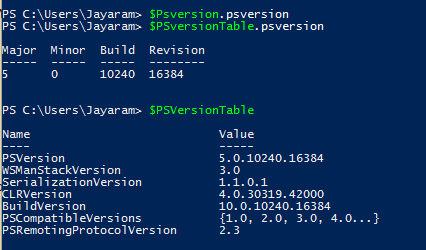
What version of Power Shell is supported in Windows 10?

The version of Powershell is 5.0 in Windows 10 as seen in this response to the $PSversionTable command.


PS5-01.PNG

However version 2.0 also exists as shown here:

PS5-02.PNG
Versions 3.0 and 4.0 are not found on the machine.

There are lots of Power Shell related posts (around 22) and you can access this address to see them all:
http://hodentekhelp.blogspot.com/search?q=Powershell