Showing posts with label ODBC. Show all posts

Saturday, June 2, 2018

How do you connect to SQL Server from Python?

Well, like other software you need a Python SQL Driver. These drivers can be downloaded from here:

https://docs.microsoft.com/en-us/sql/connect/python/python-driver-for-sql-server?view=sql-server-2017

There are two drivers and Microsoft recommends using pyodbc.

pyodbc
pymssql


The one thing that bothers me is that the drivers are Python version dependent and there are so many of them. This is only for Windows that includes both x32bit and x64bit.

Go here to get the proper one:
https://www.python.org/downloads/windows/

I am on Windows 10 Pro Version 1803 (OS Build 17134.48). I also have several versions of SQL Servers. I will try out the web installer for x32 and x64 versions of Python3.7.0b5(64).

Wednesday, May 2, 2018

Is there a ODBC test utility?

Yes there is.

The test utility Odbcte32.exe is in the Microsoft Data Access SDK 2.8. You can download the SDK from this link here.

After you execute the mdac28SDK.msi (14.7MB) you should find the SDK here:

C:\Program Files\Microsoft Data Access SDK 2.8\Tools\x86

Odbcte32.exe is in the Tools directory.

These are the tools you will find in the download:
  • Odbcte32.exe and Gtrtst32.dll, for the ANSI version.
  • Odbct32w.exe and Gtrts32w.dll, for the Unicode version.

Sunday, May 14, 2017

How do you build an ODBC Connection String with Report Builder 3?

ODBC source is one of the many sources that you can connect to in Reporting
Services using the Report Builder.

Here are the steps. It is assumed you have SQL Server 2016 SP1 installed; Report Builder is also
installed on the same machine. For these steps it is assumed that the SQL Server is up and running
and you are the owner of the computer who installed the SQL Server.

1. Launch Report Builder with Administrative Privileges.
2. Right click Data Sources and Click Add DataSource... to bring up the Data Source properties window.
3.  Provide a name for the data source, DS_ODBC
4. Choose Use a connection embedded in my report
5. Select connection type: click handle and choose ODBC at the bottom of list
6. Click Build... to bring up the Connection properties window
7. In the Data source specification section choose Use connection string:
8. Click the Build... button that gets activated to display Select Data Source window
9. Click Machine Data Source
10. In Machine Data Source tabbed page, click New... to display Create New Data Source
11. Accept the default, User Data Source and click Next
12. In the Select a driver for which you want to set up a data source, scroll down and
    select SQL Server (SQLSRV32.dll); click Next to display the next window
13  Click Finish. Create a New Data Source to SQL Server is displayed
14. Provide a name of your choice (ODBC_DSN); Description:(ODBC for Report Builder); Server
    use handle to locate: Hodentek9\OHANA. Click Next
15. Accept the default in the displayed page: with Windows NT authentication using the
    Network login id. Click Next
16. Change the default database by clicking handle to Northwind. accept all other
    defaults. Click Next
17. Accept all defaults on the displayed page. Click Finish
18. In the ODBC Microsoft SQL Server Setup page test the connection and make sure it works. Click OK
19. ODBC_DSN enters the Machine Data Source tabbed page. Click OK
20. SQL Server Login window gets displayed. Enter creator owner's credentials
21. Copy the connection string from the connection properties window.
Dsn=ODBC_DSN;description=ODBC for Report Builder;trusted_connection=Yes;app=Microsoft SQL Server;wsid=HODENTEK9;network=DBNMPNTW
22. Test Connection to make sure it works
23. Click OK
The Connection string enters the Data Source Properties window as shown.


Tuesday, October 6, 2015

How do you access data using ODBC data connectivity in R?

R language is well suited for statistics and graphics. R is also good at handling data, perhaps not in large-scale. In order to connect to an ODBC source, it needs an ODBC connector which is found in a library called RODBC.

When you install a number of packages are available out of the box shown here:
 

Installed Packages.png

However you may not find the RODBC in the list. You need to install this library.
You can find RODBC library download here for WIndows.
https://cran.r-project.org/web/packages/RODBC/index.html

You will be downloading a zip file named RODBC_1.3-12.zip

You can download it to a location of your choice but move this file to the( library folder) in the folder created by the R installation.
 

The zip file from the download location(desktop) was moved to the folder C:\Program Files\R\R-3.2.2\library.

librarywithRODBC


Now if you bring up the installed packages from R-GUI you will see RODBC as shown.

LoadPackages2

Now you are ready to use the RODBC library in working with R.
In the RGUI(64-bit) just type library (RODBC) at the prompt as shown. You get another prompt but nothing else.
--------
> library(RODBC)
>
---------
For help with RODBC you can type the following at R prompt:
----------
>help(package=RODBC)
---------
This will open up the help file in HTML at : http://127.0.0.1:27629/library/RODBC/html/00Index.html as shown:


RODBCDoc.png

Now you can use this help file to explore RODBC further.

There are two groups of functions in RODBC, The internet odbc* commands implement low-level access to ODBC functions and the sql* functions operate at a higher level to read, save, copy etc. You can connect to hosts or DSNs.

Happy data hunting!

Wednesday, February 5, 2014

How do I connect to SQL Anywhere 16 using LibreOffice4.2?

It is quite easy and very similar to the following:

http://hodentek.blogspot.com/2013/09/do-you-need-to-connect-to-sql-anywhere_20.html

The steps are here,
1. Start the SQL Anywhere 16 Server. Here I am starting a demo server.


When you install SQL Anywhere 16 it comes with a 'demo' database and incidentally this has not changed from the earliest version to which I was exposed.
You can connect to the 'demo' server and create an ODBC connection as shown in the next image (note that you will be using a 32-bit driver):

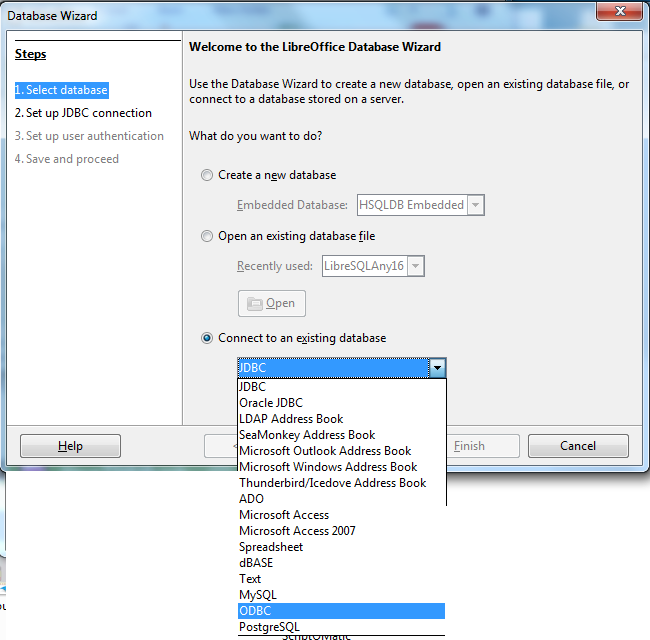
2. Launch LibreOfffice 4.2 from its shortcut and open the Base Database item in the suite. This opens the Database wizard as shown. Click on the third option, Connect to an existing database as shwon.


3. Choose ODBC and click Next.
In the displayed screen, click Browse to display all the ODBC connections. SAP16 is a ODBC connection to SQL Anywhere 16. For details refer to my previous links.


4. After highlighting SAP16 click OK. Click Next.

In the Set up the user authentication page displayed enter dba in the User Name box and place a check mark for the Password Required check box as shown.


5. Click Next. You can hit Test Connection and the Authetication Required window will be displayed with Userr Name as entered in the previous step. Enter the password sql and click Ok.
You should get a LibreOffice Base message that the connection was successful.

6. Click OK. You will move to Save and Proceed step as shown.


7. Accept the defauls and click Finish.
Provide a name for the ODF database and click save. The database file will be saved to the location.

The 'demo' database is now displayed as shown. Double clicking Customers table brings up the data in the Customers' table as shown (only some clolumns shown in the image).


8. You can use the menu 'insert ->Record' to insert a new row in the table which gets updated to the server as shown. The record       was entered in the above Customers table. You can verify that it is updated in the Server as shown.


Tuesday, September 16, 2008

How do you create a ODBC DSN for an Microsoft Access 2003 data source?

This example shows how you may create a ODBC DSN for the Northwind.mdb sample in the Sample directory of Microsoft Access on a Windows XP Machine.

1. Open ODBC Data Source Adminisitor from Start Control Panel Administrative Tools Data Sources(ODBC)
ODBC Data Source Administrator window gets displayed.


2. Click on Add... button after you move over to the System DSN tab.
"Create New Data Source" window gets dsiplayed

3. Scroll and highlight Microsoft Access Driver (*mdb). If you are using Office 2007 you could use the other below it as shown.


4. Click on the Finish button.

The ODBC Microsoft ACCESS SETUP WINDOW gets displayed as shown.


5. Provide a name for the source, this is the DSN and provide an optional description.

Herein:
Data Source Name: MdbSource
Description: "Test source for MS Access 2003"

6. Click on the Select...button in the previous screen and locate the Northwind.mdb file as shown.


7. Click OK on the Select Database screen after selecting Northwind.mdb
The path information gets recorded as shown.

8. Click on the OK button on the ODBC Microsoft Access Setup window.

9. The new ODBC source you created "MdbSource" gets into the list of
System Data Sources as shown.


You have successfully created a ODBC DSN.

Thursday, September 4, 2008

How do I connect to ODBC data in MS Access?

In MS Access you click on File | Get External Data | Import...
In the Import window click as shown to connect to a ODBC source. Scroll all the way down, last item.


This opens the Select Data Source window where you can use the existing ones are create a brand new DSN.


Have fun!