Showing posts with label SAP. Show all posts

Tuesday, October 31, 2017

What is ODBMS? and Who is the leader in this segment?

This is the definition of Operational Database Management System(ODBMS) according to Gartner (5/10/2016):

"The operational database management system (OPDBMS) market is concerned with relational and nonrelational DBMS (see Note 1) products suitable for a broad range of enterprise-level transactional applications, and DBMS products supporting interactions and observations as alternative types of transactions"

Based on this definition and other considerations Microsoft is the leader edgin higher than the secodn Oracle. This is what you see in the Magic Quadrant. Microsoft shares the vision with others such as Oracle, SAP, AWS and IBM.

Here is copy of the Quadrant:


Detailed report here to download after registering:
https://info.microsoft.com/gartner-odbms-magic-quadrant-register.html?ls=website

Friday, September 2, 2016

Can you install SAP SQL Anywhere server on Windows 10?

Yes, you can.

You need to download the installation file from here after registering here:

https://go.sap.com/cmp/syb/crm-xu15-int-sqldevft/index.html

You can download both SAP SQL Anywhere 16 which requires a key that you get after registering or SAP SQL Anywhere 17 which does not require a key. The product you get is a developer edition good for developing on your machine and not for production.

If you do not know about SAP SQL Anywhere may be this is a good place to start:

It is available for Linux as well as Windows. I downloaded the Windows version (x64 bit).
As the ad says, it just Works.

After installation you should be seeing these on your Windows 10 computer.


There are a number of built-in tools that you can use.


Get dozens of tutorial articles on Sybase/SAP SQL Anywhere from here.

Wednesday, February 5, 2014

How do I connect to SQL Anywhere 16 using LibreOffice4.2?

It is quite easy and very similar to the following:

http://hodentek.blogspot.com/2013/09/do-you-need-to-connect-to-sql-anywhere_20.html

The steps are here,
1. Start the SQL Anywhere 16 Server. Here I am starting a demo server.


When you install SQL Anywhere 16 it comes with a 'demo' database and incidentally this has not changed from the earliest version to which I was exposed.
You can connect to the 'demo' server and create an ODBC connection as shown in the next image (note that you will be using a 32-bit driver):

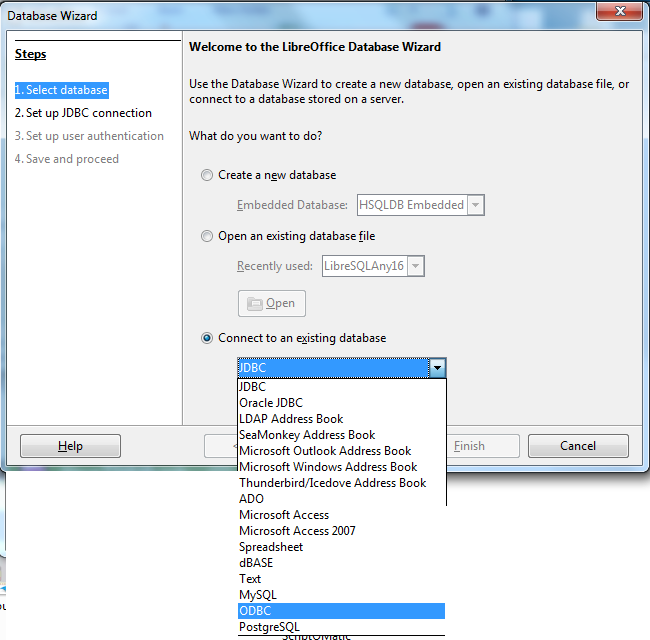
2. Launch LibreOfffice 4.2 from its shortcut and open the Base Database item in the suite. This opens the Database wizard as shown. Click on the third option, Connect to an existing database as shwon.


3. Choose ODBC and click Next.
In the displayed screen, click Browse to display all the ODBC connections. SAP16 is a ODBC connection to SQL Anywhere 16. For details refer to my previous links.


4. After highlighting SAP16 click OK. Click Next.

In the Set up the user authentication page displayed enter dba in the User Name box and place a check mark for the Password Required check box as shown.


5. Click Next. You can hit Test Connection and the Authetication Required window will be displayed with Userr Name as entered in the previous step. Enter the password sql and click Ok.
You should get a LibreOffice Base message that the connection was successful.

6. Click OK. You will move to Save and Proceed step as shown.


7. Accept the defauls and click Finish.
Provide a name for the ODF database and click save. The database file will be saved to the location.

The 'demo' database is now displayed as shown. Double clicking Customers table brings up the data in the Customers' table as shown (only some clolumns shown in the image).


8. You can use the menu 'insert ->Record' to insert a new row in the table which gets updated to the server as shown. The record       was entered in the above Customers table. You can verify that it is updated in the Server as shown.


Monday, December 16, 2013

Can you get data from SQL Anywhere 16 using MS Excel?

The answer is yes. SQL Anywhere installation adds a ODBC DSN to the computer. MS Query is MS Excel can connect to this data source as shown in this post.

In a number of previous posts we have seen how to access data on SQL Anywhere Server using either ODBC or ADO.NET connectivity. Follow the links here:
http://hodentek.blogspot.com/2013/10/connecting-to-sql-anywhere-16-using.html

http://hodentek.blogspot.com/2013/09/do-you-need-to-connect-to-sql-anywhere_24.html

http://hodentek.blogspot.com/2013/09/do-you-need-to-connect-to-sql-anywhere_20.html

http://hodentek.blogspot.com/2013/09/do-you-need-to-connect-to-sql-anywhere.html

http://hodentek.blogspot.com/2013/08/do-you-need-to-connect-to-sql-anywhere.html

1. Start the SQL Anywhere Server from its link as shown.

 
The Server starts up as shown.


2. Launch MS Access (in the present case MS Access 2010 Professional Plus).
3. Click menu item Data. Click From Other sources and from the drop-down menu
   click From Microsoft Query as shown.

4. Choose Data Source window gets displayed as shown.


5. Click demo* and click OK.
Query Wizard - Choose Columns window  is displayed as shown.

6. Click Contacts (for example) and using the > button transfer all columns to the Columns in your query window.

7. Click Next
Query wizard - Filter Data window is displayed is displayed as shown.

8. If you need to filter data go ahead and choose what to filter. Here no filtering is done.

9.Click Next.
Query Wizard - Sort Order window is displayed as shown.

10. Click Next.
Query wizard - Finish is displayed.

11. Accept default and click Finish. (not shown)

The Import Data window is displayed as shown.

12. If you accept the default location and click OK, the program brings data beginning the cell A1 as shown.

That is all there is to it.