Showing posts with label SQL Server 2017. Show all posts

Friday, November 23, 2018

How easy is it to install SQL Server 2017?

Installing SQL Server has gotten a lot easier compared to versions earlier than 2016. Installing SQL Server 2017 (a default installation) is a breeze. After you install SQL Server you are guided to install the required client tool, the SQL Server Management Studio.

Here are some screen shots with some explanations. They are mostly sequential.

Installing SQL Server 2017

Click to enlarge the picture and follow the link [ https://www.microsoft.com/en-us/sql-server/sql-server-downloads ] to the download page and choose a on-premises, developer edition. The next images on this post assumes a Windows 10 platform. You can get SQL Server 2017 on LINUX and MacOS as well.


Click double click the downloaded file to begin importing files and installing.
I chose the Basic option. When you click it the background turns blue.


Before proceeding you need to accept the license terms.


It starts installing and shows the progress.


Well, you have a default instance of SQL Server 2017 installed. Boy! was it easy. It also starts the SQL Server Database Engine Service immediatley. You may have to restart the computer at this point.

Installation is a Success!


The following shortcuts were added to my All Programs.


I opened up the SQL Server 2017 Configuration Manager from the above and checked out that the Server indeed installed.


Installing SQL Server Management Studio

If you need to work with SQL Server 2017 there is no better visual aid than SQL Server Managment Studio. 

Clicking InstallSSMS button on the previous image maked [Installation is a Success! ]takes you to the next site. You may need to do nothing for this to install. In my case, it did not complete. My download was interrupted and only got a partial file.


I downloaded the SSMS file from here.


This is the executable for SSMS.


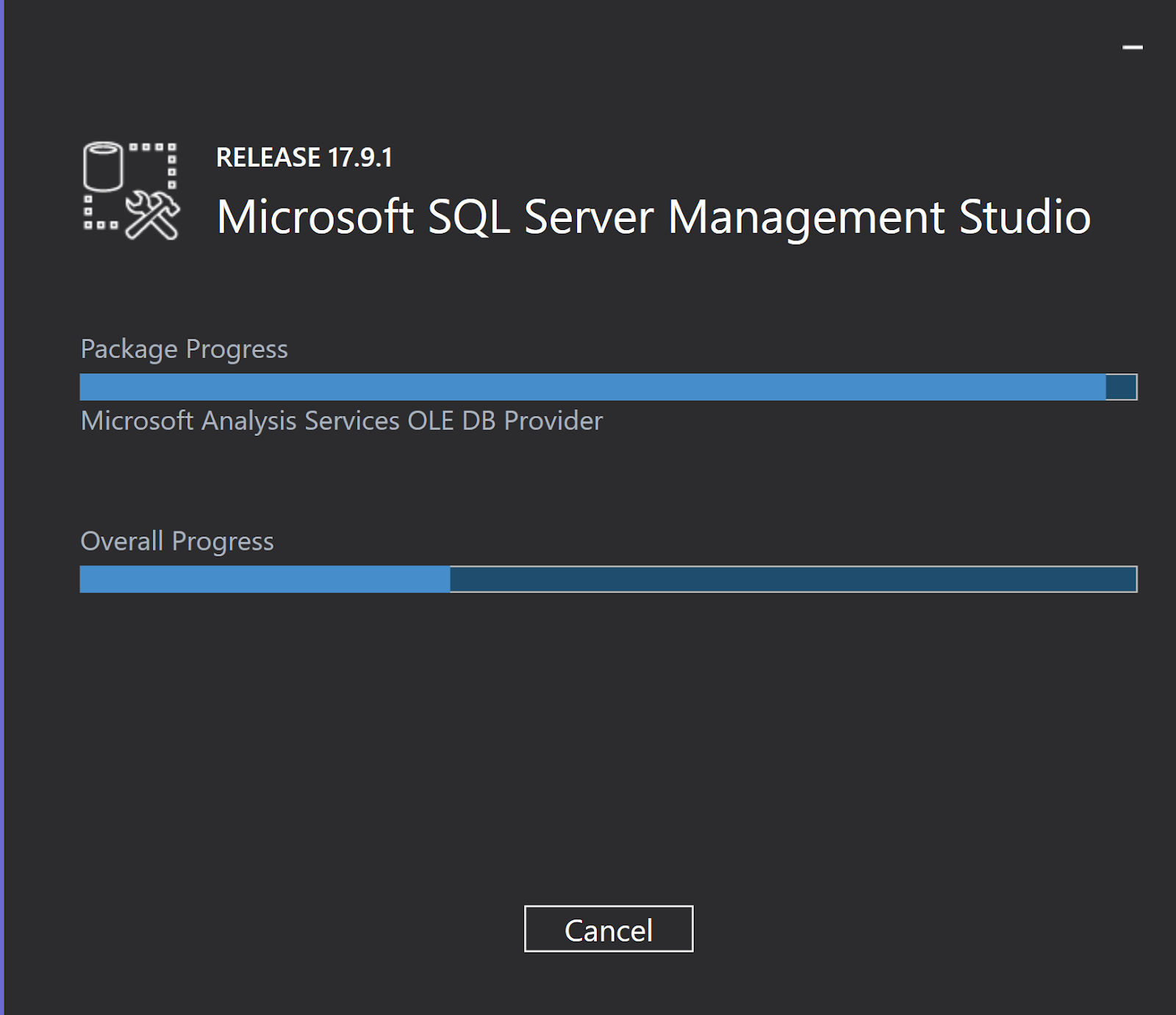
Double cliking the executable begins installing the SQL Server Management Stuido 17.9.1.


Click Install.


 Installation is complete.

Although I was expecting only SSMS, a whole lot of programs were added. Is it real, or the others shortcuts were added after SQL Server 2017 installation and restart of the computer, I cannot say,


Starting the SQL Server Maangement and Connecting to the SQL Server 2017

First check if the Windows Service for SQL Server 2017 Database Engine has started and if it has not you can start here.


Now click the SQL Server 2017 Management Studio in your All Programs menu above.

Now display the SQL Server 2017 from the lis tof Database engines as shown and click connect. You do not need to do anything else as the installaiton program has set you up as the Owner with your Windows Login.


In the Browse for Servers window highlight the Database instance [Hodentek9-New in this post] and click OK. The Server name appears in the window left to it and click Connect.

After a little checking you get connected. Now you can expand the Object Explorer to have the first look at the objects on your default instance as shown.

That's it folks. You are cooking!


Sunday, October 14, 2018

How do you install the latest SQL Operations Studio?

I was using SQL Operations Studio (SQLOPS) Ver 0.26.7 and I am upgrading to the July 2018 Public Preview version 0.31.4.

It is Available on Windows, macOS and Linux and you can download from here:
https://docs.microsoft.com/en-us/sql/sql-operations-studio/download?view=sql-server-2017


Installation procedute for all the OS's available on the above site.

This is the file for Windows OS:
sqlops-windows-setup-0.31.4.exe (74.3 MB)

Double click the executable to launch the application.
Here are the installation screen shots.


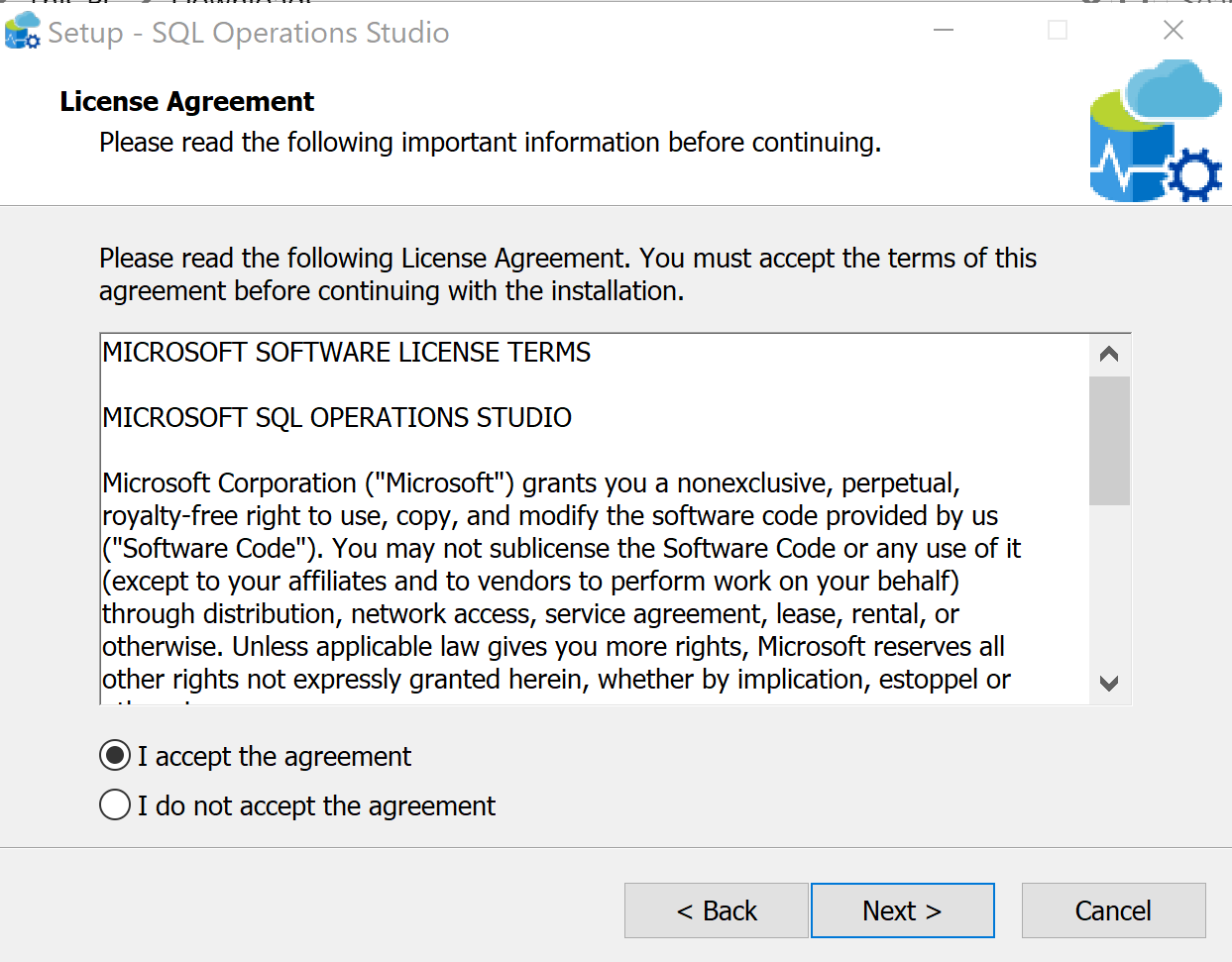
Accept license terms.


 The program is added to the PATH and you can launch soon after installing.


I connected to the SQL Server 2016 named instance after launching.


In the Preview you can see a number extensions that you will be able to access.


Thursday, September 27, 2018

What's new in SQL Server Documentation?

SQL Server being what it is, the core Microsoft Data Platform, it  has evolved in recent times to embrace non-Windows platforms, LINUX in particular and trending topic such as Machine Learning.

Now we will be looking at SQL Server Techonologies embracing:

Database Engine

Machine Learning Services


Integration Services


Analysis Services


Reporting Services

Replication


Data Quality Services


Master Data Services


Want to know more?

Go here:
https://docs.microsoft.com/en-us/sql/sql-server/sql-server-technical-documentation?view=sql-server-2017

Wednesday, August 8, 2018

How do programming languages calculate PI approximations?


Two very well known approximations to PI are 22/7 (West) and 355/113 (Chinese).


As numbers how are they treated in Python, C#, SQL Server and the desktop 'Calculator' app?

It was fun looking into this. Here are how they work.

Python 3.6.4 |Anaconda, Inc.| (default, Jan 16 2018, 10:22:32) [MSC v.1900 64 bit (AMD64)] on win32
Type "help", "copyright", "credits" or "license" for more information.
>>> x=(355/113)
>>> x
3.1415929203539825
>>> y=(22/7)
>>> y
3.142857142857143
>>> x-y
-0.0012642225031602727
>>> y-x
0.0012642225031602727
>>>
----------------
Desktop Calculator

355/113=3.141592920353982
22/7=   3.142857142857143
PI=3.1415926535897932384626433832795
----------------

SQL Server 2017
Select cast((22.0000000000/7.0000000000) as numeric(30,25))
3.1428571428571428571428000

Select cast((355.0000000000/113.0000000000) as numeric(30,25))
3.1415929203539823008849550
-------------------------
C# Interactive in Visual Studio Community 2017
double y;
> y = 22 / 7;
> y
3
> y = 22.0000000000 / 7.0000000000;
> y
3.1428571428571428
> double x;
> x = 355 / 113;--delete this line
> x = 355.0000000000 / 113.0000000000;
> x
3.1415929203539825
>
I like the way Python spitted out the answer with lot less things to worry about.  Also, desktop calculator not to bad. What do you think?

Saturday, June 2, 2018

How do you connect to SQL Server from Python?

Well, like other software you need a Python SQL Driver. These drivers can be downloaded from here:

https://docs.microsoft.com/en-us/sql/connect/python/python-driver-for-sql-server?view=sql-server-2017

There are two drivers and Microsoft recommends using pyodbc.

pyodbc
pymssql


The one thing that bothers me is that the drivers are Python version dependent and there are so many of them. This is only for Windows that includes both x32bit and x64bit.

Go here to get the proper one:
https://www.python.org/downloads/windows/

I am on Windows 10 Pro Version 1803 (OS Build 17134.48). I also have several versions of SQL Servers. I will try out the web installer for x32 and x64 versions of Python3.7.0b5(64).

Sunday, May 20, 2018

How do you register a SQL Server in SQL Server Management Studio v17.7?


When you have a large number of SQL Servers it becomes a no brainer to find a way to manage them effectively. SQL Server Management Studio can be very effective in managing local servers by grouping them according to your usage necessities.

Registering SQL Server instances makes it easy to administer. Connecting to servers is a lot faster if you register all the instances in the Local Group of Servers. In SQL Server Management Studio 17.7 it is lot easier to register than in previous, older versions.

I have three SQL Server instances from 3 different versions. After registering I just need to double click the server I am using and I am ready to roll.


Watch the Video:
https://youtu.be/eWkbcBgjq80

Wednesday, January 3, 2018

How do I troubleshoot 'Report Server WMI Provider error' in SSRS 2017?

You have SQL Server Developer 2017 installed with a default instance and you have a SQL Server Reporting Services Configuration Manager. You try to configure the Reporting Services 2017 using the configuration manager and you encounter this error.


SSRS17ConfigManageError_0

You verified that WMI is working and you can get connected to the local computer using wmimgmt.msc command as shown.

SSRS17ConfigManageError_1

The first thing is to check if SQL Server is working and has started. This you can do in Control  | Panel Services. If it has not started, you can start it. You should also check if the Reporting Services for the particular instance has started, and start it if it has not.

If you do not find the SQL Server Reporting Services service in Control Panel|..|Services, the chances are you have not installed Reporting Services. The fact that you have a Reporting Services 2017 Configuration Manager does not guarantee that the Reporting Services is installed.

In this case trying to configure SSRS 2017 will result in the WMI error.

Another check you can make is to see if Reporting Services is in the WMI as shown. There are two Report Servers (one from SSRS 2012 and the other SSRS 2016) and there is no Report Server corresponding to a default instance.


SSRS17ConfigManageError_2

Prior to SQL Server 2017, Reporting Services was installed when you installed the Database engine if you chose to include.

In SQL Server 2017 you need to install Reporting Services before you can configure it. Once you install SQL Server Reporting Services, this error goes away and you can continue configuring the Report Server. In this case, you can verify in WMI  as shown here.


and in the Control panel as shown.


Tuesday, October 31, 2017

How do you use the STRING_AGG() function?

You can create comma separated, concatenated strings from values in columns in a database. The concatenated strings are separated by a separator which gets added except for the end of the string.

The full syntax is here:

STRING_AGG ( expression, separator ) [ ]

::=  
    WITHIN GROUP ( ORDER BY [ ASC | DESC ] ) 


If you have SQL Server 2016, this will not work as shown here.


But it does recognize it as a function because I am using SQL Server Management Studio v17


Why not download SQL Server 2017 RC2 and try?