Showing posts with label MySQL. Show all posts
Showing posts with label MySQL. Show all posts
Tuesday, February 11, 2020


Thursday, November 26, 2015
How do you access MariaDB in XAMPP?
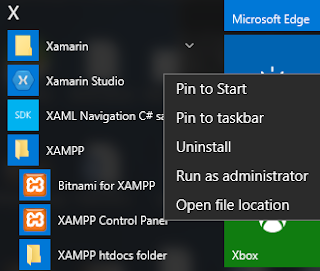
We have seen that MariaDB is an off spring of MySQL and when we launch (as administrator) XAMPP from its shortcut shown here:
XAMPP-Maria01.png
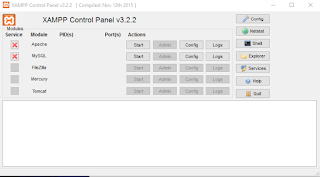
What we see displayed is the following (it is assumed any service running is stopped and the bottom pane is cleared):
XAMPP-Maria01.png
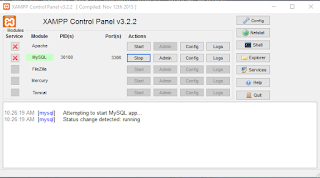
Click Start for MySQL and it is already running as shown here:
XAMPP-Maria03.png
MySQL is running on Port 3306.
Click on Shell.
The XAMPP prompt is displayed with the following message.
---
Setting environment for using XAMPP for Windows.
Jayaram@HODENTEK8 c:\j
#
----------------
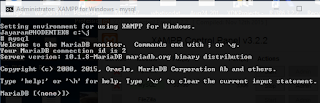
When you enter mysql as shown you get the MariaDB prompt as shown
XAMPP-Maria04.png
MariaDB syntax is very similar to MySQL syntax as for as its usage is concerned.
Alternately you can do the same from the install directory as shown here:
-----------
Microsoft Windows [Version 10.0.10240]
(c) 2015 Microsoft Corporation. All rights reserved.
C:\Users\Jayaram>cd\
C:\>cd C:\J\mysql\bin
C:\J\mysql\bin>dir mysql*
Volume in drive C is TI10672700E
Volume Serial Number is 16FB-D230
Directory of C:\J\mysql\bin
10/14/2015 10:44 PM 3,571,528 mysql.exe
10/14/2015 10:45 PM 3,517,768 mysqladmin.exe
10/14/2015 10:45 PM 3,595,080 mysqlbinlog.exe
10/14/2015 10:44 PM 3,515,208 mysqlcheck.exe
10/14/2015 10:45 PM 11,527,496 mysqld.exe
10/14/2015 10:44 PM 3,568,456 mysqldump.exe
10/14/2015 10:16 PM 8,385 mysqldumpslow.pl
10/14/2015 10:16 PM 25,817 mysqld_multi.pl
10/14/2015 10:16 PM 36,102 mysqlhotcopy.pl
10/14/2015 10:45 PM 3,506,504 mysqlimport.exe
10/14/2015 10:45 PM 3,507,528 mysqlshow.exe
10/14/2015 10:45 PM 3,525,448 mysqlslap.exe
10/14/2015 10:44 PM 3,916,616 mysqltest.exe
10/14/2015 10:48 PM 9,949,000 mysqltest_embedded.exe
10/14/2015 10:38 PM 3,899,392 mysql_client_test.exe
10/14/2015 10:48 PM 10,124,104 mysql_client_test_embedded.exe
10/14/2015 10:16 PM 8,799 mysql_config.pl
10/14/2015 10:16 PM 4,417 mysql_convert_table_format.pl
10/14/2015 10:48 PM 9,804,104 mysql_embedded.exe
10/14/2015 10:46 PM 3,735,368 mysql_install_db.exe
10/14/2015 10:45 PM 3,119,944 mysql_plugin.exe
10/14/2015 10:16 PM 9,565 mysql_secure_installation.pl
10/14/2015 10:46 PM 3,124,040 mysql_tzinfo_to_sql.exe
10/14/2015 10:45 PM 3,178,824 mysql_upgrade.exe
10/14/2015 10:46 PM 3,109,192 mysql_upgrade_service.exe
10/14/2015 10:57 PM 1,750,344 mysql_upgrade_wizard.exe
26 File(s) 95,639,029 bytes
0 Dir(s) 797,801,631,744 bytes free
C:\J\mysql\bin>mysql
Welcome to the MariaDB monitor. Commands end with ; or \g.
Your MariaDB connection id is 4
Server version: 10.1.8-MariaDB mariadb.org binary distribution
Copyright (c) 2000, 2015, Oracle, MariaDB Corporation Ab and others.
Type 'help;' or '\h' for help. Typ
e '\c' to clear the current input statement.
----------------------------------------------------
You can also get to the administrator using the mysqladmin.exe as shown here (truncated portion):
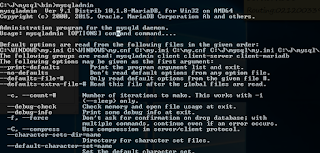
XAMPP-Maria05.png
For MariaDB server find contents as shown here:
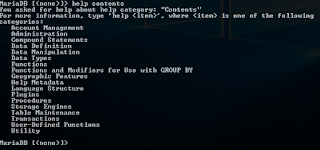
XAMPP-Maria06.png
MariaDB has good documentation. Here is the help on Utility | Use:
-----------------------------------------
MariaDB [(none)]> help Utility
You asked for help about help category: "Utility"
For more information, type 'help- ', where
- is one of the following
topics:
EXPLAIN
HELP STATEMENT
USE
MariaDB [(none)]> help USE
Name: 'USE'
Description:
Syntax:
USE db_name
The USE db_name statement tells MySQL to use the db_name database as
the default (current) database for subsequent statements. The database
remains the default until the end of the session or another USE
statement is issued:
USE db1;
SELECT COUNT(*) FROM mytable; # selects from db1.mytable
USE db2;
SELECT COUNT(*) FROM mytable; # selects from db2.mytable
Here are some queries run on this version:
MariaDB Version
------------
MariaDB [(none)]> Select Version(), CURRENT_DATE;
+----------------+--------------+
| Version() | CURRENT_DATE |
+----------------+--------------+
| 10.1.8-MariaDB | 2015-11-26 |
+----------------+--------------+
1 row in set (0.04 sec)
MariaDB [(none)]>
---------------------
Find User interactively
---------
Find the USER() (this is interactively run)
----------------
MariaDB [(none)]> SELECT
-> USER()
-> ,
-> CURRENT_DATE;
+----------------+--------------+
| USER() | CURRENT_DATE |
+----------------+--------------+
| ODBC@localhost | 2015-11-26 |
+----------------+--------------+
1 row in set (0.00 sec)
MariaDB [(none)]>
--------------------
There are only two bases in the installation.
Show databases
-----------
MariaDB [(none)]> show databases
-> ;
+--------------------+
| Database |
+--------------------+
| information_schema |
| test |
+--------------------+
2 rows in set (0.08 sec)
MariaDB [(none)]>

XAMPP-Maria01.png
What we see displayed is the following (it is assumed any service running is stopped and the bottom pane is cleared):

XAMPP-Maria01.png
Click Start for MySQL and it is already running as shown here:

XAMPP-Maria03.png
MySQL is running on Port 3306.
Click on Shell.
The XAMPP prompt is displayed with the following message.
---
Setting environment for using XAMPP for Windows.
Jayaram@HODENTEK8 c:\j
#
----------------
When you enter mysql as shown you get the MariaDB prompt as shown

XAMPP-Maria04.png
MariaDB syntax is very similar to MySQL syntax as for as its usage is concerned.
Alternately you can do the same from the install directory as shown here:
-----------
Microsoft Windows [Version 10.0.10240]
(c) 2015 Microsoft Corporation. All rights reserved.
C:\Users\Jayaram>cd\
C:\>cd C:\J\mysql\bin
C:\J\mysql\bin>dir mysql*
Volume in drive C is TI10672700E
Volume Serial Number is 16FB-D230
Directory of C:\J\mysql\bin
10/14/2015 10:44 PM 3,571,528 mysql.exe
10/14/2015 10:45 PM 3,517,768 mysqladmin.exe
10/14/2015 10:45 PM 3,595,080 mysqlbinlog.exe
10/14/2015 10:44 PM 3,515,208 mysqlcheck.exe
10/14/2015 10:45 PM 11,527,496 mysqld.exe
10/14/2015 10:44 PM 3,568,456 mysqldump.exe
10/14/2015 10:16 PM 8,385 mysqldumpslow.pl
10/14/2015 10:16 PM 25,817 mysqld_multi.pl
10/14/2015 10:16 PM 36,102 mysqlhotcopy.pl
10/14/2015 10:45 PM 3,506,504 mysqlimport.exe
10/14/2015 10:45 PM 3,507,528 mysqlshow.exe
10/14/2015 10:45 PM 3,525,448 mysqlslap.exe
10/14/2015 10:44 PM 3,916,616 mysqltest.exe
10/14/2015 10:48 PM 9,949,000 mysqltest_embedded.exe
10/14/2015 10:38 PM 3,899,392 mysql_client_test.exe
10/14/2015 10:48 PM 10,124,104 mysql_client_test_embedded.exe
10/14/2015 10:16 PM 8,799 mysql_config.pl
10/14/2015 10:16 PM 4,417 mysql_convert_table_format.pl
10/14/2015 10:48 PM 9,804,104 mysql_embedded.exe
10/14/2015 10:46 PM 3,735,368 mysql_install_db.exe
10/14/2015 10:45 PM 3,119,944 mysql_plugin.exe
10/14/2015 10:16 PM 9,565 mysql_secure_installation.pl
10/14/2015 10:46 PM 3,124,040 mysql_tzinfo_to_sql.exe
10/14/2015 10:45 PM 3,178,824 mysql_upgrade.exe
10/14/2015 10:46 PM 3,109,192 mysql_upgrade_service.exe
10/14/2015 10:57 PM 1,750,344 mysql_upgrade_wizard.exe
26 File(s) 95,639,029 bytes
0 Dir(s) 797,801,631,744 bytes free
C:\J\mysql\bin>mysql
Welcome to the MariaDB monitor. Commands end with ; or \g.
Your MariaDB connection id is 4
Server version: 10.1.8-MariaDB mariadb.org binary distribution
Copyright (c) 2000, 2015, Oracle, MariaDB Corporation Ab and others.
Type 'help;' or '\h' for help. Typ
e '\c' to clear the current input statement.
----------------------------------------------------
You can also get to the administrator using the mysqladmin.exe as shown here (truncated portion):

XAMPP-Maria05.png
For MariaDB server find contents as shown here:

XAMPP-Maria06.png
MariaDB has good documentation. Here is the help on Utility | Use:
-----------------------------------------
MariaDB [(none)]> help Utility
You asked for help about help category: "Utility"
For more information, type 'help
topics:
EXPLAIN
HELP STATEMENT
USE
MariaDB [(none)]> help USE
Name: 'USE'
Description:
Syntax:
USE db_name
The USE db_name statement tells MySQL to use the db_name database as
the default (current) database for subsequent statements. The database
remains the default until the end of the session or another USE
statement is issued:
USE db1;
SELECT COUNT(*) FROM mytable; # selects from db1.mytable
USE db2;
SELECT COUNT(*) FROM mytable; # selects from db2.mytable
Here are some queries run on this version:
MariaDB Version
------------
MariaDB [(none)]> Select Version(), CURRENT_DATE;
+----------------+--------------+
| Version() | CURRENT_DATE |
+----------------+--------------+
| 10.1.8-MariaDB | 2015-11-26 |
+----------------+--------------+
1 row in set (0.04 sec)
MariaDB [(none)]>
---------------------
Find User interactively
---------
Find the USER() (this is interactively run)
----------------
MariaDB [(none)]> SELECT
-> USER()
-> ,
-> CURRENT_DATE;
+----------------+--------------+
| USER() | CURRENT_DATE |
+----------------+--------------+
| ODBC@localhost | 2015-11-26 |
+----------------+--------------+
1 row in set (0.00 sec)
MariaDB [(none)]>
--------------------
There are only two bases in the installation.
Show databases
-----------
MariaDB [(none)]> show databases
-> ;
+--------------------+
| Database |
+--------------------+
| information_schema |
| test |
+--------------------+
2 rows in set (0.08 sec)
MariaDB [(none)]>
Saturday, November 21, 2015
How do you connect to SQL Server 2012 using HeidiSQL?
HeidiSQL is a client application and you can use it to work with databases. If you want to know more about it, or download and install HeidiSQL go here.

The Heidi Session Manager is launched as shown.

Heidi_Session_00.png
Click New and choose Session in root folder from the drop-down list as shown.

Heidi_Session_01.png
You can change the session name by over-writing as shown. Herein it is Nov21.

By default the connection is to MySQL using TCP/IP and localhost(127.0.0.1)
Let us change the Network type to Microsoft SQL Server using TCP/IP by using the drop-down menu shown.

Heidi_Session_03.png
Choose Windows authentication as shown.

Click Open. The connection is refused.

OK. Let us look if the SQL Server has started. Open the Control Panel|...|Services and verify that the server has started. Indeed it is running (option chosen at SQL Server Installation).

Now let us change the Hostname /IP to Hodentek8\RegencyPark (over write 127.0.0.1)
Click Open after changing the hostname.
You may get a save modifications message.

Heidi_Session_07.png
Click Yes. The program processes this information and the client is now connected to the named instance of SQL Server 2012 as shown.

Heidi_Session_08.png
Now you are cooking!
What is HeidiSQL?
It is a client tool used by web developers for working with MySQL Server, Microsoft SQL databases and PostgreSQL. It is free, Open Source since 9 years of active development and very useful.
What all HeidiSQL can do?
HeidiSQL which is a client application can carry out a lot of data related tasks:
•Connect to multiple servers in one window
•Connect to servers via command line
•Connect via SSH tunnel, or pass SSL settings
•Create and edit tables, views, stored routines, triggers and scheduled events.
•Generate nice SQL-exports, compress these afterwards, or put them on the clipboard.
•Export from one server/database directly to another server/database
•Manage user-privileges
•Import text-files
•Export table rows as CSV, HTML, XML, SQL, LaTeX, Wiki Markup and PHP Array
•Browse and edit table-data using a comfortable grid
•Bulk edit tables (move to db, change engine, collation etc.)
•Batch-insert ascii or binary files into tables
•Write queries with customizable syntax-highlighting and code-completion
•Pretty reformat disordered SQL
•Monitor and kill client-processes
•Find specific text in all tables of all databases of one server
•Optimize and repair tables in a batch manner
•Launch a parallel mysql.exe command line window using your current connection settings
Where do you install HeidiSQL?
Download the HeidiSQL 9.3 Installer here. There are other options as well. Double clicking the executable begins the installation.
Here are some screen shots.


Agree to license terms and click Next.
 Accept default folder.

Chose not to associate for now.

 Done!
Done!
 Launches HeidiSQL Session if the checkbox is checked.
 Leaves a new app on All Apps in Windows 10


What all HeidiSQL can do?
HeidiSQL which is a client application can carry out a lot of data related tasks:
•Connect to multiple servers in one window
•Connect to servers via command line
•Connect via SSH tunnel, or pass SSL settings
•Create and edit tables, views, stored routines, triggers and scheduled events.
•Generate nice SQL-exports, compress these afterwards, or put them on the clipboard.
•Export from one server/database directly to another server/database
•Manage user-privileges
•Import text-files
•Export table rows as CSV, HTML, XML, SQL, LaTeX, Wiki Markup and PHP Array
•Browse and edit table-data using a comfortable grid
•Bulk edit tables (move to db, change engine, collation etc.)
•Batch-insert ascii or binary files into tables
•Write queries with customizable syntax-highlighting and code-completion
•Pretty reformat disordered SQL
•Monitor and kill client-processes
•Find specific text in all tables of all databases of one server
•Optimize and repair tables in a batch manner
•Launch a parallel mysql.exe command line window using your current connection settings
Where do you install HeidiSQL?
Download the HeidiSQL 9.3 Installer here. There are other options as well. Double clicking the executable begins the installation.
Here are some screen shots.


Chose not to associate for now.


It also enters the Programs and Features list in Control Panel.

Friday, November 20, 2015
What is the difference between MySQL and MariaDB?
MySQL predates MariaDB. In fact MariaDB is a fork of MySQL. MySQL was handed down from Sun Microsystems to Oracle which made it somewhat non-open source (http://hodentek.blogspot.com/2009/07/taking-table-over-to-mysql-from-ms.html) and a need for an open source version became desirable. MariaDB has found acceptance from the likes of Google(http://hodentek.blogspot.com/2013/09/mysql-is-challenged-by-its-fork.html) and others. Customers like RedHat,SUSE and WikiPedia have moved away from MySQL.
The reasons are obvious:
The reasons are obvious:
- Better speed
- Has new extensions and features
- Better test and test suites
- Fewer warnings and bug
- Truly Open Source (GPL, LGPL or BSD)
- Strong Community(https://mariadb.com/kb/en/who-is-behind-mariadb/)
Sunday, November 15, 2015
Where can I find XAMPP download with MariaDB for Windows?
MariaDB does lot more than MySQL and it is MySQL's challenger arising out of MySQL (MariaDB is MySQL's fork). MySQL in LAMP stack has been replaced by MariaDB. The download link for XAMPP with MariaDB is here.
The download versions are v5.5.30 and v5.6.14 (both x32bit). These versions have the following components and they can be downloaded from here.
Updated PHP to 5.5.30 / 5.6.14
Updated Apache to 2.4.17
Updated MariaDB to 10.0.17
Updated phpMyAdmin to 4.5.0.2

Xampp_Maria.png
The download versions are v5.5.30 and v5.6.14 (both x32bit). These versions have the following components and they can be downloaded from here.
Updated PHP to 5.5.30 / 5.6.14
Updated Apache to 2.4.17
Updated MariaDB to 10.0.17
Updated phpMyAdmin to 4.5.0.2

Xampp_Maria.png
Friday, August 7, 2015
What is Google Cloud SQL?
ISO/IEC 27001 compliant Google Cloud SQL is a fully managed database service on a pay-per-use option providing database infrastructure in the cloud. Google Cloud SQL can easily set up, maintain, manage and administer relational MySQL databases in the cloud. Google Cloud SQL is on Google Cloud Platform.
It is so fully automated you may not need a DBA.
There is no software needed for installation or management and ideal for small and mid-sised businesses. Replication, patch management and database management are all automated.
Data is automatically encrypted adn replicated to many geographic
locations and failovers are handled automatically.
 Try it free here:
https://console.developers.google.com/freetrial?_ga=1.252176009.1404788957.1438979658
It is so fully automated you may not need a DBA.
There is no software needed for installation or management and ideal for small and mid-sised businesses. Replication, patch management and database management are all automated.
Data is automatically encrypted adn replicated to many geographic
locations and failovers are handled automatically.

https://console.developers.google.com/freetrial?_ga=1.252176009.1404788957.1438979658
Friday, July 3, 2015
What are the different Web Apps you can build in Microsoft Azure?
Between Web Apps and Native apps, the browser based Web Apps have a lot of advantages while in some cases Native Apps are more advantageous.
In the beginning there were ASP.NET Web sites and Cloud Services made their appearance later on Windows Azure, and now there are lots of Web Apps.
Under Web Apps you can build the following kind of apps. Some of the web apps can be built in the Windows Azure Portal and those in preview can only be accssesed in the preview portal:
In the beginning there were ASP.NET Web sites and Cloud Services made their appearance later on Windows Azure, and now there are lots of Web Apps.
Under Web Apps you can build the following kind of apps. Some of the web apps can be built in the Windows Azure Portal and those in preview can only be accssesed in the preview portal:
- App Service Environment
- Application Insights
- Template deployment-classic
- Web App
- Web App+MySQL
- Web App+SQL
- ......
- DNN Platform from DNN Corporation
- Scalable Wordpress from WordPress
- Engine Yard Platform as Service
- SendGrid Email Delivery from SendGrid
- Umbraco CMS from Umbraco.org
- Notification Hub -not ready even for preview
- Joomla! from Joomla
- .....
Wednesday, February 12, 2014
What is a MySQL Workbench?
It is a graphic user interface with which you can connect to a MySQL Server running on your computer. This is very similar to SQL Server Management Studio for Microsoft SQL Servers. There are some common features but you can only use it with MySQL server. You can create database, tables; run queries; create stored procedures; etc. The present version is 6.0.9 and you can download an msi file from here:
http://dev.mysql.com/downloads/tools/workbench/
you may need to register.
Here is what it looks like:

I have connected to MySQL server installed using XAMPP using two Local\NamedPipes and Standard TCPIP. You can access all the shortcuts on the right to interact with various MySQL related resources.
Sunday, February 9, 2014
On Installing Apache on Windows 7 64bit
The best way to install APACHE or the LAMP stack is to use the XAMPP cross-platform web server solution stack XAMPP. All you need to do is to downlaod, extract and start.
You can download XAMPP form here. You can install version 1.8.3 for Windows from the indicated link. XAMPP was howevver download from here:
http://download.cnet.com/XAMPP/3000-10248_4-10703782.html
The two latest versions are,

XAMPP is documented as a very easy program to install and run, but sometimes if your computer is running other programs like IIS, Skype, SQL Server Reporting Services, Oracle etc as it does on my computer you could get into a situation that makes it hard to install the XAMPP bundle.
The first mistake I made was to download XAMPP to a folder on my desktop. The recommended one is to use C:\XAMPP folder. As I installed on the desktop, the registration in my Windows Services, the file for the service to run location here:
C:\Users\mysorian\Desktop\xampp\xampp\apache\bin\httpd.exe" -k runservice
Any number of install/uninstall operations did not change this path for the executable.

Later I installed XAMPP to C:\XAMPP but took 'apache/bin' contents to the path shown (above figure) in Apache2.4 Properties page.
The downloading and installing from CNET link was quite easy. Here are some screen shots. The next screen is dispalyed when you double click the XAMPP executable.



------5:00:55 PM [main] Initializing Control Panel
5:00:55 PM [main] Windows Version: Windows 7 Ultimate SP1 64-bit
5:00:55 PM [main] XAMPP Version: 1.8.3
5:00:55 PM [main] Control Panel Version: 3.2.1 [ Compiled: May 7th 2013 ]
5:00:55 PM [main] You are not running with administrator rights! This will work for
5:00:55 PM [main] most application stuff but whenever you do something with services
5:00:55 PM [main] there will be a security dialogue or things will break! So think
5:00:55 PM [main] about running this application with administrator rights!
5:00:55 PM [main] XAMPP Installation Directory: "c:\xampp\"
5:00:55 PM [main] Checking for prerequisites
5:00:55 PM [main] All prerequisites found
5:00:55 PM [main] Initializing Modules
5:00:55 PM [Apache] Apache Service detected with wrong path
5:00:55 PM [Apache] Change XAMPP Apache and Control Panel settings or
5:00:55 PM [Apache] Uninstall/disable the other service manually first
5:00:55 PM [Apache] Found Path: "C:\Users\mysorian\Desktop\xampp\xampp\apache\bin\httpd.exe" -k runservice
5:00:55 PM [Apache] Expected Path: "c:\xampp\apache\bin\httpd.exe" -k runservice
5:00:55 PM [Apache] Problem detected!
5:00:55 PM [Apache] Port 80 in use by "Unable to open process" with PID 4!
5:00:55 PM [Apache] Apache WILL NOT start without the configured ports free!
5:00:55 PM [Apache] You need to uninstall/disable/reconfigure the blocking application
5:00:55 PM [Apache] or reconfigure Apache and the Control Panel to listen on a different port
5:00:55 PM [Apache] Problem detected!
5:00:55 PM [Apache] Port 443 in use by "C:\Program Files (x86)\Skype\Phone\Skype.exe" with PID 2624!
5:00:55 PM [Apache] Apache WILL NOT start without the configured ports free!
5:00:55 PM [Apache] You need to uninstall/disable/reconfigure the blocking application
5:00:55 PM [Apache] or reconfigure Apache and the Control Panel to listen on a different port
5:00:55 PM [Tomcat] Problem detected!
5:00:55 PM [Tomcat] Port 8080 in use by "C:\oraclexe\app\oracle\product\11.2.0\server\BIN\tnslsnr.exe"!
5:00:55 PM [Tomcat] Tomcat WILL NOT start without the configured ports free!
5:00:55 PM [Tomcat] You need to uninstall/disable/reconfigure the blocking application
5:00:55 PM [Tomcat] or reconfigure Tomcat and the Control Panel to listen on a different port
The XAMPP -Control contiues to show errors,

My guess is that this control has a problem. It is not related to the configuration of this controller.
But the XAMPP site working at http://127.0.0.1:8081
as shown.

Note: I also had MariaDB which was interfering with XAMPP's MySQL. I removed MariaDB which allowed me to run MySQL error free.
Summarize the important points:
1. Install XAMPP to C:\XAMPP folder
2. Do not try to change IIS bindings, but change the httpd.config file and choose Apache ports different from that of IIS and Skype.
3. Do the same for other contentions as well.
You can download XAMPP form here. You can install version 1.8.3 for Windows from the indicated link. XAMPP was howevver download from here:
http://download.cnet.com/XAMPP/3000-10248_4-10703782.html
The two latest versions are,
XAMPP is documented as a very easy program to install and run, but sometimes if your computer is running other programs like IIS, Skype, SQL Server Reporting Services, Oracle etc as it does on my computer you could get into a situation that makes it hard to install the XAMPP bundle.
The first mistake I made was to download XAMPP to a folder on my desktop. The recommended one is to use C:\XAMPP folder. As I installed on the desktop, the registration in my Windows Services, the file for the service to run location here:
C:\Users\mysorian\Desktop\xampp\xampp\apache\bin\httpd.exe" -k runservice
Any number of install/uninstall operations did not change this path for the executable.
Later I installed XAMPP to C:\XAMPP but took 'apache/bin' contents to the path shown (above figure) in Apache2.4 Properties page.
The downloading and installing from CNET link was quite easy. Here are some screen shots. The next screen is dispalyed when you double click the XAMPP executable.
Click OK.
Click Next.
Click Next to indicate the location of the installation folder.
Click Next.
Click Next.
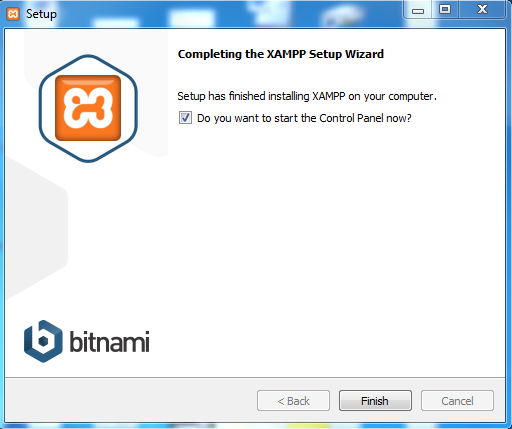
Click Finish
This completes the installation. Now you can double click xampp-control.exe in the installation directory that brings up the XAMPP Control Panel as shown. You can Start, stop and configure the packged programs Apache, MySql etc.
The problem that I encountered were the highlighted error messages reagrding Port 80 and Port 443. These ports are used by default by Internet Information Services and Skype.
I managed to change the ports of Skype. Click here to see how it was done.
In spite of changing the SKYPE's Port 80 to something different and that of IIS binding to a different port, still the errors continued.
Since I could not succeed keeping 80 for APACHE, I decided to change APACHE to listen to a different port (8081) and reverted my IIS bound to its defult 80. I thought I could succeed and XAMPP control continued sending out error messages.
I started apache service from Windows Services and the apache started without any problem after I made adjustment for bin/apache location as mentioned in the beginning.

------5:00:55 PM [main] Initializing Control Panel
5:00:55 PM [main] Windows Version: Windows 7 Ultimate SP1 64-bit
5:00:55 PM [main] XAMPP Version: 1.8.3
5:00:55 PM [main] Control Panel Version: 3.2.1 [ Compiled: May 7th 2013 ]
5:00:55 PM [main] You are not running with administrator rights! This will work for
5:00:55 PM [main] most application stuff but whenever you do something with services
5:00:55 PM [main] there will be a security dialogue or things will break! So think
5:00:55 PM [main] about running this application with administrator rights!
5:00:55 PM [main] XAMPP Installation Directory: "c:\xampp\"
5:00:55 PM [main] Checking for prerequisites
5:00:55 PM [main] All prerequisites found
5:00:55 PM [main] Initializing Modules
5:00:55 PM [Apache] Apache Service detected with wrong path
5:00:55 PM [Apache] Change XAMPP Apache and Control Panel settings or
5:00:55 PM [Apache] Uninstall/disable the other service manually first
5:00:55 PM [Apache] Found Path: "C:\Users\mysorian\Desktop\xampp\xampp\apache\bin\httpd.exe" -k runservice
5:00:55 PM [Apache] Expected Path: "c:\xampp\apache\bin\httpd.exe" -k runservice
5:00:55 PM [Apache] Problem detected!
5:00:55 PM [Apache] Port 80 in use by "Unable to open process" with PID 4!
5:00:55 PM [Apache] Apache WILL NOT start without the configured ports free!
5:00:55 PM [Apache] You need to uninstall/disable/reconfigure the blocking application
5:00:55 PM [Apache] or reconfigure Apache and the Control Panel to listen on a different port
5:00:55 PM [Apache] Problem detected!
5:00:55 PM [Apache] Port 443 in use by "C:\Program Files (x86)\Skype\Phone\Skype.exe" with PID 2624!
5:00:55 PM [Apache] Apache WILL NOT start without the configured ports free!
5:00:55 PM [Apache] You need to uninstall/disable/reconfigure the blocking application
5:00:55 PM [Apache] or reconfigure Apache and the Control Panel to listen on a different port
5:00:55 PM [Tomcat] Problem detected!
5:00:55 PM [Tomcat] Port 8080 in use by "C:\oraclexe\app\oracle\product\11.2.0\server\BIN\tnslsnr.exe"!
5:00:55 PM [Tomcat] Tomcat WILL NOT start without the configured ports free!
5:00:55 PM [Tomcat] You need to uninstall/disable/reconfigure the blocking application
5:00:55 PM [Tomcat] or reconfigure Tomcat and the Control Panel to listen on a different port
The XAMPP -Control contiues to show errors,
My guess is that this control has a problem. It is not related to the configuration of this controller.
But the XAMPP site working at http://127.0.0.1:8081
as shown.
Note: I also had MariaDB which was interfering with XAMPP's MySQL. I removed MariaDB which allowed me to run MySQL error free.
Summarize the important points:
1. Install XAMPP to C:\XAMPP folder
2. Do not try to change IIS bindings, but change the httpd.config file and choose Apache ports different from that of IIS and Skype.
3. Do the same for other contentions as well.
Sunday, November 10, 2013
Read these mostly Microsoft SQL Server related articles on Packt Network
Creating a matrix report using the Analysis Services Cube

Excerpt:
nd database , a copy of the Northwind database. In this article by Dr. Jayaram Krishnaswamy, we will be authoring a report based on an analysis services CUBE. Reviewing Jayaram's other OLAP related articles may greatly help in understanding this article. Creating the CUBE will be essential to work with this
Excerpt:
version of SQL Server 2008 is R2. This article by Jayaram Krishnaswamy , is based on a project named 'Houston' which is a web based SQL Azure management tool that has not gone into production but can be tested using the SQL Azure Labs portal at http://www.SQLAzureLabs.com . In this article we look at some of the features of this web
Excerpt:
Jayaram Krishnaswamy In the August CTP Microsoft introduced Data-Tier Applications and several new features were introduced in the Nov 2009 CTP. Registering, Viewing & comparing and upgrading Data-Tier applications were added. This article by Dr. Jayaram
Excerpt:
Jayaram Krishnaswamy This article by Jayaram Krishnaswamy shows how you can develop a VB.NET 2.0 application using the integration features provided by the SQL Anywhere database. The SQL Anywhere tools are directly accessible without
Excerpt:
Jayaram Krishnaswamy As noted in Part 1 , OLAP presents Business Intelligence via what is known as a CUBE. A Cube has many dimensions and it provides a faster method to access the intelligence compared to the structured querying
Excerpt:
Dr.Jay Krishnaswamy This article by Jayaram Krishnaswamy describes how you may connect to SQL Server 2008 and display the retrieved data in a GridView Control on a web page. Trying to establish a connection to the SQL Server 2008 is
Excerpt:
to migration of databases from third party vendor products to Oracle. This article by Dr. Jayaram Krishnaswamy , shows how the reader may use Oracle's most recent tool, the Oracle SQL Developer 1.5 to work with the MySQL database. An example of migrating a table in MySQL to Oracle 10G XE is also described. The
Excerpt:
Querying in LightSwitch can be carried out using the built-in Query Designer but more advanced querying can be carried out using code. This article by Jayaram Krishnaswamy , author of Microsoft Visual Studio LightSwitch Business Application Development , describes the use of the built-in Query Designer in the IDE to query the entities in the data
Excerpt:
Jayaram Krishnaswamy In this article by Dr. Jayaram Krishnaswamy , we look at two APIs, the Twitter API and the New York Times API and see how we can access data on them using the JavaScript libraries available on the Microsoft
Excerpt:
Jayaram Krishnaswamy Getting introduced to working with Postgres was described in the recent article, " installation and some basic features of EnterpriseDB ". Migration of data from SQL Server 2008 was described in "
Excerpt:
Jayaram Krishnaswamy SQL 2008 server is the latest in the line of Microsoft database servers and this article by Dr. Jayaram Krishnaswamy discusses the challenges one may face in installing the Developer version of this product
Excerpt:
on August 23rd for the general public while it has been used by MSDN members and Microsoft insiders for couple of months. This article by Jayaram Krishnaswamy shows how you may download and install this program. The article also shows how you may develop a simple database application using this product retrieving data from the Cloud hosted relational
Excerpt:
Jayaram Krishnaswamy There are a large number of posts on various difficulties experienced while transferring data from MySQL using Microsoft SQL Server Integration Services. While the transfer of data from MySQL to Microsoft SQL Server
Excerpt:
Jayaram Krishnaswamy Linking servers provides an elegant solution when you are faced with running queries against databases on distributed servers or looking at your distributed assets on disparate databases. This article by Dr. Jay Krishnaswamy explains how
Excerpt:
Jayaram Krishnaswamy This article by Dr. Jayaram Krishnaswamy teaches how you may create a .NET Compact Framework (CF) 2.0 forms application. This can be used with Pocket PC 2003, or later devices. In the absence of a device being
Excerpt:
Jayaram Krishnaswamy This article by Jayaram Krishnswamy shows how you can develop a VB.NET 2.0 application using the integration features provided by the SQL Anywhere database. The SQL Anywhere tools are directly accessible without
Excerpt:
Dr. Jayaram Krishnaswamy In this article by Dr. Jayaram Krishnaswamy , we will learn about migration of data from MS SQL Server 2008 to EnterpriseDB. Migration Studio bundled with the EnterpriseDB download is a collection of tools to
Excerpt:
data. This two part article by Dr. Jayaram Krishnaswamy describes how a Cube is designed using Visual Studio 2008 and how it may be browsed on the Analysis Server. In Part 1, the necessary items for creating the Cube, namely the Data Source and Data Source Views are described. Reviewing Jayaram's other OLAP
Excerpt:
two non-Microsoft databases. Both Microsoft and proprietary data source providers are available to connect to many different database products. In this article by Dr. Jayaram Krishnaswamy , we will be transferring data from an MS Access database to a database on SQLServer 2008. Both the source of data and the destination database are on the same
Excerpt:
Jayaram Krishnaswamy Report Services, Analysis Services, and Integration Services are the three pillars of Business Intelligence in Microsoft's vision that continues to evolve. Reporting is a basic activity, albeit one of the
Excerpt:
Dr.Jay Krishnaswamy This article by Jayaram Krishnaswamy introduces the reader accustomed to working with the traditional graphic user interface in earlier versions of VB to Windows Presentation Foundation . Importantly, it introduces
Excerpt:
SettingsJayaram Krishnaswamy>cd C:>cd xamppmysqlbin C:xamppmysqlbin>mysql -h localhost -u root -p Enter password: ********* Welcome to the MySQL monitor. Commands end with ; or g. Your MySQL connection id is 2 Server version: 5.1.30-community MySQL Community Server (GPL) Type 'help;' or 'h' for help. Type 'c'
Excerpt:
provided by the Linq to SQL classes, a class generator that maps SQL server objects to the model. The class files generated support CRUD operations. In this article by Dr. Jay Krishnaswamy , we will be adding a LinqDataSource control in Visual Studio 2008 to a ASP.NET website and configuring it by providing a data context. The data context will
Excerpt:
MDX with Microsoft SQL Server 2008 R2 Analysis Services Cookbook () () This article by Jayaram Krishnaswamy the author of Learning SQL Server Reporting Services 2012, provides a summarized overview of SQL Server Reporting Services 2012 and the background information
Excerpt:
or it can be installed manually after installing the ListView. In this article both of them are described. While the number of items displayed in a list can be declaratively coded, it is possible to set it at page load time as well. This article by Dr. Jayaram Krishnaswamy describes how you may connect to SQL Server 2008 and display the retrieved
Excerpt:
published to a web server and can be browsed on IE and Firefox. This article by Dr. Jayaram Krishnaswamy shows how to create a XBAP application using Visual Studio 2008; how to navigate between pages in the application; and how to deploy the application to the local intranet web server using built-in support in Visual Studio.
Excerpt:
Jayaram Krishnaswamy There are several options if one wishes to move a database from a SQL Server 2005 to SQL 2008 Server. First of all there is a 'Copy Database Wizard' in SQL 2008 Server which is meant for transferring
Excerpt:
will not be wrong. Just like you take information out of the table, make changes to it and return it to the table, you do likewise with entity sets. In this article by Jayaram Krishnaswamy , author of Microsoft Visual Studio LightSwitch Business Application Development , we will take a look at querying a single entity.
Excerpt:
Jayaram Krishnaswamy This article by Jayaram Krishnaswamy shows how you can install the Oracle SQL Developer 1.2 and connect to an MS Access database. This article will cover the steps right from downloading and installing the
Excerpt:
database server on a web page using ASP.NET . The table used in this tutorial was the one described in the first article in this series on Exporting data from MS Access 2003 to MySQL . This article by Dr. Jay Krishnaswamy explains how to populate a GridView on an ASP.NET web page by data retrieved from a MySQL Server. MySQL.Data.MySqlClient
Excerpt:
Report Server providing full support with a web service frontend for a variety of reporting needs—from web-based reporting to embedded reporting. In this article by Jayaram Krishnaswamy , author of Microsoft SQL Azure Enterprise Application Development , we will be leveraging SSIS, SSRS, and the tools used to address ETL processes, and Report
Excerpt:
library. In this article by Dr. Jayaram Krishnaswamy , we will experiment embedding jQuery in DOJO 123's Accordion widget and try to identify if there exists any cross-code interactions. The code is also tested for cross-browser suitability. Basic DOJO 123 accordion In my earlier article I had used the version
Excerpt:
party vendor products to Oracle. Please review the following articles on the earlier versions 1.1 and 1.2: MS Access Queries with Oracle SQL Developer 1.2 Tool and Migrating MS Access 2003 Data using the Oracle SQL Developer 1.2 . In the present article by Dr. Jayaram Krishnaswamy the latest version of this tool [Oracle SQL Developer 1
Excerpt:
Jayaram Krishnaswamy In this article by Dr. Jay Krishnaswamy , a Microsoft Chart Control will be bound to a Linq Data Source using LinqDataSource control and a pie chart displays the data. We will be going through the following
Excerpt:
Dr.Jay Krishnaswamy In this article, Jayaram Krishnaswamy shows how to migrate an MS Access database to an Oracle 10G XE Server, describing all the steps involved in the migration process. Introduction
Excerpt:
Jayaram Krishnaswamy In this article by Dr. Jayaram Krishnaswamy , you will learn how to migrate a table from your ground based SQL Server 2008 to your cloud based SQL Azure instance using MS SQL Server Integration Services.
Excerpt:
Jayaram Krishnaswamy This article by Jayaram Krishnaswamy shows how to migrate a database from SQL Server 2005 (should work for 2000 as well) to SQL Server 2008 using the Copy Database tool in SQL Server 2008. In an earlier article we saw how this can
Excerpt:
features 128-bit file level encryption. It is referential integrity compliant; supports multiple connections; has transactions support with rich data types. In this tutorial by Jayaram Krishnaswamy , various scenarios where you may need to connect to SQL Server Compact using Visual Studio IDE (both 2008 and 2010) are described in detail. Connecting
Excerpt:
nts and SettingsJayaram KrishnaswamyMy DocumentsVisual Studio 2008Chart_XMLWebApp_DataPrincetonXMLDOC.xml"); //Response.Write(Convert.ToString(ds.Tables[0].Columns[0].ColumnName)); Chart1.Series.Add("Series2"); Chart1.Series[0].XValueMember=Convert.ToString(ds.Tables[0].Columns[1].ColumnName); string
Excerpt:
and contribute to rich and interactive designs that are well integrated with Microsoft's Expression series of programs. In this article by Jayaram Krishnaswamy we will be using Silverlight 1.0 with JavaScript. We have come a long way from the day the WEB was created in 1992 by T.B.LEE in Switzerland. From
Excerpt:
Jayaram Krishnaswamy This article by Dr. Jayaram Krishnaswamy shows step-by-step how you may retrieve data from a database on a Postgres Plus server and display the results in a report generated using Report Builder 2.0. Report
Excerpt:
cost effectiveness versus Oracle and better scalability than MySQL. It can easily integrate with most applications such as Java, Ajax, Ruby, Drupal etc. This article by Dr. Jayaram Krishnaswamy mainly describes the installation of EnterpriseDB and the basic features to get started on this important database product. Installing
Excerpt:
stop the flow review it and turn it on to let the data flow to the next step. You may provide a name to the Data Viewer. There are four types of data viewers (Grid, Histogram, Scatter Plot, and Chart) and the 'Grid' type is used in this article. Build the Project and Execute the Package This is easy. Click on the menu item Build
Excerpt:
suite of products provides an easy to use interface for developing WCF applications. Using these IDEs a number of different types of WCF applications can be built. The emphasis of this article by Dr. Jayaram Krishnaswamy is to show to the user how to leverage the IDE for understanding the ins and outs of a WCF application and learn about the
Excerpt:
the tools that can be leveraged working with SQL Azure, but a few third-party vendors and others have also created tools for SQL Azure. In this article by Jayaram Krishnaswamy , author of Microsoft SQL Azure Enterprise Application Development , we will discuss the Microsoft Tools. Microsoft
Excerpt:
operating on the data. In this article by Dr. Jayaram Krishnaswamy , you will learn how to create a ADO.NET Data Service from scratch. You will also learn how you may access data using the URI constructs. The backend data for this tutorial comes from a copy of Northwind database named TestNorthwind on a named instance of SQL Server 2008. In order
Excerpt:
Jayaram Krishnaswamy This article by Dr. Jayaram Krishnaswamy , shows how you may retrieve XML data from a relational database and write it to a folder on your file system as a text or xml file using Microsoft SQL Server Integration
Excerpt:
Jayaram Krishnaswamy Report Builder 2.0 is feature-rich reporting tool with the latest Microsoft Office look and feel. In this two part article by Jayaram Krishnaswamy , we will see how the Report Builder 2.0 provides an extremely
Excerpt:
Jayaram Krishnaswamy In this article by Dr. Jayaram Krishnaswamy , the process of programmatically creating the SQL Server Reporting Services (SSRS) tabular report is described. You will be creating a very simple report using the
Excerpt:
Jayaram Krishnaswamy In the previous part of the article, we had a look at the Report Builder overview and described the Report Builder 2.0 interface . In this part by Jayaram Krishnaswamy , we will discuss about Enabling and reviewing
Subscribe to:
Posts (Atom)