Saturday, October 19, 2013

How do you fix this Windows 7 problem?

Here is the problem statement:
If you create a new folder on Windows 7 desktop the folder attribute is read-only. Of course you cannot read a folder, the attribute refers to files within the folder. You may try to uncheck it in the folder properties, click Apply and click OK. If you open the folder again you will see that the read-only properties is back.

If you had for example, a word document or something and you try to modify and try to save it you get a message that it cannot be saved as it is read-only.

Trying to change the file attribute from the properties window will not work.

Work around:

You have to use the 'attrib' command from your DOS screen.

Type cmd in Start's search box.
Windows Command Processor 'cmd' will be the first one at the top.
Right click 'cmd' and click Run as Administrator
In the CMD screen type the following:

C:\attrib -r +s C:\Users\User1\Desktop\X
User1 is user whose desktop has a problem folder X which needs this fix.

The command attrib is described as:

C:\Windows\system32>attrib /?
Displays or changes file attributes.
ATTRIB [+R | -R] [+A | -A ] [+S | -S] [+H | -H] [+I | -I]
       [drive:][path][filename] [/S [/D] [/L]]
  +   Sets an attribute.
  -   Clears an attribute.
  R   Read-only file attribute.
  A   Archive file attribute.
  S   System file attribute.
  H   Hidden file attribute.
  I   Not content indexed file attribute.
  [drive:][path][filename]
      Specifies a file or files for attrib to process.
  /S  Processes matching files in the current folder
      and all subfolders.
  /D  Processes folders as well.
  /L  Work on the attributes of the Symbolic Link versus
      the target of the Symbolic Link

Other resource:
http://support.microsoft.com/kb/326549

Wednesday, September 18, 2013

What languages can I use to build Windows Store Apps?

There are a couple of options. The language you use will depend on your familiarity with the language. Here is the list.

1.Javascript/HTML(CSS)
2. C#/XAML
3. Visual Basic/XAML
4. C++/XAML
5. C++/DirectX

Monday, September 9, 2013

What is screen reading and how to get a reader?

Aloha,

Computer screens and Internet web pages assumes that you can see and hear. In reality there are many people who cannot hear or see. That is where assistive technology comes in. While it cannot promise to give the same experience as the one experienced by a person with no such disability, it does give an option to experience what is displayed on the screen. For example for a person who has limited or no sight it provides sound by reading what is displayed.

A screen reader is a software that reads what is displayed on the screen (not necessarily web pages) and converts the text to speech (mechanically generated sound). So it can read menus, buttons, checkboxes, text etc.

Windows operating system comes with a text to speech converting software called Microsoft Narrator which you can easily find by searching for Narrator as shown.

There are also other proprietary screen readers such as,
VoiceOver in Apple Computers.

The most widely used screen reader is from Freedom Scientific called JAWS.
You can download a demo copy from here (URL is at the top of screen in the picture):


You may need some practice using this software as like in everything else.

Mahalo

Jay

Friday, August 16, 2013

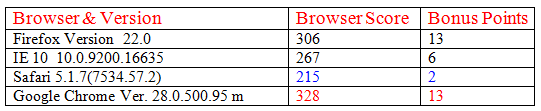
Which is the best browser to test HTML5 pages?

This site (link) tests browsers for the support they provide for
HTML5. They test  various aspects of HTML5 code to arrive at the rating.   

Please access the site for further details here:

http://html5example.net/static/html5test/

These are some of the browsers I use and I am not sure they are
the latest. But you can see that Google Chrome Version 28.0 support most of the functionalities of HTML 5.


Monday, August 5, 2013

What is OpenOffice?

This is the free stuff that you can use if you cannot afford Microsoft Office. The installation is easy. The size of file is small. You also need to install Java Run time. You don't need to know Java for this, but the OpenOffice uses Java for some of the automated internal programs.


You can do most of the things you do in Microsoft with this. You can even open Microsoft documents.

Follow this link for details about from where to download.

http://hodentek.blogspot.com/2013/08/short-of-cash-get-apache-openoffice-40.html


Tuesday, July 23, 2013

I have Windows 7 on my laptop, can I dual boot?


Yes you can.

If you have set up dual boot, you will come up with a window as shown when you start up.


If you want to go to Windows 7 you click on Windows 7 or, on Windows 8 otherwise. If you do not take any action within a certain time it will boot to Windows 8.

Even if you are in Windows 8, you can access the files and folders in Windows 7. If you are the administrator you can access files and folders.

How do I set up dual booting?

These two posts show you, how you can.

This post shows how you can set up your Windows 7 computer for dual booting.
http://hodentek.blogspot.com/2012/08/windows-8-rtm-is-out-go-grab-it.html

The following post shows how you can install Windows 8 after preparing the computer as shown previously. I used a evaluation copy but you can use the full version you have.

http://hodentek.blogspot.com/2012/08/installing-windows-8-rtm-enterprise.html

Friday, July 5, 2013

What are data bars in SQL Server Reporting Services 2012?

Looking at a bunch of data does not give a feeling for the big and small values without making comparisons by reasoning.


This comparison is built into the idea of presenting data bars in Microsoft programs such as MS Excel and Microsoft SQL Server Reporting Services 2012.

If you have used Microsoft Excel (for example MS EXCEL 2010) you would have come across what is known as 'conditional formatting'. In MS Access you could format a range of data with several conditional formatting options such as data bars; color scales; icon sets; and value dependent highlighting.


The first step in applying this formatting is to access Conditional Formatting menu in the Ribbon as shown.


Next you highlight the range of data to which you want to apply data. For example, in the first figure, the whole column 'Item Value' consisting of 6 values.

After you highlight the values (do not highlight the column heading), click Conditional Formatting (to access this you must be in 'HOME'). This displays a drop-down menu and their menus as shown.

Now you can pick the type of formatting you want to apply. For example, you can choose Color Scales and pick the one that appeals to you from its drop-down. Similarly, you could choose the other options instead.

The following figure shows several types applied to the same set of data and I am sure you intuitively know what they mean.

The first one 'Data Bars' shows how your data appears as rectangular boxes (horizontally drawn) whose length is proportional to the data. Probably with 6 numbers you may not need this as your eye can easily notice. What if you had 50 numbers?

Data Bars were added to Report Builder 3.0 which was released with SQL Server Reporting Services (SSRS) 2008 R2. They continue in SSRS 2012. In SQL Server Reporting Services 2012 you could do the same with the reports you author. This is explained in Chapter 5 which describes the use of Report builder 3.0 in my new book, 'Learn SQL Server Reporting Services 2012' released recently in June 2013.


The details are available at this link:


 Databars related page from the book: