Sunday, September 27, 2015

What is Credential Guard?

It is a new feature in Windows 10 but only available in Windows 10 Enterprise or Windows 10 Education. This is meant to beef up on security. It protects the core kernel from malware by not allowing taking control of the machine remotely.
Credential Guard provides isolation for the secrets held in Local Security Authority in the older systems by a virtualization based security. Data stored by virtualization is not accessible to the rest of the OS. Credit Guard has no device drivers but hosts a reduced subset of OS binaries needed for security only. Of course the binaries are signed with trusted certificates.

The Credential Guard feature depends on the Hypervisor.  Here is a high-level overview of Credential Guard(virtualization based security).


(https://technet.microsoft.com/en-us/library/mt483740%28v=vs.85%29.aspx)

The Credit Guard offers the following features/solutions:
Hardware security Credentials Guard takes advantage of platform security features, such as Secure Boot and virtualization to increase security.

•Virtualization-based security Windows services can run in a protected environment that is isolated from the running operating system.

•Better protection against advanced persistent threats Credential Guard does this by securing domain user's credentials in the virtualization-based security environment. Malware running in the operating system, even with administrative privileges, cannot extract secrets that are protected by virtualization-based security.

•Manageability You can manage Credential Guard by using Group Policy, WMI, from a command prompt, and Windows PowerShell.
The following virtualization extensions are required to support virtualization-based security:
•Intel VT-x or AMD-V
•Second Level Address Translation
It run only on X64 Bit platforms.
Watch this video from Channel 9:

How do you install PHP on Windows 7 Ultimate SP1?


Installing PHP using Windows Platform Installer (wpilauncher.exe) gives you instant access to working with PHP. In this post Web Platform Installer version 5.0 was used to install PHP version 5.6

Step 1: Download Web Platform Installer, the version used here is 5.0. After launching the WebPI search for php as shown. This has the latest products/services/programs for web platform.


php56_01.png

Step 2: Click on PHP 5.6.0 (9/7/2014).  On Windows 7 (x64) Ultimate you do have IIS and not IIS Express.

Click Add button and click Install at the bottom of the window.

Note the items to be installed by clicking the link at the bottom. The following window is displayed showing 3 items should you decide to install.


php56_02.png

Step 3: Close the item list window. Click Install. The previous window appears as shown with more controls.

php56_03.png

Here you need to accept license terms.

Step 4: Click I Accept. Install begins and a number of required items are installed showing progress as shown.
Microsoft ODBC Driver 11 for SQL Server.
Microsoft Drivers 3.2 for PHP  v5.6 for SQLServer
Installing Php5.3.28(?)
PHP Manager for IIS
Installing PHP 5.6.0


php56_04.png

After a while you get the Finish window showing installed products as shown:


php56_05.png

Step 5: Click Finish on Web Platform Installer 5.0.
You are done.

Launch the Internet Information Services and you see that Web Platform Installer is added to the Managemen Section.

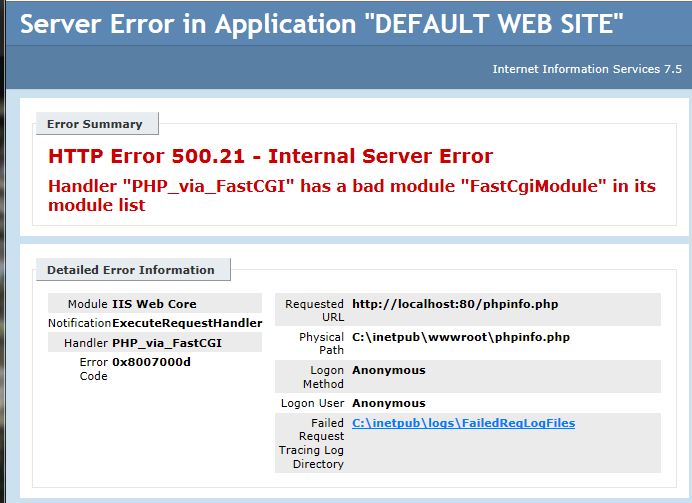
If you were to run a PHP file such as phpinfo.php you will run into this error:


php56_06.png

Now open Programs & Features in Control Panel. Click Turn on/off window programs to turn on:
The following window gets displayed:


php56_07.png

The node for CGI is not checked. This is needed to work with IIS.  Place check mark for CGI and Click OK.

Microsoft Windows MSG appears that it is making changes. This may run for quite sometime depending on your computer.

php56_08.png

After sometime the Microsoft Windows MSG goes away.

Now try to bring up phpinfo.php in your browser in the IIS window and Presto! PHP now can be processed by the IIS using the FastCgiModule (only part of page shown here).


php56_09.png

Notice that the "Handler Mappings" now has PHP-Via_FastCGI and PHP53_via_FastCGI

php56_10.png

Notice that you have FastCGIModule in Add Module Mappings list:


php56_11.png


Friday, September 25, 2015

What does php.exe found in the PHP directory do?

It is the command line processor that processes a file with the .PHP extension as shown here:
------------------------------
C:\Windows\system32>php "C:\inetpub\wwwroot\phpinfo.php" > "C:\info"
----------------------------
The PHP processor processes the provied php file and the command line directs the result to a file "info'

The input file phpinfo.php is as shown here:
----------
phpinfo();
?>

----------
The above file is typed into Notepad and saved with the extension ".PHP".

Here is the beginning section of the long file 'info' opened in Windows Word program.
-------------------------
phpinfo()
PHP Version => 5.4.14

System => Windows NT HODENTEKWIN7 6.1 build 7601 (Windows 7 Ultimate Edition Service Pack 1) i586
Build Date => Apr 10 2013 21:15:43
Compiler => MSVC9 (Visual C++ 2008)
Architecture => x86
Configure Command => cscript /nologo configure.js  "--enable-snapshot-build" "--enable-debug-pack" "--disable-zts" "--disable-isapi" "--disable-nsapi" "--without-mssql" "--without-pdo-mssql" "--without-pi3web" "--with-pdo-oci=C:\php-sdk\oracle\instantclient10\sdk,shared" "--with-oci8=C:\php-sdk\oracle\instantclient10\sdk,shared" "--with-oci8-11g=C:\php-sdk\oracle\instantclient11\sdk,shared" "--with-enchant=shared" "--enable-object-out-dir=../obj/" "--enable-com-dotnet=shared" "--with-mcrypt=static" "--disable-static-analyze" "--with-pgo"
Server API => Command Line Interface
Virtual Directory Support => disabled
Configuration File (php.ini) Path => C:\Windows
Loaded Configuration File => C:\Program Files (x86)\iis express\PHP\v5.4\php.ini
Scan this dir for additional .ini files => (none)
Additional .ini files parsed => (none)
PHP API => 20100412
PHP Extension => 20100525
Zend Extension => 220100525
Zend Extension Build => API220100525,NTS,VC9
PHP Extension Build => API20100525,NTS,VC9
Debug Build => no
Thread Safety => disabled
Zend Signal Handling => disabled
Zend Memory Manager => enabled
Zend Multibyte Support => provided by mbstring
IPv6 Support => enabled
DTrace Support => disabled

Thursday, September 24, 2015

How to get around 'HTTP 503 Error: Service not available' error in IIS 7.5 on Windows 7.1 SP1?

My localhost (the default website) has not been active for a longtime and I wanted to test a PHP script. To my dismay, I could not even browse to the IISStart.htm that is on all installations. I got the following error.

503Error_01

I am using a Toshiba Satellite laptop X64 with Windows 7 Ultimate with SP1. I had various programs running while writing the book on SQL Server Reporting Services 2012 such as PHP, SharePoint Server, etc. It is possible I had tweaked items around a lot.

I stopped and started the server and the problem remained. There was a fix in stackoverflow site pertaining to this error.

 
To get this going, I had to make some changes to the advanced settings of the Application pools by clicking the Application Pools as shown:


503Error_02.png
 
Clicking Advanced Settings displays the following:
503Error_03.png

As suggested the Load User Profile was changed to FALSE. I restarted the server and the 503 Error was displayed when I browsed the IISStart.htm as in the first image above.

Then I looked at the Application Pools status and realized that the DefaultappPool had stopped.

503Error_04.png

When I started it the 503 Error went away and i could display the IISStart.htm page.


503Error_05.png

I went back to Advanced Settings and the 'Load User Profile' was set to TRUE. Changing to FALSE did not produce the 503 error. 

I looked at what this settings meant and here  is a screen shot. This sets the mode to IIS 6.0

503Error_06.png


How long does it take to install Windows 10 on a tablet?

The tablet I have which has Windows 8.1 on it is the Toshiba Encore 2 WT-10A. It is a pretty good tablet and there is a brief review here.

I started installing Windows 10 by clicking the Windows icon (the Windows logo) in the notification area at the bottom of the screen. If you had registered before hand you would have this icon.

The installation started immediately by downloading the required files. This really took long on my Wi-Fi connection and finished after 1:30 hours. Then there was a chekcing phase after which the installation started.
You get a warning that the computer may restart several times during the installation. The installation took something like 45 minutes.

There were no error messages and it was smooth. After the installation an express setting was chosen and there was no need to do anything else. Most of the earlier apps were still there.

Windows 10 looks much better than the Windows 8.1 and Microsoft Edge (ME and not IE) looks nice with all its features. ME is not a browser supported by Google sites.

Here are some screen shots taken during installation with a camera.


Wednesday, September 23, 2015

How to create a CSV file?

The present post describes creating a Comma Separated Value (CSV) file using Microsoft Excel.

CSV files are very popular and frequently used data transformation formats since legacy data are usually of this type. In recent times XML and JSON formatted data has replaced them.

However, there is a whole lot of legacy data that needs to be loaded on to more recent databases. Hence, every database vendor provides a program to accomplish this conversion. Also programs exist which takes a CSV file and convert it into an XML file. Perhaps this is another route one can take in data conversions for legacy data.

You can create a CSV file using Microsoft Excel in all versions.
Here is an example of a CSV file.
------------
First Name,Last Name,AGE,Rent
Chris ,Langer,40,2500
Jean,Simmons,80,1200
Tom ,Higgins,35,4000

--------------
The first row in the above are headers (providing column names) and the rest is data.

Step 1:
Create an Excel file as shown by typing in the cell entries after launching the Microsoft Excel (herein Excel 2010).

namesExcel.png

Step 2:
Click File to display drop-down. You will be saving the file as names in the CSV format.


ExcelSaveAs.png

 
Step 3: Click Save As to open the Save As dialog as shown. You have a variety of options to choose from. Pick MS-DOS (CSV )as the Excel file type as shown.


ExcelSaveOptions

 
Step 4:
Provide a name for the file and accept the default folder. You get the following warning:

Excel Permissions

Accept the provided location (My Documents) by cliking Yes. The document gets saved to the location.

 A word of caution. If you have multiple sheets (usually when launched there will be three sheets). Delete the two extra sheets and just keep one sheet. You will get an error message if you have more than one sheet while saving it as a CSV file.

Tuesday, September 22, 2015

How do I know a file exists (in R programming)?

If you access the help file on your computer on which you installed R then you can find the information at this link here:

http://127.0.0.1:12506/library/base/html/list.files.html

File information can be found here:
http://127.0.0.1:12506/library/base/html/file.info.html

I had a file names.csv (I had mistaken about its extension being .CSV, it was actually names.xls.csv) which I wanted to know if it exists. Then I used the following commands:

> file.exists("C:/")                Does C:\ folder exists (you should not use the backward slash)?
[1] TRUE

> file.exists("C:/eula.3082")  I know eula.3082 exists but... The reason is perhaps permissions
[1] FALSE

> file.exists("C:/inetpub")     Does C:\inetpub exist?
[1] TRUE

> file.exists("C:/USERS")       Does C:\Users exist?
[1] TRUE

> file.exists("C:/USERS/names.csv")  Does C:\Users\names.csv exist?
[1] FALSE
oops!
> file.exists("C:/USERS/JFA.jpg")       Does C\USERS/JFA.jpg exist?
[1] TRUE

I created a CSV file in EXCEL and made sure it was saved as a CSV by opening it in Notepad.

> file.exists("C:/USERS/mysorian/Documents/names2.csv")  Does C:\USERS\names2.csv?
[1] TRUE

> file.info("C:/USERS/mysorian/Documents/names2.csv")   Provide info on the file C:/USERS/mysorian/Documents/names2.csv
                                       size isdir mode               mtime               ctime
C:/USERS/mysorian/Documents/names2.csv   98 FALSE  666 2015-09-22 16:42:20 2015-09-22 16:42:20
                                                     atime exe
C:/USERS/mysorian/Documents/names2.csv 2015-09-22 16:42:20  no

Listing files in a directory

Also,  if you know the directory you can list all the files as in the following:
--------
Error: could not find function "List.files"  -- R language is case sensitive
> list.files("C:/USERS/mysorian/documents") List the files in the directory in quotes

  [1] "__VSDeploymentFailure__.txt"                     
  [2] "~$ADI_gREETINGS.dotx"                            
  [3] "~$TrustRelated.xlsx"                             
  [4] "04092013 ConsolidatedDetails.xls"                
  [5] "3rd beneficiary details_sept15_2014.dotx"        
  [6] "4mysorian.xlsx"                                  
  [7] "Advanced SQL TOP.dot"                            
  [8] "AdvisoryMichiko.xlsx"                            
  [9] "AdvWksCustomer.rdl"                              
 [10] "Allow connections to this computer.pdf"          
 [11] "Ameritrade2014.csv"                              
 [12] "ApnStub.exe"                                     
 [13] "ArcGIS Explorer"