Friday, August 16, 2013

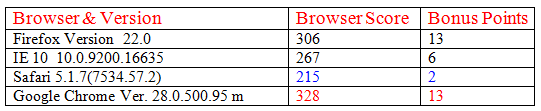
Which is the best browser to test HTML5 pages?

This site (link) tests browsers for the support they provide for
HTML5. They test  various aspects of HTML5 code to arrive at the rating.   

Please access the site for further details here:

http://html5example.net/static/html5test/

These are some of the browsers I use and I am not sure they are
the latest. But you can see that Google Chrome Version 28.0 support most of the functionalities of HTML 5.


Monday, August 5, 2013

What is OpenOffice?

This is the free stuff that you can use if you cannot afford Microsoft Office. The installation is easy. The size of file is small. You also need to install Java Run time. You don't need to know Java for this, but the OpenOffice uses Java for some of the automated internal programs.


You can do most of the things you do in Microsoft with this. You can even open Microsoft documents.

Follow this link for details about from where to download.

http://hodentek.blogspot.com/2013/08/short-of-cash-get-apache-openoffice-40.html


Tuesday, July 23, 2013

I have Windows 7 on my laptop, can I dual boot?


Yes you can.

If you have set up dual boot, you will come up with a window as shown when you start up.


If you want to go to Windows 7 you click on Windows 7 or, on Windows 8 otherwise. If you do not take any action within a certain time it will boot to Windows 8.

Even if you are in Windows 8, you can access the files and folders in Windows 7. If you are the administrator you can access files and folders.

How do I set up dual booting?

These two posts show you, how you can.

This post shows how you can set up your Windows 7 computer for dual booting.
http://hodentek.blogspot.com/2012/08/windows-8-rtm-is-out-go-grab-it.html

The following post shows how you can install Windows 8 after preparing the computer as shown previously. I used a evaluation copy but you can use the full version you have.

http://hodentek.blogspot.com/2012/08/installing-windows-8-rtm-enterprise.html

Friday, July 5, 2013

What are data bars in SQL Server Reporting Services 2012?

Looking at a bunch of data does not give a feeling for the big and small values without making comparisons by reasoning.


This comparison is built into the idea of presenting data bars in Microsoft programs such as MS Excel and Microsoft SQL Server Reporting Services 2012.

If you have used Microsoft Excel (for example MS EXCEL 2010) you would have come across what is known as 'conditional formatting'. In MS Access you could format a range of data with several conditional formatting options such as data bars; color scales; icon sets; and value dependent highlighting.


The first step in applying this formatting is to access Conditional Formatting menu in the Ribbon as shown.


Next you highlight the range of data to which you want to apply data. For example, in the first figure, the whole column 'Item Value' consisting of 6 values.

After you highlight the values (do not highlight the column heading), click Conditional Formatting (to access this you must be in 'HOME'). This displays a drop-down menu and their menus as shown.

Now you can pick the type of formatting you want to apply. For example, you can choose Color Scales and pick the one that appeals to you from its drop-down. Similarly, you could choose the other options instead.

The following figure shows several types applied to the same set of data and I am sure you intuitively know what they mean.

The first one 'Data Bars' shows how your data appears as rectangular boxes (horizontally drawn) whose length is proportional to the data. Probably with 6 numbers you may not need this as your eye can easily notice. What if you had 50 numbers?

Data Bars were added to Report Builder 3.0 which was released with SQL Server Reporting Services (SSRS) 2008 R2. They continue in SSRS 2012. In SQL Server Reporting Services 2012 you could do the same with the reports you author. This is explained in Chapter 5 which describes the use of Report builder 3.0 in my new book, 'Learn SQL Server Reporting Services 2012' released recently in June 2013.


The details are available at this link:


 Databars related page from the book:


Wednesday, April 17, 2013

How do you make changes to Application Pool Settings in Internet Information Services?


Sometimes the Identity of the Application pool settings needs to be managed. You may make modifications in the IIS Management Console as shown.

1. Type-in “IIS” in Start | Search of the desktop. In the pop-menu click on Internet Information Services (IIS) Manager 

The Internet Information Services Manager’s page will be displayed.

2. Click on Applications Pool in Connections . The list of Application Pools will be displayed.

Let us assume that the identity of SecurityTokenServiceApplicationPool needs to be changed.
3. In the list of Application Pools right click on the above Application Pool as shown.

4. Click on Advanced Settings...
The Advanced Settings page is displayed as shown.
In the Process Model, the identity is a Custom Identity (in this case that of the IIS Administrator).You may change it by hitting the ellipsis button of the identity.

5. Click the ellipsis button.
This brings up the Application Pool Identity page.


These are built-in identities. The next option on this screen is the Custom identity which has been set using the identity (HodentekWin7\mysorian) which has Windows Authentication. On the Advanced Settings page you may modify other parameters as well.

Finally, when you make changes to Application Pool in IIS you will have to run if you are changing this for a SharePoint farm standalone or otherwise,

Thursday, January 31, 2013

How to start an IE browser with Administrator's privileges?


Some programs even though opened in a browser, needs special permissions, usually that of the adminsitrator's pemissions.

You can always right click IE browser and click Run as administrator

However you can set it up so that it always opens in the above manner.

Review the next image:


How do I find the number of cores in the computer?

The following procedure showed that I have 8 cores in my Toshiba Laptop (Satellite P775).

Click Start | Computer |

Right click Computer to look at Properties (Click Properties from the drop-down menu).


Click Device Manager.


Click Processors.


Count the number of processors. They all have the same name.

Right click one of the processors and look at the properties to see the version and the name of SYS file as shown.
 
Mahalo