Showing posts with label Arduino Uno. Show all posts

Thursday, May 3, 2018

What is Arduino Create?

It is a web based platform which you can use to connect, create, and colloborate to work with Arduino and related products.

This online platform (you will need to create username/password) enables Makers and Professional Developers to:

Write code
Access content
Configure boards(hardware)
Share Projects

Before Arduino Create, all these activities were fragmented and distributed over various tools, screens, etc.

Read all posts on Arduino on this site: http://hodentekhelp.blogspot.com/search?q=arduino

 Simply put the developer experience is now highly organized using just one tool-Arduino Create.

The next image explains it all.


Main Features:
Always up-to-date online iDE
Offers in-depth guided flows
Configure easily Web Editor and Cloud
Provides Arduino's Educational Program

Wednesday, May 4, 2016

What is the difference between Arduino UNO and Arduino 101?

First of all Arduino (iconic name) is common to both of them and both of them use the same kind of connectors and periferals.

Arduino UNO used the ATmega 328 processor but the heart of Arduino 101 is an Intel Curie board with two cores, an x86 (Quark) and an ARC Argonaut RISC Core). These two cores enable high performance and low power-consumption.

Arduino UNO adds on-board Bluetooth Low Energy and 6-axis accelerometer / gyroscope capabilities. This means Arduino 101 is more powerful than Arduino UNO in terms of remote (Bluetooth) operation and accelerometer capability. Arduino UNO has no such capability.

In order to access Arduino UNO remotely you would need a Wi-Fi shield.

Arduino 101 has libraries for the following embedded peripherals :

CureBLE (to control Bluetooth Low Energy module)
CurieIMU(to control the 6-axis accelerometer + gyro)
Curie Timer One (to control Timer functions)

The above libraries are installed with Intel Curie core.

In order to work with the Arduino 101 you would need Arduino 1.6.7 software or later.

In my previous post you have seen how to work with Visual Studio 2015 Community for Arduino. You can use Visual Studio Community with Arduino 101 as displayed here:


VS2015_Arduino101.jpg
In my next post I will discuss how to install the latest version of Arduino to work with Arduino 101.

Thursday, August 20, 2015

What are the various Windows IOT Devices presently available?

Internet of things is a business that is going to be a large part of our universe touching all aspects of our life. Windows 10 is a one stop device agnostic OS.  Windows 10 IoT core is tailored for the Windows 10 environment.

Windows 10 IoT Core can be used with different kinds of electronic harware/software .

Here is a listing:


Wednesday, June 10, 2015

How to read potentiometer output from Arduino using Visual Basic?

Let us assume you want to read the voltage from a potentiometer which is connected to the Arduino UNO. Let us further assume that it is analog voltage that you need to read.

If you are new to Arduino and Visual Studio read the following:
http://hodentek.blogspot.com/search?q=Arduino

Arduino has a 'sketch' for this specific case shown next:
------------
/*
  AnalogReadSerial
  Reads an analog input on pin 0, prints the result to the serial monitor.
  Attach the center pin of a potentiometer to pin A0, and the outside pins to +5V and ground.

 This example code is in the public domain.
 */

// the setup routine runs once when you press reset:
void setup() {
  // initialize serial communication at 9600 bits per second:
  Serial.begin(4800);
}

// the loop routine runs over and over again forever:
void loop() {
  // read the input on analog pin 0:
  int sensorValue = analogRead(A0);
  // print out the value you read:
  Serial.println(sensorValue);
  delay(1000);        // delay in between reads for stability

}
--------
You should first set up the circuit required for this sketch which requires the two ends of potentiometer tied to 0 and 5V of the Arduino and the center leg (has the variable voltage) depending on the potentiometer setting tied to the terminal A0 on the Arduino Uno board.

The Arduino must be connected to the USB port of your laptop/desktop which has Visual Studio appropriate for working with arduino Uno.(ref).

Once this is set up, run the sketch on Visual Studio and verify that you can monitor the potentiometer reading converted to digits (this is done by the sketch).

Now create a new Visual Basic Windows Form project and place controls on the form as shown here. It is essential that you add a SerialPort control as well from the Toolbox.

Here is the project folder:

Here is the Form1 of this project:


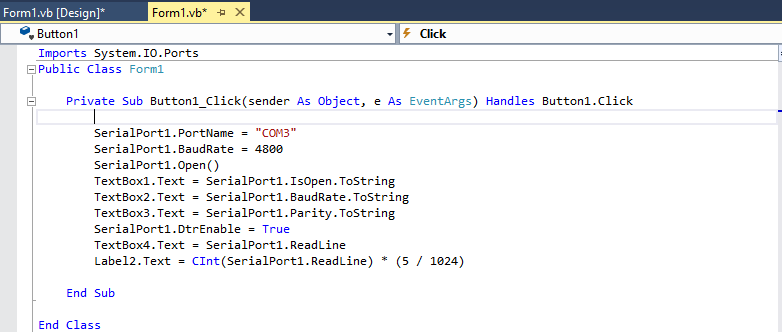
Here is the code for the button click event:


Here is the reading of the potentiometer:


If you see this message just ignore it:
The thread 0x2f14 has exited with code 259 (0x103).
The thread 0x1d2c has exited with code 259 (0x103).
The thread 0x30ec has exited with code 259 (0x103).
The thread 0x3ab4 has exited with code 259 (0x103).


Tuesday, May 26, 2015

How do you add a new sketch library to Arduino in Visual Studio?


The previous post shows all the libraries in the Arduino 163 nightly builds as seen in the Visual Studio 2013 Community edition's IDE. You can add the library in the list using Visual Studio as shown in the previous post.

What if you want to add a library that is not in the list?

The first thing is for you to find the library or write one.

Let us say, I need to add the WaveHC library. You may want to know what WaveHC library can do. Well WaveHC is an Arduino Library for the Adafruit Wave shield. WaveHC library has four C++ classes.

* SDCard Library
* FATReader
* WaveHC
* WaveUtil

This library turns Arduino into things you can do with audio.

Where do you find WaveHC?

You can find WaveHC here:
I downloaded the wavehc20090418.zip file to work with (hope!) Arduino UNO.

Here is a screenshot.
After downloading I extracted the folder WaveHC and moved it to the following location where it was saved (WaveHC was added to the install directory of Arduino).

C:\Users\Jayaram\Desktop\Arduino163\arduino-nightly-windows\arduino-nightly\libraries

Now I launch Visual Studio and open the sketch project I want to add the library and refresh the libraries (you get a message that the Toolchain reload is complete). It is now added to the libraries accessible via Visual Studio). Now WaveHC is available to add to my existing project:

Monday, May 25, 2015

How to add Sketch libraries to an Arduino Project in Visual Studio?

You can add other libraries to your Arduino sketch project using Visual Studio 2013 Community edition.It is quite easy to add as shown in this post.

Read more about Arduino and Visual Studio here, here, and here.

First click on the Project (not the Solution Explorer) and then click Project in the main menu as shown.

ArduinoImport01.png

Click Add/Import Sketch Library followed by Core in the menu to open the list of libraries you can add on to your project as shown.


ArduinoImport02.png

I just added a Ethernet library and you can see a number of Ethernet related files added to my project.

ArduinoImport03.png

Tuesday, May 5, 2015

What version of Visual Studio do you need to work with Arduino?


You need to install the Visual Studio 2013 Free (Community Edition) or higher prior to installing Visual Micro, the Arduino IDE.

Visual Micro can be installed from here:
http://www.visualmicro.com/page/Arduino-Visual-Studio-Downloads.aspx

There are lots of versions, OS dependencies, etc. read carefully what you are downloading.
Visual Micro, the latest Arduino IDE version 163+ installs an .msi file (arduinoforvisualstudio.msi).
This file must be installed to work with Arduino projects with Visual Studio IDE.

Read more on Visual Studio 2013 Community here:
http://hodentek.blogspot.com/2014/11/free-visual-studio-community-2013-for.html
http://hodentek.blogspot.com/2014/11/you-get-all-this-for-free-in-visual.html