Showing posts with label MS Excel. Show all posts

Saturday, December 5, 2020

How to add text strings in MS Excel?

Actually, it is very easy. You just need to use the 'text related function CONCATENATE. This same is also used in SQL Server (all versions).

Here are three screen shots which are self-explanatory.

Bringing up the functon CONCAT in Excel.


Inserting the variables 'Jay' and ',Krishnaswamy' into the function.

 The result of evaluating the function
More here,

Friday, October 16, 2020

How can we convert the Excel data table to Access?

 Excel Table is Excel data converted to a table.

Excel application allows you to export excel data in an Excel sheet in two ways.

1. Create PDF/XPS Document

2. Allows you to change the File Type

The following filetypes are possible:


There is no direct way you can go from Excel to Access but there are a number of ways you can do.

Here is a simple procedure of taking Excel data to Access.

We start with a simplest data in a sheeet. Use File|SaveAs and save it as a CSV file shown here.


Create a new database from Access


Now all you need to do is to import into an Access application.

Open the Access database and click on External Data. Now click New Data Source as shown and from going to submneu you can get data from a file saved in several formats incouding CSV. Click on File|Excel.


This opens up 'Get External Data-Excel Spreadsheet'. Browse and select the CSV file you created and accept the default for import, Import the source data into a new table in the current database.
Huh! Editor sucks!!


Click OK. The Import Spreadsheet Wizard comes up showing your data in the Excel sheet.


Click Finish. Your data is in an Access table as shown.

If you need to bring in your data, follow the steps. For problems contact me.


Monday, June 15, 2020

Can a calculation go wrong in MS Excel?

There is such a thing called a rogue!

It did once in all these years (30 yrs) I have used EXCEL. I simply cannot figure it out. I include a screenshot of what I observed.


As a workaround, I deleted the line and recreated it. Everything OK.

Thursday, June 11, 2020

Monday, July 9, 2018

What are Geography and Stock data types in MS Excel?

Stocks and Geography are the new data types in MS EXCEL Office 365.

I think you must have specific versions of Office 365 for you to work with these new data types.

Microsoft is excited but I am not, as I may have to pay up for (or upgrade subscription) something I may only use to see what it can do.

The nice thing about these are they are AI Powered and they search things out of Microsoft Knowledge Graph, the service that powerss their search engine, Bing.

What it does is it has a context and the search is in this context.

These are shots of Excel sheet with the Geography data type from the above link.


Monday, June 25, 2018

Does Power BI support Microsoft OLE DB provider for ODBC for data access?

Power BI supports only the .NET Framework OLE DB Provider for ODBC and does not support the Micrsoft OLE DB Provider for ODBC (MSDASQL).

If you create a Data Link file such as this one (ExcelNov.udl)  I created from an EXCEL file:

Provider=MSDASQL.1;Persist Security Info=False; Data Source=Excel64Test;Initial Catalog=C:\USERS\OWNER\DESKTOP\BLOG2017\MSSS2017\suiggy.xlsx


You cannot connect to EXCEL file using the Connection string such as the above. First of all, it does not support the attribute, Persist Security Info=false. Even if you remove this attribute, you will not be able to connect.

Review the following screen shots attempting to connect to EXCEL file using its Data Link, ExcelNov.udl.

Accessing the OLDDB option in GetData.


Using the connection string:


Removed the Security Information and trying to connect.


The ExcelNov.udl file is OK and the connection is successful but not for Power BI.


Tuesday, May 8, 2018

How to get data from SQL Server into MS Excel? - Part 1

Microsoft EXCEL and Microsoft SQL Server are highly compatible. You could get data from SQL Server into MS EXCEL and vice-versa very easily.

Make sure you have access rights to what you are getting from SQL Server and that the Database engine has started.

For this post I will be getting data from the Northwind database on my SQL Server shown here:


ExcelFromSQLServer_0

Launch your EXCEL application. What I have is EXCEL(x32bit) from Office 365 subscription.
Click Data and Get Data. Review the options in the menu and click From SQL Server Database as shown.


ExcelFromSQLServer_1

The following window opens where you are expected to enter the SQL Server Database information.


ExcelfromSQLServer_2.png

Enter the SQL Server Database Engine info in the form of <computername\Server-instance_name>, you can get a hint from the SQL Server Management Studio in the first image above. The database (name) is optional. The Advanced options provides a means for issuing a SQL statement, such as query as shown.

ExcelfromSQLServer_3.png

We will provide neither a database name nor use the Advanced Options.

Click OK.

The Navigator window opens as shown.

ExcelfromSQLServer_4.png

Click Northwind to display all the tables and views in the database.

ExcelfromSQLServer_5.png

Now you have access to all the database objects.

In Part 2 we will look at developing queries etc.

Wednesday, October 18, 2017

How do you validate data in MS Excel?

For a range of cells that you choose, you can create criteria that must be satisfied for entering data into those cells. Any data outside the criteria will be flagged as an error.

Highlight a number of cells in a column and click the Data Validation toolbar item shown


As seen here a few cells have been highlighted and the Data Validation clicked. This will bring up the Data Validation form as shown. I set up the criteria as shown here allowing whole numbers between 1 and 200.


 Here attempting to enter 30.5 in one of the highlighted cells brings up this error message.


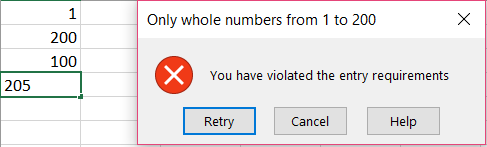
 Here entering a number greater than 200 brings up the message.

 You could also tailor the error message instead of the default one seen above by configuring the Error Alert tab as shown.

 Now you will see your custom message as shown.


This is the Office version used in this post.


Monday, September 11, 2017

How do you get Data Analysis menu item in MS Excel?

If you want to do data analysis (regression, trend line, sampling, etc) using Excel, you should be able to locate the Data Analysis menu item on your ribbon in Excel.

For example, right now I do not have this in my ribbon (Microsoft Office Business, Build 8326.2096).


You need Analysis ToolPak add-in in your Excel application.

Follow these steps to add the Analysis ToolPak add-in:
Step 1: In MS Excel click File | Options

Step 2: In Excel Options window click Add-ins


NoDataAnalysis_1.png

Step 3: In Add-ins page, click Analysis ToolPak and Go shown here.


NoDataAnalysis_3.png

The following windows opens.


NoDataAnalysis_4.png


Choose the Analysis ToolPak add-in and click OK.

Immediately Data Analysis appears in the ribbon as shown.


Click on Data Analysis and the following window opens.


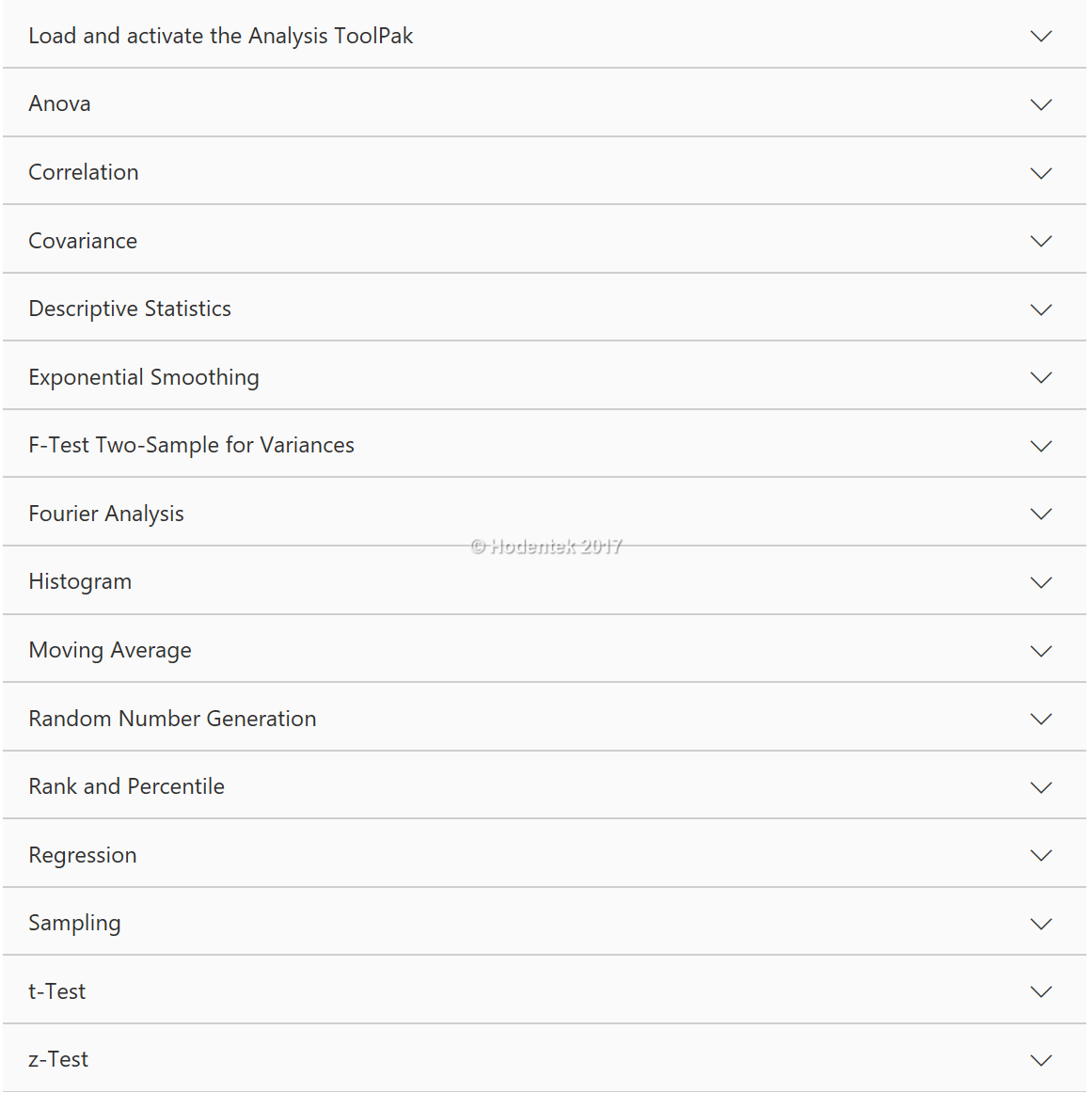
These are the various tasks you can carry out.


Tuesday, February 24, 2015

How can I connect to an Microsoft EXCEL file on my Windows 8.1 laptop?

If you have Office running on your laptop it should be immediately possible and you would not be asking this question. Although you do not have Office sometimes you may want to connect to it.
For example you may use a Export/Import wizard to create a Excel file from the data on your SQL server. In such cases you come up with the following error:


Excel11

You will find that there are no ODBC (x64) drivers on your machine which will enable to correct this error and you need to download and register them on your computer. Open ODBC Manager on your computer and verify.
 

Internet search reveals that you can download the Access driver (Microsoft Access Database Engine 2010 Redistributable) from here:
http://www.microsoft.com/en-us/download/details.aspx?id=13255


AccessDriver

The details of this driver are shown here from the Microsoft site. This installation will provide drivers for office applicaitions including MS ACCESS and MS EXCEL.

Download and install the AccessDatabaseEngine_x64.exe file and double click the file to run the program.
Excel 22

This will install the Microsoft EXCEL and Microsoft ACCESS drivers needed for connectivity.


Monday, December 16, 2013

Can you get data from SQL Anywhere 16 using MS Excel?

The answer is yes. SQL Anywhere installation adds a ODBC DSN to the computer. MS Query is MS Excel can connect to this data source as shown in this post.

In a number of previous posts we have seen how to access data on SQL Anywhere Server using either ODBC or ADO.NET connectivity. Follow the links here:
http://hodentek.blogspot.com/2013/10/connecting-to-sql-anywhere-16-using.html

http://hodentek.blogspot.com/2013/09/do-you-need-to-connect-to-sql-anywhere_24.html

http://hodentek.blogspot.com/2013/09/do-you-need-to-connect-to-sql-anywhere_20.html

http://hodentek.blogspot.com/2013/09/do-you-need-to-connect-to-sql-anywhere.html

http://hodentek.blogspot.com/2013/08/do-you-need-to-connect-to-sql-anywhere.html

1. Start the SQL Anywhere Server from its link as shown.

 
The Server starts up as shown.


2. Launch MS Access (in the present case MS Access 2010 Professional Plus).
3. Click menu item Data. Click From Other sources and from the drop-down menu
   click From Microsoft Query as shown.

4. Choose Data Source window gets displayed as shown.


5. Click demo* and click OK.
Query Wizard - Choose Columns window  is displayed as shown.

6. Click Contacts (for example) and using the > button transfer all columns to the Columns in your query window.

7. Click Next
Query wizard - Filter Data window is displayed is displayed as shown.

8. If you need to filter data go ahead and choose what to filter. Here no filtering is done.

9.Click Next.
Query Wizard - Sort Order window is displayed as shown.

10. Click Next.
Query wizard - Finish is displayed.

11. Accept default and click Finish. (not shown)

The Import Data window is displayed as shown.

12. If you accept the default location and click OK, the program brings data beginning the cell A1 as shown.

That is all there is to it.