Tuesday, October 31, 2017

How do you use the STRING_AGG() function?

You can create comma separated, concatenated strings from values in columns in a database. The concatenated strings are separated by a separator which gets added except for the end of the string.

The full syntax is here:

STRING_AGG ( expression, separator ) [ ]

::=  
    WITHIN GROUP ( ORDER BY [ ASC | DESC ] ) 


If you have SQL Server 2016, this will not work as shown here.


But it does recognize it as a function because I am using SQL Server Management Studio v17


Why not download SQL Server 2017 RC2 and try?

What is Thimble used for?

It is from Mozilla.org. It is free and has many cool features. It's Remix mode allows you easily modify existing Thimble projects to suit your requirements.

Thimble is a one-stop program bundling code editor, web server, web browser and developer tools.

It has an unbelievable number of cool features. Sure, I will test drive it!

  • Make a change and see your changes in real time
  • Has handy code snippets
  • Has a built-in JavaScript console
  • Add your files (drag and drop) and manage them
  • Has both dark and light themes
  • Embedded tutorials-follow or create OK
  • Get code hints
  • Edit CSS right in the HTML file
  • Publish to Web
  • Pick colors in the editor
  • Test project on your mobile device
  • Has a DOM inspector to work with HTML elements
  • Has Image filters
  • Take selfies

You start here.

Here is a video that explains it all:

What is ODBMS? and Who is the leader in this segment?

This is the definition of Operational Database Management System(ODBMS) according to Gartner (5/10/2016):

"The operational database management system (OPDBMS) market is concerned with relational and nonrelational DBMS (see Note 1) products suitable for a broad range of enterprise-level transactional applications, and DBMS products supporting interactions and observations as alternative types of transactions"

Based on this definition and other considerations Microsoft is the leader edgin higher than the secodn Oracle. This is what you see in the Magic Quadrant. Microsoft shares the vision with others such as Oracle, SAP, AWS and IBM.

Here is copy of the Quadrant:


Detailed report here to download after registering:
https://info.microsoft.com/gartner-odbms-magic-quadrant-register.html?ls=website

Sunday, October 29, 2017

What is Power BI embedded?

If you are an app developer and you want to bring in the capabilities of Power BI into your app then Power BI Embedded is for you. It is an offer to present the analytic\visualization power of PowerBI as Software as a service.

Power BI Embedded simplifies this process to quickly create apps with great looking visuals. Easy data exploration capabilities support making quick and timely, informed decisions. What makes this possible are the use of Power BI APIs.

In order to develop powerful apps you will be using familiar tools like:

The Azure Portal
Visual Studio Code
Power BI Desktop

Using Power BI's API you can develop using any language.

Well here is a video that explains it all:


How do you use the MAP in MS Excel?

Excel provides excellent, easy-to-use MAP element that can be inserted into an Excel spreadsheet. It is easily accessed from the Insert menu item as shown. Of course your data must have geographical data.


Let us get some data into a work sheet. Click create Data and use the option to get from the Web. Let us use some data from Wikipedia which in turn shows data from Indian census. Let us use the Basic option.


Click OK.


You will get the next window that you are accessing the web content anonymously.

Click Connect. The connector starts connecting to the Demographics_of_India source.


When the connection succeeds you can access a bunch of data that comes into the Navigator pane of  a pop-up window as shown.


There is a wealth of data to be analyzed in the Navigator. We just choose the one shown, ‘Population between age 0-6 by state/union territory. This displays the data in the Table View pane as shown above.

Click Load to load the data into your Excel application in Sheet 1 as shown.


Excel has this nice feature of displaying the Recommended charts as you begin to insert a chart. It also shows how to do it as shown next. When you choose the whole data and try to bring in a Map, you will sent to BING (map provider) because BING  has the right map to provide and of course you need to accept their terms. When you accept, Map of the World comes up which now focuses on India as shown in the next window.


Note that it has already added the Min and Max values of the data. Clicking any particular map region shows the data for that region.


Now you can pretty up the map with all sorts of details using the Chart Elements.


Don't you think that was easy as 1-2-3?


Wednesday, October 18, 2017

How do you validate data in MS Excel?

For a range of cells that you choose, you can create criteria that must be satisfied for entering data into those cells. Any data outside the criteria will be flagged as an error.

Highlight a number of cells in a column and click the Data Validation toolbar item shown


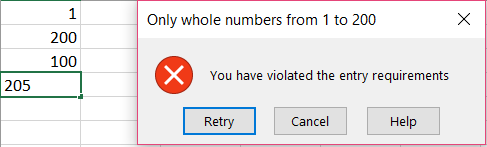
As seen here a few cells have been highlighted and the Data Validation clicked. This will bring up the Data Validation form as shown. I set up the criteria as shown here allowing whole numbers between 1 and 200.


 Here attempting to enter 30.5 in one of the highlighted cells brings up this error message.


 Here entering a number greater than 200 brings up the message.

 You could also tailor the error message instead of the default one seen above by configuring the Error Alert tab as shown.

 Now you will see your custom message as shown.


This is the Office version used in this post.


What is the fix for the error message, 'Printer is offline'?

There could be many reasons for this error. I have a Canon MX430 series printer.
I could print earlier to this printer via Wi-Fi connection and probably after a Windows Update (usual suspect for something that breaks) I started getting the message, "Printer is offline". I know that the Printer is on and is connected to Wi-fi. Then what is the problem. The device troubleshooter in Windows 10 Professional could not fix it.

I tried to add the printer and to my dismay, I could not find the printer to add.
Then I tried to manually install following these steps.


Voila, I regained by ability to print to this printer. Do you know what? The Add Printer dialog find a networked printer. I am not what the code behind this search printers.