Wednesday, February 22, 2017

Environment variables settings made better in Windows 10

 This was long overdue and finally it is done.

Editing Path was one that was often used whenever direct access to application from the console was desired and that involved three windows, each of which had such a spatially constrained UI design that you needed to scroll horizontally to make a change.

In previous versions of Windows including some earlier Windows 10, editing environmental variables using the built-in interface was not a easy task.


 The windows had fixed dimensions and you can see how cramped it was.

 The user interface is discussed here (http://hodentekhelp.blogspot.com/2010/08/compiling-java-in-windows-7.html) for those who want to know how it was done.

But recently it has changed. The present version is 1607.

Windows 10 does it better as you will see presently. You can get to the Environmental Variables window by typing in Path in the search box.

You get two environmental variables the User's as well as the Systems' as shown.


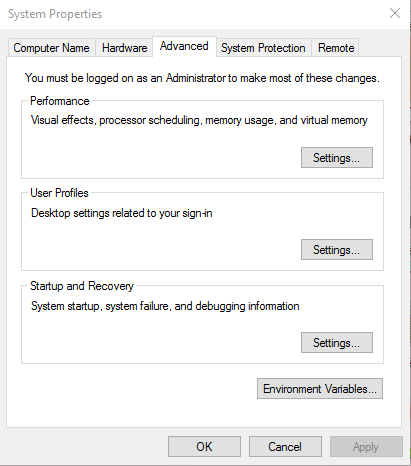
Open the Systems' (blue) and you get the System properties window  as shown no different from the old one.


envNew_01.png

Click on Environmental Variables... to open the Environmental Variables window as shown. It is bigger and better.


envNew_02.PNG

In System variables (bottom) pane scroll down to Path and double click the text Path. The edit window for environmental variables opens up as shown and you can modify any sub-path in its own window.

 envNew_03.PNG

You can also move up/move down as well as edit the text. Just finish off with a click on OK and you are done.

Don't you think Microsoft did this better!


How do you fix this RStudio error?

You some times see this error in your RStudio console:

ERROR: [on_request_read] connection reset by peer

What is described is not a complete fix but a possible explanation of what is happening. It is most probably related to RStudio using the Microsoft Edge in Windows 10 operating system.

There are three modes that you can run to display in a viewer. This are shown in this image here:


ShinyError_000.png

Run in Window mode:

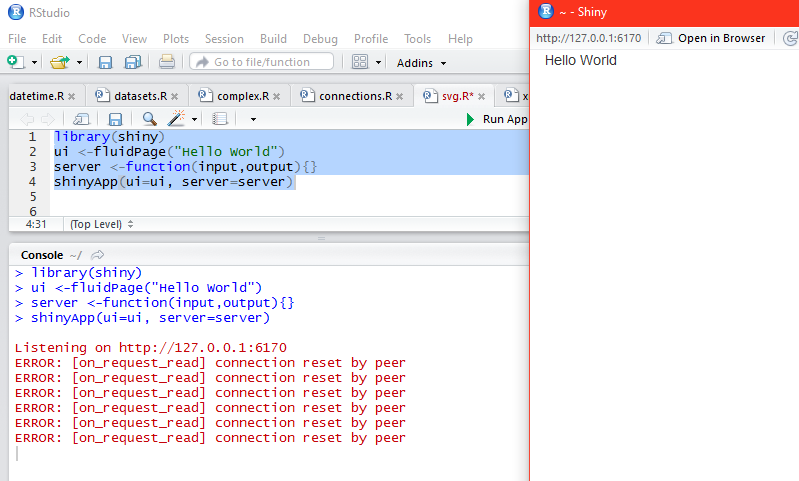
Run in Window opens a window ~ -Shiny as shown and runs the highlighted code to display the result.


ShinyError_00.PNG

Notice that the tab that is open is http://127.0.01:6170. Now if you change over the tab to 'Open in Browser', Microsoft Edge opens displaying the same URL. Now if you close the browser you see the error messages as shown. I am not sure why it repeats so many times.


ShinyError_02.PNG

However, if you copy the URL (http://127.0.0.1:6170) and paste it into a Firefox browser you will see 'Hello World' displayed again. But if you close this browser, no error is reported in RStudio console.

Hence in Run in Windows mode you can get away without producing error and stopping by pasting the code in Mozilla Firefox (assuming you want to see it in a browser).

Run External:

In this mode the Run result is displayed in the external browser which happens to be Microsoft Edge and you cannot avoid the error. Of course the code runs and displays the result but when you close the browser the error crops up in the console.

Run in Viewer Pane:

Viewer pane is one of the panes of RStudio. When you run the code in this mode the result will be displayed as shown.

The error crops up immediately as shown.


ShinyError_04.PNG

You need to click the Stop button to return to console prompt.

You can avoid this problem by choosing Mozilla Firefox as your default browser.


ShinyError_05.PNG

Tuesday, February 21, 2017

How do I download R Studio to run / learn R programming?

If you are looking for the free version you need to download the RStudio Desktop which comes under Open Source License. Go here to see other versions which are not free ).

In the above link choose the free edition which has Integrated Tools for R and click Download.

You get the following page. If your operating system is in this list, you download from the related link. Note that depending on whether or not you have R 2.11.1+ version. If you do not have you need to download that one first (http://cran.rstudio.com/).


RStudidowwnloads.png

Click on the one you need. For Windows 10 Desktop, the relevant installer is RStudio 1.0.136 -Windows Vista/7/8/10.

You save the file to your Downloads folder.

Double click the executable and it begins installing following the wizard steps.

The installation folder by default is C:\Program Files\RStudio but you can change. You can also add shortcuts.

The installation is quick and you will find the rstudio.exe in the RStudio\bin folder. Double click to launch the program. The shiny package is already in it as shown.


RStudio_01

When you just run library(shiny) in RStudio you get the following response. You also get color coding and code guidance very much like intellisense as shown.


RStudio_02

Monday, February 20, 2017

What is Shiny?

You started learning the Statistics/Analysis focused language R and you want to do more. You want to build apps with it and host them on the Internet. All this is possible using Shiny.

It is an enterprise-grade web application framework targeted for those who want to develop with R using the familiar HTML5, CSS and JavaScript. Using R you can turn terrific analytic solutions you have developed/developing into interactive web applications.

Go to this site (https://shiny.rstudio.com/) directly and learn more.

 
Rshiny-00

If you have R Studio you have Shiny because Shiny is a package that you can download.

In this first part we only talk about the very basics.

I assume you have read my previous hands-on R examples in my blogs.

http://hodentekhelp.blogspot.com/2015/09/what-is-good-way-to-learn-r-language.html
http://hodentekhelp.blogspot.com/search?q=R+language

Here I just show a very basic (aka Hello World) example of creating content for a web page using R GUI. More will come later in my blogs.

Launch R Gui as shown and provide reference to the shiny "library" as shown by typing in the three lines of code (The four lines of code in red).


 HelloWorld_00

<-fluidpage br="" ello="" world=""><-function br="" input="" output="">When you hit Enter after the third line where you define the shiny app, a browser window will open as shown displaying the apps output as shown at a port of the local host.


<-fluidpage br="" ello="" world=""><-function br="" input="" output="">HelloWorld_01

You also get a response (the last line) in the R GUI as shown.
<-fluidpage br="" ello="" world=""><-function br="" input="" output="">
HelloWorld_02
<-fluidpage br="" ello="" world=""><-function br="" input="" output="">That is all there is to create a content.
<-fluidpage br="" ello="" world=""><-function br="" input="" output="">
The ui summarizes your user interface, the server is something like a web serve rand shinyApp is your web response. No fuss, very simple.

Saturday, February 18, 2017

What are mutable and immutable variables in F#?

If I assign a value to a variable and then later in the program I assign another value to the same varible the program does not care if it is a mutable variable. However if it is immutable, the program does not accept it. Hence immutable variable is one which is solidly bound to its value.

Let me take you to the .NET Fiddle site so that you can run it yourself and see the result.

First of all assignment to a variable in F# has the following syntax:

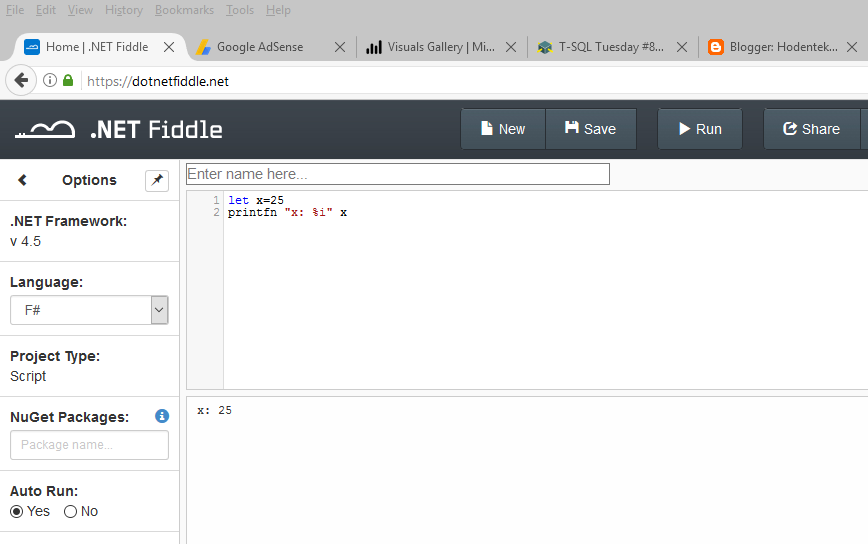
let x=25
 
The above statement assigns a value 25 to the variable x. I can print it to the screen using the second statement (printfn "x: %i" x) because x is an integer.


Next I assign a value of 45. You can see the error in this statement immediately. Hence value of x is immutable.


Now how can I assign a mutable value?

Well, F# uses the keyword mutable as shown here:

let mutable x=15

Now x has a value which can be changed later as shown in the next image. The first statement sets a value 15 for the variable x and the second statement prints it.

The third statement assigns a new value to it, namely 20 and the fourth line prints it. Observe carefully the new value assignment, a backward going arrow.


What is Windows Hello and how to enable it?

Windows 10 uses bio-metric signature of an individual as a security feature of a Windows 10 device, be it a Windows Phone or a Windows tablet/PC. Windows Hello makes this possible in Lumia 950 with an iris scanner. It can also be of two other types and some devices may have more than one type. As an alternative the device should also have the option of other non-bio-metric of authentication such as a pin or a username/password pair.

Lumia 950, the Windows 10 phone has an iris scanner built-in to the camera that compares an individual's iris image to the one that it stored during the initial set up and the phone is unlocked when there is match. if not, the phone asks for the pin number to be punched in to unlock.

The other Windows Hello options are finger print recognition and facial recognition.

In what follows I show some of the screen shots for setting this up on a Lumia 950 Phone. Not all types of Windows Phone has this feature.

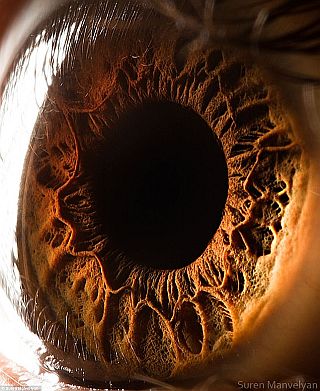
First of all this is a high resolution photograph of a human iris from an UK site here.
It is easy to believe the iris signature is far superior to finger print if the camera is good.


Setting up Iris Recognition:

Yous start with Settings on your Lumia Phone after setting up a pin to login. In Settings look for Personalization.


Lumia950_00.png

Go down the list and click Lock Screen to open the Lock Screen Page as shown.


Lumia950_01.png

 At the very bottom you find Sign-in options. Click this link. The Sign-in options page opens as shown.

Lumia950_02.png

There is link if you want to know more about Windows Hello. But there is a Iris(Beta) Set up button. Click the button.
You get a Welcome to Windows Hello page. You can not only unlock your phone without complex passwords but you can buy stuff from Windows Store.

Lumia950_03.png

Click on Get Started. The Camera becomes active and you will be asked to move closer or farther (as the case may be) so that the camera can take its standard image of your eye as shown here.

Lumia950_04.png

You will be asked to hold your phone in front of your eyes (I did open my eyes a little more than wider to make sure he camera got it all) as shown.


Lumia950_05.png

Click Next while you are holding the camera and looking into it.

Your setting up has been successful. You may do it even with your glasses on so that with or without glasses you can unlock your phone.


Lumia950_06.png

It did work quite well. There were a few times it did not and then I had to use my pin. But this is much better.



Friday, February 17, 2017

Can I use Windows Power Shell to look at Printers?

Almost anything on the Windows can be accessed from Power Shell and that includes Printers. I have a Canon MX430 printer which is a multi-function printer.

There are two ways to find about printers (that I know of):

You can find all printers using this comndlet to run:
------------
PS C:\WINDOWS\system32> (New-Object -ComObject WScript.Network).EnumPrinterConnections()

LPT1:
Canon MX430 series Printer
nul:
Send To OneNote 2016
PORTPROMPT:
Microsoft XPS Document Writer
PORTPROMPT:
Microsoft Print to PDF
Journal Note Writer Port:
Journal Note Writer
SHRFAX:
Fax
CNBJNPFAX_888717BBF935
Canon MX430 series FAX

---
Or, you can also use this:
-----------------------
PS C:\WINDOWS\system32> Get-WmiObject -Class Win32_Printer


Location      :
Name          : Canon MX430 series Printer
PrinterState  : 0
PrinterStatus : 3
ShareName     : Jays MX430 series Printer
SystemName    : HODENTEK8

Location      :
Name          : Send To OneNote 2016
PrinterState  : 0
PrinterStatus : 3
ShareName     :
SystemName    : HODENTEK8

Location      :
Name          : Microsoft XPS Document Writer
PrinterState  : 0
PrinterStatus : 3
ShareName     :
SystemName    : HODENTEK8

Location      :
Name          : Microsoft Print to PDF
PrinterState  : 0
PrinterStatus : 3
ShareName     :
SystemName    : HODENTEK8

Location      :
Name          : Journal Note Writer
PrinterState  : 0
PrinterStatus : 3
ShareName     :
SystemName    : HODENTEK8

Location      :
Name          : Fax
PrinterState  : 0
PrinterStatus : 3
ShareName     :
SystemName    : HODENTEK8

Location      :
Name          : Canon MX430 series FAX
PrinterState  : 0
PrinterStatus : 3
ShareName     :
SystemName    : HODENTEK8