Showing posts with label Lumia 950. Show all posts

Saturday, July 14, 2018

How did you fix the Lumia 950 recognition?

In my previous post I had difficulty in accessing my Lumia 950 Smart Phone (Windows Mobile) although I could use the USB ports otherwise.

The trouble shooting and updating the USB drivers did not help. I dawned upon me that perhaps it is to do with something else.

I opened up the Device Manager with the phone connected to an USB Port and voila! there indeed was an item for the Lumia 950 as shown with a question mark.


This shows the properties of the Lumia 950(RM-1105) device.


I updated the driver for this device and that seems to have fixed the problem. under Portable devices I do find the ZrEWindows phone.


.


Tuesday, January 9, 2018

How do you deploy a Universal Windows Project to a connected device?

We will be using the Lumia 950 as the connected device and it has been set to Developer Mode as described earlier.

We start with the HelloWorld Universal Windows Project(UWP) that has been tested to run without errors on the Local Machine as described here.

Open the project in Visual Studio 2017 as shown.


LumiaDeploy_0 and LumiaDeploy_7

Build (Using Menu Build and its context menu) the Project and verify it is successful.
--------
1>------ Build started: Project: HelloWorld, Configuration: Debug x86 ------
1>  HelloWorld -> C:\Users\Owner\source\repos\HelloWorld\HelloWorld\bin\x86\Debug\HelloWorld.exe
========== Build: 1 succeeded, 0 failed, 0 up-to-date, 0 skipped =====
------------------

Click Local Machine along Debug as shown.


LumiaDeploy_1

Pick Device from the list, the display changes as shown.


LumiaDeploy_2

Connect your Windows 10 Mobile(Lumia 950) to one of the USB ports.


This will result in an error as it is not x64 architecture.
LumiaDeploy_9

Pick ARM from the list.

Click Configuration Manager... to display the Configuration Manager window as shown.


LumiaDeploy_4

Make sure configuration is as shown above.

Click Build and from drop-down click Deploy.


Deploy succeeds and you should see the HelloWorld app appears in the apps list.

Here are the deployed apps on Lumia 950


 After clicking 'Hello'


What is required to deploy a Universal Windows Project to Lumia 950?

One of the requirements is that your phone should be configured so that UWP can be deployed. 
The configuration needs to be modified on the phone using SETTINGS as described here. If you are a registered then you can use the developer mode.

I deploy my UWP apps to Microsoft Lumia 950. One of the first things you need to do is to set it for Developers.

There are three options and you should choose Developer mode as shown here:


Lumia950_0

You should turm on option to make your phone visible to USB connections to your local network as shown here:


Lumia950_1

Also turn on remote diagnostics over USB and authentication as shown above.


Lumia950_2

Now you can connect the Windows 10 Mobile(=Lumia 950) to one of the USB connections on your laptop/computer where you are running Visual Studio 2017 used for creating Universal Windows Projects. You set up your project deploying it to the device.

Here are my phone details:
Microsoft Lumia 950
Version 1709
Windows 10 Mobile
OS Build:10.0.15254.124
Screen Res: 1440x2560

Here is HelloWorld deployed to Lumia950


Lumia950_3

Saturday, February 18, 2017

What is Windows Hello and how to enable it?

Windows 10 uses bio-metric signature of an individual as a security feature of a Windows 10 device, be it a Windows Phone or a Windows tablet/PC. Windows Hello makes this possible in Lumia 950 with an iris scanner. It can also be of two other types and some devices may have more than one type. As an alternative the device should also have the option of other non-bio-metric of authentication such as a pin or a username/password pair.

Lumia 950, the Windows 10 phone has an iris scanner built-in to the camera that compares an individual's iris image to the one that it stored during the initial set up and the phone is unlocked when there is match. if not, the phone asks for the pin number to be punched in to unlock.

The other Windows Hello options are finger print recognition and facial recognition.

In what follows I show some of the screen shots for setting this up on a Lumia 950 Phone. Not all types of Windows Phone has this feature.

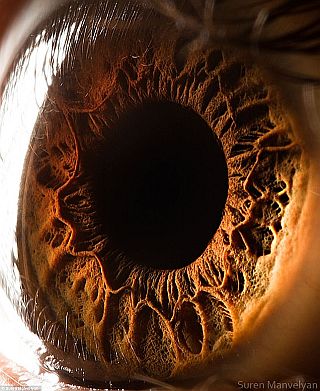
First of all this is a high resolution photograph of a human iris from an UK site here.
It is easy to believe the iris signature is far superior to finger print if the camera is good.


Setting up Iris Recognition:

Yous start with Settings on your Lumia Phone after setting up a pin to login. In Settings look for Personalization.


Lumia950_00.png

Go down the list and click Lock Screen to open the Lock Screen Page as shown.


Lumia950_01.png

 At the very bottom you find Sign-in options. Click this link. The Sign-in options page opens as shown.

Lumia950_02.png

There is link if you want to know more about Windows Hello. But there is a Iris(Beta) Set up button. Click the button.
You get a Welcome to Windows Hello page. You can not only unlock your phone without complex passwords but you can buy stuff from Windows Store.

Lumia950_03.png

Click on Get Started. The Camera becomes active and you will be asked to move closer or farther (as the case may be) so that the camera can take its standard image of your eye as shown here.

Lumia950_04.png

You will be asked to hold your phone in front of your eyes (I did open my eyes a little more than wider to make sure he camera got it all) as shown.


Lumia950_05.png

Click Next while you are holding the camera and looking into it.

Your setting up has been successful. You may do it even with your glasses on so that with or without glasses you can unlock your phone.


Lumia950_06.png

It did work quite well. There were a few times it did not and then I had to use my pin. But this is much better.


Saturday, January 23, 2016

What is a .nar file?

NAR extension refers to Nikon Capture Advanced Raw file.

You might have found it in the pictures you might have recently captured and saved to your Camera Roll. Perhaps you might not have associated these (.nar files) with the cute effect you might have observed. You click on one of these images and it comes to life briefly (Live Images)  before settling to a still that you have been used to all along. These are live pictures.

If you try to attach it with a message you will get two options, an image or a video. I sent it out to my wife to her iPhone 6S and she got a video. The video effect on iPhone 6S is Ok but not like it is on Windows 10 Phone Lumia 950. You have got to see it to know how it looks. This is developing area  of  rich capture.

Read all about it here:
http://allaboutwindowsphone.com/news/item/21078_Rich_Capture_finally_fixed_for.php

How is this done?
Briefly, a number of shots are taken successively and combined smartly to produce a file that produces this effect. The same idea is extended to provide a better illumination for the captured object than in the original.