Monday, November 14, 2016

How do you connect to SQL Server 2016 using OLE DB?

You would use OLE DB connectivity. You could use a file reference in your programming step to connect using the connection string.

OLE DB and ODBC connectivity are useful connectivity options that needs no emphasizing.

This post describes that you can connect to SQL Server 2016 in just a few steps.

Step 1:
Launch SQL Server Instance if it has not started, using Control Panel or otherwise.

Step 2: Create a new text document from desktop. Right click desktop  (empty region) and click New | Text Document.

Rename the document. If it is New Text Document.txt change it to, for example, SQLServer2016.udl (as in the present case).

You may get a warning that changing the file name extension may become unusable. Click Yes.
The document gets saved to the desktop with the name and extension you provided. The icon of the document will also be changed.

Step 3: Configuring the connection

Right click the somename.udl you created to display the following:


DataLink_00

The file properties window has four tabs, Provider, Connection, Advanced and ALL.

In the Provider tabbed page you need to enter the Server Name or use the Refresh button to find all the regsitered servers as shown.


DataLink_02

You have two options in connecting to a SQL Server instancce, Use Windows NT Integrated Security or use Specific Username and password.

The SQL Server Instance OHANA is configured for Windows Login. Click the first option. You need not provide username/password (they will be greyed out).

Select the database on the server using the drop-down as shown. Choose AdvenutreWorks2015.


DataLink_03


If the SQL Server has not started you may get these warnings when you try to browse for the SQL Server.


DataLink_02

After choosing the Server and the database you are basically done. You can test the connection by clicking the button and you would get this reply.


DataLink_04

If you open the *.udl file (herein SQLServer2016.udl ) in a text editor such as Notepad you will see the following:
============
[oledb]
; Everything after this line is an OLE DB initstring
Provider=SQLOLEDB.1;Integrated Security=SSPI;Persist Security Info=False;Initial Catalog=AdventureWorks2014;Data Source=HODENTEK8\OHANA
========

Saturday, November 12, 2016

Can you return data in JSON format from a web service in SQL Server?

The short answer is yes provided we run our queries in SQL Server 2016.

We have seen in an earlier post using ODATA service to generate a report from Power BI.

These were some example OData services that were considered in the previous mentioned link.

Northwind traders here:
http://services.odata.org/northwind/northwind.svc
http://services.odata.org/V4/Northwind/Northwind.svc

Adventure Works data here:
http://services.odata.org/AdventureWorksV3/AdventureWorks.svc

SQL Server 2016 supports JSON and it is possible to run a query in SQL Server Management Studio to return data from a ODATA service by running a query fashioned a shown.
=======
SELECT 'http://services.odata.org/V4/Northwind/Northwind.svc/$metadata#Products(ProductID,ProductName)/$entity' AS '@odata.context',  
ProductID, Name as ProductName  
FROM Production.Product 
WHERE ProductID<400 br="">
FOR JSON AUTO 
=======
This retrieves the following result:


Note that the size of text returned is limited by the settings.


Thursday, November 10, 2016

What is TypeScript and how different is it from JavaScript?

JavaScript is loosely typed. You can simply declare a varible. Loosely typed language can result in errors sooner or later in compilation. For exmaple if you declare the variable 'AGE', it could be written as an integer (25) or even as a string (twentyfive, twenty-five etc). In a typed language there is no ambiguity, 'AGE' will be declared as a varible of type int (for integer).

TypeScript is strongly (option) typed. TypeScript is Open Source. TypeScript does not enforce strong typing. Let us say you declare a variable 'Age' and later when you use it for first time use, such as age=25; the language takes 'Age' as an integer (a feature called Type Inference). Type Script also has advanced features like interfaces and generics.

The advantage of strongly typed language is that the compiler finds it easy to handle unambiguously resulting in easier maintenance and increased performance.

TypeScript 2.1 is in the process of being released with yet more new features. Check out the following post.

Tuesday, November 8, 2016

Where do I find user defined data types in a database if they exist?

Launch SQL Server Management Studio (herein Microsoft SQL Server Management Studio    Version:13.0.15600.2)

In the databases node identify the database. Under Programmability you will find the Types node. Types node has all the types including User-defined type as shown here:


USERdEFINEDdATATYPE_00

Just to see what is required in creating a new User-Defined type right click one of them and look at its properties as showon for the user defined data type called OrderNumber shown here:


USERdEFINEDdATATYPE_02  
 

You can also define a default and rule. User-defined data types can also be created using T-SQL.

Once it is created you can use it in creating a table as shown here. The data-type will be available in the drop-down to choose.


Monday, November 7, 2016

Is there a JSON validator in SQL Server?

Sure there is if you are using SQL Server 2016.

The Transact-SQL IsJSON() tests whether a expression(string) is JSON valid. If it is valid you should get a 1 as return value, a zero(0) if it is not valid and a null if the expression is null.

How do you use it?

This is a json string, a very simple one:
=================
{"wclass":{"student":["jay", "john", "sam"]}}
====================
The following code snippet shows how you may use it:
===========
declare @json nvarchar(150)SET @json=N'{"wclass":{"student":["jay", "john", "sam"]}}';
Select ISJSON(@json)

==========
When you run this in the SQL Server 2016 query pane, you get the return value 1 (see image below).


Tuesday, November 1, 2016

How do you find Query Store related objects in SQL Server?

First off you should be using SQL Server 2016 because Query Store is a new feature in SQL Server 2016.

You should enable Query Store for the database you are going to use and you can enable Query Store using SQL Server Management Studio. You may review this post for enabling Query Store.

All objects in the SQL Server can be accessed using the sys.objects as shown:


SysObjcts_00

If you filter the Sys.Objects as shown here you can find Query Store related objects.

Select * from Sys.all_objects
Where name like 'query_store%' or name like 'sp_query%' or name like 'query_context%'


SysObjcts_02

The above query retrieves Views and extended stored procedures related to the Query Store.

Saturday, October 29, 2016

How do you change the compatibility level of a SQL Server database?

The compatibility level of a SQL Server database matters since the T-SQL code from a higher compatibility level will not work in a database with lower compatibility level.
How do you change the compatibility level?

Launch SQL Server Management Studio and pick the database for which you want to find the compatibility level.

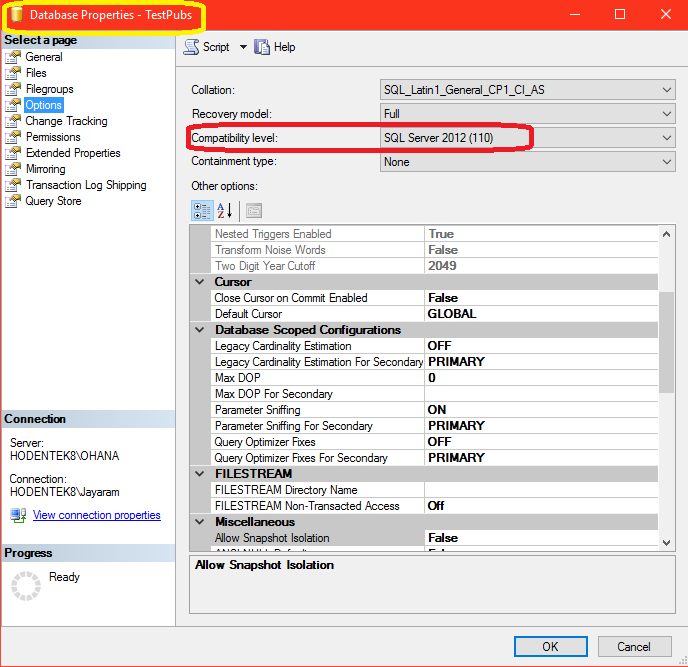
Right click the database node. From the drop-down pick Properties. In the properties page click Options and you will find the compatibitlity level as shown.

Compatibility_00.png

The TestPubs database (a renamed Microsoft legacy sample, pubs database) has a compatibility level of 110 (SQL Server 2012). This database was brought over to SQL Server 2016 by a process which did not change the comaptibility level.

Click on the Compatibility level and from the drop-down choose the one you want. For example to be cmpatible with SQL Server 2016 you would choose 130.

Compatibility_01.png

Of course you can always go back to the previous level any time.