Showing posts with label OLE DB. Show all posts

Wednesday, November 16, 2016

How do you use OLE DB connectivity in Power BI?


October update of Power BI allows you to connect to SQL Server 2016 using OLE DB Connectivity.

This post shows you how in just a few steps.

Launch Power BI from its shortcut on the desktop as shown. It may message you about auto recovery of files. Do not worry about it.


PowerBI_Oledb_00

Click Get Data from the toolbar. Get data page is opened displaying all the data ssources from which you retrieve your data.

PowerBI_Oledb_01

Click on 'Other' to reveal data sources contained therein as shown.


PowerBI_Oledb_02

Now click on OLE DB and click Connect at the bottom to open the next dialog as shown.


PowerBI_Oledb_03

At this step you are going to build the part of a connection string with non-credential properties.

Click Build and the Data Link Properties window gets displayed wherein you find a  OLE DB Providers for various types of data sources.

PowerBI_Oledb_04

In the present case pick SQL Server Native Client 11.0 as native clients are generally faster. After highlighting SQL Server Native Client 11.0 click Next.

You need to select by entering the name of the server. Click on the handle tor eveal all SQL Servers as shown.

PowerBI_Oledb_05

Click HOEDENTAK8\OHANA which is a named instance pf SQL Server 2016. Click Use Windows NT Integrated security for the log information. For the third items click on the handle for the database selection as shown.

PowerBI_Oledb_06

Choose AdventureWorks2014 and click Test Connection. You should get the following message.
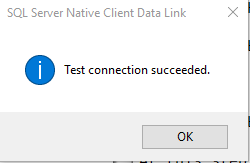

PowerBI_Oledb_07

Click OK and you get returned to the From OLE DB window displaying the connection string as shown.


PowerBI_Oledb_08

Notice that although you provided authentication information it was not registered (probably by design).

Click OK. The Navigator opens as shown.

PowerBI_Oledb_10

You can choose table or tables to continue. Here it is looking at the Address for Person as shown.
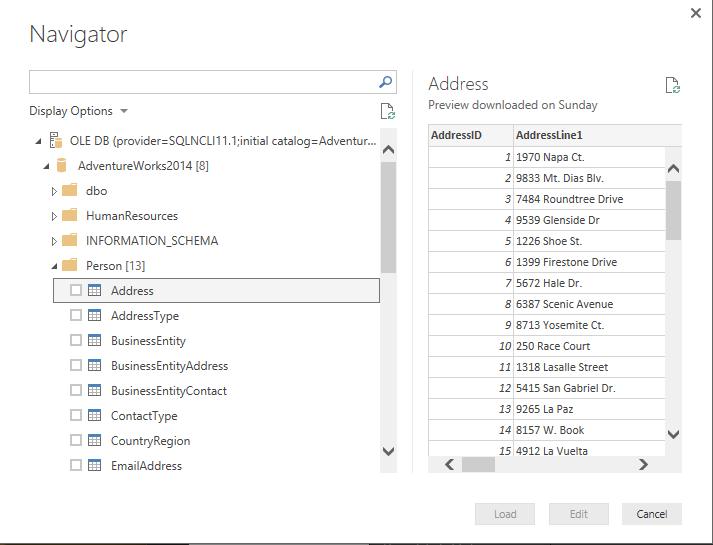

PowerBI_Oledb_11

This completes using the OLE DB connectivity using the Native Provider. It will probably allow you to create reports etc.

Two things bother me, one is the authentication and the other relates to the objects exposed. I did choose AdventureWorks2014 but it exposes everything on the server. Should it be like this?

Monday, November 14, 2016

How do you connect to SQL Server 2016 using OLE DB?

You would use OLE DB connectivity. You could use a file reference in your programming step to connect using the connection string.

OLE DB and ODBC connectivity are useful connectivity options that needs no emphasizing.

This post describes that you can connect to SQL Server 2016 in just a few steps.

Step 1:
Launch SQL Server Instance if it has not started, using Control Panel or otherwise.

Step 2: Create a new text document from desktop. Right click desktop  (empty region) and click New | Text Document.

Rename the document. If it is New Text Document.txt change it to, for example, SQLServer2016.udl (as in the present case).

You may get a warning that changing the file name extension may become unusable. Click Yes.
The document gets saved to the desktop with the name and extension you provided. The icon of the document will also be changed.

Step 3: Configuring the connection

Right click the somename.udl you created to display the following:


DataLink_00

The file properties window has four tabs, Provider, Connection, Advanced and ALL.

In the Provider tabbed page you need to enter the Server Name or use the Refresh button to find all the regsitered servers as shown.


DataLink_02

You have two options in connecting to a SQL Server instancce, Use Windows NT Integrated Security or use Specific Username and password.

The SQL Server Instance OHANA is configured for Windows Login. Click the first option. You need not provide username/password (they will be greyed out).

Select the database on the server using the drop-down as shown. Choose AdvenutreWorks2015.


DataLink_03


If the SQL Server has not started you may get these warnings when you try to browse for the SQL Server.


DataLink_02

After choosing the Server and the database you are basically done. You can test the connection by clicking the button and you would get this reply.


DataLink_04

If you open the *.udl file (herein SQLServer2016.udl ) in a text editor such as Notepad you will see the following:
============
[oledb]
; Everything after this line is an OLE DB initstring
Provider=SQLOLEDB.1;Integrated Security=SSPI;Persist Security Info=False;Initial Catalog=AdventureWorks2014;Data Source=HODENTEK8\OHANA
========