Windows Phone Recovery Tool is what you need when you get your Windows Phone in a difficult position and you want to go back to the factory set image.
This tool was used to recover a failed Windows Phone 8.1 which could not be reset to its original state using Settings menu. The phone entered a state from which it could not recover. All you could see was repeated 'gears' coming up; Windows logo flashing, and this repeating over and over again.
The Windows Phone recovery tool was downloaded from here to the laptop:
http://www.softpedia.com/get/Mobile-Phone-Tools/Others/Windows-Phone-Recovery-Tool.shtml

Click Download button on this page to display

Click on External mirror1 and save the file to the laptop or PC.

2.1.1 **
- Bug fixes
** 2.1.0 **
- SW recovery improvements for Lumia Phones that are not detected.
- Bug fixes
** 2.0.3 **
- Support for HTC One Windows Phones.
** 1.2.4 **
- Bug fixes and small improvements.
** 1.1.0 **
- Tool is now localized in 40 different languages.
- Several bug fixes.
** 1.0.6 **
- Bug fixes
** 1.0.4 **
- Bug fixes
** 1.0.3 **
- This is the first official release of the new Windows Phone
Software Recovery Tool. Tool currently supports all WP8 Microsoft
Lumia phones and later also other brands.
- Software recovery allows you to get the phone to latest available
software version. All user data will be erased in the process.
---------------------------------------------------------------------------------------------------
Double click the tool in its saved location.

Connect your phone to the PC (in this case a laptop) with the USB Cable. Do not disconnect or mess with phone till the process is complete. You may need to push the Volume Low and Power buttons on the Windows Phone together till it vibrates.


Click on the Install Software button. Another warning and a disclaimer.
 Click Continue. A package will be downloaded and it is a hefty file (1.6GB). This takes quite a bit of time depending on your Internet connection speed.

It is better to start with fully charged battery.


This tool was used to recover a failed Windows Phone 8.1 which could not be reset to its original state using Settings menu. The phone entered a state from which it could not recover. All you could see was repeated 'gears' coming up; Windows logo flashing, and this repeating over and over again.
The Windows Phone recovery tool was downloaded from here to the laptop:
http://www.softpedia.com/get/Mobile-Phone-Tools/Others/Windows-Phone-Recovery-Tool.shtml

Click Download button on this page to display

Click on External mirror1 and save the file to the laptop or PC.

Windows Phone Recovery Tool 2.1.1 details:
----------------2.1.1 **
- Bug fixes
** 2.1.0 **
- SW recovery improvements for Lumia Phones that are not detected.
- Bug fixes
** 2.0.3 **
- Support for HTC One Windows Phones.
** 1.2.4 **
- Bug fixes and small improvements.
** 1.1.0 **
- Tool is now localized in 40 different languages.
- Several bug fixes.
** 1.0.6 **
- Bug fixes
** 1.0.4 **
- Bug fixes
** 1.0.3 **
- This is the first official release of the new Windows Phone
Software Recovery Tool. Tool currently supports all WP8 Microsoft
Lumia phones and later also other brands.
- Software recovery allows you to get the phone to latest available
software version. All user data will be erased in the process.
---------------------------------------------------------------------------------------------------
Double click the tool in its saved location.

Connect your phone to the PC (in this case a laptop) with the USB Cable. Do not disconnect or mess with phone till the process is complete. You may need to push the Volume Low and Power buttons on the Windows Phone together till it vibrates.

The recovery tool properties for Nokia Lumia.

ToolProps.png
Click on Lumia icon.

The program is waiting for the phone to be connected. You should really get the phone to connect by pressing the Volume down and Power down/up button till you feel the vibrations.


It is better to start with fully charged battery.

Click Next.

The package installation process begins. The phone selection page is displayed. If it does not you ma have to press hard the Volume down and Power buttons together till you feel the vibration.

Click on Lumia 929 (this is Lumia model number for the Nokia Icon).
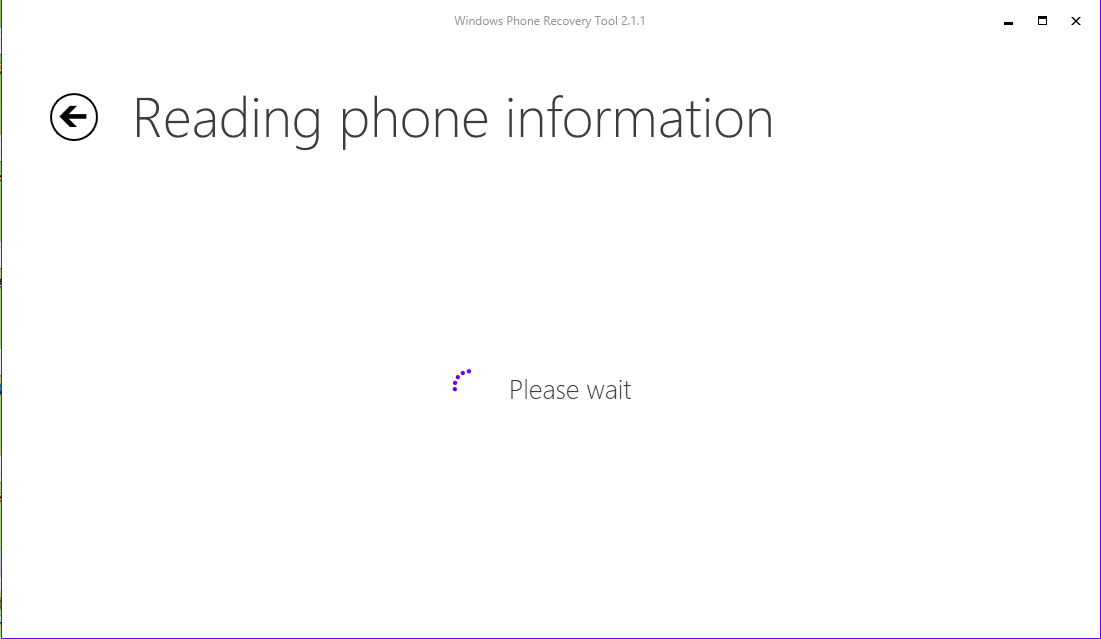
The program will try to read the phone information.
By this time your phone starts up with Verizon and Windows splash screens and you will asked to customize. The phone is now restored to the Windows Phone 8.1 Original.
The restore agent will pop-up and guides you through restoring the app settings etc. Your apps, alarms, contacts will all be recovered. The photos/videos are all gone, perhaps uploaded to the OneDrive. If it was uploaded to OneDrive, I am not sure which named location it was uploaded to. Fortunately I had copied all the photos/videos to a 1TB drive.
The version of Windows Phone 8.1 restored was the following:


