Tuesday, February 11, 2020


Tuesday, February 4, 2020
How do you correct Window's 10 display problem ( displaying bands in the desktop)?
The bands on Desktop's display appear as shown.


Normally, the desktop is just solid blue.
This fix which came in Windows Central in July 2019 still works.
https://www.windowscentral.com/how-fix-vertical-stripes-color-issue-affecting-displays-windows-10-may-2019-update
Steps for correction:
Windows Task Scheduler--> Microsoft-->Windows-->WindowsColorSystem-->
CalibrationLoader
Properties of CalibrationLoader

Click Triggers.

Disable both At log on and On connection to user session using the Edit...button as shown for one of them.
Restart Windows and there should not be any bands in the display.


Normally, the desktop is just solid blue.
This fix which came in Windows Central in July 2019 still works.
https://www.windowscentral.com/how-fix-vertical-stripes-color-issue-affecting-displays-windows-10-may-2019-update
Steps for correction:
Windows Task Scheduler--> Microsoft-->Windows-->WindowsColorSystem-->
CalibrationLoader
Properties of CalibrationLoader

Click Triggers.

Disable both At log on and On connection to user session using the Edit...button as shown for one of them.
Restart Windows and there should not be any bands in the display.
Is your desktop display banded?
Here are some snapshots of my laptop display:


Looks crazy right. Microsoft modified their IE to the 'new Edge'. They should do something to the Windows and Outlook (free).


Looks crazy right. Microsoft modified their IE to the 'new Edge'. They should do something to the Windows and Outlook (free).
Friday, January 24, 2020
How do you install SQL Server Management Studio (SSMS) v 18.4?
Since SQL Server 2016, SQL Server Management is not installed when you install SQL Server. It will be a separate install.
You can download the latest SQL Server Management Studio v18.4 (the most recent version) from here:
https://docs.microsoft.com/en-us/sql/ssms/download-sql-server-management-studio-ssms?view=sql-server-ver15

It is backward compatible with the earlier versions.
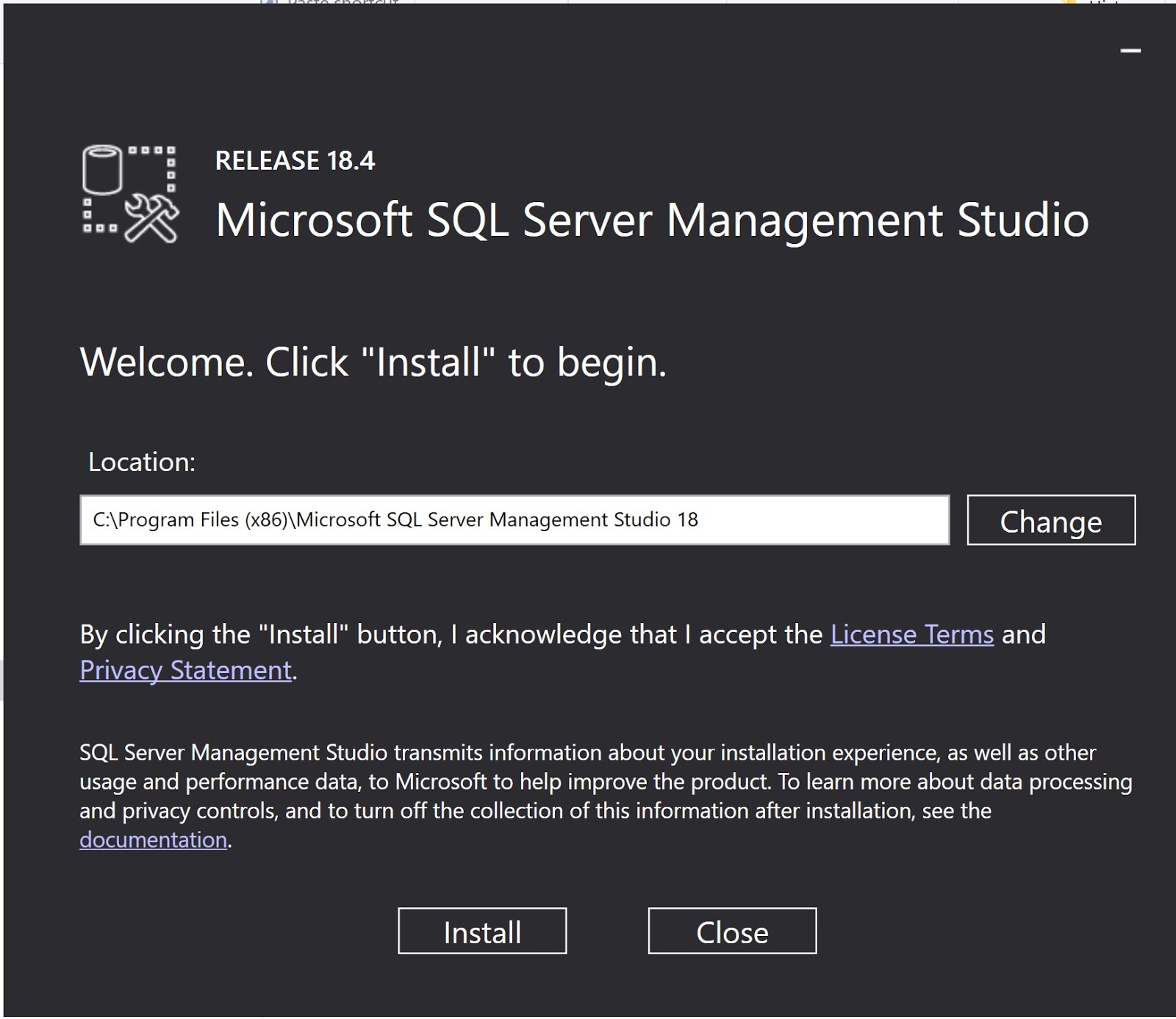
Double click the downloaded file (SQL2019-SSEI-Dev.exe) to begin the installation.

Click Install. It takes a little while and gets installed easily.

You should see this in your Windows Display of programs.

These programs get added to your Control Panel.


The user settings from v17 were imported. You could also import later after a default installation.


You can download the latest SQL Server Management Studio v18.4 (the most recent version) from here:
https://docs.microsoft.com/en-us/sql/ssms/download-sql-server-management-studio-ssms?view=sql-server-ver15

It is backward compatible with the earlier versions.
Double click the downloaded file (SQL2019-SSEI-Dev.exe) to begin the installation.


These programs get added to your Control Panel.

When you launch the SQL Server Management Studio you may get this display. Since there was an existing SSMS v 17.x was present, this display came up.

The user settings from v17 were imported. You could also import later after a default installation.

The SQL Server Management Studio opens displaying the Object Browser. It assumes Windows Authentication with the current user as server administrator.

The version information is as seen in the following screen:

Friday, January 17, 2020
What is the PowerShell cmdlet version that works with (compatible) SQL Server 2019?
PowerShell is in continuous development mode. New challenges require updating of software to accommodate the changes. This is the nature of such things. PowerShell cmdlets also follow this natural course and we have many versions.
I had an older version, and when I tried to launch contextually from SSMS v 8.4, I got this response:

In order to get the version you want, you may access this link:
Here is a list from the above site:

What happened to the Query Debugger icon in SQL Server Management Studio v 18.4?
It looks like it has been deprecated in SSMS 18. I have SSMS v 18.4 installed and the icon is missing. Also missing is the Execute with Debugger drop-down menu in the query pane context.
Debug icon present in 2012 and 2017 SSMS. Missing in v18.4 in the 2019 version.


Debug icon present in 2012 and 2017 SSMS. Missing in v18.4 in the 2019 version.

Missing in the Query drop-down menu. It should have been present below 'Execute'.

Wednesday, January 15, 2020
What are the scripting options in SQL Server 2019?
What are the scripting options in SQL Server 2019?
The Scripting options can be accessed from Tools: Options in the SQL Server Management Studio v18.4.


Expand the node, General scripting options to display the following:

Expand the node, Object scripting options to display the following:

Expand the node, Table and view options to display the following:

Expand the node, Version options to display the following:
 In each version of SSMS, the Options window is slightly different or arranged differently.
The Scripting options can be accessed from Tools: Options in the SQL Server Management Studio v18.4.

In the Options window drill-down on SQL Server Object Explorer | Scripting as shown.


Subscribe to:
Posts (Atom)