Wednesday, January 23, 2019

What is a TPC Benchmark?

TPC is an acronym for Transaction Processing Corporation, a non-profit organization to define transaction processing benchmarks and providing objective, verifiable performance data to the industry.

Here is the scope of TPC from its website (http://www.tpc.org/information/about/abouttpc.asp):

"The term transaction is often applied to a wide variety of business and computer functions. Looked at as a computer function, a transaction could refer to a set of operations including disk read/writes, operating system calls, or some form of data transfer from one subsystem to another.
While TPC benchmarks certainly involve the measurement and evaluation of computer functions and operations, the TPC regards a transaction as it is commonly understood in the business world: a commercial exchange of goods, services, or money. A typical transaction, as defined by the TPC, would include the updating to a database system for such things as inventory control (goods), airline reservations (services), or banking (money).
In these environments, a number of customers or service representatives input and manage their transactions via a terminal or desktop computer connected to a database. Typically, the TPC produces benchmarks that measure transaction processing (TP) and database (DB) performance in terms of how many transactions a given system and database can perform per unit of time, e.g., transactions per second or transactions per minute"

Here is what SQL Server 2017 performance looks like.


Sunday, January 13, 2019

How do you install IIS on Windows 10?

As previously noted you need to enable IIS on Windows 10.

You can do this in Control Panel.


In Turn Windows fatures on or off. Place check marks as shown above. Vlick OK. It may take a while and IIS is turned on.

You can launch IIS from the search charm as shown.


When you click this, Internet Informatio Services Manager's screen opens as shown.


From Help you can find the version (10.0.17134.1) shown here.


You can look at the contents on your site (Default site) shown here. Rihgt now there is only one file (IISStart.htm and PNG file).


You can right click the htm file and browse as shown.


Your files (presently IISStart.htm and IISstart.png) are in the wwwroot folder.


Saturday, January 12, 2019

How come I cannot access Internet Information Services on my Windows 10?

IIS does not come installed or turned-on.

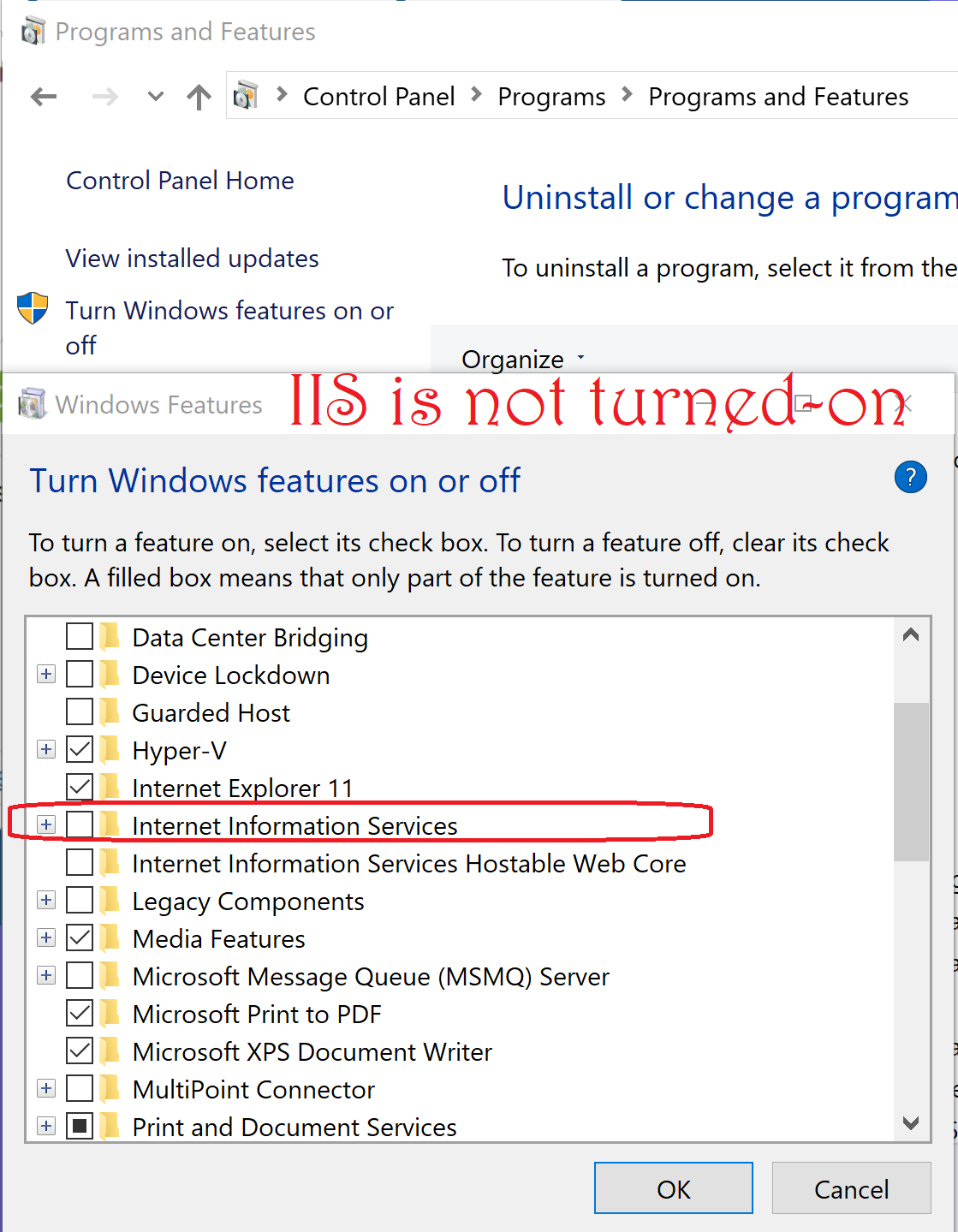
Most probably IIS is not turned-on. You can do it from the Control Panel.
This is what you see when IIS is not turned-on.


Wednesday, January 9, 2019

How do you install the latest Node.js for Windows 10?


You can download from this site.


This is the .msi file for Windows 10(x64).


Double click the node-v10.15.0-x64.msi to install. Just follow the installation wizard.


Default installation choice was made.


Node.Js program files installed on the computer's C:\ drive.


Node.JS Version


Monday, January 7, 2019

What is AnTuTu bench marking?

A very popular, chinese Android bench marking apps. AnTuTu objectively explores the performance of a device. The app does a variety of testing, assignning a score for each feature tested.

You can download AnTuTu Benchmark app from Google Play.

I have a Samsung Galaxy S9 and I tested on my phone after downloading.

Here is the app on my Samsung


Here is one of its My Device screens:


It also sends the notifications regarding performance.


Monday, December 31, 2018

Wishing you all a very Happy New Year 2019

Wishing you all a Happy New Year 2019.


Thank you for reading my blog. See you in 2019

Thursday, December 6, 2018

How do you load JSON data into PowerBI?

JSON data source were recently added to Power BI Data sources.

{
I have taken this JSON file from the following site;

 https://www.kodingmadesimple.com

and I will be using in this post.

Here is an abbreviated JSON file (with *.json extension) I am using.
--------------------------------------

  "data": [
    {
      "name": "Garrett Winters",
      "designation": "Accountant",
      "salary": "$170,750",
      "joining_date": "2011/07/25",
      "office": "Tokyo",
      "extension": "8422"
    },
    {
      "name": "Brielle Williamson",
      "designation": "Integration Specialist",
      "salary": "$372,000",
      "joining_date": "2012/12/02",
      "office": "New York",
      "extension": "4804"
    },
     ,
     ,
    {
      "name": "Quinn Flynn",
      "designation": "Support Lead",
      "salary": "$342,000",
      "joining_date": "2013/03/03",
      "office": "Edinburgh",
      "extension": "9497"
    }
  ]
}

-----------
Note that each Json element has six attributes.

Step 1:
You first need to save it to a location of your choice. You could also have it on an URL, but here it is assumed to be in one of the folders.

Launch PowerBI; Click GetData; Click More...

Click JSON


You need to browse and locate your JSON file (it will have  a.json extension).


My Koding.json file is now in Data View as shown.


 I go back to Edit Queries as I did not edit earlier.


 Now I have a query as shown in the left pane.


I had 15 elements in the JSOn file and they have become 16 records after getting it into PowerBI. Now go back to query using Edit Query as before. Now you see an extra control in Column 1 for splitting into its components.


I click the split control. The Query now appears as shown.


Now I convert this into table as shown above. Now what I see in DataView is the following:


The six elements are resolved into six fields as shown above. We will use this later. Click File | Save to save this file in the .pbix format. Presently it has the JSON data only.


That is all folks!