Saturday, December 5, 2015

What is Windows Defender Offline?

Windows Desktop in Windows 10 has Windows Defender installed.
C:\Program Files\Windows Defender\MSASCui.exe

This program is designed to protect the computer and in case it is attacked, the culprit can be removed or quarntined and then removed.

The Windows Defender Offline can used to start the computer from this program even before the other programs starts and is probably more effective.

I had a Trojan: DOS/Alureon.E infecction in my computer. I assumed the Windows Defender removed the virus after I made some changes posted here. However, the torjan was not compeltely removed and came back a few days later.

The typical symptoms of the virus were unresponsive browsers; loss of tiles menu in All Tiles and Cortana not responding.

I thought of downloading the Windows Defender Offline, but the computer did bring up a notification regarding this and cleaned the computer again. Looks like it is good for now.

You can also download the Windows Defender offline from here (http://windows.microsoft.com/en-US/windows/what-is-windows-defender-offline).

I downloaded to be prepared for another attack.


Friday, December 4, 2015

What is R Studio and how do I get it?

R Studio is an integrate development environment (IDE) for R programming. You can do everything  you do in R and much more.
The download link for R Studio is here (https://www.rstudio.com/products/rstudio/download/)

If you download now you get the version RStudio-0.99.489.exe (~76MB). Double click this executable and you will install R Studio. While installing you can choose the location where you want it installed.

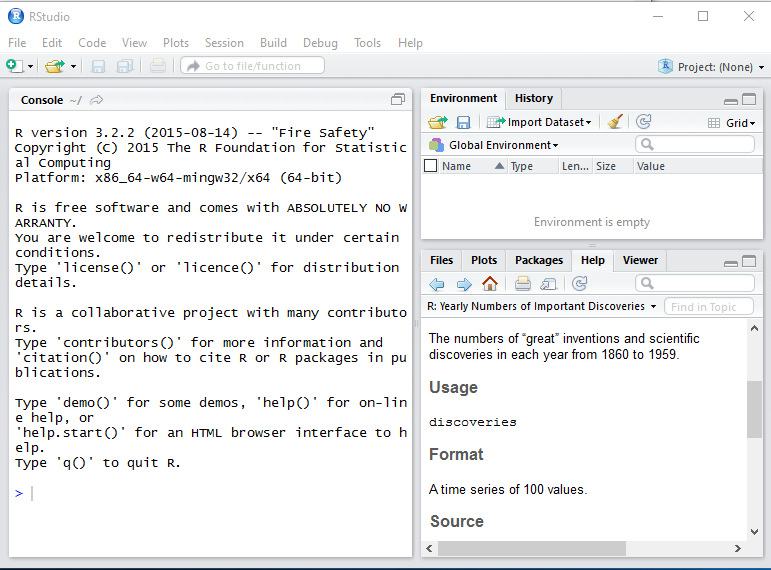
The R Studio IDE is launched when you double click the shortcut after installation. On a Windows 10 computer an app will be installed in All Apps. The R Version is 3.2.2.

What is Continuum in Windows 10?

Continuum with regard to Windows mobile devices is a mode of working where you can use the Windows 10 phone to connect to a larger display; connect to a keyboard etc. Windows 10 PCs like the Surface Pro and Surface Book already have this- you can detach the keyboard and use it as a tablet.

For Windows 10 Desktop (Build 10240) you already have this feature by changing your settings to Tablet Mode.

For mobile devices Continuum features are supported if you buy a Continuum Display Dock.

 With this docking device you can extend the way you interact with phone using an external monitor; key board or mouse. You can also have scaled up office apps. This will not take away your phone capabilities. The Continuum Display Dock (rumored to cost $99) should be available soon (?).
Presently Microsoft's new phones Lumia 950 and 950XL are the only ones that can use this feature however since it is supposed to connect via Miracast as well, it is just possible that Nokia Icon may be able to use it as well.

However if you are a developer and using Windows 10 Developer Preview then the Windows 10 build should be 10586 as it is on my Nokia Icon. Personally I do not like 'dock' of any sort with wires hanging. In fact many others may feel the same way.

More here.

Find out how to get a Microsoft Display Dock for free here.


Thursday, November 26, 2015

How do you access MariaDB in XAMPP?

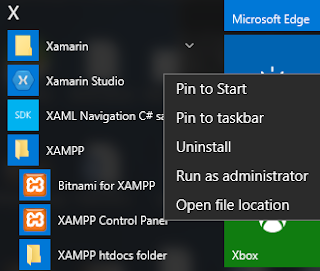
We have seen that MariaDB is an off spring of MySQL and when we launch (as administrator) XAMPP from its shortcut shown here:
 
XAMPP-Maria01.png

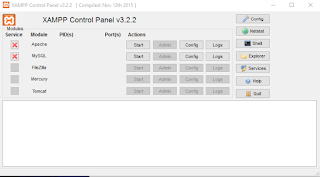
What we see displayed is the following (it is assumed any service running is stopped and the bottom pane is cleared):
 
XAMPP-Maria01.png

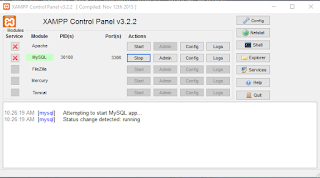
Click Start for MySQL and it is already running as shown here:
 
XAMPP-Maria03.png

MySQL is running on Port 3306.
Click on Shell.

The XAMPP prompt is displayed with the following message.
---
Setting environment for using XAMPP for Windows.
Jayaram@HODENTEK8 c:\j
#

----------------
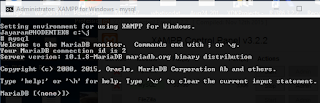
When you enter mysql as shown you get the MariaDB prompt as shown
 
XAMPP-Maria04.png

MariaDB syntax is very similar to MySQL syntax as for as its usage is concerned.
Alternately you can do the same from the install directory as shown here:
-----------
Microsoft Windows [Version 10.0.10240]
(c) 2015 Microsoft Corporation. All rights reserved.

C:\Users\Jayaram>cd\

C:\>cd C:\J\mysql\bin

C:\J\mysql\bin>dir mysql*
 Volume in drive C is TI10672700E
 Volume Serial Number is 16FB-D230

 Directory of C:\J\mysql\bin

10/14/2015  10:44 PM         3,571,528 mysql.exe
10/14/2015  10:45 PM         3,517,768 mysqladmin.exe
10/14/2015  10:45 PM         3,595,080 mysqlbinlog.exe
10/14/2015  10:44 PM         3,515,208 mysqlcheck.exe
10/14/2015  10:45 PM        11,527,496 mysqld.exe
10/14/2015  10:44 PM         3,568,456 mysqldump.exe
10/14/2015  10:16 PM             8,385 mysqldumpslow.pl
10/14/2015  10:16 PM            25,817 mysqld_multi.pl
10/14/2015  10:16 PM            36,102 mysqlhotcopy.pl
10/14/2015  10:45 PM         3,506,504 mysqlimport.exe
10/14/2015  10:45 PM         3,507,528 mysqlshow.exe
10/14/2015  10:45 PM         3,525,448 mysqlslap.exe
10/14/2015  10:44 PM         3,916,616 mysqltest.exe
10/14/2015  10:48 PM         9,949,000 mysqltest_embedded.exe
10/14/2015  10:38 PM         3,899,392 mysql_client_test.exe
10/14/2015  10:48 PM        10,124,104 mysql_client_test_embedded.exe
10/14/2015  10:16 PM             8,799 mysql_config.pl
10/14/2015  10:16 PM             4,417 mysql_convert_table_format.pl
10/14/2015  10:48 PM         9,804,104 mysql_embedded.exe
10/14/2015  10:46 PM         3,735,368 mysql_install_db.exe
10/14/2015  10:45 PM         3,119,944 mysql_plugin.exe
10/14/2015  10:16 PM             9,565 mysql_secure_installation.pl
10/14/2015  10:46 PM         3,124,040 mysql_tzinfo_to_sql.exe
10/14/2015  10:45 PM         3,178,824 mysql_upgrade.exe
10/14/2015  10:46 PM         3,109,192 mysql_upgrade_service.exe
10/14/2015  10:57 PM         1,750,344 mysql_upgrade_wizard.exe
              26 File(s)     95,639,029 bytes
               0 Dir(s)  797,801,631,744 bytes free

C:\J\mysql\bin>mysql
Welcome to the MariaDB monitor.  Commands end with ; or \g.
Your MariaDB connection id is 4
Server version: 10.1.8-MariaDB mariadb.org binary distribution

Copyright (c) 2000, 2015, Oracle, MariaDB Corporation Ab and others.

Type 'help;' or '\h' for help. Typ
e '\c' to clear the current input statement.

----------------------------------------------------
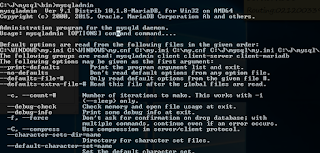
You can also get to the administrator using the mysqladmin.exe as shown here (truncated portion):
 
XAMPP-Maria05.png

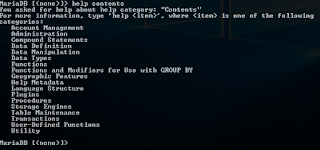
For MariaDB server find contents as shown here:
XAMPP-Maria06.png

MariaDB has good documentation. Here is the help on Utility | Use:
-----------------------------------------
MariaDB [(none)]> help Utility
You asked for help about help category: "Utility"
For more information, type 'help ', where is one of the following
topics:
   EXPLAIN
   HELP STATEMENT
   USE

MariaDB [(none)]> help USE
Name: 'USE'
Description:
Syntax:
USE db_name

The USE db_name statement tells MySQL to use the db_name database as
the default (current) database for subsequent statements. The database
remains the default until the end of the session or another USE
statement is issued:

USE db1;
SELECT COUNT(*) FROM mytable;   # selects from db1.mytable
USE db2;
SELECT COUNT(*) FROM mytable;   # selects from db2.mytable


Here are some queries run on this version:

 MariaDB Version
------------
MariaDB [(none)]> Select Version(), CURRENT_DATE;
+----------------+--------------+
| Version()      | CURRENT_DATE |
+----------------+--------------+
| 10.1.8-MariaDB | 2015-11-26   |
+----------------+--------------+
1 row in set (0.04 sec)

MariaDB [(none)]>

---------------------
 Find User interactively
---------
Find the USER() (this is interactively run)
----------------
MariaDB [(none)]> SELECT
    -> USER()
    -> ,
    -> CURRENT_DATE;
+----------------+--------------+
| USER()         | CURRENT_DATE |
+----------------+--------------+
| ODBC@localhost | 2015-11-26   |
+----------------+--------------+
1 row in set (0.00 sec)

MariaDB [(none)]>

--------------------
There are only two bases in the installation.
Show databases
-----------
MariaDB [(none)]> show databases
    -> ;
+--------------------+
| Database           |
+--------------------+
| information_schema |
| test               |
+--------------------+
2 rows in set (0.08 sec)

MariaDB [(none)]>


How do you run a simple query in HeidiSQL?

It is really no different from running a query in SQL Server Management Studio. You need to have an instance of SQL Server running on your computer. Launch HeidiSQL and get connected to the instance.

You will be seeing this (different in your case) displayed in the HeidiSQL user interface. Either you can get connected to a session you created or a new one using the New button at the bottom of the UI.
 
RunAQuery01.png

You can connect to a single database by selecting it from the list as shown. Here Northwind was selected.

RunAQuery02.png
The Nov21 sessions gets changed and the changed sessions window opens as shown:


RunAQuery03.png

Click on Query to open a window for inserting query related statements as shown:
RunAQuery04.png

In the Query Window insert your SQL statement. For example a query such as the one shown:

SELECT TOP 50 [CategoryName]
      ,[ProductName]
      ,[ProductSales]
  FROM [Northwind].[dbo].[Product Sales for 1997]


Click Query and the response will appear below the query window as shown.

 
RunAQuery07.png

The tabbed window in the center has all the necessary tabs like the SAP SQLAnywhere Studio Central.

Wednesday, November 25, 2015

What is an uniqueidentifier?

 Unique Identifiers are used in many places, SQL Server's data type; as GUID in ActiveX Controls, and as a 128 bit IP address in IPV6 although it is not called GUID. Using 128 bits for the IP address makes it possible to assign a whole lot more addresses than IPV4.

Uniqueidentifiers are also called GUIDs(Globally Unique Identifier) which are unique and different from any other. It was introduced in SQL Server 7.0. The GUID is obtained by the function call NewID()or as a hexadecimal formatted string. The unique identifier data type is stored in the computer as a 16-byte (128 bits) binary value. The formatted GUID using Hexadecimal is usually a string represented by groups separated by hyphens:
4bytes-2bytes-2bytes-2bytes-6bytes
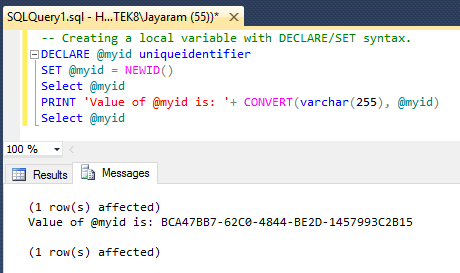
Here is how the uniqueidentifier obtained by calling the NewID() function.
---
Declare @myid uniqueidentifier
set @myid=NEWID()

---
A uniqueidentifier is obtained every time this function is called as shown here:


While it is great for security, it takes up too much space (think of millions of rows with a uniqueidentifier data type column).

More about uniqueidentifier in SQL Servers here.

Saturday, November 21, 2015

How do you connect to SQL Server 2012 using HeidiSQL?

 HeidiSQL is a client application and you can use it to work with databases. If you want to know more about it, or download and install HeidiSQL go here.

Launch HeidiSQL from your desktop or click the HeidiSQL app from the All Apps menu shown.


The Heidi Session Manager is launched as shown.

 
Heidi_Session_00.png

Click New and choose Session in root folder from the drop-down list as shown.


Heidi_Session_01.png

You can change the session name by over-writing as shown. Herein it is Nov21.

Heidi_Session_02.png

By default the connection is to MySQL using TCP/IP and localhost(127.0.0.1)

Let us change the Network type to Microsoft SQL Server using TCP/IP by using the drop-down menu shown.

Heidi_Session_03.png

Choose Windows authentication as shown.

Heidi_Session_04.png

Click Open. The connection is refused.

 Heidi_Session_05.png

OK. Let us look if the SQL Server has started. Open the Control Panel|...|Services and verify that the server has started. Indeed it is running (option chosen at SQL Server Installation).


Heidi_Session_06.png

Now let us change the Hostname /IP to Hodentek8\RegencyPark (over write 127.0.0.1)
Click Open after changing the hostname.
 You may get a save modifications message.

 
Heidi_Session_07.png


Click Yes. The program processes this information and the client is now connected to the named instance of SQL Server 2012 as shown.


Heidi_Session_08.png

Now you are cooking!