
Saturday, December 20, 2008
What is the difference between a stepped layout and a blocked layout in the table design of a report?
The difference is very easy to discern when you have a grouped display of data as shown in the two reports which uses the same data source but only the layout is different. In the stepped report you will notice a clear step where what is grouped under is clearly delineated.


Monday, December 15, 2008
How do I turn-off ATOM / RSS feeds in IE?
You can do this from TOOLS | Internet Options in IE
which brings up the Internet Options page as shown

Click on the Content tab to open that page as shown

In the section Feeds click on Settings

In the Feed Settings page uncheck the Turn on feed reading view
which brings up the Internet Options page as shown

Click on the Content tab to open that page as shown

In the section Feeds click on Settings

In the Feed Settings page uncheck the Turn on feed reading view
Saturday, December 13, 2008
I started a project with .NET 2.0 framework, how do I change it to compile for .NET 3.5 in Visual Studio 2008?
Let us say you have a web site project which uses .NET 2.0 framework and you want to change it to .NET 3.5 to try out something supported by .NET 3.5
You can right click the web site and access the Properties as shown here and change the target framework to .NET Framework 3.5

On the other hand if it is a Windows Application, you right click and access the Property pages as before which displays the following:
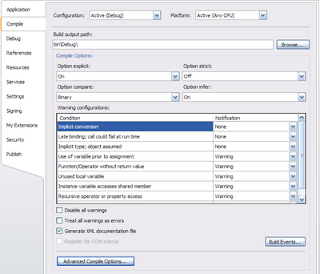
Now click on the Advanced Compile Options...button to display the next,

Now you can change over to the target you desire.
You can right click the web site and access the Properties as shown here and change the target framework to .NET Framework 3.5

On the other hand if it is a Windows Application, you right click and access the Property pages as before which displays the following:

Now click on the Advanced Compile Options...button to display the next,

Now you can change over to the target you desire.
Friday, November 14, 2008
How do I find the extension of a file in Windows XP?
By default file extensions may not show in Windows Explorer. In case they are not showing follow the indicated procedure.
You may just know the file name in the Windows Explorer. Sometimes you need to know the correct extension. This is especially true when you rename a file. It is true that the icons may change and you may know the difference. But you may change the default of not showing extension to one showing extension by following the indicated steps:
In Windows Explorer open in C:\ drive
1.Click Tools | Folder Options...
2. In the Folder Options window change to the View Tab
3. Under Advanced settings: ,remove the check mark (default) for the radio button Hide extensions for known file types.
.

4. Click OK to the Folder Options window.
Now your files will be showing the extensions
You may just know the file name in the Windows Explorer. Sometimes you need to know the correct extension. This is especially true when you rename a file. It is true that the icons may change and you may know the difference. But you may change the default of not showing extension to one showing extension by following the indicated steps:
In Windows Explorer open in C:\ drive
1.Click Tools | Folder Options...
2. In the Folder Options window change to the View Tab
3. Under Advanced settings: ,remove the check mark (default) for the radio button Hide extensions for known file types.
.

4. Click OK to the Folder Options window.
Now your files will be showing the extensions
Thursday, November 6, 2008
How do I set up a Data Connection in Visual Studio 2008?
It depends on where the data comes from, SQL Server, IBM DB2, MS Access etc.
Here is what you do for SQL Server 2008.
Step 1: Open Visual Studio 2008
Click View | Server Explorer
Click on Connection as shown.

The Add Connection window shows up

Step 2: Click on the Change...button
The Change Data Source window gets displayed.
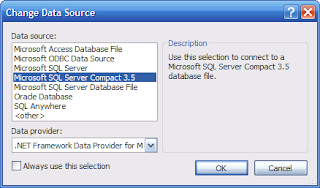
Step 3: Highlight Microsoft SQL Server
Click OK
Step 4: Click on the Refresh button
Then click on the drop-down button
The SQL Servers on your machine should show up as in the figure
Choose the SQL Server 2008 as shown by highlighting Hodentek2\SANGAM

Step 5: Assuming the SQL Server 2008 is to be Windows Authenticated
Click on the drop-down handle for 'Select or enter a database name:"
Select AdventureWorksDW2008 as shown
.

Step 6: Click on Test Connection button
You should get the following message

Step 7: Click OK to the message and close the Add Connection window.
You are done.
Now you will see your connection in the Data Connections folder in Server Explorer
Now you can access Tables, Views, Stored Procedures and Functions within the Visual Studio IDE

Well I have a number of other connections in my VS 2008 IDE.
Here is what you do for SQL Server 2008.
Step 1: Open Visual Studio 2008
Click View | Server Explorer
Click on Connection as shown.

The Add Connection window shows up

Step 2: Click on the Change...button
The Change Data Source window gets displayed.

Step 3: Highlight Microsoft SQL Server
Click OK
Step 4: Click on the Refresh button
Then click on the drop-down button
The SQL Servers on your machine should show up as in the figure
Choose the SQL Server 2008 as shown by highlighting Hodentek2\SANGAM

Step 5: Assuming the SQL Server 2008 is to be Windows Authenticated
Click on the drop-down handle for 'Select or enter a database name:"
Select AdventureWorksDW2008 as shown
.

Step 6: Click on Test Connection button
You should get the following message

Step 7: Click OK to the message and close the Add Connection window.
You are done.
Now you will see your connection in the Data Connections folder in Server Explorer
Now you can access Tables, Views, Stored Procedures and Functions within the Visual Studio IDE

Well I have a number of other connections in my VS 2008 IDE.
Thursday, October 9, 2008
How do you use the Query Designer in SQL Server 2008?
Well, there are a few steps you need to follow. This note shows how you may create and execute a query in the SQL Server Management Studio. I am using a copy of the Northwind database.
Step 1:
Click on New Query toolbar item [directly below File in SQL Server Management Studio]
Step 2:
In the new empty query created [herein SQLQuery1.sql - Hodentek2\...]. Right click on an empty area and choose Design Query in Editor

Query Designer pops-up with the Add Table modal window on top of it as shown.
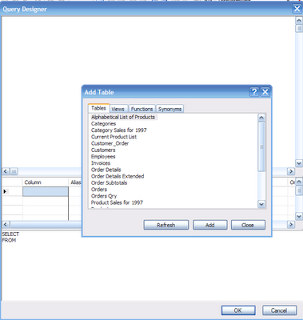
Step 3:
Hold down Control Key and highlight Products and Suppliers in the Add table list and click on the Add button. After the tables are added close the window.
The Tables get added to the Query Designer together with the relationship between them as shown.

Step 4:
Place check marks for the columns in Products and Suppliers as shown.
You do not need to do anything with the Grid Pane or the SQL Pane below it. Just observe them as you place the check marks.

Step 5:
Execute the query in the designer and if you are satisfied click OK.
The SQL Statement gets in to the Query window.
Study the SQL Statement.
You are done!!
You successfully used the Query Editor to query two tables in the database.
Step 1:
Click on New Query toolbar item [directly below File in SQL Server Management Studio]
Step 2:
In the new empty query created [herein SQLQuery1.sql - Hodentek2\...]. Right click on an empty area and choose Design Query in Editor

Query Designer pops-up with the Add Table modal window on top of it as shown.

Step 3:
Hold down Control Key and highlight Products and Suppliers in the Add table list and click on the Add button. After the tables are added close the window.
The Tables get added to the Query Designer together with the relationship between them as shown.

Step 4:
Place check marks for the columns in Products and Suppliers as shown.
You do not need to do anything with the Grid Pane or the SQL Pane below it. Just observe them as you place the check marks.

Step 5:
Execute the query in the designer and if you are satisfied click OK.
The SQL Statement gets in to the Query window.
Study the SQL Statement.
You are done!!
You successfully used the Query Editor to query two tables in the database.
Tuesday, September 16, 2008
How do you create a ODBC DSN for an Microsoft Access 2003 data source?
This example shows how you may create a ODBC DSN for the Northwind.mdb sample in the Sample directory of Microsoft Access on a Windows XP Machine.
1. Open ODBC Data Source Adminisitor from Start Control Panel Administrative Tools Data Sources(ODBC)
ODBC Data Source Administrator window gets displayed.

2. Click on Add... button after you move over to the System DSN tab.
"Create New Data Source" window gets dsiplayed
3. Scroll and highlight Microsoft Access Driver (*mdb). If you are using Office 2007 you could use the other below it as shown.

4. Click on the Finish button.
The ODBC Microsoft ACCESS SETUP WINDOW gets displayed as shown.

5. Provide a name for the source, this is the DSN and provide an optional description.
Herein:
Data Source Name: MdbSource
Description: "Test source for MS Access 2003"
6. Click on the Select...button in the previous screen and locate the Northwind.mdb file as shown.

7. Click OK on the Select Database screen after selecting Northwind.mdb
The path information gets recorded as shown.
8. Click on the OK button on the ODBC Microsoft Access Setup window.
9. The new ODBC source you created "MdbSource" gets into the list of
System Data Sources as shown.

You have successfully created a ODBC DSN.
1. Open ODBC Data Source Adminisitor from Start Control Panel Administrative Tools Data Sources(ODBC)
ODBC Data Source Administrator window gets displayed.

2. Click on Add... button after you move over to the System DSN tab.
"Create New Data Source" window gets dsiplayed
3. Scroll and highlight Microsoft Access Driver (*mdb). If you are using Office 2007 you could use the other below it as shown.

4. Click on the Finish button.
The ODBC Microsoft ACCESS SETUP WINDOW gets displayed as shown.

5. Provide a name for the source, this is the DSN and provide an optional description.
Herein:
Data Source Name: MdbSource
Description: "Test source for MS Access 2003"
6. Click on the Select...button in the previous screen and locate the Northwind.mdb file as shown.

7. Click OK on the Select Database screen after selecting Northwind.mdb
The path information gets recorded as shown.
8. Click on the OK button on the ODBC Microsoft Access Setup window.
9. The new ODBC source you created "MdbSource" gets into the list of
System Data Sources as shown.

You have successfully created a ODBC DSN.
Subscribe to:
Posts (Atom)