Showing posts with label Database. Show all posts

Saturday, May 26, 2018

How do you know which columns are masked in a table?

If the table belongs to a database, then in the context of the database sun the query:

SELECT * FROM sys.columns

If the column(s) is masked you should look for the column 'is_masked' in the response as shown.


Wednesday, November 4, 2015

Are you looking for a computer inventory tool?

MAP toolkit is a great tool to find information on various items of your computer/server. Before you think of migration of any kind, a tool such as this one is going to be very helpful.

MAP which stands for Microsoft Assessment and Planning Tool, presently in version 9.3 is according to Microsoft,

"The Microsoft Assessment and Planning (MAP) Toolkit is an agent-less inventory, assessment, and reporting tool that can securely assess IT environments for various platform migrations—including the latest versions of Windows client and server operating systems, Microsoft Office and Office 365, Microsoft SQL Server, Hyper-V, Microsoft Private Cloud Fast Track, and Windows Azure.
"
MAP Toolkit can deal with most of the following scenarios although some of what you read in this post deal with SQL Servers (database):

  • Cloud
  • Desktop
  • Server
  • Desktop Virtualization
  • Server Virtualization
  • Database
  • Usage tracking
  • Environment
This covers all most everything you ever dealt with in you computer.
Where can I get this tool?

Download from here .
Double click the downloaded file and you are ready to go.

Here are things you can find about the Desktop:

Map_Desktop

This one about what you can find about the Cloud:


Map_Cloud.png

You can use MAP to inventory any of these. This is indeed a big list.

•Windows 10
•Windows 8.1
•Windows 8
•Windows 7
•Windows Vista
•Windows XP Professional
•Office 2013 and previous versions
•Windows Server 2012 R2
•Windows Server 2012
•Windows Server 2008 R2
•Windows Server 2008
•Windows Server 2003 R2
•Windows Server 2003
•Windows 2000 Professional or Windows 2000 Server
•Internet Explorer
•VMware vSphere
•VMware vCenter
•VMware ESX
•VMware ESXi
•VMware Server
•Selected Linux distributions
•SQL Server
•Oracle
•Hyper-V
•Lync
•System Center Configuration Manager
•Forefront Endpoint Protection
•Exchange Server
•SharePoint Server
•BizTalk Server
•Visual Studio 2010 and 2012 Premium and Ultimate editions
•Software ID (SWID) Tags

Thursday, November 6, 2008

How do I set up a Data Connection in Visual Studio 2008?

It depends on where the data comes from, SQL Server, IBM DB2, MS Access etc.

Here is what you do for SQL Server 2008.

Step 1: Open Visual Studio 2008
            Click View | Server Explorer
            Click on Connection as shown.


The Add Connection window shows up


Step 2: Click on the Change...button


The Change Data Source window gets displayed.
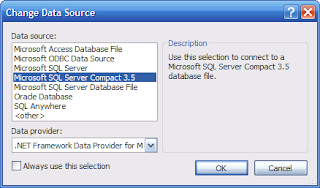


Step 3: Highlight Microsoft SQL Server
            Click OK


Step 4: Click on the Refresh button
            Then click on the drop-down button
The SQL Servers on your machine should show up as in the figure
            Choose the SQL Server 2008 as shown by highlighting Hodentek2\SANGAM


Step 5: Assuming the SQL Server 2008 is to be Windows Authenticated
       Click on the drop-down handle for 'Select or enter a database name:"
       Select AdventureWorksDW2008 as shown

.


Step 6: Click on Test Connection button
You should get the following message


Step 7: Click OK to the message and close the Add Connection window.
You are done.

Now you will see your connection in the Data Connections folder in Server Explorer
Now you can access Tables, Views, Stored Procedures and Functions within the Visual Studio IDE


Well I have a number of other connections in my VS 2008 IDE.