Showing posts with label Word. Show all posts

Tuesday, October 2, 2018

How do you convert a PNG file to a PDF file?

Some sites do not accept image files and they suggest a PDF format as acceptable.

There are more ways than one to do this.

1. There is an online tool here that you can use:

https://png2pdf.com/

While using this site, do not simply click the big green buttons but use this image as guid. Click Upload and Download buttons.


2. You can use Adobe Acrobat to Convert your Image. You can use the free trial of Acrobat

3. I just paste the image in a Word [Version 1808 Build 10730.20127document and save the Word document with a .pdf extension. You can paste multiple images + any text you like and create a single PDF.

Sunday, June 24, 2018

How do you open a Word document using Power Shell?

You need to create a new COM object, namely a Word.Application in Power Shell.

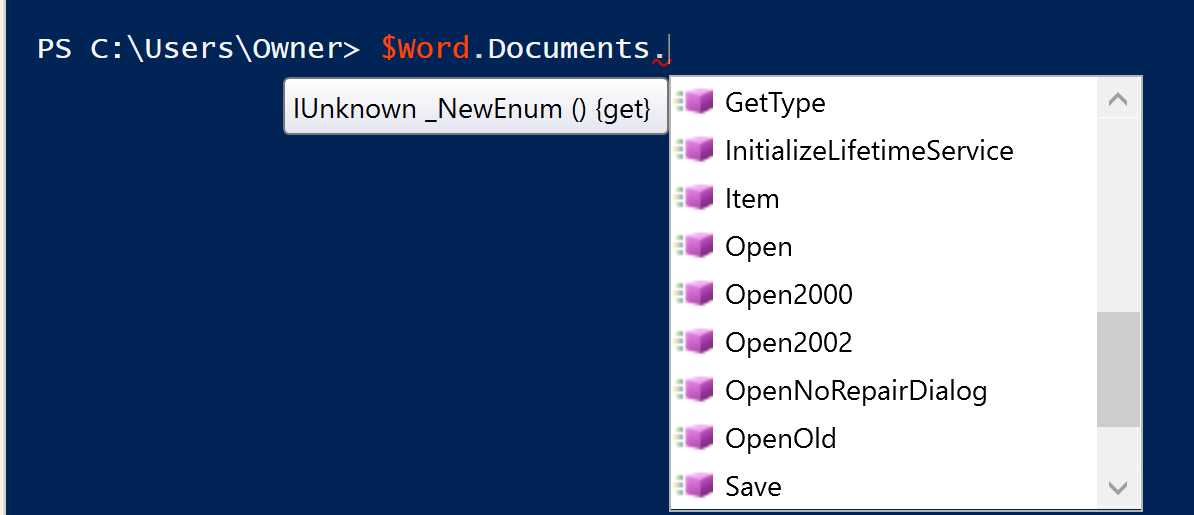
After creating the new object you call the Documents to open providing a file name for the WORD document. If the intellisense is working you should be able to open the document following the drop-down menus shown here:

Creating a New-Object


$word= New-Object -ComObject Word.Application

$word.Documents:


There are three 'open' options. Open2002 did not work.
$word.Documents.Open


$fileName='C:\Users\Owner\Desktop\June5-7\Schedule.docx '


$word.Documents.Open($fileName)

This when run opens a large XML file in the console as well as the Word document 'Schedule.docx'


I have also encountered problems with the Power Shell interface. I suddenly stopped providing the intellisense drop-downs (for example, it did not provide the Open option but after typing in Open, it did provide intellisense again. This was sporadic).

Also opening was not clean as it also provided an XML with binary of the word document.

The Power shell version used on Windows 10 Pro(x64) was:

Major  Minor  Build  Revision
-----  -----  -----  --------
5      1      17134  112  
 

Also all of a sudden you get a request for Outlook login(Surprise, surprise)


Sunday, September 13, 2015

What is Windows Journal, where can I find it?

Windows Journal is installed when you install Windows 10. It is a very cool program. I wish it had more options to export the notes.

I have been using Notepad for writing notes for a long time. I have neither been attracted to OneNote nor have I found Notepad 8 an attractive substitute for Notepad which remained as Notepad for all versions of Windows. Notepad 8 made its debut in Windows 8, but frankly it was quite bad.
Windows 10 comes, out-of-the bxo with a program called Windows Journal. This is quite a good one and its presence may not be quite obvious.

Click on All apps and scroll down to letter W. You can see Windows Journal after expanding Windows Accessories (3rd from bottom).


WJ_00

When you click this you will be greeted with a message. The message window is on top of the Windows Journal's default note, Note1 as shown.

WJ_01

You agree to install and click Yes. It might require permission and after which the driver is installed.


WJ_02

It is now ready to use. You can insert text (after clicking Insert | Textbox) and start typing in the box. You can format it anyway you want, size, font, color etc. You can insert an image from your computer or you can sketch out something with the minimalist drawing tools. Here is an example of what I did.

WJ_03

You can save it and it gets saved to the Notes folder as shown. Of course you can choose another location.
WJ-04

You an also send it over to someone by email as, a journal note (opened by Windows Journal of the receiver);a web page (,mht) that you cannot edit; or a black and white image(.tiff)

Do not forget to check out the Help menu item.

I think this is a cool tool since Notepad was lacking in some many features and MS Word had too many less used features.

Monday, January 19, 2009

How do I copy the text from a DOS screen?

You need to highlight the text in DOS screen, copy the text and paste it
into Notepad or Word.
Let us say you want to copy the text on this screen.


Step 1: Highlight the text as follows:
Right click anywhere on the title (blue strip at the top) and from the drop-down
menu choose Edit | Mark.


Step 2: Highlight the text now.
Mark the text by sweeping your mouse (held down) over the text you want to
mark as shown.


Step3: Go back to the title, right click and choose Edit| Copy. This copies the text
and now open Notepad from Start | Accessories |Notepad. With the Notepad open click on
Edit | Paste. The copied text is now pasted to the open Notepad as shown.