These are some of the commands that you may need to note. Although similar information is obtained by the Windows commands as well.
This is the version of Power Shell I am running:
-----------
PS C:\Users\Owner> $PSVersionTable.PSVersionMajor Minor Build Revision
----- ----- ----- --------
5 1 16278 1000
------------------------------------------------
Test_Connection:
Test-Connection Sends Internet Control Message Protocol request packets to one or more computers
----------------
PS C:\Users\Owner> Test-Connection Hodentek9
Source Destination IPV4Address IPV6Address Bytes Time(ms)
------ ----------- ----------- ----------- ----- --------
HODENTEK9 Hodentek9 192.168.0.10 fe80::dd68:c5d6:8d40:f244%2 32 0
HODENTEK9 Hodentek9 192.168.0.10 fe80::dd68:c5d6:8d40:f244%2 32 0
HODENTEK9 Hodentek9 192.168.0.10 fe80::dd68:c5d6:8d40:f244%2 32 0
HODENTEK9 Hodentek9 192.168.0.10 fe80::dd68:c5d6:8d40:f244%2 32 0
-----------
PS C:\Users\Owner> Test-NetConnection Hodentek9
ComputerName : Hodentek9
RemoteAddress : fe80::dd68:c5d6:8d40:f244%2
InterfaceAlias : Wi-Fi
SourceAddress : 2605:e000:d803:1800:4978:3d25:95cf:ed61
PingSucceeded : True
PingReplyDetails (RTT) : 0 ms
----------------------------------------------------
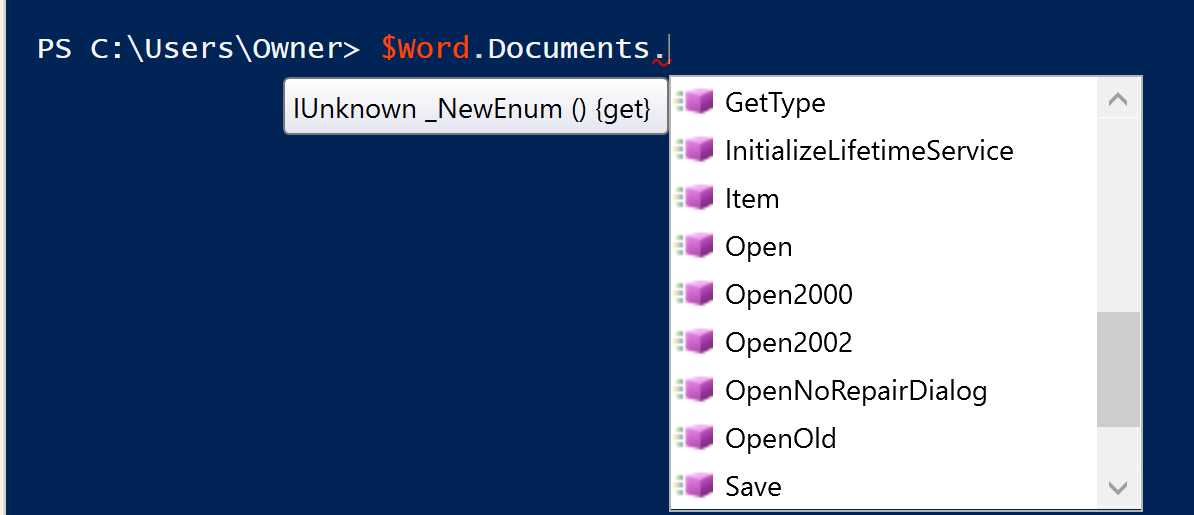
You can also run commands as shown here in Power Shell's Command Addon window as shown
here.
Resolve_DnsName
Resolve-DnsName Runs a DNS name query resolution for specified name
-----------
PS C:\Users\Owner> Resolve-DnsName Hodentek9
Name Type TTL Section IPAddress
---- ---- --- ------- ---------
Hodentek9 AAAA 1200 Question fe80::dd68:c5d6:8d40:f244
Hodentek9 AAAA 1200 Question 2605:e000:d803:1800:dd68:c5d6:8d40:f244
Hodentek9 AAAA 1200 Question 2605:e000:d803:1800:4978:3d25:95cf:ed61
Hodentek9 A 1200 Question 192.168.0.10
* you can get the same information more descriptive using the Windows Command,
IPCONFIG
-----------------------------------------------------------------------------
-
Test-DnsServer
Test-DnsServer Tests a computer for being a DNS Server
The command is not found in Windows 10 Professional. Perhaps this is to be run on a Windows Server OS
Help for Connection:
----------
PS C:\Users\Owner> get-help Test-Connection
NAME
Test-Connection
SYNTAX
Test-Connection [-ComputerName]
[-AsJob] [-DcomAuthentication {Default | None | Connect | Call
| Packet | PacketIntegrity | PacketPrivacy | Unchanged}] [-WsmanAuthentication {Default | Basic |
Negotiate | CredSSP | Digest | Kerberos}] [-Protocol {DCOM | WSMan}] [-BufferSize ] [-Count ]
[-Impersonation {Default | Anonymous | Identify | Impersonate | Delegate}] [-ThrottleLimit ]
[-TimeToLive ] [-Delay ] []
Test-Connection [-ComputerName] [-Source] [-AsJob] [-DcomAuthentication {Default |
None | Connect | Call | Packet | PacketIntegrity | PacketPrivacy | Unchanged}] [-WsmanAuthentication
{Default | Basic | Negotiate | CredSSP | Digest | Kerberos}] [-Protocol {DCOM | WSMan}] [-BufferSize
] [-Count ] [-Credential ] [-Impersonation {Default | Anonymous | Identify |
Impersonate | Delegate}] [-ThrottleLimit ] [-TimeToLive ] [-Delay ] []
Test-Connection [-ComputerName] [-DcomAuthentication {Default | None | Connect | Call | Packet
| PacketIntegrity | PacketPrivacy | Unchanged}] [-WsmanAuthentication {Default | Basic | Negotiate |
CredSSP | Digest | Kerberos}] [-Protocol {DCOM | WSMan}] [-BufferSize ] [-Count ]
[-Impersonation {Default | Anonymous | Identify | Impersonate | Delegate}] [-TimeToLive ] [-Delay
] [-Quiet] []
------------------------------------