The readers of my articles on several forums asks questions regarding something or the other and I do answer them promptly. However I feel the answers should be shared among a larger group of people. I think this blog will make this possible.
What I have found so far is that you cannot access the Report Server using the Microsoft Edge browser.
Microsoft Edge, or simply Edge is the default browser in Windows 10. It is not designed to start with elevated permissions.
When you try to access Reporting Services Server in the default Edge browser on Windows 10 and you end up with access denied message. The message as says , / does not have sufficient permissions. One could use another browser such as Firefox but Reporting Services server cannot be accessed even when the browser is launched with elevated permissions. Firefox did not have problems in accessing the Report Server in SSRS 2012.
The way out for this in using the IE 11 browser that comes with Windows 10.
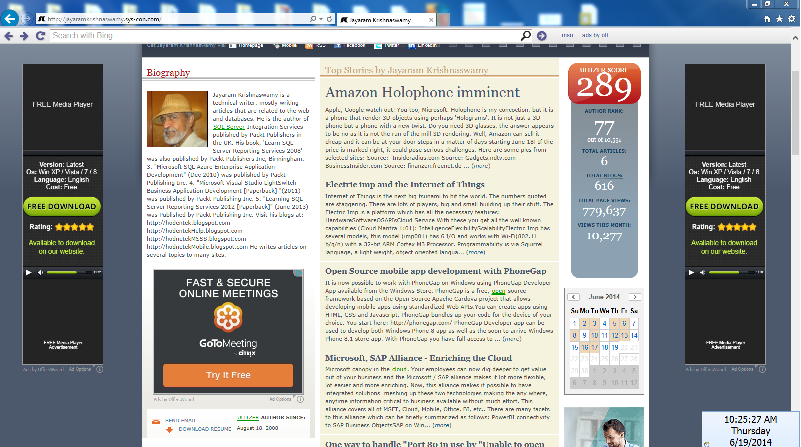
This is an obnoxious malware that somehow gets into your computer (even inadvertently entering the address of an unknown URL). It manifests in the form of putting long rectangular pop-up ads on four sides of your browser besides adding many other obnoxious features like page turnover effects etc. as shown:
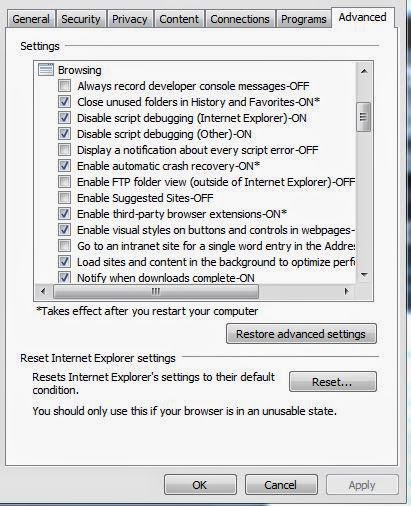
On noticing this you should immediately take some action. Tried to cleanse with these steps in IE 11.0 but did not seem to remove this malware.
Tweaked the Advanced features some more as shown:
But this did not help. Also tried Microsoft Security Essentials which validated that the PC is clean, but did not help.
Finally, did a System Restore to an earlier date and this seemed to have fixed the problem.
After restore the IE displayed the following message:
The lesson is if the Internet Options | Advanced (tab) | Browsing node changes (mostly reset) does not fix perhaps you should restore the computer to an earlier date. You should take steps to remove this malware as soon as you notice it.
Microsoft Security Essentials is a free download available for Windows 7 and Windows 8 OS.
When you need to fashion a web page to include in-line data, you would use the data URI (URL)
scheme.
Here is the IETF reference for the Data URL scheme, http://tools.ietf.org/html/rfc2397
As described in the above it is,
"A new URL scheme, "data", is defined. It allows inclusion of small data items as "immediate" data, as if it had been included externally"
You can embed different kinds of data in a web page using the source pointing to this URL scheme.
For example you can embed the image of a red dot with the following scheme,
The above is from WIKIPEDIA.
Read the advantages and disadvantages of using URL scheme in web pages in the above link.
As to using audio files, you would normally code as follows:
If the browser does not support the .ogg file it would play the MP3 file and if it cannot it will
display a message as indicated.
In IE11 you get to see the audio controls but you get an error message.
When you accept to allow running scripts it changes to a different error but does not play the audio.
Firefox 26.0 does not play the file although the controls are displyed briefly to fade quickly.
Safari 5.1.7 clearly does not support the audio element.
Now how do you use the data URL Scheme to play audio?
The Base64 content is too big and therefore truncated.
IE11 does display the controls but the error in display is 'Invalid source'.
Safari 5.1.7 does not run the audio content.
However Mozilla Firefox 26.0 does play the audio file.
How do you create Base64 content. You can take your *.wav file and run it thorough a program that
converts it to Base64 format and use it in the web page.