Showing posts with label SQL Anywhere 17. Show all posts

Monday, December 5, 2016

Is there a spatial data visualizer on SQL Anywhere 17?

The short answer is yes.

Following globalization and opening of data centers all over the world, visualizing spatial data has become urgent and is supported by applications as well as databases.

SQL Anywhere 17 does have a spatial data viewer and you will have to invoke it in the Interactive. The procedure is as follows:

There is table called SpatialShapes in the 'demo' database which has several geometric shapes in each row of it's SpatialShapes table.

After connecting to the 'demo' database right click the SpatialShapes(GROUPO) table to reveal a drop-down list as shown.


SpatialGeom_00

In the above drop-down pick the first option, View data in Interactive SQL. The Interactive SQL windows appears as shown with a Select query.

SpatialGeom_01

Click Tools to display the drop-down list.

SpatialGeom_02

Click Spatial Viewer in the list to open the Spatial Viewer1 window as shown.


SpatialGeom_03

 Click Execute at the bottom of the above window to display the graphic view of the data which consists of a variety of geometrical shapes as shown.


SpatialGeom_04

Wednesday, November 23, 2016

How do you retrieve JSON formatted data from SQL Anywhere 17?

SQL Anywhere 17 is a SAP Database.  Some of the earlier versions were released by SYBASE.

In SQL Anywhere 17 you have three different ways of getting JSON formatted data / JSON document.

You can use the FOR JSON clause  with:

  • SELECT Statement
  • Subqueries
  • Queries having Group By clause
  • Aggregate Functions and
  • Views
The result is a JSON array consisting of:

  • Scalar elements
  • Objects
  • Arrays
There are three ways of calling the FOR JSON Clause:

  • For JSON Raw
  • For JSON AUTO
  • For JSON Explicit
Note that SQL Server 2016 did get JSON support for the first time and has only For JSON Auto clause.

You run SQL Queries in Interactive SQL. Here is an example of a query that provides json document using the FOR JSON AUTO clause.


InteractiveSQL17JSON

Sunday, August 28, 2016

How do you use R Script in PowerBI?

PowerBI is a powerful tool and Microsoft has updated it regularly and it can connect to very many data sources.

Launch PowerBI after you have installed it on your desktop. In the Visualizations pane you will see the icon for R.


Click on it and you get the message shown above. Click Enable. The Report area and the RScript editor area gets displayed.
..

One needs to drag fields from the Fields pane to this area.

Right now I have no fields. Let me get something to put here.

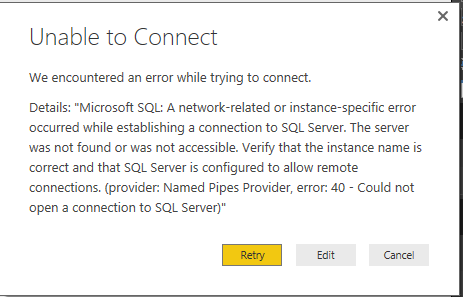
I connect to one of my old connections (which PowerBI has remembered after several updates although I have not used it very much). I use the GetData to connect to my previous connection to AdventureWorks on my SQL Server 2012. I am unable to connect.


Perhaps the Server is not ready. I wake it up from Services in the Control Panel. I retry connecting, I succeed. Voila! I have my data.


Just for demo, nothing planned yet. I just choose one table as shown in the above and click Load.

The UI gets loaded with fields from the chosen table as shown.


I use the DirectQuery option which connects Live to the table.


Now you can see the fields that are available for me to use (yellow rectangle).

Now you need to click and drag them on to the RScript plane. Actually I did not even drag and as if the program knew that I am going to drag, as soon as I clicked they entered the script area ass shown.


Well the script created a data frame and used the fields selected into the dataset as shown above.

Now I have not filtered the columns etc. but I can export the result as shown.


Add a line type dataset after the last line above and click the Right pointing arrow in the R script editor window which gets enabled.

It comes up with the next display showing that there was no Visual Created (bad choice of data to start with).


The Export produces a .CSV file that you can save. It appears that the default save folder is on the OneDrive. You can change it to a location of your choice.

In my next post I will describe connecting to a table where we can see some Visuals created after processed by the RScript editor.

Here is an example of Visuals created using  R Script  in Power BI. The 'demo' database used is on a SAP SQL Anywhere 17 Server.