This site is OK is OK but it hijacks other search engines and tries to show up first. It also seems to make search slow. I am sure it came from several other downloads I make often.
By following steps I have managed to get rid of it for now:

Cleaned up the Managed Extensions in IE 11 Search Provider's list (Ask does not show up anymore).
In Internet Explorer's Manage Add-ons look for anything related to Ask.com. You may not be able to delete it but you can disable.
FoxPDF Creator Toolbar for example brought in ASK.com. I disabled it, although FoxPDF is an excellent PDF editor.
Make sure ASK is not in Search Providers as well. If it is remove it.

askcom03.png
In Internet Options | General page use any site other than ask.com for the Home Page
MSN.com is the default Home Page.

askcom04.png
If you find an executable ApnStub.exe on your computer, delete it.
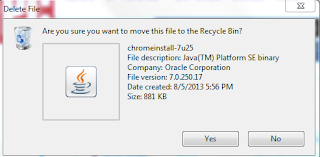
If you find ChromeInstall java program such as this one remove it.
askcom01.png
Well I have my browser not showing ask.com suddenly. I hope it is gone for ever.
By following steps I have managed to get rid of it for now:
- Removed all publisher references to ASK.com in Programs and Features
askcom02.png
Cleaned up the Managed Extensions in IE 11 Search Provider's list (Ask does not show up anymore).
In Internet Explorer's Manage Add-ons look for anything related to Ask.com. You may not be able to delete it but you can disable.
FoxPDF Creator Toolbar for example brought in ASK.com. I disabled it, although FoxPDF is an excellent PDF editor.
Make sure ASK is not in Search Providers as well. If it is remove it.

askcom03.png
In Internet Options | General page use any site other than ask.com for the Home Page
MSN.com is the default Home Page.

askcom04.png
If you find an executable ApnStub.exe on your computer, delete it.
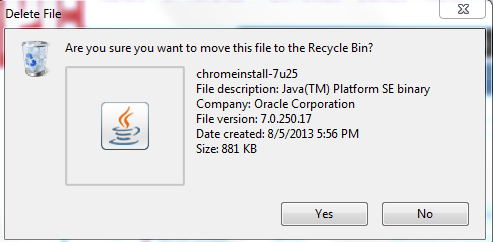
If you find ChromeInstall java program such as this one remove it.
askcom01.png
Well I have my browser not showing ask.com suddenly. I hope it is gone for ever.